How to Make an Employee Appreciation Video Your Team Records Together
To make an employee appreciation video, pick one person or team, invite coworkers to record a 30 to 60 second message with a clear prompt, set a deadline, then add names and music. Plan on one to two weeks from invite to playback.

| Step | What you do | Time needed |
|---|---|---|
| 1. Pick the person and the moment | Decide who it is for and when it plays | 5 minutes |
| 2. Choose how to collect clips | Shared folder or a group video tool | 10 minutes |
| 3. Write the invitation | One prompt, one deadline, one example | 10 minutes |
| 4. Collect and remind | Share the link, send one reminder | 5 to 7 days |
| 5. Put it together | Order clips, add names, music and photos | 30 minutes to 2 hours |
| 6. Play it | At the meeting, by link, or both | 10 minutes |
What is an employee appreciation video?
It is a short video of coworkers thanking one person or a whole team, each in their own words.
Some teams call it a video tribute or a video message card. Others make montage videos of photos and clips from the year. The version people remember has faces and voices: one coworker after another saying what the person did.
Recognition like that is rarer than most managers think. Only one in three U.S. workers gave Gallup's top answer when asked if they had been recognized or praised for good work in the past seven days, per Gallup's research on low-cost recognition.
How do you make an employee appreciation video, step by step?
Six steps, most of them short; the waiting is the longest part.
Step 1: Pick the person and the moment
Decide who the video is for and when it will play. A video for one person works for an anniversary, a promotion or a send-off; a video for the whole team suits Employee Appreciation Day or the year-end meeting.
- Time needed: 5 minutes
Work back from the date. Open collection 1 to 2 weeks before, and close it 2 to 3 days before the day.
Step 2: Choose how to collect the clips
You have two options. Ask everyone to send phone videos to a shared folder and edit them yourself, or use a group video tool that collects clips from one link.
- Time needed: 10 minutes to set up either one
The shared folder costs nothing but brings sideways phone videos, mismatched file types and a weekend of editing. A tool trades a small fee for skipping that.
Step 3: Write the invitation
Give people one prompt, a length and a deadline. "Tell Maya about one moment from this year when she made your job easier, in under a minute, by Thursday" gets better clips than "say a few words."
- Time needed: 10 minutes
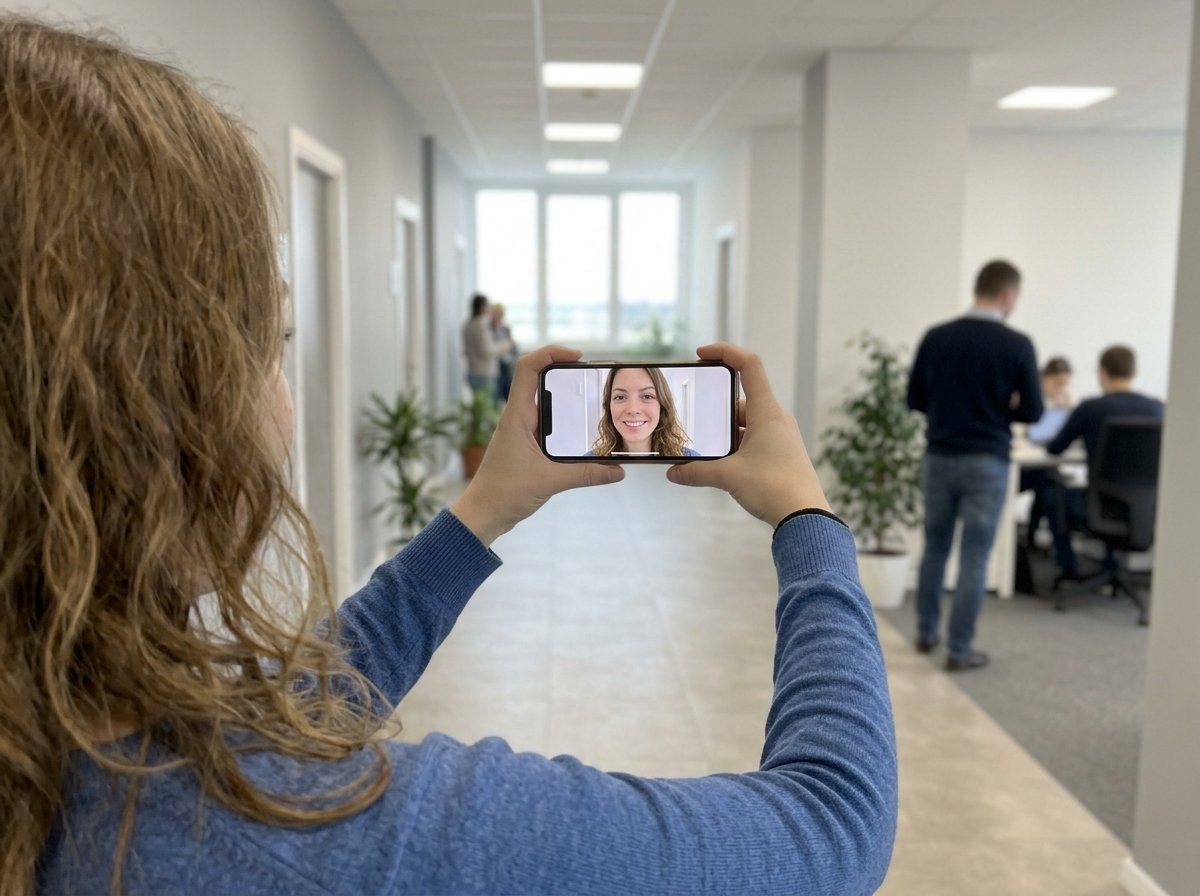
Add two tips: hold the phone sideways and record somewhere quiet. Recording your own clip first and sharing it as an example helps more than any instruction.
Step 4: Collect clips and send one reminder
Share the link where your team already talks: email, Slack, Teams or a text thread. Keep the person it is for out of that channel.
- Time needed: 5 to 7 days of collecting; 2 minutes for the reminder
Send the reminder the day before the deadline. Most clips arrive in the last 24 hours, and a reminder with "eleven people have recorded" brings in the rest.
People recording from home is normal now.
In 2025, 35 percent of employed people did some or all of their work at home on days they worked, per the Bureau of Labor Statistics American Time Use Survey. A link reaches them where a camera at the office cannot.
Step 5: Put it together
Open with someone who knows the person well, end with the most senior person or the funniest clip, and group the middle by team. Add each speaker's name, background music and a few photos.
- Time needed: 30 minutes with a group video tool; up to 2 hours editing by hand
Keep the finished video under ten minutes for a meeting. Longer is fine if the person will watch it alone.
Step 6: Play it
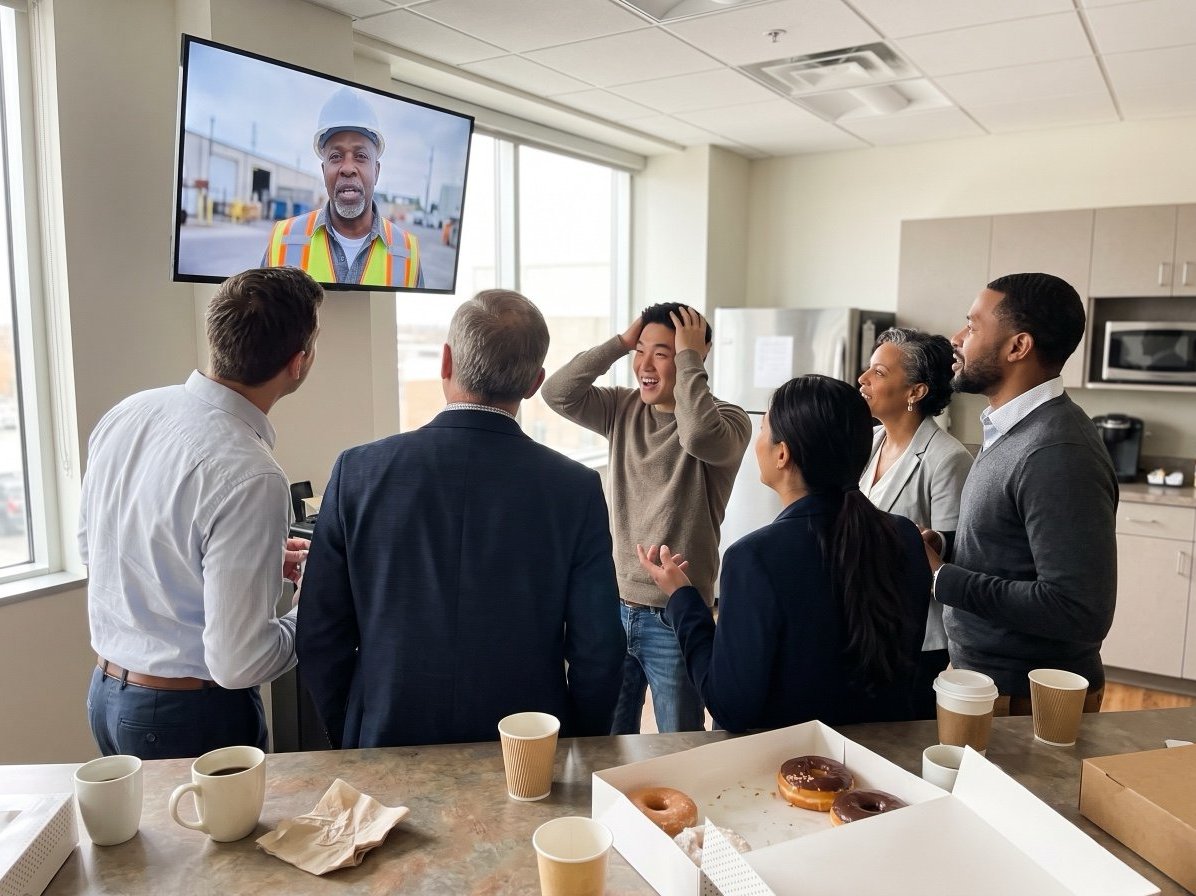
Play it at the huddle, the all-hands or the farewell lunch, then send the person the link so they can watch it again.
- Time needed: 10 minutes
Turn the sound up and watch the person, not the screen. That reaction is half the point.
If someone missed the deadline, let them say a few words live after the video ends. A late thank-you in person still counts, and it gives the room a second moment.
What does Tribute do for an employee appreciation video?
It handles steps 2 through 6 from one link: we make Tribute, the group video gift.
Tribute is a group video gift that turns messages from coworkers into one surprise video.
It works by inviting everyone to record a short clip from their phone or computer; Tribute compiles the clips, music and photos into a finished video you share or play together.
No app or account is needed to record, and guided prompts help people say something specific. The editor adds names, captions, music and photos; the download has no watermark. Over 8 million video messages have been shared on Tribute.
- Time needed: 15 minutes to set up; collecting videos takes a few days
- Cost: Free to start a draft; from $35 when you publish, and $99 for Concierge editing as of November 2026
Best for: Teams where people work in different places, shifts or time zones.
Why it works: Unlike a shared folder, every clip arrives in one place, the right way up, ready to arrange.
👉 Collect every clip from one link if your team is spread out and the last thing you want is a folder of sideways phone videos.
Can you make an employee appreciation video without editing it yourself?
Yes, if you are organizing this on top of your job and have no time for step 5.
For that organizer, editing is where the whole project stalls: forty clips, three file formats, and a spare weekend that never comes. With a Tribute employee appreciation video, our Concierge editors take it over.
You do not have to trim silences, balance volume or decide the order. A dedicated editor builds the final video, removes broken or duplicate clips, groups people by team if you ask, and you review and approve it, with revisions included.
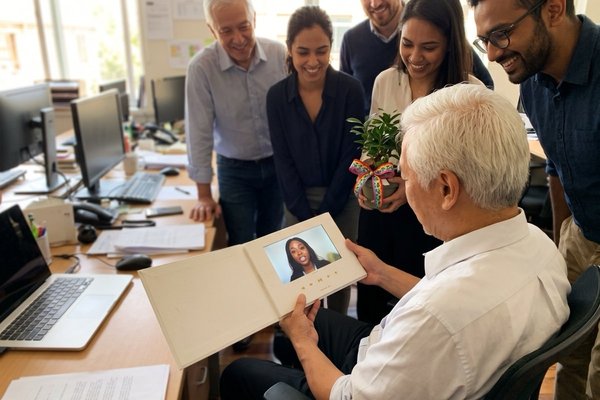
The finished video plays at the meeting, sits in the person's inbox, and for a big milestone can go in a Video Book that plays when the cover opens.

It is the wrong answer if you enjoy editing and have the evening open. Collect the clips, open your editor, and make it yours.
What should coworkers say in an employee appreciation video?
One moment, what it meant, and a thank-you, in under a minute.
- "Maya, when the system went down in April, you stayed until it was back. I went home on time because of you."
- "You answered my first hundred questions without once making me feel silly. Thank you."
- "Ten years of Friday donuts. The donuts were good. You were better."
- "I'm recording this from the airport because I didn't want to miss it. Congratulations."
Compared with a written note, a spoken message can be shorter and still land, because the voice does half the work.
What occasions suit a video message card?
Any moment where a card would feel too small.
- Employee Appreciation Day, for one person or the whole team
- Work anniversaries and years of service
- Promotions and farewells
- Boss's Day, from the team; see our Boss's Day guide
- Year-end thank-yous at the holiday party
For smaller moments, a signed card is often enough. Our guides to the group greeting card and virtual cards for groups to sign cover those, and our employee appreciation ideas list has more.
Frequently Asked Questions
How long should an employee appreciation video be?
Ask each person for 30 to 60 seconds. With 10 to 15 people that comes to about ten minutes, which fits a meeting.
How far ahead should you start?
Open collection 1 to 2 weeks before the day, and set the deadline 2 to 3 days before it. That leaves time to put it together.
What is the difference between a montage and a group video?
A montage is photos and clips set to music. A group video is coworkers speaking to the person, one after another. Many teams add a few photos to the group video.
Do coworkers need an app to record?
Not with Tribute: people record from any phone or computer, with no app or account. If you use a shared folder, they need a way to upload files.
Can you add music and photos?
Yes. Tribute's editor adds music, photos, names and captions; if you edit by hand, any video editor will do it.
How do you keep it a surprise?
Share the link in a channel or email thread the person is not in, and ask people not to mention it in public channels.
👉 Hand the clips to an editor and just press play when you are the one organizing and the only spare hour you have is the one at the party.