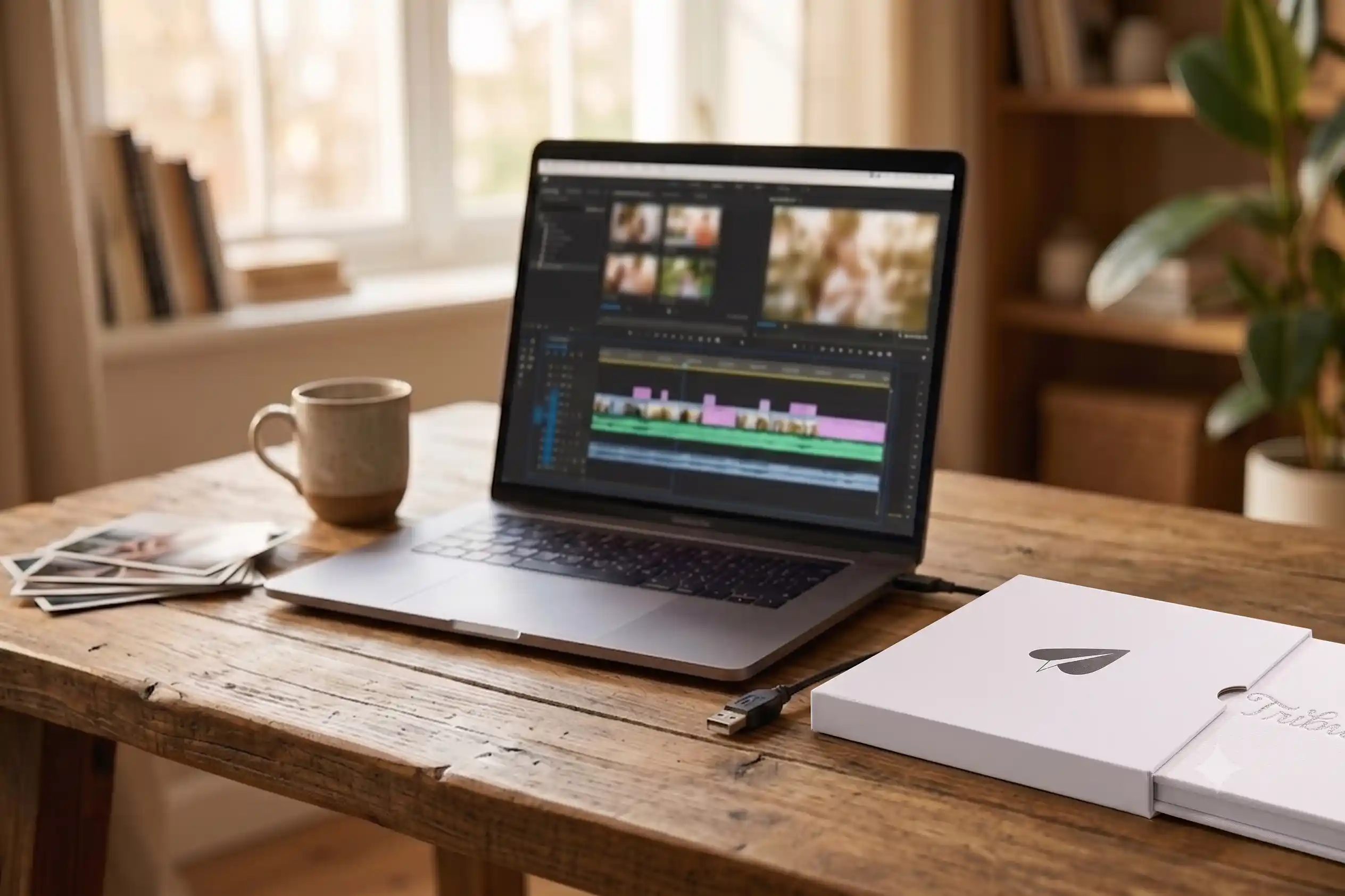
A DIY memorial video is something you can make yourself using photos, video clips, and music from your own collection. The process takes a few hours of focused work, and the result is a personal tribute you and your family can keep forever. If gathering clips from many people sounds like too much to coordinate alone, there are collaborative tools that handle the editing for you.
What Do You Need Before You Start a DIY Memorial Video?
Before you open any software, gather your raw materials. You will need photos in digital form, any video clips you have saved, and a rough sense of the story you want to tell. Spending 30 minutes organizing these before you edit will save you hours of frustration later.
Scan printed photos with your phone if you do not have digital versions. Most phone cameras produce files clear enough for a standard 1080p video. Collect short video clips from your own phone or ask one or two close family members to text you what they have.
Write a loose order for your clips before you start editing. A simple arc works well: early life, relationships and milestones, later years, and a closing image that feels like a goodbye. That structure keeps the editing session focused and gives viewers a sense of a full life.
Which Software Works Best for a Homemade Tribute Video?
The right tool depends on what device you have and how much time you want to spend learning it. Here are the most reliable options for a homemade tribute video made at home.
iMovie (Mac and iPhone)
iMovie comes free with Apple devices and handles photos, video clips, and music with a simple drag-and-drop interface. You can add titles, transitions, and Ken Burns pan effects on photos with a few clicks. Export at 1080p when you are done.
Best for: Apple users who want a clean result without paying for software.
Why it works: The templates reduce decision fatigue, and the built-in music library removes the risk of copyright problems on YouTube or Facebook.
CapCut (Desktop and Mobile)
CapCut is a free desktop and mobile editor with strong text animation and a library of background music. The interface is more modern than iMovie and the mobile version lets you edit from a phone if that is more comfortable.
Best for: Anyone who wants more visual style without a steep learning curve.
Why it works: The auto-caption feature is useful if you want to add spoken words from a recorded message to the screen.
Canva Video (Browser-Based)
Canva works in any browser with no download required. The slideshow-style format is well suited for a photo-heavy memorial video at home, and the template library includes somber, elegant designs.
Best for: Anyone who finds video editing software intimidating or who only has a few dozen photos.
Why it works: You can share the Canva link with a family member to review before you export, which saves you from printing corrections alone.
See also: Free Memorial Video Maker Options Compared
How Do You Structure a Memorial Video at Home Step by Step?
A clear structure makes the editing process feel manageable rather than overwhelming. Follow these steps in order and you will have a finished video within a few hours.
Step 1: Choose a running time. Most memorial videos land between three and seven minutes. Longer is not always more meaningful. A focused five-minute video holds attention better than a fifteen-minute one.
Step 2: Sort your clips into folders. Label them by era or theme: childhood, family, work life, later years. Drag them into your editor in that order so you are not making structural decisions while you are also adjusting clip length.
Step 3: Pick your music first. Music sets the emotional tone of the whole piece. Choose one or two songs that the person loved, or that match the feeling you want to leave people with. Then adjust clip pacing to fit the music rather than the other way around.
Step 4: Keep transitions simple. A plain cut or a slow crossfade is almost always the right choice. Flashy wipes and star transitions pull attention away from the photos themselves.
Step 5: Add a title card and a closing card. Open with the person’s name and the years of their life. Close with a line that feels like it belongs to them: a phrase they used, a place they loved, or a simple “With love.”
Step 6: Export and test on a TV screen. What looks good on a laptop may have small text or dark shadows on a large screen. Preview on the biggest display you have before the service.
According to the National Funeral Directors Association, personalized tributes that reflect a person’s actual life and relationships have become a central part of memorial services. A video made with real photos and real music is one of the most personal forms that tribute can take.
👉 Start a group memorial video on Tribute, free to start
What Music Can You Use in a Memorial Video Without Copyright Problems?
Copyright is one of the most common stumbling blocks in a DIY memorial video. If you plan to share the video on YouTube, Facebook, or any streaming platform, unlicensed music will likely get the video muted or taken down.
The safest options are royalty-free music libraries. Pixabay Music, Free Music Archive, and YouTube Audio Library all offer tracks you can use at no cost. Search terms like “gentle piano,” “quiet acoustic,” or “peaceful instrumental” will return results that suit a memorial tone.
If the person had a favorite song that you want to use, consider playing it at the service rather than in the video itself. That way the moment belongs to the room, not to a file that may get flagged later.
The Hospice Foundation of America notes that music is one of the most powerful tools for activating memory and emotion during grief. Choosing music the person loved is worth the extra step of finding a licensed version.
When Does DIY Editing Feel Like Too Much?
There is a real cost to the DIY path that does not always show up until you are in it. Editing software has a learning curve. Gathering clips from scattered family members means sending follow-up messages at a painful time. And the emotional weight of sitting with hundreds of photos for hours can be heavier than expected.
If the thought of coordinating contributors and spending hours in an editing timeline feels like too much right now, a collaborative platform handles the parts that are hardest to do alone.
Tribute (tribute.co) is a group video gift platform that lets you collect personal video messages from friends, family, and community into a polished memorial montage. It works by sharing a link: contributors record from any device, no app needed, and Tribute compiles everything automatically.
Unlike editing software that requires one person to do all the work, Tribute lets the whole family contribute from wherever they are. Unlike a slideshow of photos, Tribute captures people speaking in their own voice about the person who died. The result is a living memorial that no single editor could have made alone.
Here is a short video showing how a Tribute memorial comes together:
Tribute is free to start, and contributors do not need an account or an app. Automatic reminders go out to anyone who has not yet recorded, so you are not chasing people during one of the hardest weeks of your life. According to Tribute, more than 82 percent of recipients cry tears of joy when they receive a completed video.
👉 Collect video messages from everyone who loved them
See also: How to Make a Memorial Video: Complete Guide
How Do You Add Personal Touches That Make a Memorial Video Feel Real?
The details that make a memorial video feel like the actual person rather than a generic tribute are usually small. A photo of their handwriting. A clip of them laughing. A place they returned to every year. These details are worth hunting for.
Ask siblings and children to share one photo they have never posted publicly. Those are often the most honest images: a candid moment in a kitchen, a goofy face at a birthday party, a quiet afternoon that nobody planned to document.
If the person left voicemails you still have, a voice note recorded on a phone, or a video from a family gathering, those clips anchor the whole video. Hearing someone’s voice in a memorial is something that photos alone cannot replicate.
The What’s Your Grief resource library on grief and memorialization notes that personalization is one of the most meaningful things a memorial can offer. Details that feel specific to one person are the details people remember.
See also: How to Honor the Memory of a Loved One
What Should You Do After the Memorial Video Is Finished?
A finished video is worth protecting and sharing in more than one format. Export a high-resolution copy and save it to at least two locations: a cloud drive and a physical backup like a USB drive or an external hard drive.
Share a private YouTube or Vimeo link with family members who could not attend the service. A private link lets people watch without the video being searchable or public. Many families find that people who missed the service are especially grateful for a link they can watch alone at home.
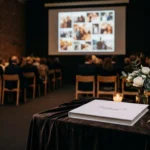
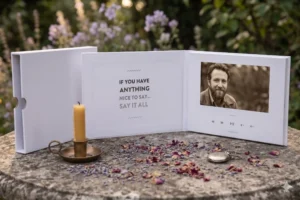
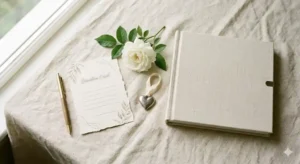
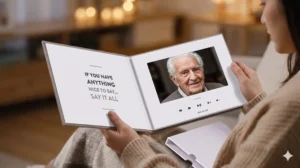
If you want a physical version to give as a gift or keep on a shelf, the Tribute Video Book is a linen-bound hardback with a seven-inch screen that plays automatically when you open it. It requires no technical setup and holds the video permanently inside a keepsake you can hand down.
See also: Memorial Video Maker: Tools and Tips
Frequently Asked Questions About DIY Memorial Videos
How long does it take to make a DIY memorial video?
Most people spend between three and eight hours on a DIY memorial video, depending on how many photos they have and how familiar they are with the editing software. Gathering clips from family members often takes longer than the editing itself. Using a collaborative platform can cut that time because contributors submit their own clips directly.
What is the best free software for a memorial video at home?
iMovie is the most reliable free option for Mac and iPhone users. CapCut and Canva Video are strong choices for Windows users or anyone who prefers a browser-based tool. All three can produce a polished result with a modest time investment.
How many photos should a memorial video include?
A five-minute video at a standard photo pace holds roughly 30 to 50 images comfortably. More than that can feel rushed. Choose quality over quantity: 30 photos that tell a real story are more meaningful than 100 that feel like a slideshow.
Can I make a memorial video on my phone?
Yes. CapCut, Canva, and iMovie all have mobile versions that work well for a phone-based edit. The main limitation is screen size: editing on a small screen makes it harder to judge photo framing and text readability. Preview on a larger screen before you share.
How do I collect video clips from family members for a memorial video?
The direct approach is a group text or email asking people to send what they have. A more structured approach is to use a platform like Tribute, which gives everyone a shared link to record or upload clips from any device. Tribute sends automatic reminders so you do not have to follow up individually.
What aspect ratio should I use for a memorial video?
16:9 widescreen is the standard for most screens and works well for TV playback at a service. If the video will be shared on Instagram or viewed primarily on phones, a 1:1 square or 9:16 vertical format may display better. Export in 1080p resolution for any format.
Is it better to make a DIY memorial video or use a professional service?
A DIY video gives you full control over every image and moment. A collaborative platform like Tribute gives you something a solo editor cannot create: video messages from many people, each speaking in their own words. The best choice depends on whether the most meaningful content is in your photo library or in the memories people carry and want to share.
The Most Important Thing About Making a Memorial Video
A memorial video does not need to be perfect. It needs to be true. The details that feel small in the moment are the ones that will matter most in ten years: a laugh caught on camera, a sentence someone spoke, a place you all loved together.
If you are making the video yourself, give yourself permission to keep it simple. If coordinating clips from across the family feels like too much on top of everything else, Tribute makes the collaborative version possible without requiring anyone to become an editor.
Over 8 million messages have been sent through Tribute, many of them at moments exactly like this one. The platform is free to start, and the video is ready to share the moment the last contributor records.