
Photo Video Editor: Mixing Stills and Clips in One Video
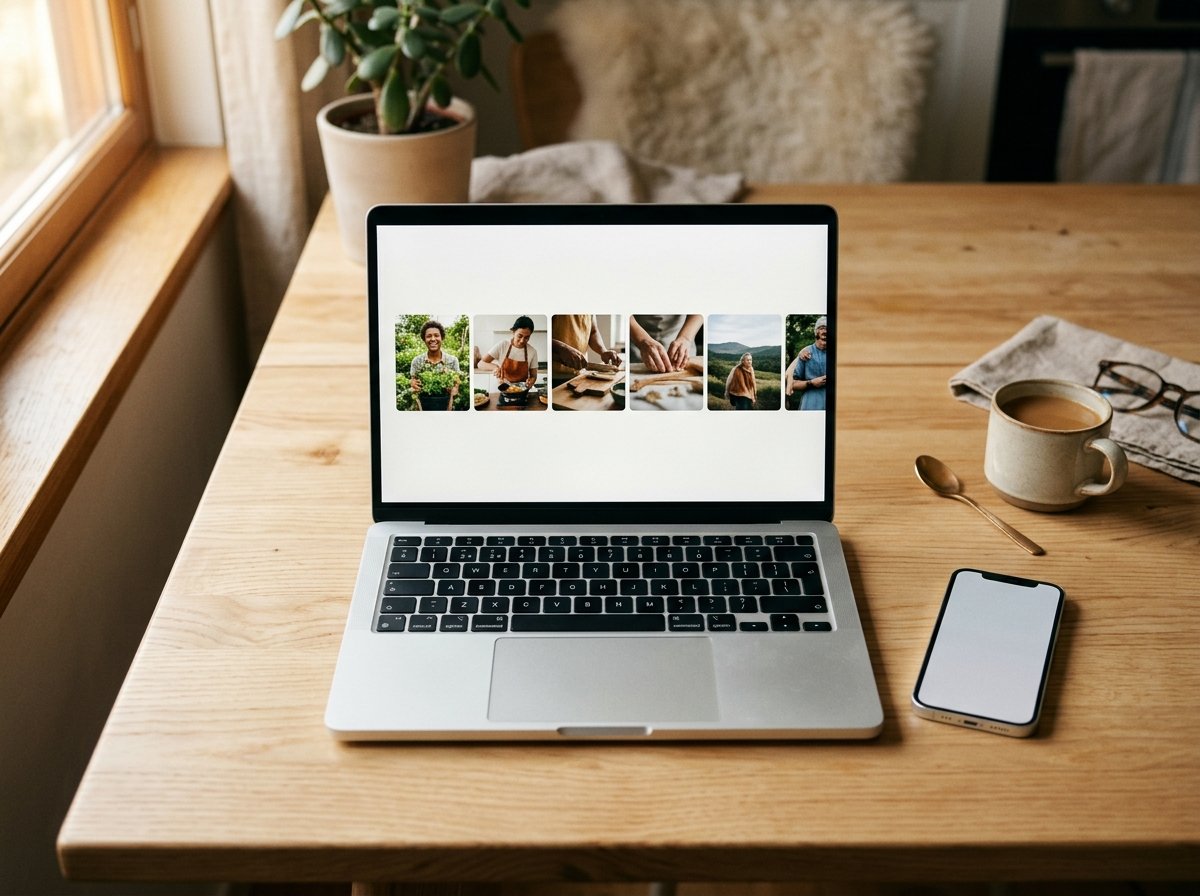
A photo video editor is any editor that puts stills and video clips on the same timeline and exports one video. CapCut does it on a phone, iMovie on an iPhone or a Mac, Canva in a browser. The work is not the mixing: it is deciding how long each still holds.
One note before the steps: we make the Tribute video editor, and it appears once near the end for the case it fits. Every other tool here is one we do not sell.
What does a photo video editor need to do?
Four things. Accept both media types on one track, let you set a duration for each still, give each clip its own volume, and export a single file at full resolution.
On a phone this is a photo video editor app rather than a desktop program, and the shortlist is short: CapCut, iMovie and the editor built into your gallery.
Some tools call themselves a photo video maker, which is the same job under a different name.
What separates them is movement. A still sitting motionless between two clips looks like the video stopped, so the editors worth using either pan across the image or let you add that yourself.
How do you mix photos and clips in CapCut?
CapCut treats a photograph as a clip that happens not to move, which is the right model and makes everything else follow.
- Open CapCut and click Import on desktop, or tap New Project on a phone, then add your photos and clips together.
- Drag them onto the timeline in the order you want, mixing stills and footage as you go.
- Drag the edge of a photograph to set how long it stays on screen.
- Open the Transitions tab and drop one between two items where a hard cut feels abrupt.
- Click Audio to add a music track, then set the volume of each clip on its own.
- Click Export and check the format, resolution and frame rate before the render starts.
CapCut's published walkthrough covers the desktop build in this order. The mobile app reaches the same controls from a toolbar along the bottom of the screen, so the labels match and the route does not.
Best for: A mix of twenty or thirty items where you want per-clip volume without learning an editor.
Why it works: Stills and clips share one track and one set of handles, so there is nothing new to learn when you add a photograph.
How do you add photos to an iMovie project?
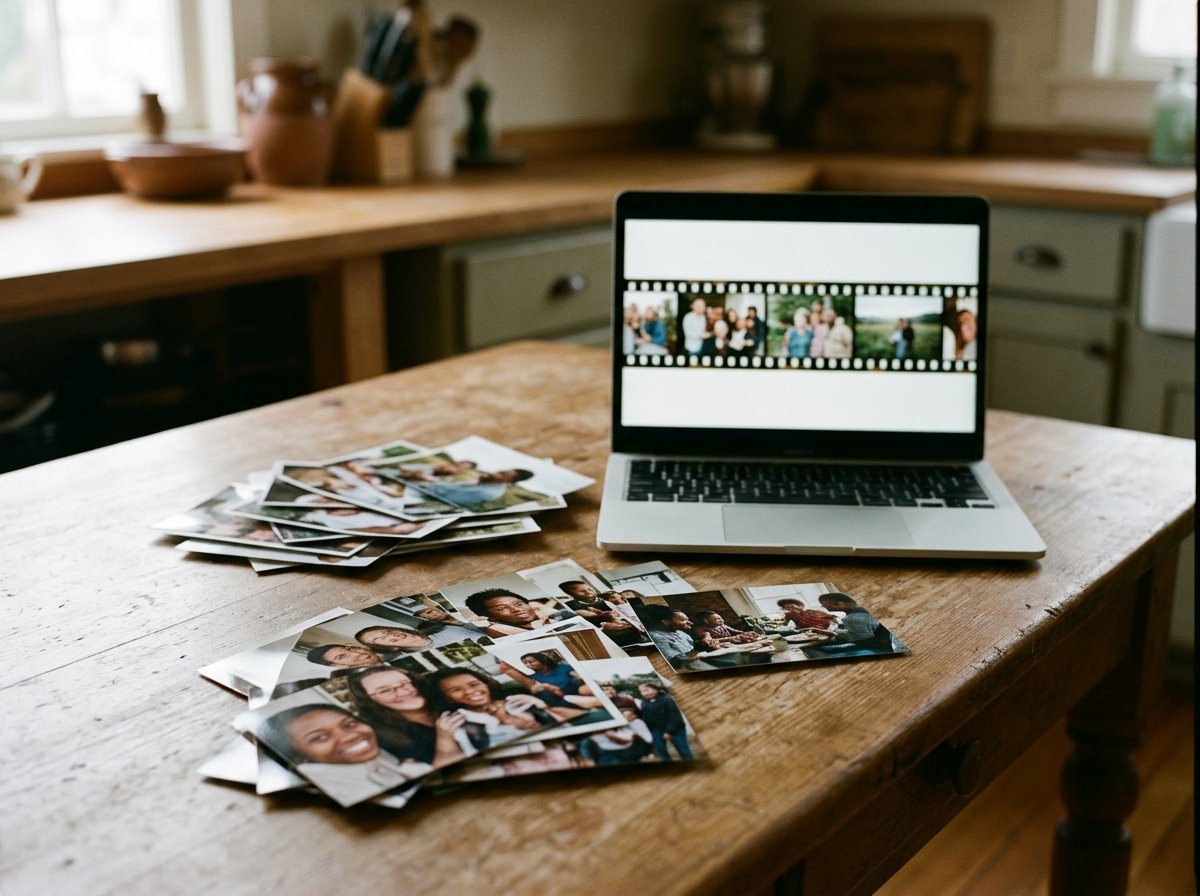
iMovie is the only tool here that gives a still image movement without being asked.
- Open your project and scroll the timeline so the playhead sits where the photograph should go.
- Tap Add Media, then Photos or Albums.
- Tap an album, then tap the photo. Touch and hold it to preview it at size.
- Tap Add to Project. If a Download button appears first, the image is in iCloud and has to come down before it can be used.
- Drag the photo's trim handles to shorten or extend how long it holds.
Apple documents this in its guide to adding video clips and photos in iMovie, which also gives the two defaults worth knowing: a photograph displays for about three to six seconds depending on what sits either side of it, and arrives with a slow pan and zoom across the frame.
Best for: An iPhone full of both, and no wish to install anything.
Why it works: The pan and zoom is on by default, so the stills move at the same moment the clips do and the video never freezes.
How do you do it in a browser?
Canva's video editor takes photos and clips on the same main track, with text and graphics layered above them.
- From the homepage select Video, or select Create and choose Videos, then pick a size.
- Select the plus button beside the main track, choose Uploads, and bring in your photos and clips.
- Drag the left and right handles of an item on the timeline to change when it starts and how long it runs.
- Drag anything from the main track up to an upper track to layer it over the footage.
- Select Add Audio in the timeline to add music, which lands in its own track section.
- To cut an item, park the playhead and press the S key, or choose Split from the more menu.
That rebuilt timeline is reaching accounts in stages, according to Canva's help center, so some people still see the older page-based editor, where each page is a slide and element timing is hidden.
Compared to CapCut, the browser route costs you upload time and buys you a laptop screen to work on.
Best for: A video with titles, where the photographs need text over them.
Why it works: Separate tracks mean a caption can sit over a still without becoming part of it.
How long should a still hold between clips?
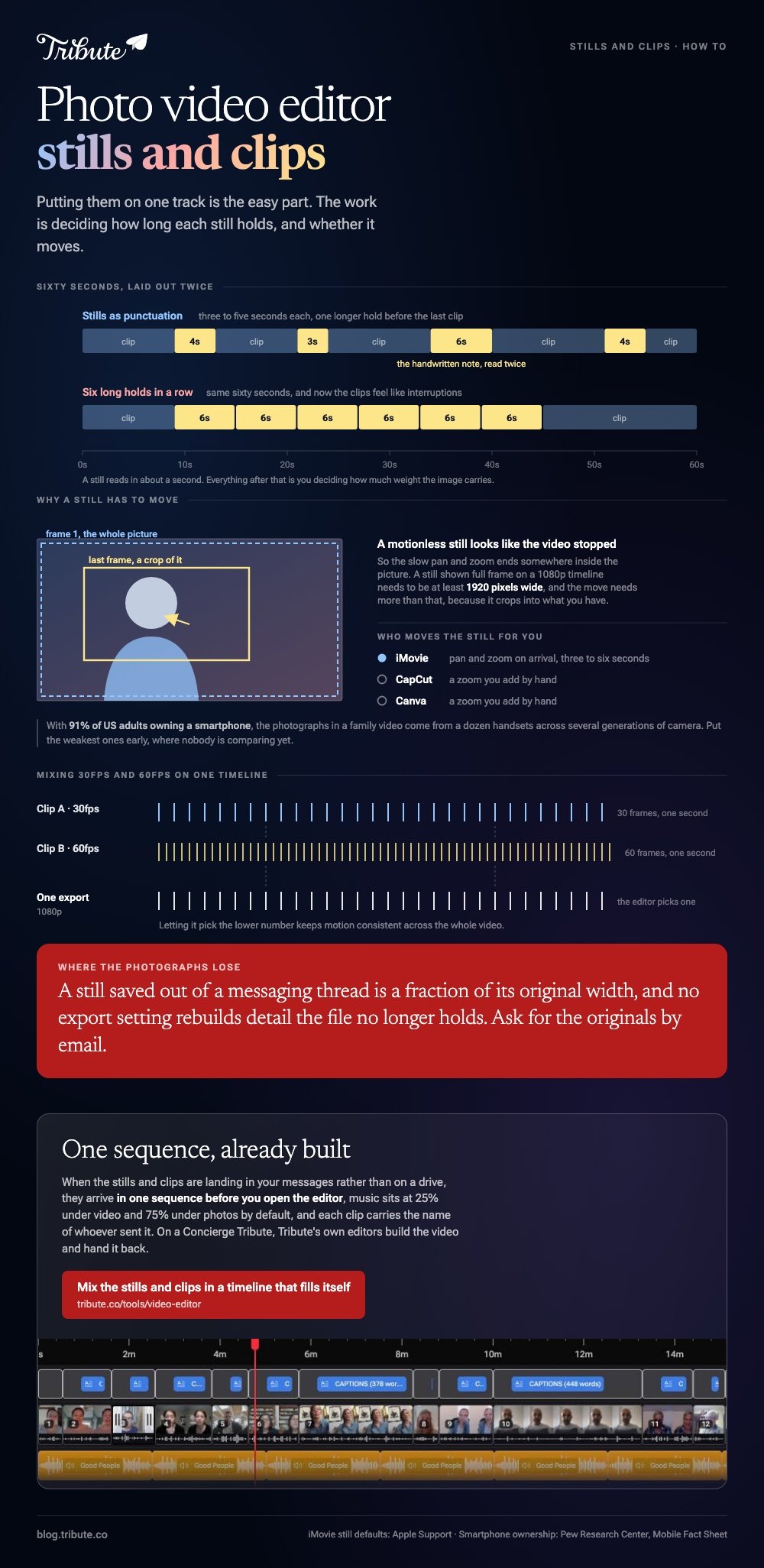
Three to five seconds, and shorter than you think when the clips either side are busy. A still reads in about a second; everything after that is you deciding how much weight the image carries.
Unlike a slideshow, where every picture gets the same count, a mixed video wants the stills to behave like punctuation. One long hold before the last clip lands well. Six long holds in a row and the clips start to feel like interruptions.
The exception is text. A photograph of a handwritten note or a sign needs long enough to be read twice by someone who is not paying attention, which is seldom under six seconds.
Why do the photographs look worse than the clips?
Because of where they came from. A photo saved out of a messaging thread can be a fraction of its original width, and no export setting rebuilds detail the file no longer holds.
Ask for the originals by email or a shared album rather than by text.
The second cause is scale. A still shown full frame on a 1080p timeline needs to be at least 1920 pixels wide, and a pan and zoom needs more than that, because zooming in crops into the pixels you have.
With 91% of US adults owning a smartphone, according to the Pew Research Center mobile fact sheet, the photographs in a family video come from a dozen handsets across several generations of camera. Put the weakest ones early, where nobody is comparing yet.
What if the photos and clips came from several people?
Then the editing is the small part. Chasing twenty people, getting files at full quality instead of compressed copies, and putting them in an order that makes sense is where the evening goes.
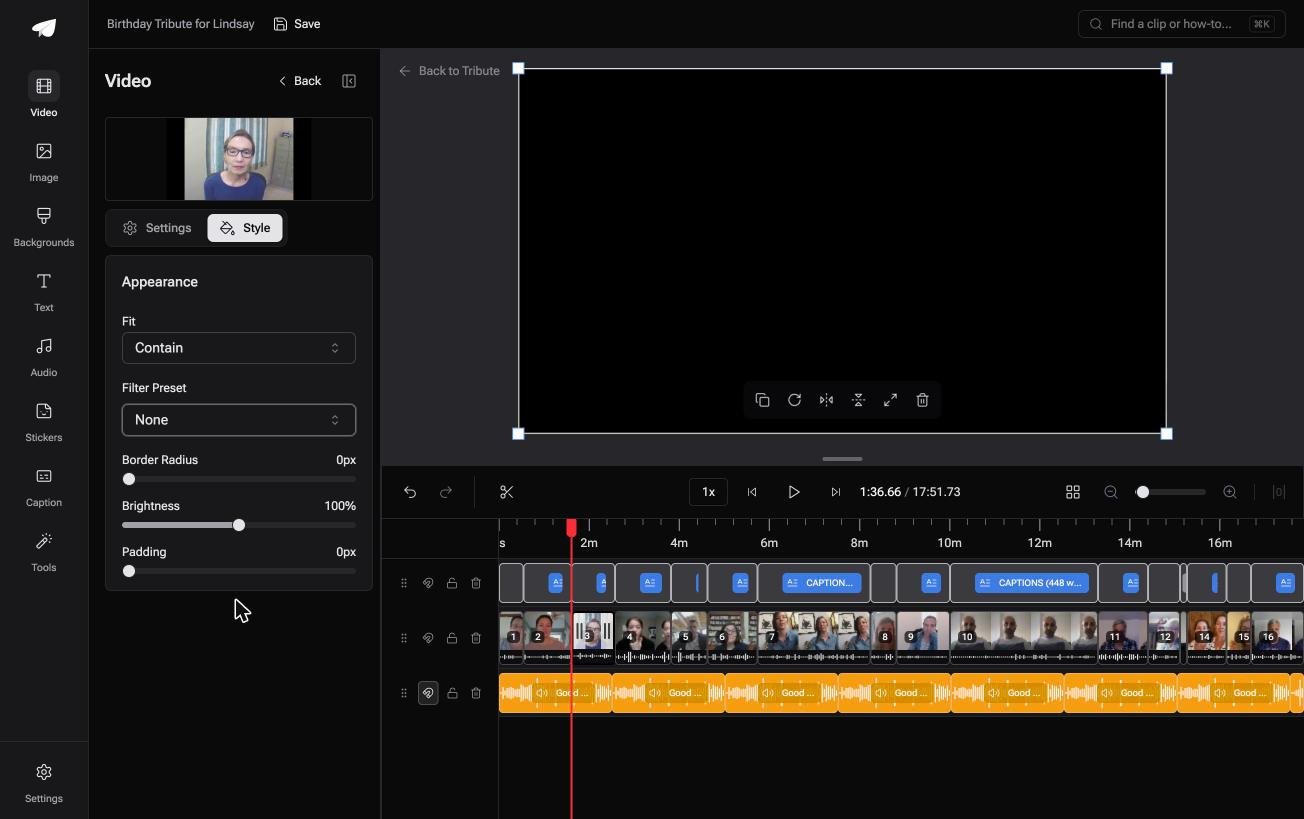
The Tribute video editor is a browser-based group video editor: contributors record clips on their phones and Tribute assembles them on a timeline with the music balanced under the voices.
Stills and clips arrive in one sequence before you open the editor, music sits at 25% under video and 75% under photos by default, and each clip carries the name of whoever sent it.
It lives inside a paid Tribute and is not a general purpose editor.
Best for: Stills and clips you did not choose and did not shoot, arriving in no order at all.
Why it works: The collecting and the ordering are done before you start, so the only work left is the part you would enjoy.
More on that in one video from thirty different phones and turning everyone's clips into one birthday video.
What settings should you export?
1080p and whatever frame rate the clips were shot at. Mixing 30fps and 60fps footage forces the editor to pick one, and letting it pick the lower number keeps motion consistent across the video.
Watch the whole thing before you send it.
YouTube is where most of these end up, and 84% of US adults use it, per Pew's social media fact sheet, so an unlisted link reaches people without asking them to sign in or download a file.
For the stills-only version of this job, see turning stills into a video, and for everything in one frame at once, a photo and video collage.

Frequently Asked Questions
Can I use one app for both photo editing and video editing?
Yes, though the photo tools are shallow. CapCut and Canva both crop, filter and adjust a still inside the project, which covers most of what a family video needs. Serious retouching belongs in a photo app before you import.
Does adding a photo change the video quality?
No, but it can change the resolution the whole project renders at if the still is smaller than the timeline. Check the dimensions of the smallest image before you build around it.
How do I stop a still image looking flat?
Give it a slow pan or zoom. iMovie does this by default, CapCut and Canva both have a zoom you can add by hand, and six seconds of movement across a face reads as video rather than a pause.
Can I add music across both photos and clips?
One track under the whole video is the normal approach. Set it low under the clips where someone is speaking and let it come up over the stills, which have no sound of their own.
What file types can I mix?
JPEG, PNG and HEIC for stills, MP4 and MOV for clips. HEIC from an iPhone sometimes needs converting for a browser editor, which is a two-minute job and better done before you upload twenty of them.
Is a photo video editor app as good as a desktop one?
For this job, yes. Phone editors handle mixed media, per-clip volume and text, and the gap only opens at color work and multi-track audio that a family video does not need.
How many items is too many?
Phone editors slow down past about forty, browser editors cap on total upload size rather than count, and desktop editors handle hundreds. The real limit is the five minutes anyone will watch.
👉 Mix the stills and clips in one timeline that fills itself if they are landing in your messages rather than on a drive, and the quality the camera gave them survives.
