
Photo and Video Collage Maker: Mixing Stills and Clips
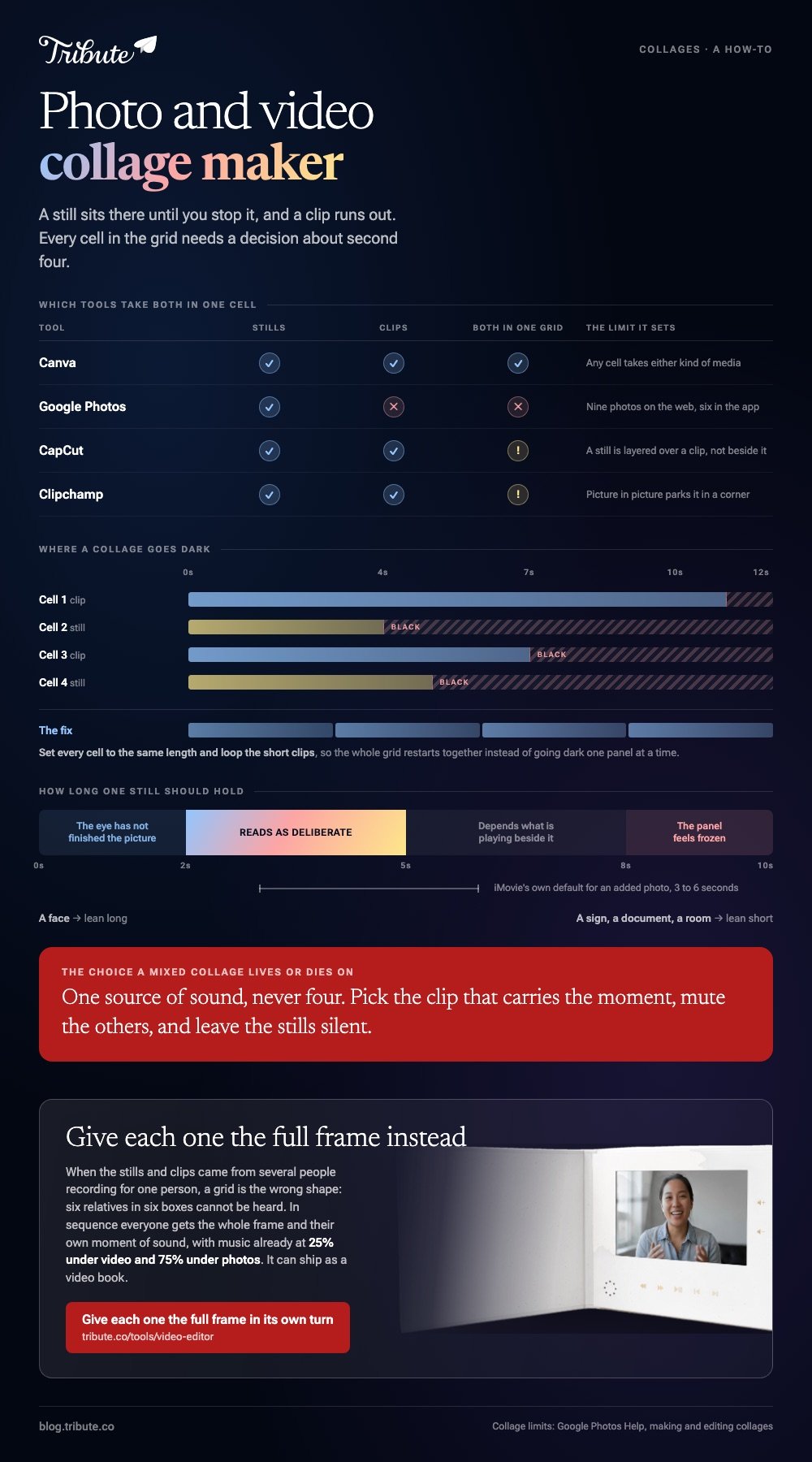
A photo and video collage maker solves one thing the pure photo tools never face: a still sits there until you stop it, and a clip runs out. Canva is the one browser tool that takes both in the same grid. On a phone, CapCut layers a photo over a clip.
One note before the steps: we make the Tribute video editor, and it appears once near the end for the case it fits. Every other tool here is one we do not sell.

What does a photo and video collage maker have to get right?
Time. A grid of six photographs is finished the moment you arrange it, and a video collage with photos in it keeps running, so every cell needs a decision about what happens at second four and second ten.
No collage app treats a photo and a video the same way. Stills get a duration you type or drag, clips get a trim, and the two controls live in different panels in most tools.
Get the lengths wrong and one panel goes black while the rest play on.
The second difference is sound. A photo brings none, so whatever audio you hear is coming from one of the clips or from a music track you added on purpose.
How do you mix a photo and a video in Canva?
Canva grids accept either kind of media in any cell, which is the shortest answer to this whole question. The layout is fixed first, then you fill it.
- Open a video design. From the editor side panel, select Elements.
- Under Browse categories, select Grids, then pick a layout with the number of cells you need.
- Click the cell you want to fill, then click Photos or Videos in the side panel. Click Apps first if neither is showing.
- Click Uploads for your own stills and clips, and add them there.
- Drag an item over the cell until it snaps inside. Repeat for each cell, mixing stills and clips as you go.
- Double-click any item to adjust it, drag the white circle handles to resize, reposition it inside the cell, then select Done.
- Select the grid, select Spacing in the toolbar, and set the gap between cells.
These steps are the ones in Canva's help article on using grids. Set the duration of each still on the timeline afterwards, because the grid controls the geometry and the timeline controls the clock.
Best for: A grid where some cells are photographs and some are moving.
Why it works: One container holds both media types, so you never resize a still to match a clip by hand.
Can Google Photos make a collage with video in it?
No. Google's collage tool is a stills tool. Its help pages describe selecting photos, and the limits are tight: up to nine on the web and up to six in the app.
- Go to photos.google.com, hover over a photo and click the check mark that appears.
- Select up to nine photos in total.
- At the top, click Create new, then Collage.
- To change the layout, open the collage in the Google Photos app, where Templates, Borders and Replace are available. Editing is not offered on the web.
Google documents this in its guide to making and editing collages, which also lists the app requirements: iOS 18 or later, and Google Photos version 7.64 or later.
If you want movement, Google's answer is a different feature called a Highlight video, which plays your photos and clips one after another rather than together.
Best for: A still grid you want in under a minute from photos already in your library.
Why it works: Nothing uploads, nothing installs, and the layouts are chosen for you.
How do you put a photo over a clip on a phone?
CapCut treats a photo as a clip with a duration, so a still can sit in a collage cell or float on top of moving footage.
- Open CapCut and tap New Project, then choose Collage for a grid, or start a normal project for a loose layout.
- Add your first clip, then tap Overlay and add the photo you want on top.
- Pinch, drag and rotate the photo into the corner you want.
- Drag the ends of the photo's bar on the timeline to set how long it stays on screen.
- Tap Export at the top right and check the resolution before the render starts.
CapCut's published walkthrough of the collage flow covers the mobile app and not the desktop build, so expect a different route to the same result on a laptop.
Clipchamp on Windows works the same way in principle: drop the image on a track above the video, then use the picture in picture control in the floating toolbar to park it in a corner.
Best for: One photograph held over a clip, or a two-up where the still is the point.
Why it works: Overlays and timing live in the same screen, so you can see the still appear and disappear while you drag it.
How long should each photo stay on screen?
Three to five seconds reads as deliberate. Under two seconds the eye has not finished the picture, and past eight the panel feels frozen, which shows most next to a cell that is moving.
Apple's iMovie sets its own default between about three and six seconds for an added photo, which is a reasonable sanity check when you are guessing. If a face is the subject, lean long.
If it is a document, a sign or a room, lean short.
Match the still to whatever is playing beside it. The cleanest collage sets every cell to the same length and loops the short clips, so the whole grid restarts together instead of going dark one panel at a time.
Should a photo and video collage have sound?
One source of sound, never four. Pick the clip that carries the moment, mute the others, and leave the photos silent, which they are anyway.
Music is the alternative when no clip has usable audio. Drop one track underneath, set it low enough that it does not fight anything, and fade it out at the end rather than letting it cut.
Compared to a photo collage, a mixed one lives or dies on this choice.

What if the photos and clips came from different people?
A grid is the wrong shape for that. Six relatives in six boxes cannot be heard, and the stills they sent get the same square as a clip that took somebody three takes to record.
The Tribute video editor is a browser-based group video editor: contributors record clips on their phones and Tribute assembles them on a timeline with the music balanced under the voices.
Photos and clips sit in one sequence, music runs at 25% under video and 75% under photos by default, and you can change either per clip. It lives inside a paid Tribute and does not build grids.
Best for: A birthday or retirement video where several people sent a mix of stills and clips.
Why it works: Sequence gives every contribution the full frame and its own moment of sound.

More on that in one video from thirty different phones and turning everyone's clips into one birthday video.
What size should the finished collage be?
Set the frame before you build, because resizing a grid afterwards reshuffles everything inside it. Upright suits a phone, square suits a feed, wide suits a laptop or a television.
With 91% of US adults owning a smartphone, according to the Pew Research Center mobile fact sheet, assume the collage will be watched upright on a small screen unless you know otherwise. That argues for fewer cells and bigger faces.
If the mix of stills and clips matters more to you than the grid, the sequence route is covered in mixing stills and clips in one video, and the clips-only version in putting several clips on one screen.

Frequently Asked Questions
Can I make a photo and video collage for an Instagram story?
Yes. Build it at 9:16 in Canva or CapCut, keep it to two or three cells so faces stay readable, and export before you open Instagram. The in-app layout tools handle stills and not clips.
Does a photo lose quality in a collage?
It can. A still shown in one quarter of the frame is displayed at about half its width, so a small image looks soft next to a video that was shot at full resolution. Use the largest version of the photo you have.
Can I add music to a photo and video collage?
Every tool here has an audio track for it. Add one song, mute the clips that have no usable sound, and set the music low enough that any speech still carries.
What file formats can I mix?
JPEG and PNG for stills, MP4 and MOV for clips, in all three tools. Anything unusual gets converted on import or refused outright, so convert before you start rather than at the export screen.
Is there a free tool that takes both?
Canva's free plan does, and so does CapCut. Google Photos costs nothing and takes stills alone, which is the trade for not uploading anything.
How many cells is too many?
Four on a phone, six on a laptop. Unlike a photo grid, every extra cell in a moving collage adds something for the eye to track, and attention runs out before the layout does.
Can I change the layout after I have filled it?
In Canva and CapCut, yes: swap the grid and the media stays. In Google Photos you pick a new template in the app, which is also the only place the collage can be edited at all.
👉 Give each one the full frame in its own turn if the stills and the clips are fighting for the same square, and nobody gets a corner of the screen.
