
Video Collage Maker: How to Put Several Clips on One Screen
A video collage plays two or more clips at once in one frame, side by side or in a grid. Every video collage maker does the same three jobs: cells, a duration per clip, one file at the end. Canva builds one in a browser, CapCut on a phone, Clipchamp on Windows.
One note before the steps: we make the Tribute video editor, and it appears once near the end for the one case it fits. It does not build collages, and every other tool here is one we do not sell.

What does a video collage maker do?
A video collage shows clips together. A merge shows them one after another. The difference matters when you pick a tool, because a merge needs a timeline and a collage needs layers or a grid on top of that timeline.
Search for a collage video maker, a split screen tool or a picture in picture guide and you land on the same handful of apps doing the same thing under three names.
On a phone the job belongs to a video collage app rather than a browser, because touch beats a mouse for dragging a clip into a corner.
If what you want is clips playing in sequence, the steps are different and shorter: see how to turn everyone's clips into one video.
How do you make a video collage in Canva?
Canva puts the layout first. You add an empty grid, then drop a clip into each cell, which saves you from resizing four rectangles by hand.
- Open a video design. From the editor side panel, select Elements.
- Under Browse categories, select Grids, then select a layout to add it to the page.
- Click the grid space you want to fill, then click Photos or Videos in the side panel. Click Apps first if you do not see them.
- For your own footage, click Uploads and add your clips there.
- Drag a clip over the grid space until it snaps inside.
- Double-click a clip to adjust it, drag the white circle handles on the corners to resize, move it inside the cell, then select Done.
- Select the grid, select Spacing in the toolbar above the editor, and drag the slider to open or close the gaps between cells.
These steps come from Canva's help article on using grids.
One warning from the same help center: the rebuilt video timeline, with its own audio tracks and a split control, is rolling out to accounts in stages, so your editor may still show the older page-based layout.
Best for: A four or six panel grid you want to look deliberate rather than improvised.
Why it works: The grid holds the geometry, so every clip lands at the same size without you measuring anything.

How do you make a video collage on a phone?
CapCut has a collage mode of its own, separate from the main editor. It is the shortest route when the clips are already in your camera roll.
- Open CapCut and tap New Project, then choose Collage.
- Add at least two clips from your phone or from the Stock videos library.
- Tap Overlay to bring in more clips, then drag, pinch and rotate each one into place with your fingers.
- Scroll the bottom toolbar for masks, filters, text and per-clip volume.
- Tap Export at the top right, and check the resolution and frame rate before the render starts.
CapCut's own walkthrough of this flow covers the mobile app and stops there, so treat the desktop version as a different tool with a different route to the same picture.
Android and iPhone behave the same way here, which is rare enough to be worth saying.
Best for: Two to four clips you shot yourself, edited on the phone that shot them.
Why it works: Fingers place a clip in a corner faster than a mouse, and nothing has to upload before you start.
How do you build a video collage on a Windows laptop?
Clipchamp ships with Windows and runs in a browser as well. Microsoft documents the layering as picture in picture, which is the same mechanism a collage uses.
- Click My media on the toolbar, then the import button, and bring in your clips.
- Drag the first clip onto the timeline. That one becomes the background.
- Drag the second clip onto the track above it so the two overlap in time.
- Select the top clip, open the three dot menu in the floating toolbar, and choose the picture in picture button. The preset positions are top left, top right, bottom left and bottom right.
- Drag the corners of the top clip to resize it, or move it anywhere in the preview window by hand.
Microsoft's guide covers one overlay at a time. For four panels you repeat the stacking with more tracks and place each clip by eye, which is slower than a Canva grid and gives you more control over the gaps.
Best for: A two-up comparison, a reaction shot, or any collage where one clip should dominate.
Why it works: Layers and a timeline in the same window let you stagger when each panel starts instead of running them all from zero.

Why does a video collage sound like a mess?
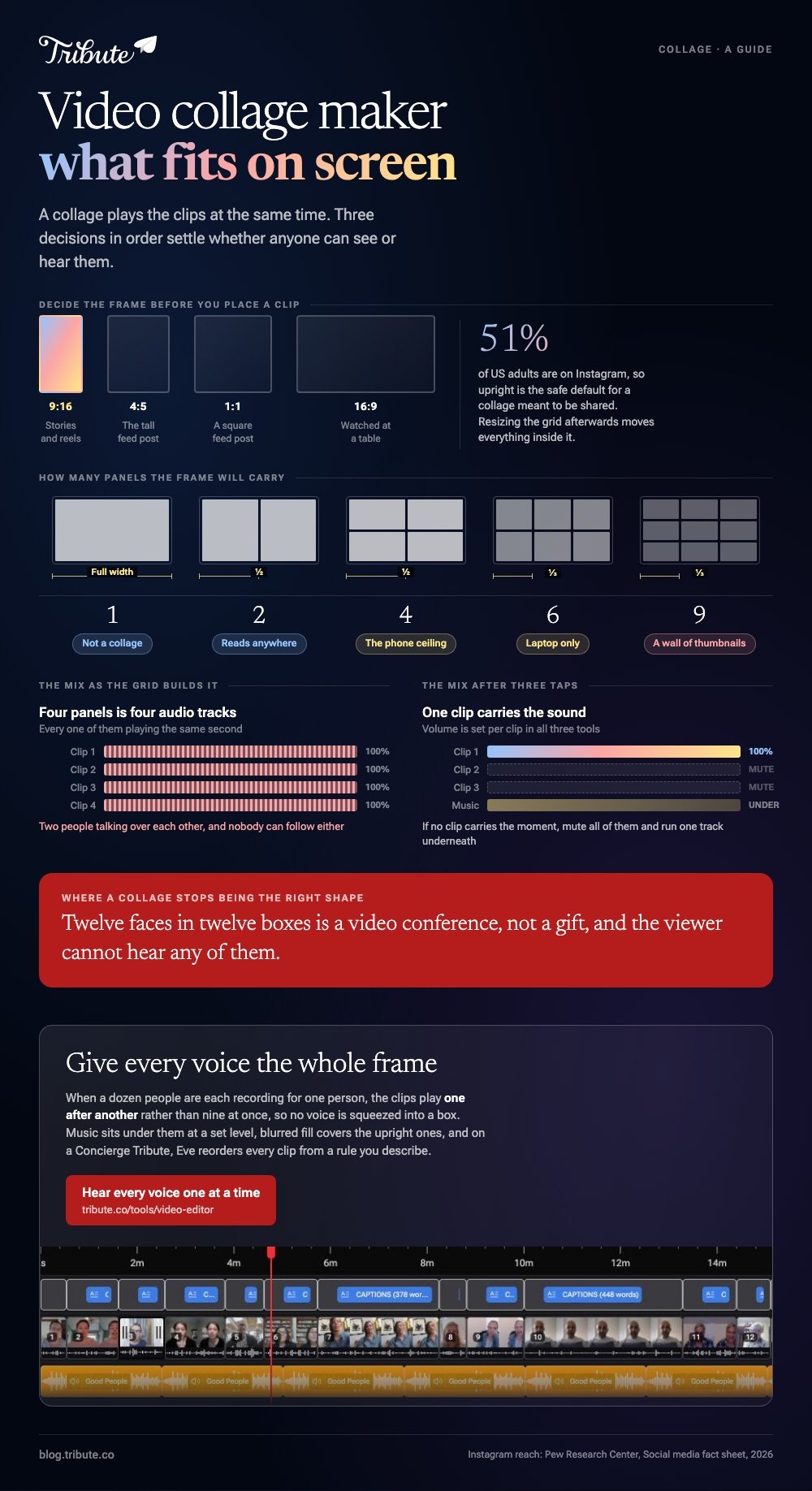
Four clips on screen means four audio tracks playing at once. Nobody can follow two people talking over each other, and the collage that looked clever in the preview becomes unwatchable with the sound up.
Pick one clip to carry the sound and mute the rest. Every tool here sets volume per clip rather than per project, so this is three taps, not a rebuild.
If no single clip carries the moment, mute all of them and put one music track underneath.
Watch the result with headphones before you export. Unlike a mistake in the picture, a muddy audio mix is invisible on a phone speaker and obvious on everyone else's.
What size should a video collage be?
Decide the frame before you place a single clip, because resizing a grid afterwards moves everything inside it. Square suits a feed post, upright suits stories and reels, and wide suits anything people will watch on a laptop.
The platform decides for you more often than taste does.
Instagram reaches 51% of US adults, according to the Pew Research Center social media fact sheet, so an upright 9:16 export is the safe default for a collage meant to be shared rather than watched at a table.
Canva sets the frame when you choose the design type at the start. Clipchamp opens at 16:9 and changes from the size button above the stage, where 9:16, 1:1 and 4:5 are presets. Set the shape before you build rather than cropping the export afterwards.
What if the clips came from a dozen different people?
This is where a collage stops being the right shape. Twelve faces in twelve boxes is a video conference, not a gift, and the person watching cannot hear any of them. Clips from many people want to play in sequence, one voice at a time.
The Tribute video editor is a browser-based group video editor: contributors record clips on their phones and Tribute assembles them on a timeline with the music balanced under the voices.
It lays the clips end to end, not side by side, and it lives inside a paid Tribute rather than standing on its own.
Best for: A birthday or memorial video where a dozen people each recorded a few seconds.
Why it works: Sequence protects the audio. One person speaks, then the next, and the music sits under both at a set level.
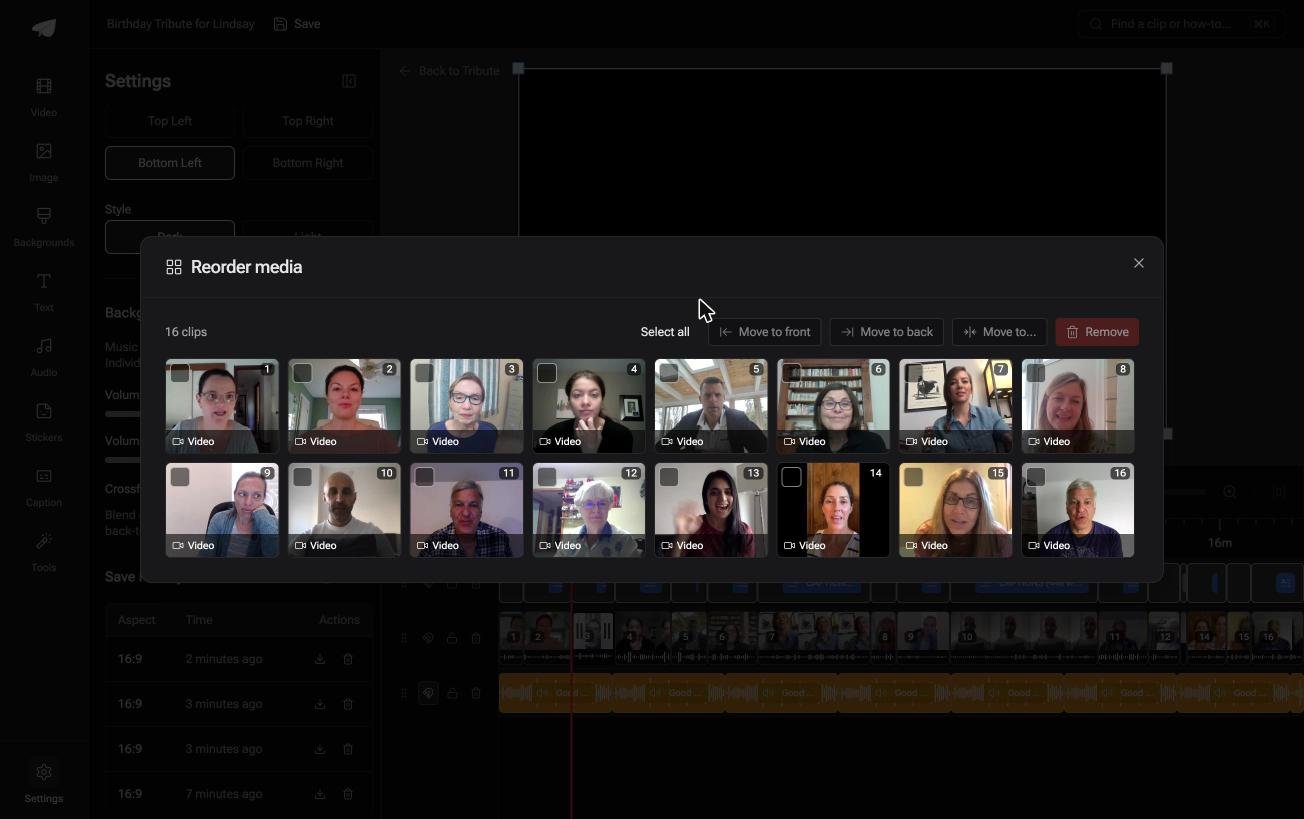
More on that case in one video from thirty different phones and turning everyone's clips into one birthday video.
Can you mix photos into a video collage?
Yes, in all three tools. A grid cell in Canva takes a still in place of a clip, CapCut treats a photo as a clip with a duration you set, and Clipchamp stacks an image on an upper track the same way it stacks video.
The one thing to fix is timing. A still sits there for as long as you tell it to, so trim the clips around it or stretch the photo to match, otherwise one panel goes blank while the others keep running.
We cover that mix in detail in mixing stills and clips in one collage.

Frequently Asked Questions
What is the difference between a video collage and a split screen?
Nothing, in practice. Split screen tends to describe two panels and collage three or more, but the tools and the steps are identical. Both stack clips as layers and size them to share one frame.
Can I make a video collage without a watermark?
Canva, CapCut and Clipchamp all export without one on their free plans, unless you used a premium element or a paid template.
Browser tools built around a single upload are the ones that stamp the output, so read the export screen before you upload rather than after the render.
How many clips can I put in one collage?
Four is the practical ceiling on a phone screen. Six works on a laptop, and nine is a wall of thumbnails nobody can read.
Do all the clips have to be the same length?
No, but something has to fill the gap when a short clip ends. Either trim everything to the shortest clip, loop the short ones, or let the panel hold its last frame.
Can I do this on an iPhone without installing anything?
Not with the Photos app, which trims and builds slideshows but does not layer two clips in one frame. With 91% of US adults owning a smartphone, per Pew's mobile fact sheet, the realiztic answer is a one-time app install rather than a browser.
Why is my exported collage blurry?
Each panel is a fraction of the frame, so a 1080p clip shown in a quarter of a 1080p canvas is being displayed at about half its width.
Shoot or source at a higher resolution than the output, and export at the highest setting the tool offers.
Which video collage maker should I start with?
Canva if the layout matters, CapCut if the clips are on your phone, Clipchamp if you are on Windows and want one clip to lead. Compared to learning a full editor, any of the three takes about ten minutes.
👉 Play the clips one after another with the music under them if every voice should be heard rather than squeezed into a box, and nobody has to build a grid.
