
How to Add Text to Video on a Phone or a Laptop
To add text to video on an iPhone, use iMovie rather than Photos: tap the clip, tap Titles, and type over the sample. Photos has no text tool, which is where most people get stuck. On a laptop, iMovie on a Mac and Clideo in a browser do the same.

Why can you not put text on a video in the Photos app?
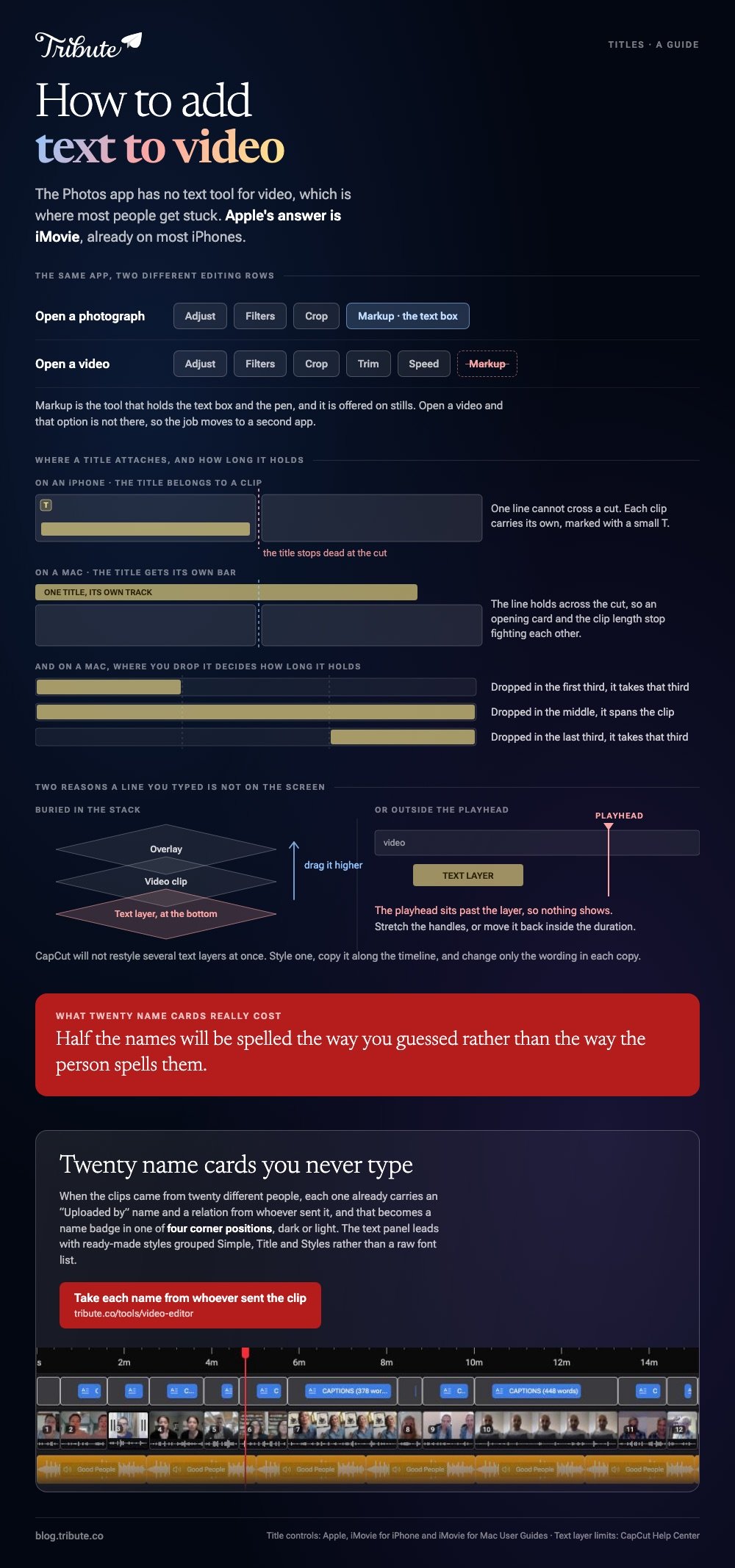
Photos gives a video the same editing row it gives a photograph: Adjust, Filters and Crop, plus trim handles and a speed control. Markup, the tool that holds the text box and the pen, is offered on stills.
Open a video and that option is not there.
Apple's answer is iMovie, which is a free app from Apple and is already installed on most iPhones. The job moves to a second app, which is annoying but takes about a minute once you know where the button is.
If you only need a caption of the spoken words rather than a title, that is a different feature with its own tools. Automatic captioning transcribes the audio; a title is text you write.
How do you add text to video on an iPhone?
iMovie calls text a title and attaches it to a clip rather than to the timeline, so you select the clip first and the title lands on top of it.
- Open a movie project in iMovie and tap a video clip or photo in the timeline. The inspector appears at the bottom of the screen.
- Tap the Titles button, then tap a style to select it. Tap None to turn titles off again.
- Tap the sample title in the viewer, tap Edit, type your words, then tap Done on the keyboard.
- Drag the title in the viewer to move it, or pinch it to change its size.
- Tap the Font and Color buttons to style it. Under Style, choose Default or Lower Third, which puts the text near the bottom of the frame.
- Tap the More button for Text Shadow, Uppercase and Full Clip Duration, which holds the title for the whole clip rather than a few seconds.
Apple documents every one of those controls in its guide to adding titles in iMovie on iPhone. The clip then shows a small T in its top left corner in the timeline, which is how you find the titles again later.
Best for: A name, a date or an introduction on a clip you shot on the same phone.
Why it works: Full Clip Duration solves the most common complaint, which is a title that vanishes before anyone has read it.

How do you add text to a video on a Mac?
The Mac version gives you a proper text track, so a title can span two clips or sit on its own. Titles live in a browser above the timeline, next to the backgrounds and the music.
- Select Titles above the browser. Styles that match your project theme appear at the top.
- Drag a title into the timeline above a clip to give it its own bar, or drop it onto a clip. Dropped in the first or last third, it takes that third; dropped in the middle, it spans the clip.
- Click the title in the timeline, then double-click the placeholder text in the viewer and type your own.
- Use the font controls above the viewer for typeface, color, size and alignment. Some animated and theme titles keep their own font.
- Click the Apply button above the viewer.
Drag the ends of the title bar to change how long it stays on screen.
Compared to the iPhone version, where a title belongs to a clip, the Mac timeline lets you hold one line across a cut, which is what you want for an opening card.
Best for: An opening title, a chapter card or a credit roll at the end.
Why it works: A separate bar on the timeline means the text duration and the clip duration stop fighting each other.
How do you put text on a video in a browser?
Two options cover most laptops, including a work machine where you cannot install software.
Clideo Video Editor
Clideo keeps text as an element you drop onto the canvas. In the navigation sidebar you click Text, then either click a text preset thumbnail or drag the preset onto the timeline or the canvas.
To remove one, select its thumbnail and click the Delete icon at the top left of the timeline, or press Delete on the keyboard.
Best for: One or two lines on a short clip, with nothing to install and no account to make.
Why it works: Presets mean you pick a look rather than build one out of a font list.
CapCut
CapCut puts every piece of text on its own layer, whether it came from the Text tool or the Captions tool.
Its help center is direct about the limit: you cannot change the position, style or size of several text layers at once, so the fast route is to style one layer, copy and paste it along the timeline and change only the wording in each copy.
If a line does not appear, two things are often behind it. The layer may sit under a clip or an overlay in the stack, or the playhead may be outside the layer's duration. Drag the layer higher and stretch its handles.
Best for: A clip that needs the same styled caption a dozen times.
Why it works: Copying a finished layer keeps the look identical, which hand-styling across twelve layers does not.
Where should the text sit so people can read it?
Keep it away from the edges. Players, phone interfaces and social feeds all put controls over the bottom of the frame, so a line that looks fine in the editor can end up behind a progress bar.
A margin of about 10% on every side is the old broadcast rule and it still holds.
Give it time. A reader needs about a second for a short name and three or four for a sentence, and a title that matches the shot length is safer than one you time by eye.
Contrast does the rest: light text on a dark shot, dark on a light one, or a soft shadow when the shot changes brightness.
Think about who is watching. Among US adults aged 65 and over, 79% own a smartphone, per the Pew Research Center, and most of them will watch your video on it.
Text that reads on a laptop can disappear on a 6 inch screen, so check it there before you send it.

What if the text is a name and the clip came from someone else?
Twenty clips from twenty people need twenty name cards, and typing them one at a time is the slowest part of the edit. With 91% of US adults owning a smartphone, per the Pew Research Center, that pile arrives from a dozen different handsets.
Half the names will also be spelled the way you guessed rather than the way the person spells them.
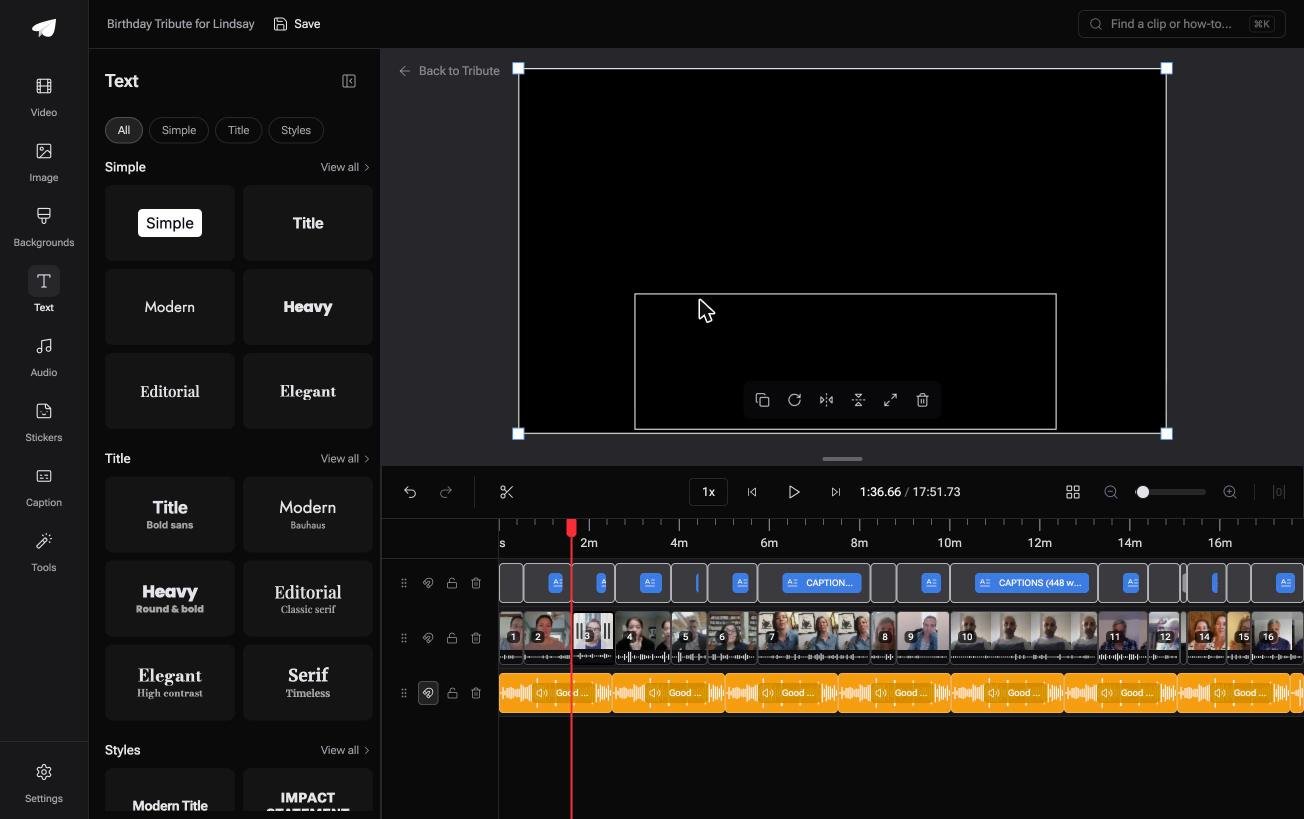
The Tribute video editor is a browser-based group video editor: contributors record clips on their phones and Tribute assembles them on a timeline with the music balanced under the voices.
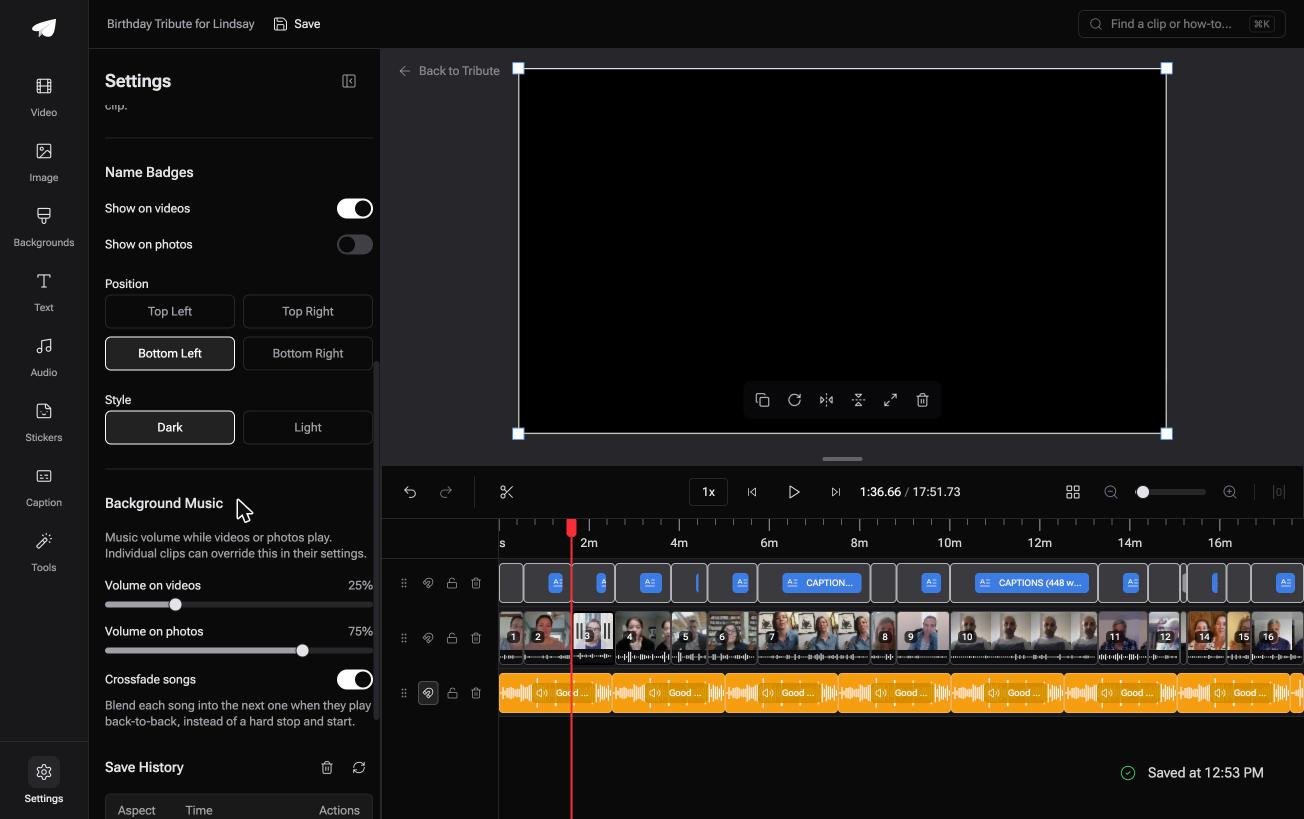
Each clip carries an "Uploaded by" name and a relation, which becomes a name badge in one of four corner positions in a dark or light style.
The text panel leads with ready-made styles grouped as Simple, Title and Styles rather than a raw font list. It lives inside a paid Tribute, so it is not a general purpose titler.
Best for: Clips from people the guest of honor knows and nobody else in the room does.
Why it works: Unlike a title you type per clip, the badge is built from information the sender already gave you.
More on the surrounding jobs: adding music to a video on iPhone, making a slideshow from photos and clips, one video from thirty phones and making a video montage.
Frequently Asked Questions
Can you add text to a video on an iPhone without an app?
Not in Photos, which has no text tool for video. iMovie comes from Apple and ships on most iPhones, so for most people it is already there and counts as no new download.
How do I add text to an iPhone video that someone sent me?
Save it to your library first, then import it into iMovie as you would your own footage. A clip that arrived through a messaging app may already be compressed, so expect the text to look sharper than the picture behind it.
Can I add text to an MP4 in a browser?
Yes. Browser editors accept MP4 and MOV, place a text layer over the picture and burn it into the export. Check the file size cap and the watermark rules on the free plan before you upload.
How long should a title stay on screen?
Long enough to read twice at a comfortable pace. For a name and a relation, three seconds is a good default; for a sentence, count it out loud and add a second.
What font should I use?
One with thick strokes and open letterforms, since thin type disappears over moving footage. Pick one font for the whole video and change size rather than typeface when something needs emphasis.
Is a title the same as a caption?
No. A title is text you write, such as a name or a date. A caption is a transcript of what is being said, and tools generate it from the audio rather than from your keyboard.
👉 Take each name from whoever sent the clip if the viewer will need one on screen for half the faces, and nobody gets a misspelling.
