
Best Transition on CapCut: Six That Earn Their Place
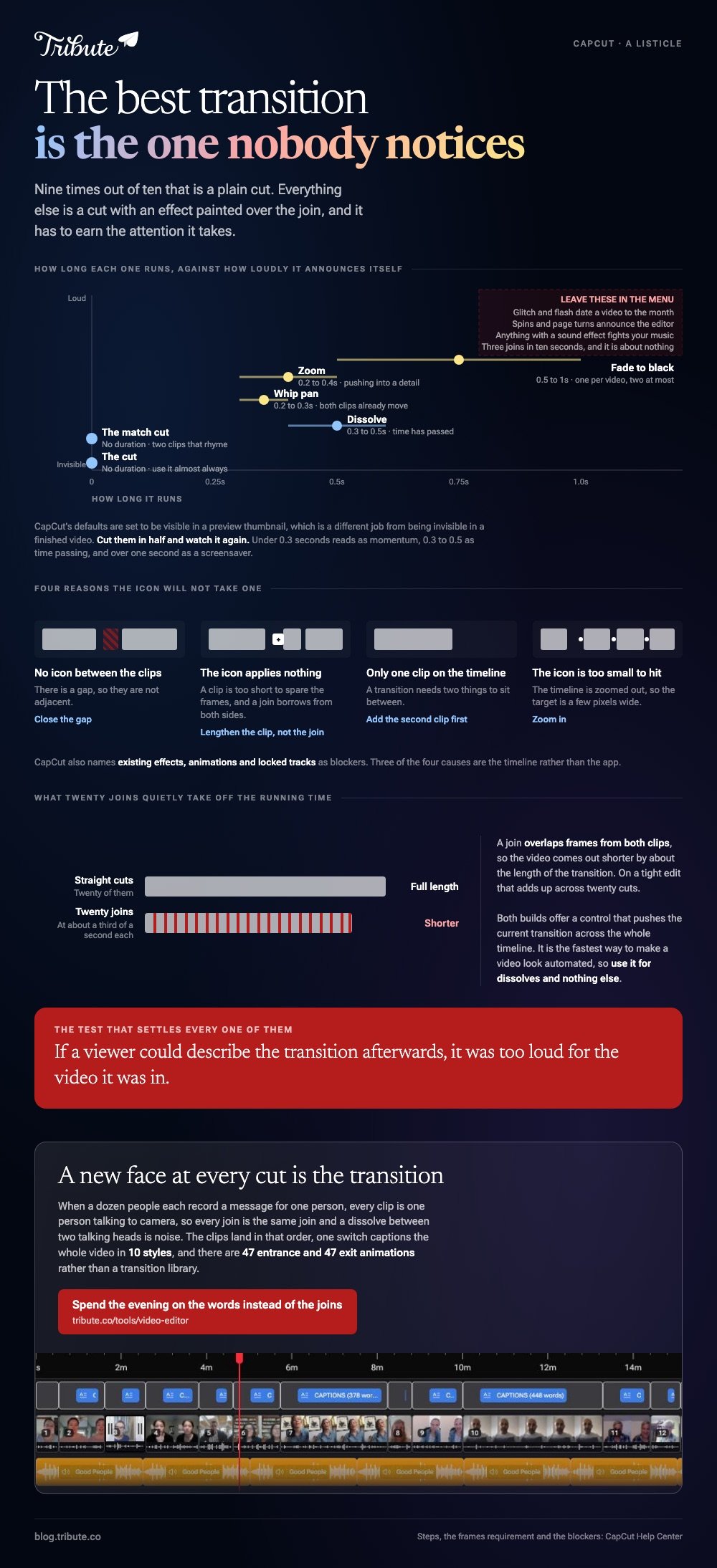
The best transition on CapCut is the one nobody notices, and nine times out of ten that is a plain cut. The five below are the ones worth reaching for when a cut is not enough, and CapCut carries all of them.

| Transition | Use it when | Length |
|---|---|---|
| The cut | Almost always | No duration |
| Dissolve | Time has passed between the two clips | 0.3 to 0.5s |
| Fade to black | A section is ending | 0.5 to 1s |
| Whip pan | Both clips already move sideways | 0.2 to 0.3s |
| Zoom | You are pushing into a detail | 0.2 to 0.4s |
| Match cut | Two clips share a shape or a movement | No duration |
Which is the best transition on CapCut overall?
A straight cut, and it is not close.
It costs nothing, breaks nothing and reads as a decision. Every other entry on this page is a cut with an effect painted over the join, which means it has to earn the attention it takes.
The test is simple. If a viewer could describe the transition afterward, it was too loud for the video it was in.
Why the ranking looks like this
CapCut ships hundreds of options and renames them between versions, and it publishes no list of them. What does not change is the small set of jobs a join can do: hide a cut, mark a gap in time, or carry a movement across.
Compared with learning a library, learning those three jobs transfers to any editor you open next.
Which transitions earn their place?
Five, plus the cut you should already be using.
1. The dissolve
One image fades out while the next fades in. It is the oldest join in editing and it still says one thing: time has passed.
Use it when: the next clip is the same people, later.
Length: 0.3 to 0.5 seconds. Longer reads as a slideshow.
Best for: A birthday montage where the afternoon moves from the garden to the kitchen to the cake.
Why it works: Unlike an effect, a dissolve carries meaning, so a viewer reads it without noticing they did.
2. Fade to black
Picture drops to black and comes back. It is a full stop, not a comma.
One per video, two at the outside. A video that keeps fading out feels like it keeps ending.
Use it when: a chapter closes and a new one opens.
Length: half a second out, half a second in.
Best for: A video with two halves, such as the ceremony and then the party.
Why it works: The black gives the audience a second to catch up, which no other join offers.
3. The whip pan
A fast horizontal blur throws you from one clip into the next. It only works when both clips already move in the same direction.
Shoot for it on purpose: end the first clip with a quick swing of the phone, start the second mid-swing.
Use it when: the energy is high and the cut would feel flat.
Length: 0.2 to 0.3 seconds. Any slower and it reads as a mistake.
Best for: A short travel or sports edit where the pace is the point.
Why it works: The blur hides the join, so two unrelated locations read as one continuous move.
4. The zoom
The frame pushes in on the first clip and arrives on the second, already closer. It is the most overused join in short-form video and still the most useful when it matches the content.
Use it when: the second clip is a closer view of the same subject.
Length: 0.2 to 0.4 seconds.
Best for: A product or craft video moving from the whole table to one pair of hands.
Why it works: It copies what an eye does, so the attention lands where you wanted it.
5. The match cut
No effect at all. You cut from one shape or movement to the same shape or movement somewhere else, and the join disappears.
A door closing becomes a book closing. A hand raising a glass becomes a hand raising a trophy.
Use it when: you have two clips that rhyme, and you noticed.
Length: none. This is a cut.
Best for: A retirement or anniversary video with decades of photographs in it.
Why it works: It is the only entry here that makes the video feel written rather than assembled.

What to leave in the menu
- Glitch and flash: they date a video to the month you made it
- Spins and page turns: they announce the editor, not the subject
- Anything with a sound effect built in: it will fight your music
- Three different joins in ten seconds: the video stops being about anything
How do you add the best transition in CapCut?
Put two clips next to each other and tap the join.
CapCut documents the steps for both builds. On mobile, you add at least two clips, tap the small white square icon between them, pick a transition, set the duration with the slider and tap the checkmark.
- Mobile: tap the small square icon sitting between two clips on the timeline.
- Browse and choose from the list that opens.
- Drag the duration slider to the length in the table above.
- Tap the checkmark to apply, then play it back before you move on.
On desktop the route is different. CapCut says to arrange two clips side by side, click the Transitions tab at the top, and drag the effect you want onto the join between them.
Apply one to every join at once
Both builds offer a control that pushes the current transition across the whole timeline. It saves time and it is the fastest way to make a video look automated, so use it for dissolves and nothing else.
Why will CapCut not let you add a transition?
Four causes, and three of them are the timeline rather than the app.
| What you see | What is wrong |
|---|---|
| No icon between the clips | There is a gap between them, so they are not adjacent |
| Icon is there, nothing applies | The clips are too short to spare the frames |
| Only one clip on the timeline | A transition needs two |
| The icon is too small to hit | The timeline is zoomed out |
CapCut's own troubleshooting page confirms the second one: some transitions require enough frames from both clips, so a very short clip will refuse the effect. It also names existing effects, animations and locked tracks as blockers.
The fix for a short clip is to lengthen it rather than to shorten the transition. A join borrows frames from both sides, and there have to be frames to borrow.
How long should a transition be?
Shorter than the default, every time.
CapCut's defaults are set to be visible in a preview thumbnail, which is a different job from being invisible in a finished video. Cut them in half and watch it again.
- Under 0.3 seconds: reads as momentum
- 0.3 to 0.5 seconds: reads as time passing
- Over one second: reads as a screensaver
Trim before you join. A transition placed on an untrimmed clip spends its whole length on the half second of fumbling before someone starts talking.
What does the best CapCut edit look like without them?
Tighter, and faster to make.
Every best CapCut edit tutorial opens by selling a transition pack, which is the wrong place to start.
What carries a video is the order of the clips, the trim at each end, the music level and whether the words are on screen.
Captions do more for watch time than any join. CapCut's automatic captions are covered in CapCut auto captions, and the same joins in another phone editor in InShot transitions.
For the longer assembly job, start at making a video montage.
What happens when sixteen people each send one clip?
The Tribute video editor is a browser-based group video editor: people record clips on their phones and Tribute lays them on a timeline with the music already balanced under the voices.
It is ours, and it is a different shape of job from a CapCut edit.
- 47 entrance and 47 exit animations, including Slow zoom, Drift and Breathe
- Clips arrive in order, already on the timeline, with a tick against the ones placed
- One switch captions everything: 16 people and 17 minutes in under a minute, in 10 caption styles
- Music sits at 25% under a speaking voice and 75% under photographs

Best for: The person who volunteered to turn everyone's clips into one video and has never opened an editor before.
Why it works: Compared with joining clips one at a time, the ordering is done before you arrive, so the joins are the only thing left to think about.
Is there an edit where you never pick a transition?
You are on this page because the joins between your clips look abrupt and you want a menu to fix them.
That menu only exists because you are the one deciding what follows what. Change who decides, and the question stops being yours.
The case: the clips were made to sit next to each other
You are in it when a group of people each record a message for the same person.
Twelve colleagues for someone retiring. Cousins in four states for a ninetieth birthday. Every clip is one person talking to camera, so every join is the same join, and a dissolve between two talking heads is noise.
Why the menu stops mattering
When every clip has the same shape, the cut is already the right answer and the only question left is order.
Which means the search that brought you here, best transition on CapCut, is solving a problem this kind of video does not have. The Tribute video editor treats order as the work and offers animations rather than a transition library.
What you do not have to do
- Design a single join. A new face at every cut is the transition, and the clips land in that order.
- Chase a dozen people for files. One link, and each thirty seconds arrives with music underneath.
- Caption them one by one. One switch does the whole video.
- Open a timeline at all, on a Concierge Tribute. Tribute's editors make the video, and Concierge Deluxe sends it back as a video book.

When this is the wrong answer: you are cutting your own footage and the joins are the craft. Then CapCut is the tool and this page is the list. The editor also lives inside a paid Tribute, not on its own.
Frequently Asked Questions
Are CapCut transitions free to use?
Many are, and some sit behind the paid tier. The list changes with each release, so check the one you want before you build an edit around it.
Why do my transitions disappear after export?
Check that the project finished rendering rather than stopping at a preview. A transition that plays in the app and not in the file points to an interrupted export.
What is the most used transition in short-form video?
Some flavor of zoom or push. It became the default because it suits a vertical frame and a fast edit, which is also why viewers have seen it most.
Can I put a transition on only one side of a clip?
Not as a transition. A join needs two clips, so to fade a single clip in or out you use an entrance or exit animation on that clip instead.
Do transitions make a video longer or shorter?
Shorter, by about the length of the transition, because the join overlaps frames from both clips. On a tight edit that adds up across twenty cuts.
Is a transition pack worth downloading?
Seldom. The joins that hold up are the six on this page, and a pack adds variations of the ones you should be avoiding.
What should I fix before I touch transitions?
The order of the clips, the trim at each end and the music level. Those three decide whether a video is watchable, and no join rescues a video that fails them.
👉 Spend the evening on the words instead of the joins if one person is leaving and a dozen each want thirty seconds to say so.
