
Transition InShot: What the Free App Gives You and What It Sells
InShot ships a set of transitions in the app and sells the rest as packs. Its own site names six, including Paint, Blur, Shake and 3D Space. The paid packs run $3.99 each, as of October 2026.

Which transition InShot gives you at no cost?
The ones already in the app, which is more than most short videos need.
InShot's own site groups its effects as Transitions, AI Effects and Effects, and the transitions it names are Paint, Blur, Shake, 3D Space, Distort and Ripped Paper.
Everything past that sits behind a purchase. The App Store listing shows the paid add-ons as separate line items rather than one bundle.
| What you buy | Price | What it covers |
|---|---|---|
| Nothing | $0 | The transitions in the app, with ads |
| Transition pack, Power or Glitch | $3.99 each | One pack, kept |
| InShot Pro monthly | $4.99 | Packs, filters and no ads while you pay |
| InShot Pro yearly | $19.99 | The same, at about a third of the monthly rate |
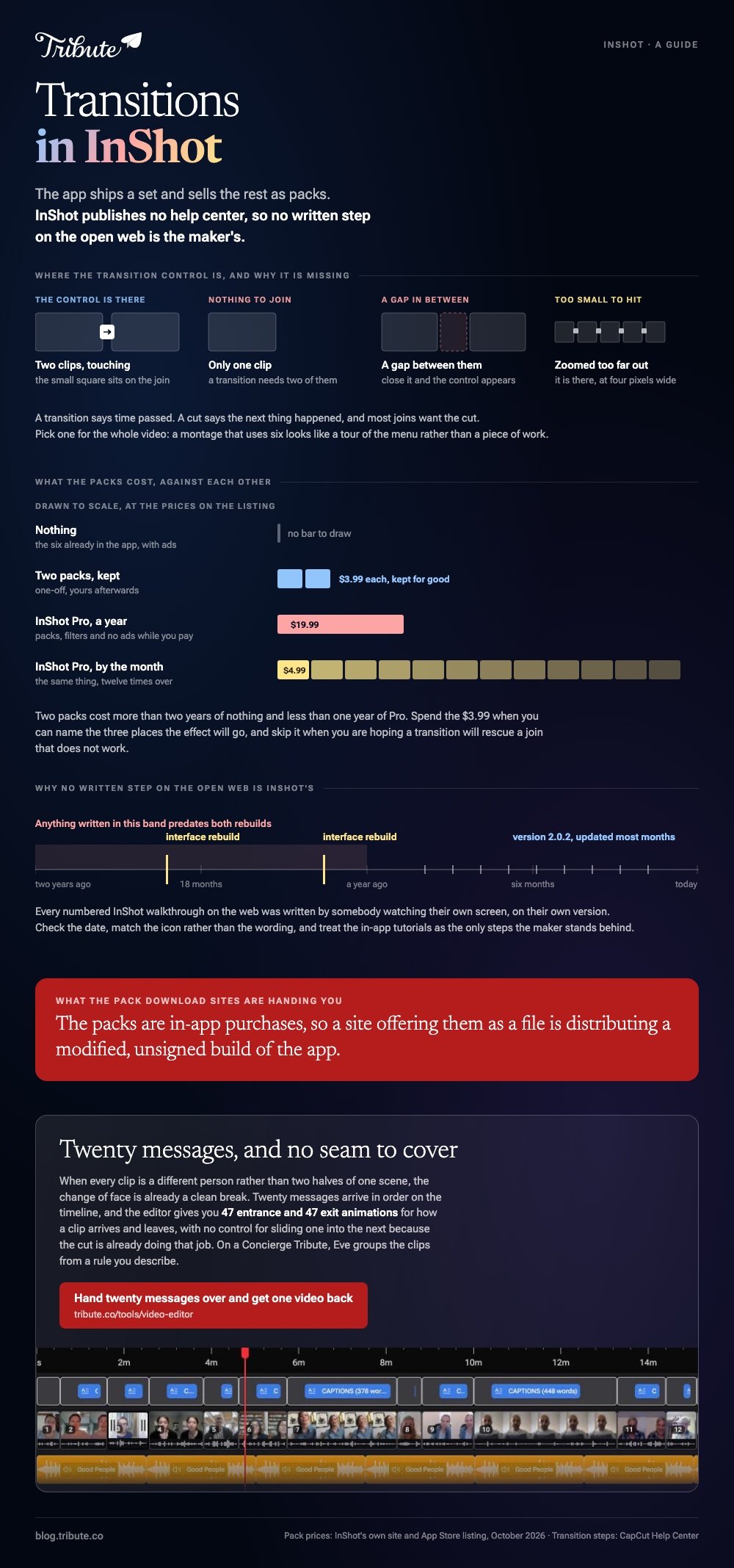
Prices read off the App Store listing in October 2026. Two packs at $3.99 cost more than two years of nothing and less than one year of Pro.
Why can't you find InShot's official instructions?
Because InShot does not publish a help center.
Its website is a product page with tutorial videos, and its footer links go to Contact us, Privacy and Terms. There is no article anywhere on it that names a button.
That matters more than it sounds. Every numbered InShot walkthrough you find was written by someone watching their own screen, on their own version, and the app is on 2.0.2 with updates landing most months.
A search for InShot transition effects as a free app download ends in the same place: the packs are sold, not given away, and the sites offering a modified build are handing you an unsigned app rather than a bargain.
How to check a step before you trust it
- Look at the date on the guide. Anything older than a year predates two interface rebuilds.
- Open the app beside it and match the icon, not the wording. Labels move; icons move less.
- Use the in-app tutorials from InShot's own home screen, which are the only steps the maker stands behind.
How do you add a transition in an app that documents it?
CapCut writes its steps down, and the pattern is the one every phone editor uses.
CapCut's help page on transitions gives three routes, one per platform, and they take about ten seconds each.
- On the phone: tap the small white square icon between two clips, pick a transition, drag the duration slider, tap the tick.
- On the desktop app: open the Transitions tab at the top and drag one onto the join between two clips, then set its length on the timeline.
- In the browser: hover over the join, click the transition icon, choose from the library and set the duration.
The same page lists why the icon goes missing, and the reasons are worth knowing in any editor:
- One clip only. A transition needs two, so there is nothing to join.
- A gap between the clips. Close it and the icon appears.
- Zoomed too far out. The icon is there and too small to hit.
Compared with InShot, CapCut asks for an account before you export. Compared with CapCut, InShot keeps more of its catalog behind one-off purchases rather than a subscription.

Is a paid transition pack worth it?
For one video, no. For a channel, sometimes.
A glitch or a paint wipe reads as a style choice the first time and as a tic by the fourth. The packs earn their price when you are publishing weekly and the look is part of how people recognize you.
Spend the $3.99 when you can name the three places the effect will go. Skip it when you are hoping a transition will rescue a join that does not work.
More options in transition effects you can download at no cost and Alight Motion presets.
When does a transition help, and when does it hurt?
A transition says time passed. A cut says the next thing happened.
Most joins want the cut. Reach for an effect when the two clips sit in different places or on different days, and leave it alone when one shot continues the other.
Length does most of the damage. Half a second reads as a beat; two seconds reads as a screensaver and eats footage from both clips.
One more rule holds across every editor: pick one transition for the whole video. A montage that uses six of them looks like a tour of the menu rather than a piece of work.
If the job is joining a stack of clips rather than styling the joins, see making a video montage.

What if every clip is a different person?
Then the joins are not the problem. Getting twelve clips onto one timeline in the right order is.
The Tribute video editor is a browser-based group video editor: contributors record clips on their phones and Tribute assembles them on a timeline with the music balanced under the voices.
It is ours, and it is the last thing on this page.
- 47 entrance and 47 exit animations, including Slow zoom, Drift and Breathe. There is no transition control, and that is on purpose
- Clips arrive in order on the timeline, with a tick against the ones already placed
- Blurred edges fill the frame behind upright phone footage, so a vertical clip needs no black bars
- Music ducks to 25% under video and sits at 75% under photos, and you can override either per clip

Best for: A leaving video or a group birthday message where the joins are faces, not scenes.
Why it works: Unlike a phone editor, it never asks you to join two clips, because they arrive joined.
What if there is no join to decorate?
Two clips sitting next to each other is where every choice above comes from.
You imported, you dragged, you found the icon between them, and then you picked something to cover the seam. There is one kind of video where that moment never arrives.
The case: one person, many messages
Picture twenty people recording one message each, for the same birthday.
A grandmother turning eighty. A coach stepping down after fifteen seasons. A leaving party for someone whose team is in four cities.
Nobody is shooting coverage, so there is no jump cut to hide. Each clip is a different face in a different room, and the change of face is the transition.
Why the effect menu stops mattering
Because a new person on screen is already a clean break.
When every clip is a separate message, a paint wipe between two of them reads as decoration over something that needed none.
The Tribute video editor gives you 47 entrance and 47 exit animations for how a clip arrives and leaves. It has no control for sliding one clip into the next, because the cut is already doing that job.
What you do not have to do
- Not the joining. Twenty messages arrive in order, and each change of face is its own break.
- Not the running order. Eve, the assistant on Concierge and Concierge + Video Book, groups the clips from a rule you describe, the team first and the family after.
- Not the edit itself. On a Concierge Tribute, Tribute's editors trim the heads, pick from the 39 tracks and hand the video back.

When this is the wrong answer: you are cutting your own footage for a channel and the style of the joins is part of the point. Then InShot or CapCut is the right tool and a $3.99 pack may be money well spent.
Tribute is also not a general editor: it lives inside a paid Tribute, so an unrelated video cannot be opened in it. Background on the format is in what a video tribute involves.
Frequently Asked Questions
How do I add a transition in InShot?
Through the control that sits on the join between two clips on the timeline. InShot publishes no written steps, so match what you see in the app against its own in-app tutorials rather than an undated guide.
Are InShot transitions free to use?
Some are. The app includes a set, and InShot's site names Paint, Blur, Shake, 3D Space, Distort and Ripped Paper. The Power and Glitch packs are $3.99 each.
Is the InShot transition effects pack available for free?
No legitimate one. The packs are in-app purchases, so any site offering them as a file is distributing a modified build of the app. The risk is yours and the packs are cheaper.
Why is there no transition button between my clips?
Most often because there is only one clip, or because a gap sits between two of them. Close the gap, or zoom the timeline in until the control is big enough to tap.
How long should a transition be?
About half a second for most joins. Longer than a second starts eating usable footage from both clips and draws attention to the effect instead of the content.
Does InShot put a watermark on exports?
The app sells an ad removal purchase at $3.99 and a Pro subscription, so the terms depend on which you hold. Check the export screen before you spend an hour editing.
Can I use the same transition for every clip at once?
That depends on the app and the version. Treat any guide promising a one-tap apply to all as unconfirmed until you see the control yourself, since InShot documents none of its menus.
👉 Hand twenty messages over and get one video back if the clips are separate messages rather than two scenes, and there is no seam left to cover.
