
Can iMovie Do Vertical Video? The Short Answer and Three Ways Around It
No. iMovie builds every standard project in a 16:9 widescreen frame, on Mac and on iPhone, and gives you no control to change that shape. An upright clip gets bars down both sides, so a vertical export comes from a rotation trick or another app.

| Tool | Vertical project? | What you get |
|---|---|---|
| iMovie on Mac | No | 16:9 only. A rotation trick produces 1080 by 1920 |
| iMovie on iPhone | No | 16:9 only, bars down both sides |
| Photos on iPhone | Crop only | A 9:16 crop preset, nothing to fill the gaps |
| CapCut | Yes | 9:16 on a new mobile project, with blur fill |
| Clipchamp | Yes | 16:9 by default, 9:16 and 1:1 as presets |
Can iMovie do vertical video on a Mac?
Not as a project setting, and the cropping controls are where you see the limit.
Apple's guide to cropping clips in iMovie describes Crop to Fill as an adjustable frame over the picture, and Fit as the option that restores the clip's own shape with bars at the sides. Both land inside a 16:9 output.
Neither offers a square or an upright one.
That leaves one honest route. To make a vertical movie in iMovie you turn the picture sideways, export it, and turn the file back upright outside iMovie.
- Add the upright clip to the timeline and select it.
- Click the Cropping button, then the rotate control, until the picture lies on its side and fills the frame.
- Do the rest of the edit now: trim, music, levels. Leave titles until last, because text added here will end up sideways too.
- Share the project as a 1080p file. You get a 1920 by 1080 video of a scene lying on its side.
- Open that file in QuickTime Player, choose View then Show Clips, and select the clip.
- Use the Edit menu to rotate it upright, click Done, then save. Apple documents this in its QuickTime Player guide.
The result is a real 1080 by 1920 file that plays upright everywhere.
Best for: One clip you need in portrait and a Mac with nothing else installed on it.
Why it works: Rotation moves pixels rather than discarding them, so nothing is cropped away and nothing is scaled up.
Can iMovie do vertical video on an iPhone?
No, and the user guide is the tell.
Apple's iMovie for iPhone guide has topics for themes, speed, filters, overlays, zoom, backgrounds and titles, and no topic at all for aspect ratio or frame size. There is no control to document.
Drop a portrait clip into a movie project and it sits in the middle of a widescreen frame.
The rotation trick does not transfer either, because the phone has no QuickTime Player to finish the job in.
Photos is the better answer on the phone. Open the video, tap Edit, tap the crop tool, then tap the preset control and pick 9:16. Drag to choose what survives, then tap Done.
Understand what that does: it throws away the sides of the picture rather than reshaping the frame around it. A clip of two people side by side loses one of them.

Does the App Preview project create a vertical movie in iMovie?
It is the one project type that is not a standard movie, and it is not a general portrait mode.
On a Mac you reach it with File then New App Preview, and it exists for App Store previews cut from screen recordings of an iOS device.
Apple's page does not state a frame size for it, and it withdraws tools you would want: some titles and transitions are unavailable, and only solid color backgrounds work.
Treat it as a specialist container for screen recordings. For a video of people talking, the rotation route above gives you more control and keeps every title style.
What should you use instead for vertical video?
An editor where the frame shape is a setting rather than a workaround.
CapCut
Unlike iMovie, CapCut treats the frame shape as a project setting, and a new mobile project starts at 9:16 already.
A Ratio control switches between 9:16, 16:9, 1:1 and several more, and gaps left by a shape change can be filled with a blurred copy of the clip or a solid color.
Best for: Anything going to Reels, Shorts or TikTok from a phone.
Why it works: You never convert anything, because the project was the right shape before you imported.
Clipchamp
Clipchamp runs in a browser and defaults to 16:9, with 9:16, 1:1 and 4:5 available as presets. It also adjusts the project to match your first clip, so a portrait import can set the shape for you.
Deselect everything on the timeline before you look for the ratio control, since it hides while a clip is selected.
Best for: A Windows laptop, or a work machine where you cannot install software.
Why it works: One setting changes the whole project, and the fill option removes the bars in the same pass.
Does cropping to a vertical frame cost quality?
Yes, and only when you crop.
A 1080p widescreen clip cropped into a 9:16 strip keeps about 608 by 1080 pixels, then gets scaled back up to 1080 by 1920 on export.
Compared with the rotation route, which touches no pixels at all, that is a visible softening on a large screen.
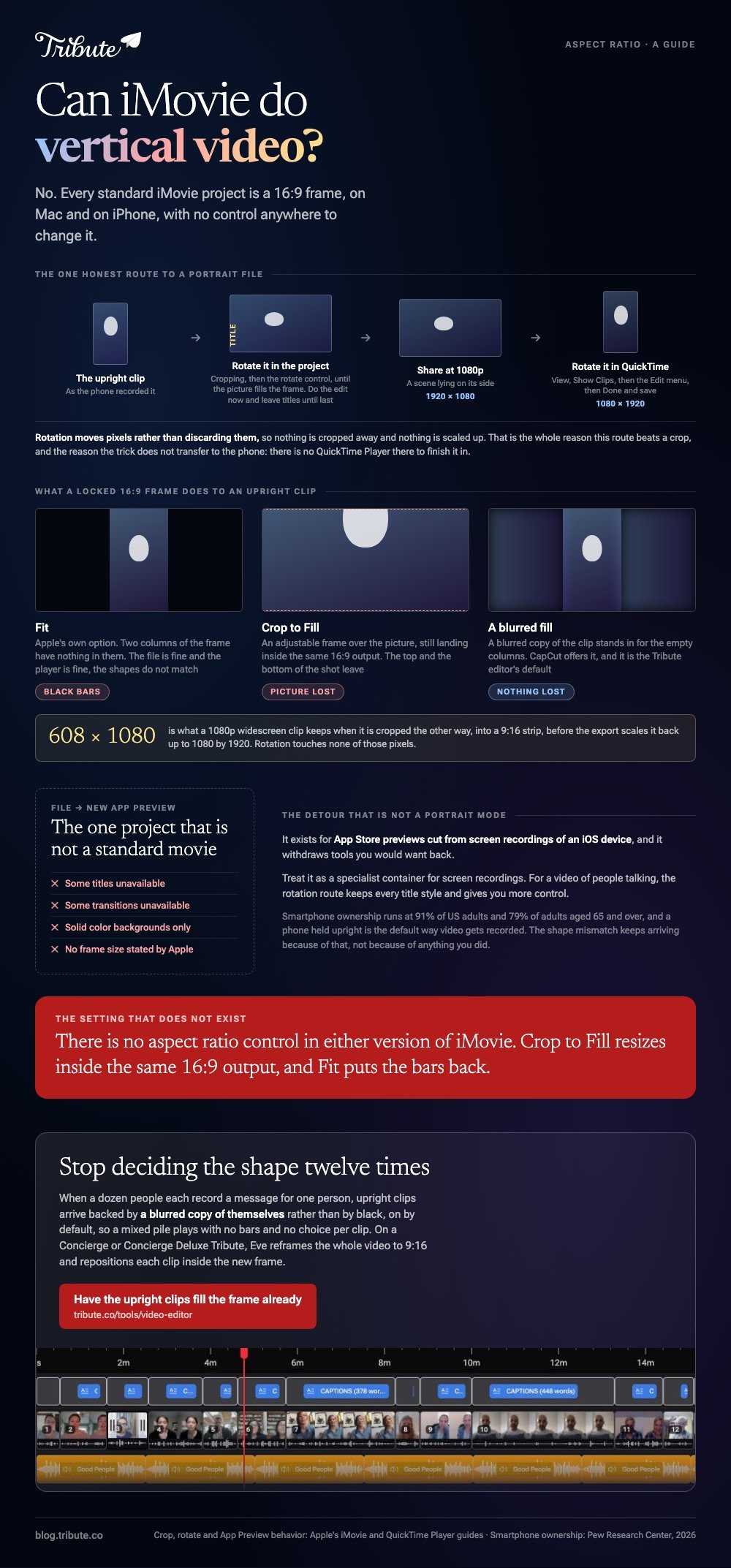
Phones are the source of most of this footage: Pew Research Center puts smartphone ownership at 91% of US adults, and 79% of adults aged 65 and over.
A phone held upright is the default way video gets recorded, which is why the shape mismatch keeps arriving.
The reverse job, widening an upright clip for a television, is covered in making a vertical video horizontal, and the general question in changing the aspect ratio of a video.
What if the clips came from a dozen different phones?
Then the shape problem is not one decision, it is twelve.
The Tribute video editor is a browser-based group video editor: contributors record clips on their phones and Tribute assembles them on a timeline with the music balanced under the voices.
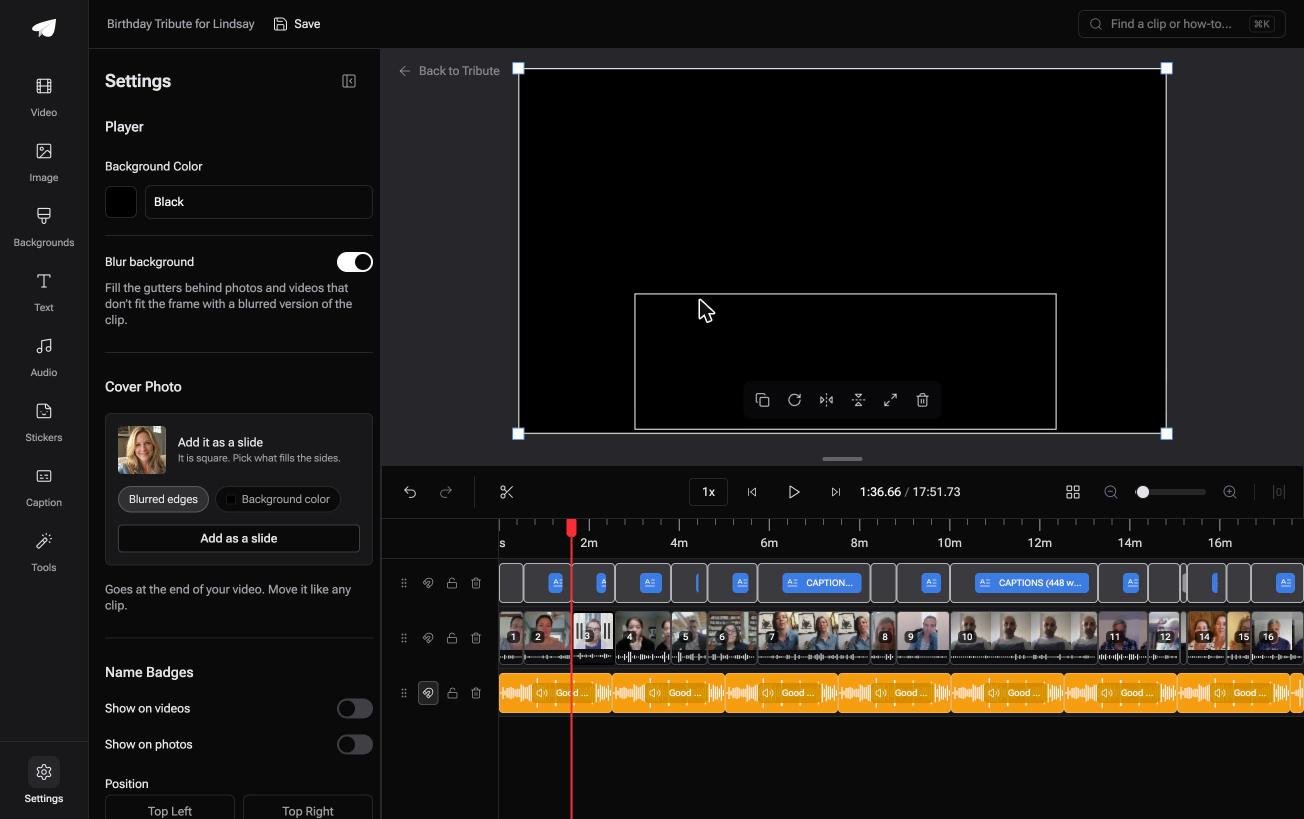
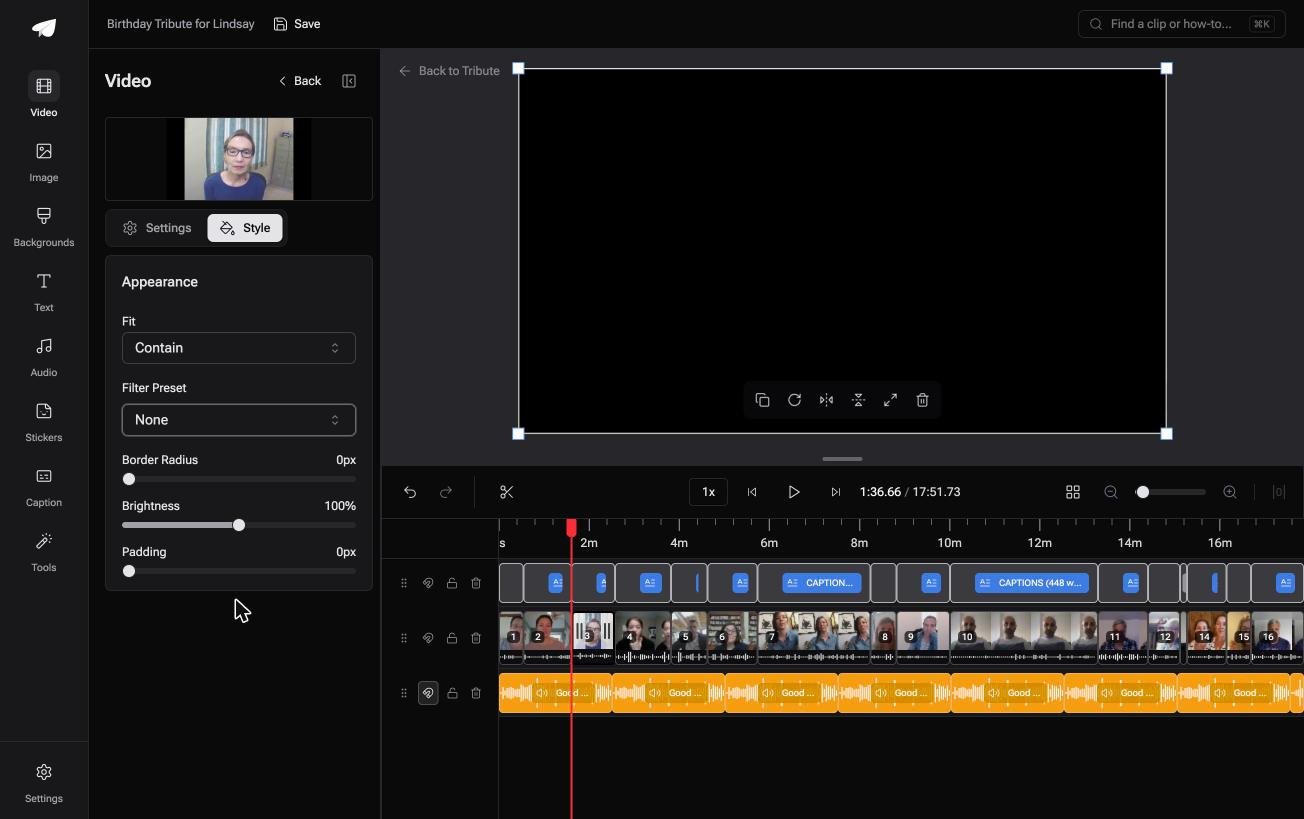
Blurred edges fill the frame behind upright footage and are on by default, so a mixed pile plays without black bars and without a choice per clip.
Be clear about what it is not. A DIY Tribute has no aspect ratio switcher and no crop control, so there the job is one widescreen video with the mixed shapes settled inside it.
On a Concierge or Concierge Deluxe Tribute, Eve, the AI assistant in the editor, reframes to 9:16 or another aspect ratio and repositions each clip inside the new frame.
Best for: A dozen phones that each chose their own orientation, and one video that has to hold them all.
Why it works: The default is already the treatment you would have picked, so upright clips stop being a per-clip decision.
Can you skip the vertical question altogether?
Everything above exists because you are the one holding the footage.
Every choice there was yours: the output shape, what to keep, what to throw away, once per clip. There is one case where none of that arrives.
The case: several people, each recording for one person
You are in it when a dozen people each record a message for someone, and nobody is shooting a scene. A grandmother turning eighty. A colleague leaving after fifteen years. Everyone holds their phone the way they hold it, which is upright.
Which means the search that brought you here, can iMovie do vertical video, is asking about a step that only exists when you are assembling the pile by hand.
What you do not have to do
Three things, and setting a frame shape is not one of them.
- Not the collecting. Each person records from one link, however they hold the phone.
- Not the filling. Upright clips arrive backed by a blurred copy rather than by black.
- Not the reframe. On a Concierge Tribute, Eve turns the whole video to 9:16 when Reels is where it is going.
That is how the Tribute video editor handles mixed shapes: not a fifth answer to the aspect ratio question, but a way of not asking it twelve times.

When this is the wrong answer: you recorded the footage yourself, or you are on DIY and need a 9:16 file for Reels or Shorts. Then use CapCut or Clipchamp from the section above. More in our main montage guide.
Frequently Asked Questions
Why does iMovie put black bars on my vertical clip?
Because the project frame is 16:9 and your clip is 9:16, so two columns of the frame have nothing in them. The file is fine and the player is fine; the shapes do not match.
Can I change the aspect ratio in iMovie settings?
There is no such setting in either version. Crop to Fill resizes inside the same 16:9 output, and Fit puts the picture back with bars at the sides.
How do I export a vertical video from iMovie?
Rotate the clip sideways in the project, export at 1080p, then rotate the resulting file upright in QuickTime Player and save. That gives you a 1080 by 1920 file.
Does the rotation trick hurt quality?
No, as long as you export at 1080p and let QuickTime save the rotation. Nothing is cropped and nothing is scaled up, which is the difference between this and a crop.
Can I crop a video to 9:16 on my iPhone without an app?
Yes. Photos has a crop tool with a 9:16 preset, and it cuts the sides away rather than filling them, so frame the subject in the middle before you shoot.
Is iMovie on iPad any different?
No. The iPad version shares the iPhone project model and the same fixed widescreen frame, so the answer and the workarounds are the same.
What size should a vertical video be?
1080 by 1920 covers Reels, Shorts and TikTok. Going higher adds file size without adding anything a phone screen can show.
👉 Make the group video where upright clips already fill the frame if several people are each recording for one person, and the shape stops being a decision you make twelve times.
