
How to Change Aspect Ratio of Video Without Cropping Anyone Out
To change aspect ratio of video, pick the output frame, then decide what happens to the picture that no longer fits. On an iPhone that is Photos, Edit, Crop, then the aspect ratio button, and Adobe Express and Clideo do it in a browser. What to cut is the real decision.

What is a video's aspect ratio?
Aspect ratio is the shape of the frame written as width against height. A television and a YouTube player are 16:9. A phone feed is 9:16. An old square post is 1:1, and some social feeds prefer the taller 4:5.
Two things change when you change video aspect ratio. The frame changes shape, and the picture inside it either gets cropped to fill the new shape or shrinks to fit inside it with empty space on two sides.
Every tool asks you that question, though some ask it in one word and some bury it in a settings panel.
An aspect ratio video converter is a tool that does nothing else. It takes a file, applies a new frame and hands back a download, with no timeline and no editing to do.
Can you change aspect ratio of video on an iPhone?
Yes, and nothing has to upload. The Photos app crops video the same way it crops a photograph, with a set of preset shapes behind one button.
- Open the video in the Photos app and tap Edit.
- Tap the Crop button.
- Tap the Aspect Ratio Freeform button, then choose a preset. Apple lists Square, Wallpaper, 9:16 and 5:7 among the options.
- To set a shape that is not on the list, drag a corner of the frame. Tap the lock at the top right of the picture first, or the crop keeps the original proportions.
- Drag the picture inside the frame until the person is where you want them, then tap Done.
Apple documents the full set of controls, including rotate and flip, in its guide to cropping and straightening photos and videos. One caution: with iCloud Photos switched on, the edit follows the video to every device signed in to your account.
Best for: A clip that is already on your phone and needs one new shape.
Why it works: No upload, no account and no second copy of a file that may already be several gigabytes.

Which apps change aspect ratio of video for free?
Two browser tools cover most of what people need, and both run on a work laptop where you cannot install software. They differ in what they do with the leftover space, which is the thing worth comparing.
Adobe Express Resize video
Adobe keeps this as a quick action rather than a full project. On the Adobe Express homepage you select Video, then Resize video in the Video Quick actions section, then upload a file.
The Resize for dropdown holds sizes for the social platforms, or a custom option for your own dimensions, and a Video scale slider sets how much of the picture fills the new frame before you select Download.
Best for: One clip that needs to go out to two platforms in two shapes.
Why it works: The scale slider is the fill-or-fit decision turned into something you can see, instead of a checkbox.
Clideo Resize Video
Clideo's tool asks the same question with more control over the result.
You click Choose file, pick a social preset or Custom in the Resize for section, then work in the Crop options: Fill scales the picture until it covers the frame and crops what hangs over, Fit keeps the whole picture and adds bars.
A background color control changes the color of those bars or blurs them, and the Format list at the bottom sets the output file type before you click Export.
Read the result screen before you celebrate. Clideo puts a watermark on the export and offers a Remove watermark button that leads to its pricing page.
Best for: A clip where cropping would cut someone out of the shot.
Why it works: Fit plus a blurred background keeps every face in frame and still fills the screen.
How do you resize video in CapCut or iMovie?
CapCut sets the shape for the whole project rather than for one clip. You click Import to bring in the footage, click Ratio and pick from the presets, which include 1:1, 16:9 and 9:16, then set resolution and format on the export screen.
Its desktop version also has an auto reframe that tracks the main subject as the frame changes.
iMovie is the one to know about before you start. On a Mac the cropping frame is constrained to a 16:9 aspect ratio, so iMovie will not give you a square or a vertical video.
Apple's Fit button restores a clip's own shape inside that 16:9 frame and adds black bars at the sides. Compared to a browser resizer, iMovie gives you a better timeline and no choice of output shape.
Best for: CapCut when the whole project needs one shape. iMovie when 16:9 was always the answer.
Why it works: Setting the ratio once at project level means every clip you add afterwards is framed against the same edges.
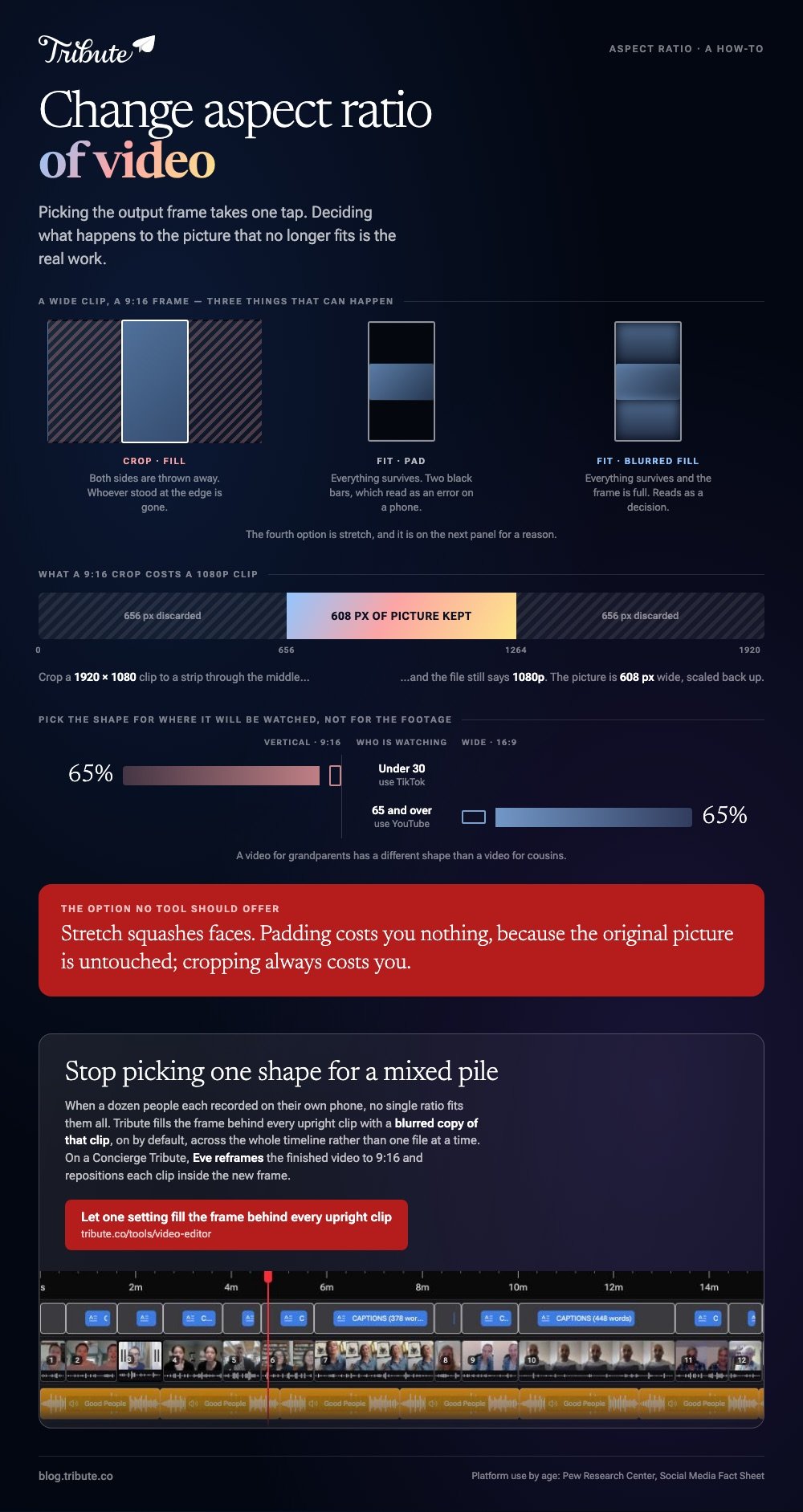
What happens to the picture when the frame changes?
Three outcomes, and you pick one whether you mean to or not. Crop throws away the sides or the top and bottom. Fit keeps everything and pads the gap. Stretch squashes faces, and no tool should offer it.
Padding does not have to be black. A blurred, enlarged copy of the same clip behind the picture fills the gap in a way that reads as a design choice, and most resizers with a background control will do it.
Black bars look like an error on a phone screen; a soft blur does not.
Resolution is the quiet cost. Crop a 1920 by 1080 clip to a 9:16 strip through the middle and you keep about 608 pixels of width, so the export is softer than the source even though the file says 1080p.
Shoot wide and crop later only when the subject is large in the frame.

What if the clips came from a dozen different phones?
Then you have a mixed bag: some upright, some wide, one shot through a car window.
With 91% of US adults owning a smartphone, per the Pew Research Center, a video built from friends and family is a video built from a dozen handsets held at a dozen angles.
Setting one aspect ratio for the video does not solve that, because whichever shape you pick, half the clips will not match it.
The Tribute video editor is a browser-based group video editor: contributors record clips on their phones and Tribute assembles them on a timeline with the music balanced under the voices.
On DIY it has no aspect ratio switcher, so you do not choose the output shape.
What it does instead is fill the frame behind an upright clip with a blurred copy of that clip, switched on by default, so a mixed pile of footage plays without black bars.
It lives inside a paid Tribute and is not a general purpose converter.
On a Concierge or Concierge Deluxe Tribute, Eve reframes the video to 9:16 or another aspect ratio and repositions each clip inside the new frame.
Best for: Footage in three shapes from ten phones, where one ratio would cut someone out.
Why it works: Unlike a resizer that treats one file at a time, the fill is applied across every clip on the timeline without a per-clip decision.

Two wider jobs are covered in our guides to cropping a video without losing the person in it and making one video from thirty phones.
Which shape should you export?
Pick the one that matches where the video will be watched, not the one that matches the footage. A video that will play on a television at a party is 16:9. A clip for a phone feed is 9:16.
Something going to a group chat is fine either way, because the player adapts.
Audience age is a decent guide. Among US adults under 30, 65% use TikTok, where the frame is vertical, while 65% of adults aged 65 and over use YouTube, where it is not, per the Pew Research Center.
A video for grandparents has a different shape than a video for cousins.
Whatever you choose, export once at the highest setting the tool offers and keep the original. Our guides to trimming a video and making a video montage cover the rest of the finishing pass.

Frequently Asked Questions
Can I change a video's shape without losing quality?
Padding costs you nothing, because the original picture is untouched and the tool adds pixels around it. Cropping always costs you, since you are keeping fewer pixels and scaling them back up to the output size.
What aspect ratio is best for Instagram and TikTok?
Both feeds are built around 9:16 for full-screen video. Check the platform's own help page before a launch, because the accepted shapes change often.
Does changing the shape change the file size?
Yes, in both directions. A smaller frame holds fewer pixels and makes a smaller file, while a padded frame adds area that still has to be encoded. The bitrate you choose on the export screen matters more than the shape.
Can I change the shape of part of a video?
Not within one file. The output frame is fixed for the whole export, so what varies is how each clip sits inside it. An editor with per-clip scale gives you that; a one-shot converter does not.
Why does my video have black bars after I resize it?
Because the tool chose Fit rather than Fill, which is the safe default. Switch to Fill if you are happy to crop, or set the background to a blur if you would rather keep the whole picture.
Is there a free tool that does this on a phone?
The Photos app on an iPhone covers the common shapes and does not upload anything. CapCut covers more shapes and adds a background fill, at the cost of installing an app and working around its export screen.
👉 Let one setting fill the frame behind every upright clip if they arrived in three shapes from three different phones, and no ratio has to be picked for each one.
