
How to Crop Video Without Losing the Person in It
To crop video, open the clip, drag the crop frame around what you want to keep, and save. Photos on an iPhone, iMovie on a Mac and Clipchamp in a browser each do it in four taps. Crop an upright clip into a wide frame and you lose the top of someone's head.

What does it mean to crop a video?
Cropping changes what is inside the frame. You keep a rectangle of the picture and throw the rest away, which also changes the shape of the video if you pick a different ratio on the way.
Compared to trimming, which shortens a clip in time and leaves every pixel intact, a crop is permanent in a way a trim is not.
Three reasons people crop. Something distracting sits at the edge of the shot, black bars need removing, or the video has to fit a frame that is not the shape it was recorded in.
If the length is the problem rather than the framing, trimming a clip is the job you want instead.
How do you crop a video on an iPhone?
Photos crops video with the same tool it uses for stills, which catches people out because the button is not labeled for video.
- Open the video in Photos and tap Edit.
- Tap the Crop button at the bottom of the screen.
- Drag the corners of the frame, or pinch, until the shot is framed the way you want.
- To change the shape, tap the aspect ratio control and pick a preset such as Square or 9:16, or tap the lock icon to crop by hand.
- Tap Done.
The same tool rotates the picture 90 degrees, mirrors it and straightens a tilted shot, as Apple sets out in its guide to cropping, rotating and straightening photos and videos on iPhone. Edits stay reversible: open the clip, tap Edit, then Revert.
Best for: One clip, on the phone that recorded it, with no app to install.
Why it works: The original is kept behind the edit, so a crop you regret is two taps from being undone.

How do you crop a video on a Mac?
iMovie handles it from the adjustments bar above the viewer.
- Select the clip in the timeline.
- Click the Cropping button in the adjustments bar.
- Click Crop to Fill. An adjustable frame appears over the clip in the viewer, held to a 16:9 shape.
- Move and resize that frame until the framing is right.
- Click Apply. The area inside the frame fills the viewer.
Two buttons sit beside it. Fit puts a clip back to its own shape, which on a 4:3 clip means bars down both sides, and Reset clears every crop and rotation you applied.
Apple documents all three in its page on cropping clips in iMovie on Mac.
Best for: A video already on a timeline, where one shot is framed wider than the rest.
Why it works: Crop to Fill holds the project ratio, so the cropped clip matches everything around it.
How do you crop video online?
Microsoft Clipchamp runs in a browser tab and the crop lives on the clip itself.
Click the clip on the timeline so it highlights, click the crop button on the floating toolbar over the stage, drag the handles on the sides, top and bottom, then click the done button.
If the clip has black bars rather than a framing problem, the fill button removes them in one click by sizing the clip to the project.
Clideo, Canva and CapCut's web editor follow the same shape of workflow: upload, drag, export.
Every free online tool here will crop a video and give it back in a minute, and each has its own export caps, so read that screen before you send a large file up.
Best for: A borrowed or locked-down computer where nothing can be installed.
Why it works: The crop happens on a server, so the machine in front of you only has to upload and download.
Cropping a video online goes through the browser tools one by one.
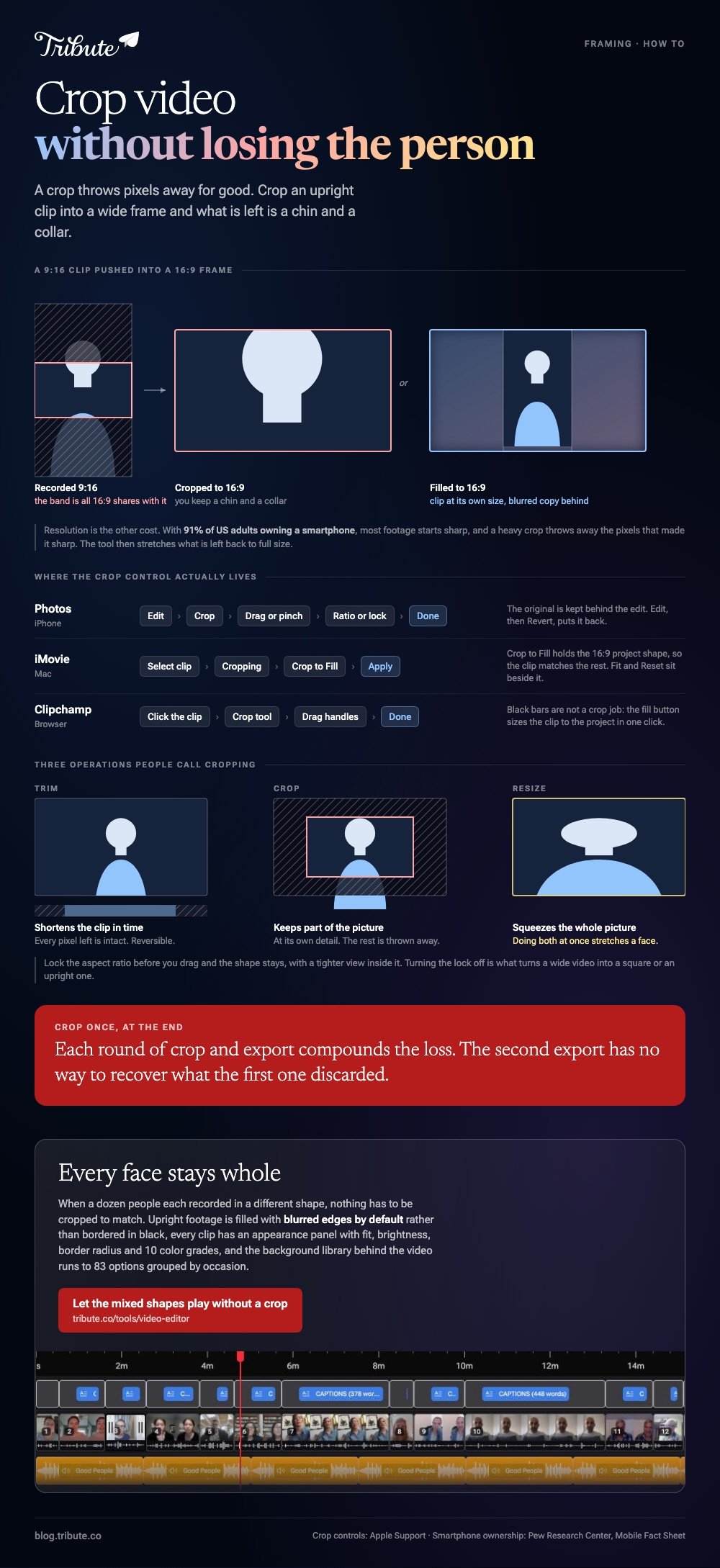
What gets lost when you crop an upright clip into a wide frame?
Most of the person. An upright phone video is tall and narrow, a widescreen video is short and wide, and the rectangle they share is a thin band across the middle of the shot.
Crop to that band and you keep a chin and a collar.
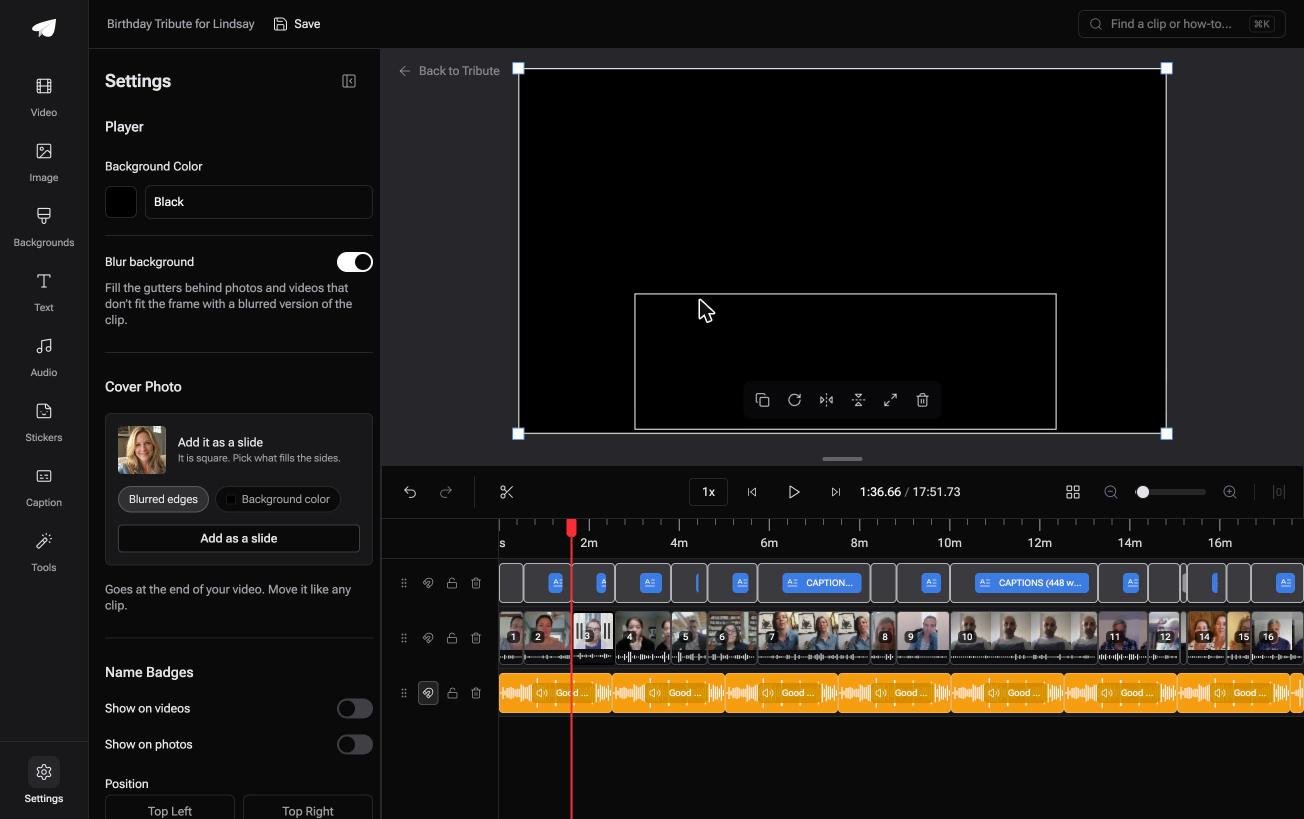
Fill the space instead. Put the upright clip in the center at its own size and run a blurred copy of the same footage behind it so the frame is full rather than black.
This is now the default in most editors with a background setting, and it reads better than a crop that decapitates the speaker.
Resolution is the other cost. With 91% of US adults owning a smartphone, according to the Pew Research Center mobile fact sheet, most footage starts sharp, and a heavy crop throws away the pixels that made it sharp.
The tool then stretches what is left back to full size.
What if the clips came from a dozen different phones?
Then you have upright clips, wide clips and one that someone recorded on a tablet, and cropping each of them to match is an afternoon of work for a worse result.
The Tribute video editor is a browser-based group video editor: contributors record clips on their phones and Tribute assembles them on a timeline with the music balanced under the voices.
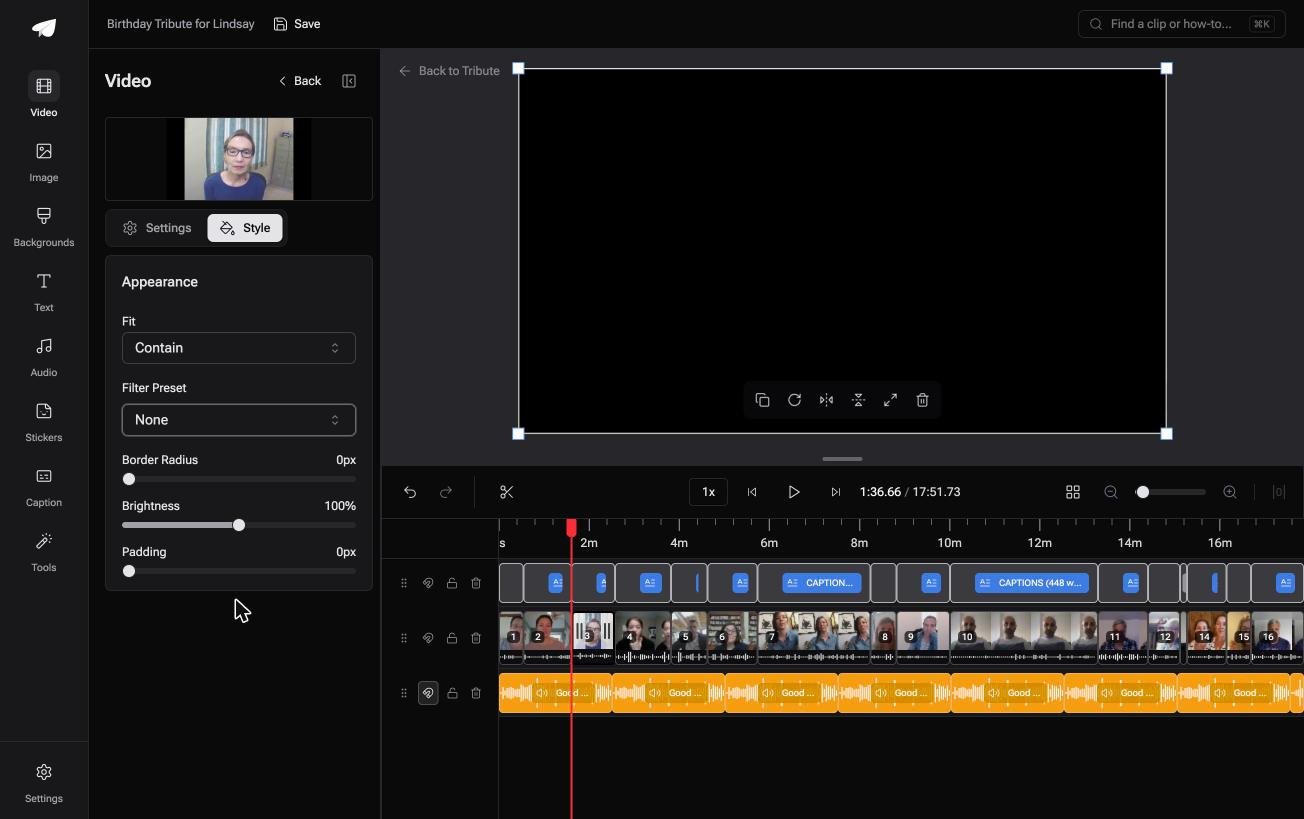
Upright footage is filled with blurred edges by default rather than cropped or bordered in black, and each clip has an appearance panel covering fit, brightness, border radius and 10 color grades previewed on the clip itself.
The background library behind the video runs to 83 options grouped by occasion. It lives inside a paid Tribute and is not a standalone cropping tool.
Best for: Upright clips, wide clips and one from a tablet, where no single crop suits them.
Why it works: Unlike cropping each clip to one shape, filling the frame keeps every face whole.
More on that case in how a group video maker handles thirty phones and in making a video montage.
Does cropping reduce video quality?
Yes, and in a way trimming does not. A crop removes pixels and the tool scales what remains back up to the output size, so a clip cropped to half its width is being asked to cover twice the area it has detail for.
Shot in 4K, that is often fine. Shot at 720p, it shows.
Crop once, at the end, from the original file. Each round of crop and export compounds the loss, and the second export has no way to recover what the first one discarded.

Once the framing is settled, adding music under the voices is the next pass.
Frequently Asked Questions
Can I crop a video without changing its shape?
Yes. Lock the aspect ratio before you drag, which every crop tool offers, and you keep the same frame shape with a tighter view inside it. Turning that lock off is what changes a wide video into a square or an upright one.
How do I remove black bars from a video?
Use the fill control rather than the crop handles where the editor has one, as Clipchamp does. It sizes the clip to the project frame in a click, which is quicker than dragging handles and does not cut the subject.
Can I crop a video on Android?
Google Photos crops video on Android phones with at least 1GB of RAM running Android 6.0 or later. Open the clip, tap Crop, choose an aspect ratio or rotate the shot, then tap Save.
What size should a video be for Instagram?
Upright at 1080 by 1920 covers Reels and Stories, and square or 4:5 suits the feed. Export at the shape the platform wants rather than letting it crop your video for you.
Is cropping the same as resizing?
No. Cropping keeps part of the picture at its own detail, while resizing squeezes or stretches the whole picture into a new frame. Doing both at once is what produces a stretched face.
Can I crop part of a clip and leave the rest alone?
Split the clip at the point where the crop should start, then crop the piece you split off. Phone and browser editors treat each piece as its own clip after a split, so the setting applies to one of them.
👉 Let the mixed shapes play without a crop if everyone handed you a different shape of video, and every face stays in the picture.
