
How to Crop Video Online Without Losing the Person in It
To crop video online, open a browser tool, upload the file, drag the crop box over what you want to keep, and export. Clideo and Adobe Express both do it on one screen. Cropping throws pixels away for good, so check whether you need a different frame, not a smaller one.

What does it mean to crop video online?
Cropping cuts into the picture. You draw a rectangle inside the frame, everything outside it goes, and what is left becomes the whole video.
It is not trimming, which shortens the clip in time, and it is not resizing, which changes the shape of the output frame and leaves the picture alone.
Browser tools do all three, which is why searches for cut and crop video online land on the same pages. Each one is a different button, so decide which job you are doing before you start dragging handles.
The reasons to crop are narrow and worth naming. You want a person larger in the frame, you want a distraction out of the shot, or you need a square or upright version of something wide.
If the real problem is black bars at the sides of an upright clip, cropping is the wrong tool and a background fill is the right one.
How do you crop video online in Clideo?
Clideo's Crop Video tool is the most direct of the browser options, with presets on one side and exact pixel sizes behind them.
- Open the Crop Video tool and click Choose file, drag a file onto the page, or use the arrow beside the button to pull one from Google Drive, Google Photos or Dropbox.
- Pick an aspect ratio in the presets grid to the right of the preview, then drag the corner or edge handles. The crop keeps the ratio you chose.
- For an exact size, click the Not set option in the right pane and enter a height and width in pixels under Exact size.
- Drag the grid itself to move the crop area over the part of the picture you want.
- Choose an output type in the Format list at the bottom, then click Export.
- On the result page, click Download, or send the file to Google Drive or Dropbox with the arrow beside it.
The help center sets out the same steps and the export options. It puts a watermark on the result and a Remove watermark button on the result page that leads to its pricing plans.
So yes, you can crop a video online for free, and the export carries a mark until you pay.
Best for: A clip that needs an exact pixel size, or one stored in a cloud drive.
Why it works: Presets and pixel entry sit in the same pane, so you can start loose and finish precise.
How do you crop a video in Adobe Express?
Adobe keeps cropping as a quick action rather than a project, which makes it the faster of the two when you have one file and one job.
- On the Adobe Express homepage, select Video.
- In the Video Quick actions section, select Crop video.
- Browse for a video on your device.
- Choose a pre-defined Aspect ratio, or choose Freeform and set your own with the handles.
- Drag the handles on the video's timeline to set start and end points, so the crop and the trim happen in one pass.
- Select Mute if you want the audio gone, then select Download.
Those steps come from the Adobe help page on cropping videos. Compared to Clideo, it gives you fewer numeric controls and a cleaner path to a finished file.
Both upload your video to a server to do the work, so neither is the private option.
Best for: One clip that needs a crop and a trim and nothing else.
Why it works: The timeline handles sit on the same screen as the crop box, which saves a second tool and a second upload.

Should you crop online or on your phone?
If the clip is on an iPhone, the Photos app crops video with no upload at all, which is faster than any browser tool once you count the time to send a file.
- Open the video in Photos and tap Edit.
- Tap the Crop button.
- Drag the corners of the rectangle, or tap the Aspect Ratio Freeform button and choose a preset such as Square, Wallpaper, 9:16 or 5:7.
- Tap the lock at the top right of the picture first if you want a shape that is not on the list.
- Tap Done.
Upload time is the hidden cost of the browser route, and it is not small.
Some 16% of US adults are smartphone-only internet users with no home broadband, according to the Pew Research Center, and sending a 4K clip up a mobile connection can take longer than the crop itself.
Best for: A clip that is already on the phone that shot it.
Why it works: Nothing leaves the device, there is no watermark, and the original stays recoverable in Photos.
What does cropping cost you?
Pixels, and more of them than people expect. Crop a 1920 by 1080 clip to the middle third of the width and you keep 640 pixels across, which the export then scales back up to whatever size you asked for.
The file says 1080p; the picture does not.
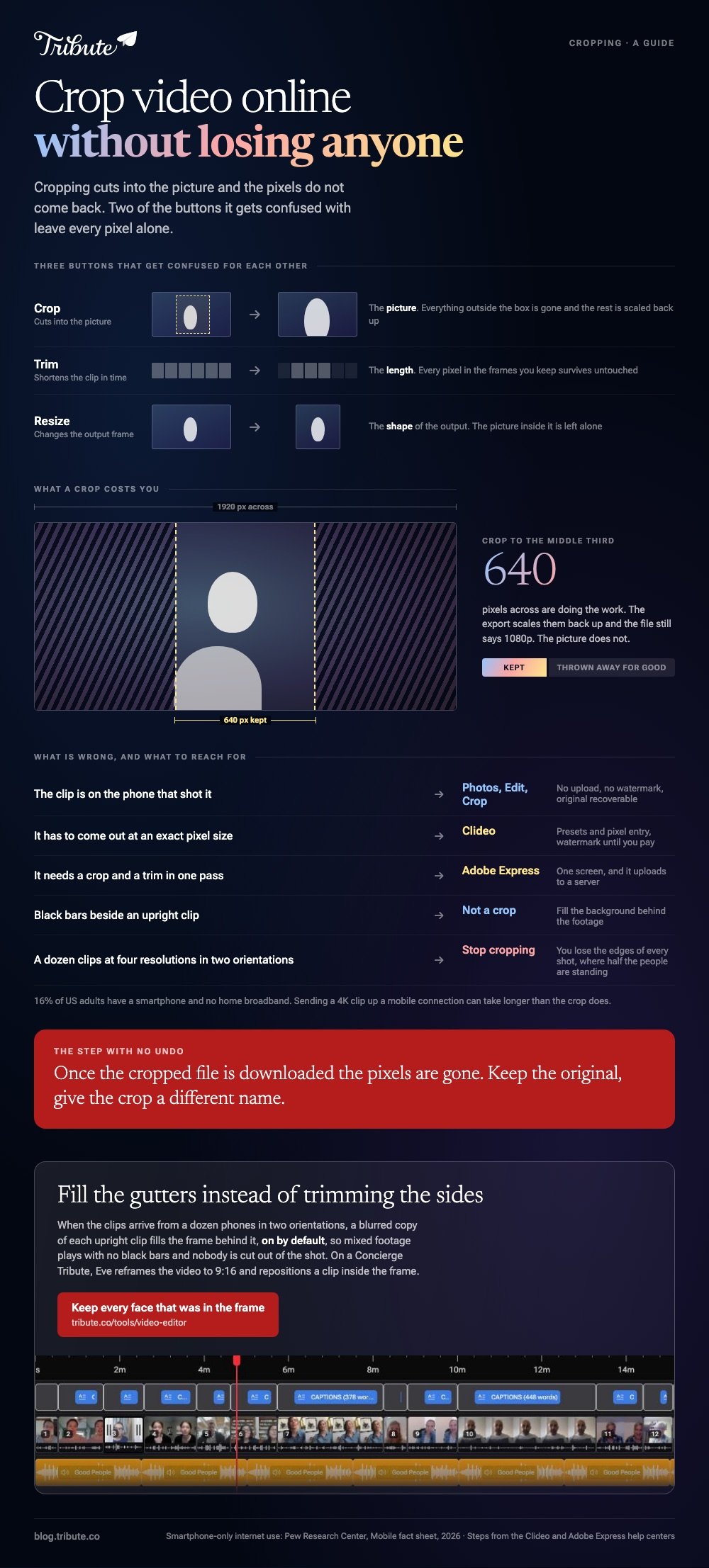
Watermarks and caps are the other two costs. Free tools cap the file size you can upload and stamp the export, and the cap is often lower than one minute of 4K footage from a recent phone.
Read the limits before the upload rather than after it.
There is also no undo once the file is downloaded. Keep the original, name the cropped version something different, and watch the export start to finish before you delete anything.

What if the clips came from a dozen different people?
Then cropping is the wrong instinct.
With 91% of US adults owning a smartphone, a family video arrives at four resolutions in two orientations, and that pile needs a consistent frame, so cropping each clip to match costs you the edges of every shot, which is where half the people are standing.
The Tribute video editor is a browser-based group video editor: contributors record clips on their phones and Tribute assembles them on a timeline with the music balanced under the voices. On DIY it has no crop tool and no aspect ratio switcher.
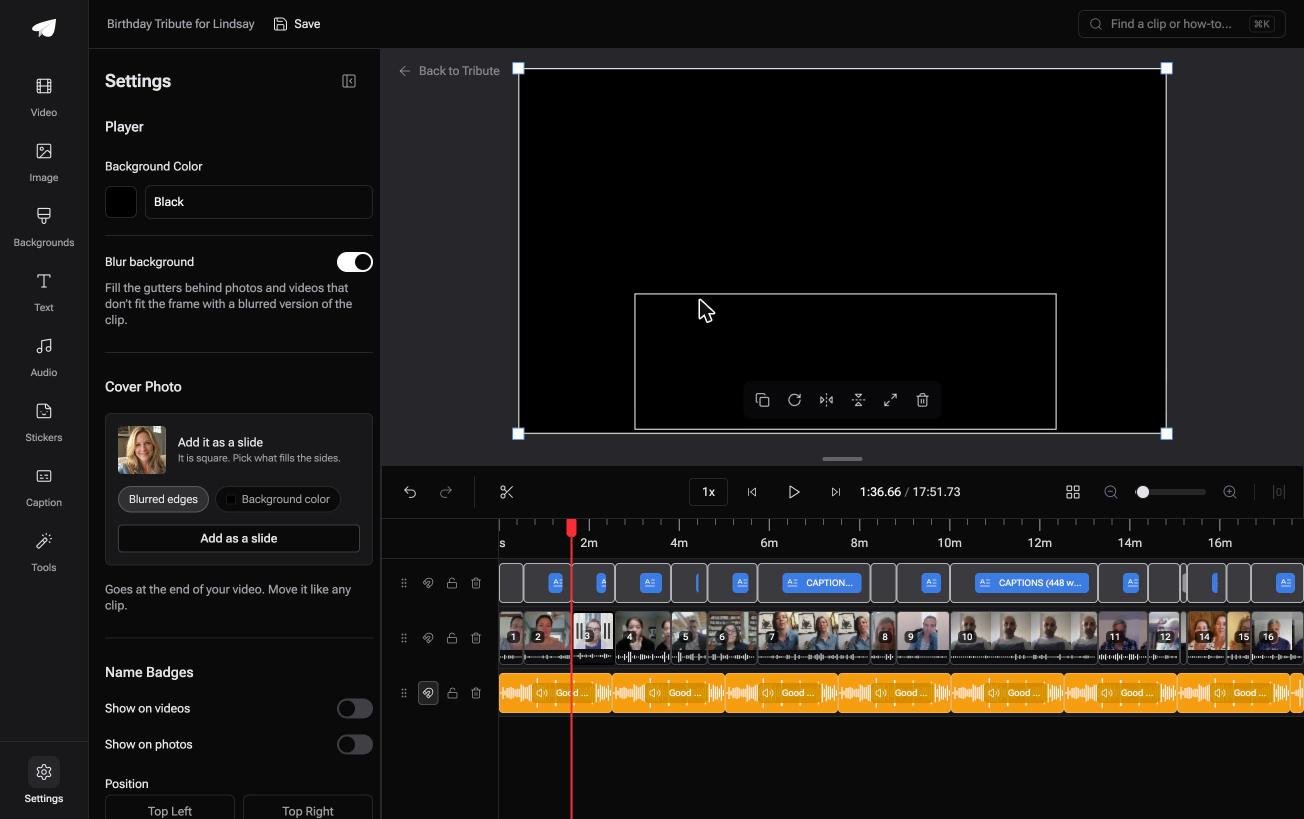
What it does is fill the frame behind an upright clip with a blurred copy of that clip, on by default, so mixed footage plays without black bars and without anyone being cut out of the shot. It lives inside a paid Tribute.
On a Concierge or Concierge Deluxe Tribute, Eve reframes the video to 9:16 or another aspect ratio and crops a clip inside the frame, so the shape question has an answer there.
Best for: A browser full of clips other people sent, where cropping to match would lose half the room.
Why it works: Unlike a crop, a blurred fill keeps every face that was in the original frame.
Related guides: cropping a video without losing the person in it, trimming a video and cutting the dead air, editing in a browser with nothing to install and one video from thirty phones.

Frequently Asked Questions
Can I crop a video online without a watermark?
Some tools leave the export clean and cap the file size instead; others stamp it and sell the removal.
Check the result page of whichever tool you pick before you upload a large file, because the rules differ between a web editor and the same brand's app.
Is there a size limit on browser cropping?
Most free tiers cap the upload somewhere between a few hundred megabytes and a couple of gigabytes. A minute of 4K from a recent phone can be several hundred megabytes on its own, so long clips often need a desktop tool.
Does cropping reduce the resolution?
Yes. You keep only the pixels inside the box, and the export scales them up to the output size, which softens the picture. Cropping in a little is fine; cropping in hard is visible.
Can I crop and trim in the same tool?
You can. Adobe Express sets start and end points on the same screen as the crop box, and most browser editors cut and crop video in the same online session.
Will cropping change my audio?
No. The soundtrack is untouched by a change to the picture, which is why a crop never fixes a clip that was recorded too far from the speaker or in a noisy room.
What is the safest crop for a face?
Leave headroom above and space in the direction the person is looking. A tight crop that clips the top of someone's head reads as an accident, even when it was deliberate.
👉 Fill the gutters instead of trimming the sides if the clips came from a dozen phones in two orientations, and nobody is cut out of the frame.
