
Online Video Editors: Editing in a Browser With Nothing to Install
An online video editor runs in a browser tab, so nothing installs and an old laptop performs as well as a new one. For most people the answer is Clipchamp, which Microsoft preinstalls on Windows 11 and which exports HD without a watermark. CapCut, Canva and Kapwing each charge for something different.

Which browser video editor fits which job?
Prices below were read off each company's own pricing page in October 2026. Free plan rules change often, so check the export screen before you commit a long edit to a tool.
| Tool | Best for | Free plan limit | Price (as of October 2026) |
|---|---|---|---|
| Clipchamp | Everyday joining, trimming, captions | 1080p export, no watermark | Free plan; 4K with Microsoft 365 |
| CapCut | Social clips and auto captions | Not stated on the pricing page | Free plan; Pro $19.99/month |
| Canva | Titles, text and photo-heavy videos | Premium elements are watermarked | Free plan; Pro $144/year |
| Kapwing | Quick subtitled clips | 720p, 4 minutes, watermark | Free plan; Pro $16/month |
| Tribute video editor | One video from many people's clips | Part of a paid Tribute | Paid product |
Which online video editor should you use?
Five tools cover almost every reason someone opens a web video editor. Work down the list and stop at the first one that matches your job.
Clipchamp
Microsoft's own documentation calls Clipchamp the built-in video editor for Windows 11 and says it comes preinstalled, with a browser version at app.clipchamp.com in Edge or Chrome.
The same documentation says it runs on Windows, Mac, Linux and Chromebook, which makes it the widest net of anything here.
- Open app.clipchamp.com and click create a new video.
- Drag your files into My media, or click the import media button.
- Click the green + on each clip to drop it on the timeline in order.
- Click a clip, then drag the green bars at its ends to trim the dead air.
- Open the content library tab, choose audio, and drag a track under your clips.
- Click the audio on the timeline, open the audio tab in the property panel, and pull the volume slider down.
- Click export at the top right and pick a quality.
One detail in Microsoft's help page for editing a video in Clipchamp adds one detail that matters: Clipchamp processes your video on your own machine instead of uploading it to a server. Unlike the upload-and-wait tools further down, a long video never leaves your laptop.
- Look for: the export quality menu, where 4K is reserved for Microsoft 365 Personal and Family subscribers.
- Price: free plan; premium features come with a Microsoft 365 subscription.
Best for: Almost everyone, and anyone on Windows 11 who did not know it was already there.
Why it works: You get a real timeline, HD export with no watermark, and no upload wait, which is a rare combination at no cost.

CapCut
CapCut is the web and desktop sibling of the phone app, and it is built around social video: auto captions, trending effects, aspect ratio changes and a color wheel.
Projects sync through a cloud Space, so you can start on a phone and finish on a laptop.
CapCut's pricing page lists a free plan at $0 with templates and basic editing tools, Pro at $19.99 a month or $179.99 a year, and Ultra at $79 a month.
That page says nothing about watermarks or export resolution on the free plan, which is the one thing you most want to know, so open the export screen before you build a long edit.
- Look for: the export panel, where resolution and any template watermark show up before you commit.
- Price: free plan at $0; Pro $19.99 a month as of October 2026.
Best for: Short clips for Instagram, TikTok or YouTube where captions matter more than archival quality.
Why it works: Automatic captions and a multi-track timeline in the same tab save the two jobs people most often give up on.
Canva
Canva is a design tool that grew a timeline, and it shows. Titles, text animation and photo layouts are better than anything else on this list, while fine audio control is thinner.
Pricing is public: a free plan at US$0, Pro at US$144 a year for one person, Business at US$250 a year per person.
Its help center is clear about the catch: premium elements carry a watermark on the Canva free plan until you buy them, one design at a time. Your own clips and photos are not watermarked, so a video built from family footage downloads clean.
- Look for: the crosshatch pattern on any element you did not upload yourself.
- Price: free plan at US$0; Pro US$144 a year as of October 2026.
Best for: A video built from stills and typography, like a leaving card or a year in review.
Why it works: Compared with a conventional timeline editor, Canva makes a title look designed in about four clicks.
Kapwing
Kapwing is the quickest of these to get a subtitled clip out of, and the strictest about what you get at no cost.
Its pricing page lists a free plan at $0 with 10 credits a month, 720p export, a four minute ceiling per video, a Kapwing watermark, a 2 GB upload cap, 30 minutes of monthly export time and 10 minutes of auto-subtitling.
Pro is $16 a month with 1,000 credits and Business is $50. Those limits are generous for a one minute social cut and useless for a twenty minute family video, which is a clean way to decide.
- Look for: the four minute length cap, which stops a long edit at the last step.
- Price: free plan at $0; Pro $16 a month as of October 2026.
Best for: A short clip that needs subtitles in the next ten minutes.
Why it works: The subtitle editor is the fastest here, and short clips never reach the limits that bite elsewhere.
Tribute, if several people recorded the clips
This is the one case the four tools above are not built for. Twelve people send twelve files over text, email and WhatsApp at twelve resolutions, and joining them is the smallest part of the job.
Collecting them at full quality and getting them in a sensible order is the work.
The Tribute video editor is a browser-based group video editor: contributors record clips on their phones and Tribute assembles them on a timeline with the music balanced under the voices.
Clips arrive in order with a tick showing which are already placed, music sits at 25% under video and 75% under photos by default, and blurred edges fill the frame behind upright phone footage.
It lives inside a paid Tribute and it is not a general purpose web video editor.
- Look for: the Reorder media window, where every clip is numbered and can be moved to front, moved to back or sent to a position.
- Price: part of a paid Tribute, not a standalone editor. DIY starts at $35, a Concierge edit by Tribute's own editors is $99, and Concierge + Video Book, which returns the video in a hardcover case with a screen inside, is $149.
Best for: A work laptop with no install rights and sixteen clips waiting in an inbox.
Why it works: Unlike a folder of files you upload yourself, the collecting, the ordering and the audio balance all happen before you open the editor.

If that is your situation, read how a group video maker handles thirty phones and the wider guide to making a video montage. If it is not, stay with Clipchamp.
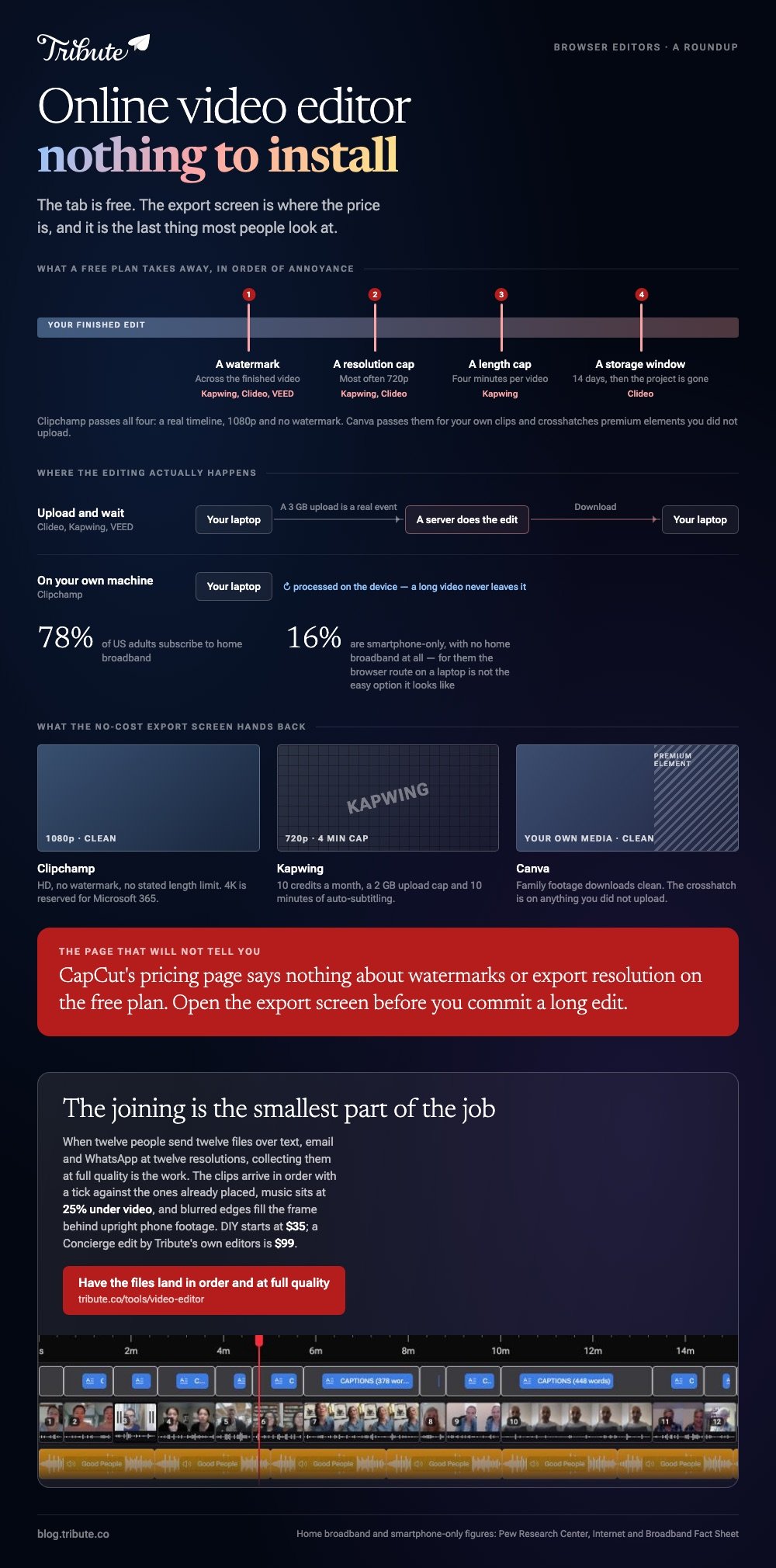
What does a free plan take away?
Four things, in rough order of annoyance:
- A watermark across the finished video.
- A resolution cap, most often 720p.
- A length cap, which Kapwing sets at four minutes.
- A storage window, after which the project disappears.
Clideo is a useful illustration because its pricing page is blunt about all four: the free tier exports with a watermark at up to 720p, holds files for 14 days and caps uploads at 500 MB, while $9 a month billed yearly at $108 removes the watermark and allows 4K.
VEED prices from $147 per user a year and lists "No watermark" as a paid feature, which tells you what the no-cost route looks like there.
We compare the no-cost options in detail in free online editors compared and the best free video editors for people who are not editors.

Does a web video editor upload your footage?
Most do, and that is the hidden cost. Clideo, Kapwing and VEED send your files to a server, edit them there and hand back a download, so a 4K clip from a recent phone can take longer to upload than the edit takes to make.
Clipchamp is the exception on this list, because Microsoft's documentation says it processes video on your device rather than uploading it.
That matters more than it sounds, because 78% of US adults subscribe to home broadband, according to the Pew Research Center internet and broadband fact sheet, and the rest are working over a phone connection where a 3 GB upload is a real event.
Pew also reports that 16% of US adults are smartphone-only internet users, with no home broadband service at all. For them the browser route on a laptop is not the easy option it looks like, and a phone app is the sensible choice.
Which one should you pick?
Start with Clipchamp. It joins clips, trims them, captions them and exports HD without a watermark, and on Windows 11 it is already installed. Open app.clipchamp.com, make one short test video, and export it before you trust it with anything long.
Move to CapCut if the video is for social and you want captions styled rather than present. Choose Canva if the video is photos and titles more than footage. Use Kapwing for something short and subtitled today.

Pick a single-task site such as Clideo only when you want one operation done and do not care about a watermark.
For the joining step on its own, our guide to joining clips in a browser covers the cut and the join.

Frequently Asked Questions
Is there a video editor online with no watermark?
Yes. Clipchamp exports HD with nothing added, and Canva only watermarks premium elements you did not upload. Kapwing and Clideo both watermark their no-cost exports, and VEED lists watermark removal as a paid feature.
Do I need an account to edit in a browser?
In most tools yes, because the project has to be saved somewhere between sessions. Single-task sites sometimes let you finish one job without signing in, then ask for an account at the download step.
How long can a video be in a browser editor?
It depends on the tool rather than the browser. Kapwing caps no-cost exports at four minutes, Clideo caps uploads at 500 MB, and Clipchamp has no stated length limit because it works on your own machine.
Will editing in a browser lower the quality?
Only through the export setting. If the tool exports at 720p and your clips were shot at 4K, the output is 720p whatever you do. Check the resolution menu before the render rather than after.
Can I edit video on a Chromebook?
Yes, and this is the strongest reason to use a browser tool. Clipchamp's documentation lists Chromebook support, and Canva, CapCut and Kapwing all run in a Chrome tab.
What happens to my files after I close the tab?
Server-side tools delete them on a timer, and Clideo states a 14 day storage period on its free tier. Download the finished file the moment it is ready and keep the originals somewhere else.
Is a browser editor enough for a wedding or memorial video?
For a video built from your own footage, yes. If ten or more people are each sending a clip, the collecting and ordering will cost you more hours than the editing, and that is a different kind of tool.
👉 Have the files land in order and at full quality before the tab opens if they reached you by text, email and WhatsApp.
