
Online Video Editor and Cutter: Joining Clips in a Browser
An online video editor and cutter does two jobs in one browser tab: it joins clips end to end and it removes the parts you do not want. Clideo handles each job on its own page, Clipchamp gives you a full timeline, and Canva adds titles and music. Nothing installs.
One note before the steps: we make the Tribute video editor, and it appears once near the end for the case it fits. Every other tool here is one we do not sell.

What does an online video editor and cutter do?
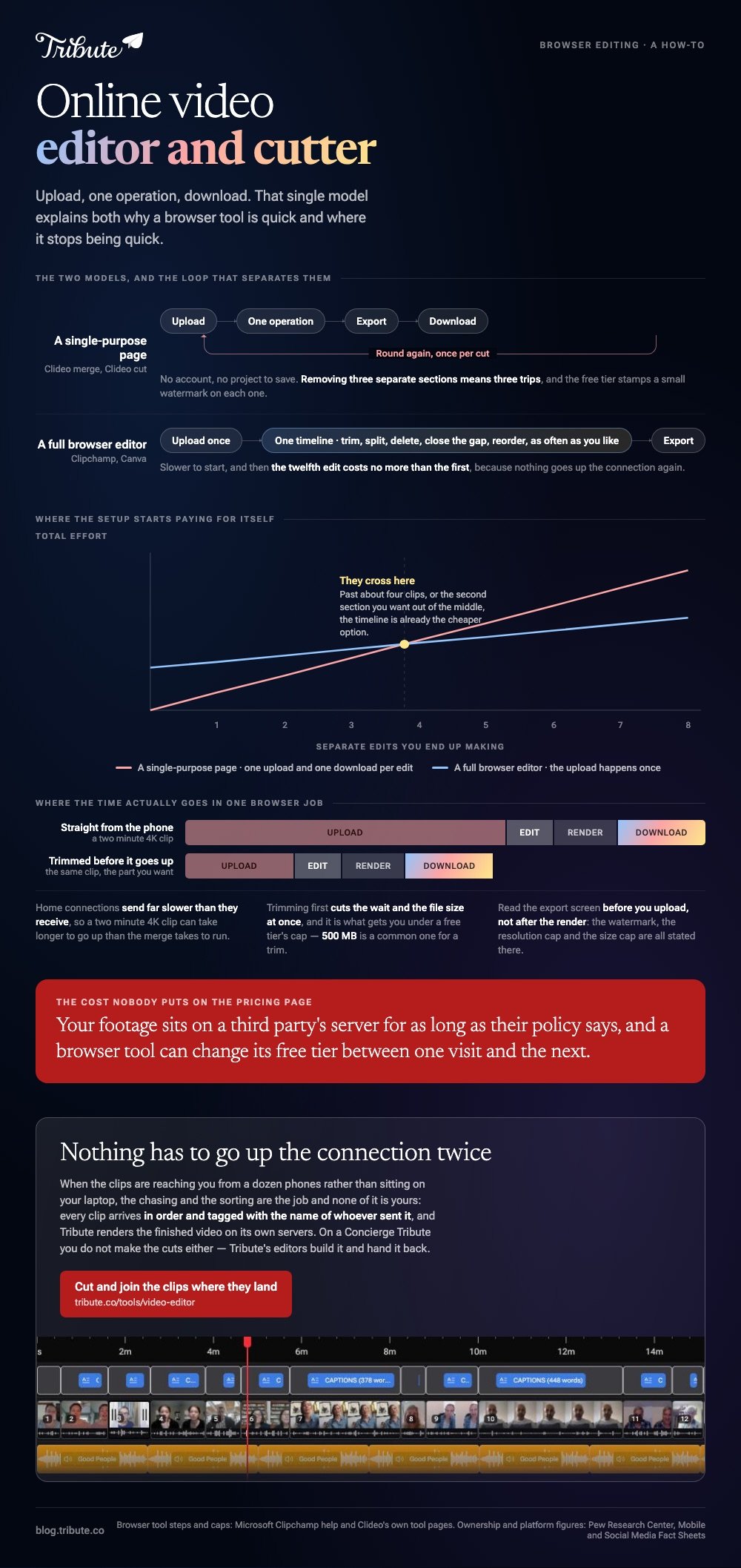
It uploads your files, applies one operation, and hands back a download. That is the whole model, and it explains both the appeal and the limits.
Single-purpose pages do one thing each: join videos online, trim a clip, convert a format. Full browser editors keep everything in one project with a timeline, which is slower to start and far better once you have more than three clips.
The deciding question is the size of your files. A video cutter online will trim a short clip in under a minute, while two 4K files from a recent phone can spend longer uploading than the edit takes.
How do you join videos online?
Clideo's merge page is the shortest route when all you need is one file out of several.
- Open the merge tool and click Choose file. Select several clips at once, or add more after the first upload.
- Drag the items into the order you want. Photos can go in the sequence too, with a duration you set.
- Add an audio track if you want one, and set its length and volume.
- Pick an aspect ratio and crop setting, then a resolution and output format.
- Click Export, watch the preview, then click Download. Edit takes you back if something is wrong.
The page lists MP4, AVI, MPG, VOB, WMV and MOV among the formats it accepts, and converts a mixed set to one output format on its own. A crossfade between clips is an option rather than the default, which is the right way round.
Best for: Three or four clips that need to become one file today.
Why it works: One page, one operation, no project to save and no account to make.

How do you cut the parts you do not want?
Trimming is the other half, and on Clideo it lives on a separate page with its own limit.
- Open the cutting tool and click Choose file. The stated cap is 500 MB per video for free.
- Drag the two markers to select the section you care about.
- Choose whether to extract the selected part or delete it. Deleting a middle section rejoins what is left.
- Add a fade or crossfade at the join if the cut sounds abrupt.
- Click Export, then save the result to your device or to cloud storage.
Two things to know before you start. Exports on the free tier carry a small watermark, and removing several separate sections means going round the loop once per cut, which is the point at which a timeline editor becomes worth the setup.
Best for: One clip with a bad opening, a bad ending, or one stretch in the middle to lose.
Why it works: Two markers and a choice between keeping and dropping is the simplest version of this job anyone has built.
How do you join and cut in the same project?
Clipchamp runs in a browser and ships with Windows. Everything happens on one timeline, so there is no upload between operations.
- Click My media on the toolbar, then the import button, and bring in every clip.
- Drag the clips onto the timeline side by side on the same track so they play one after another.
- Click a clip and drag its trimming handles inwards to shorten it. Hold shift to select several and trim them together.
- To cut from the middle, park the playhead and press the S key or click the split button, then select the unwanted piece and press Delete.
- Hover over any gap between clips and click the delete gap button to close it.
- Open the transitions tab and drag one between two clips where the cut feels hard.
Microsoft documents the joining steps in its guide to combining videos in Clipchamp, and the split and delete steps in a separate article.
Canva's video editor works the same way, with a plus button on the main track for new media and the same S key for a split.
Best for: More than four clips, or any job where you will change your mind twice.
Why it works: The clips upload once and stay in the project, so the twelfth edit costs nothing more than the first.
What do browser tools cost you?
Time at the front, and sometimes a mark on the output. Your clips travel up a home connection that is built for downloading, so a two minute 4K file can take longer to send than the merge takes to run.
Read the export screen before you upload rather than after the render. The things that vary between tools are a watermark on the free plan, a cap on resolution, a cap on file size, and how long the service keeps your files before deleting them.
Privacy is the quiet one. Your footage sits on a third party's server for as long as their policy says, which matters more for anything confidential than for a family video.
Can you merge videos free online without a watermark?
Sometimes. To merge videos free online with nothing stamped on the output, Clipchamp and Canva are the safer bets, because both treat export without a watermark as part of the free plan rather than an upgrade.
Single-purpose pages are the ones that mark the output, and they tend to tell you at the download screen. Unlike a desktop editor, where what you see is what renders, a browser tool can change its free tier between one visit and the next.
If the clips are short and the tool caps by size rather than length, trimming before you upload gets you under the line and shortens the upload at the same time.
What if the clips came from a dozen different people?
Browser tools assume the files are already on your laptop. When twelve people are sending clips over text, email and a shared folder, the joining is the last ten minutes of a job made of chasing and sorting.
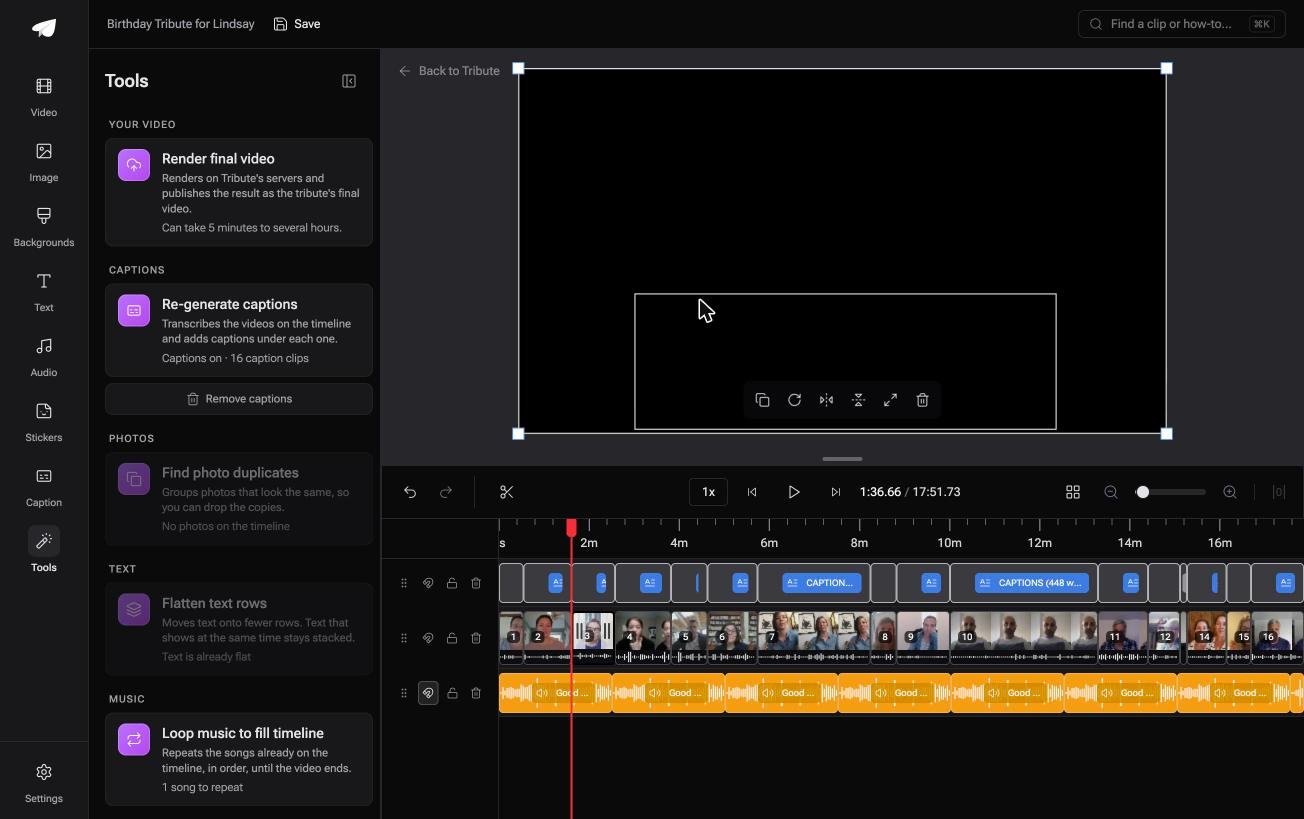
The Tribute video editor is a browser-based group video editor: contributors record clips on their phones and Tribute assembles them on a timeline with the music balanced under the voices.
The clips arrive in order before you open the editor, each tagged with the name of whoever sent it, and Tribute renders the finished video on its servers. It lives inside a paid Tribute and is not a general purpose cutter.
Best for: A retirement or leaving video where a dozen people each recorded a message.
Why it works: Collecting at full quality and ordering the result happen before the editing starts, which is the part that eats the evening.
More on that in one video from thirty different phones, and a wider look at the browser tools in editing in a browser with nothing to install.
What should you check before you export?
Play the first and last ten seconds. Most mistakes live at the joins and at the ends, and both are quicker to fix before the render.
Then check the sound. Clips from different rooms arrive at different levels, so set a volume per clip rather than one for the project, and drop any music under the speech.
With 91% of US adults owning a smartphone, according to the Pew Research Center mobile fact sheet, a video assembled from friends and family is a video assembled from a dozen microphones.
Export at the highest setting on offer, then send a link rather than a file. YouTube is the usual home, and 84% of US adults use it, per Pew's social media fact sheet, so almost nobody needs an account to watch.
Set it to unlisted for anything family.

What else can you do in the same tab?
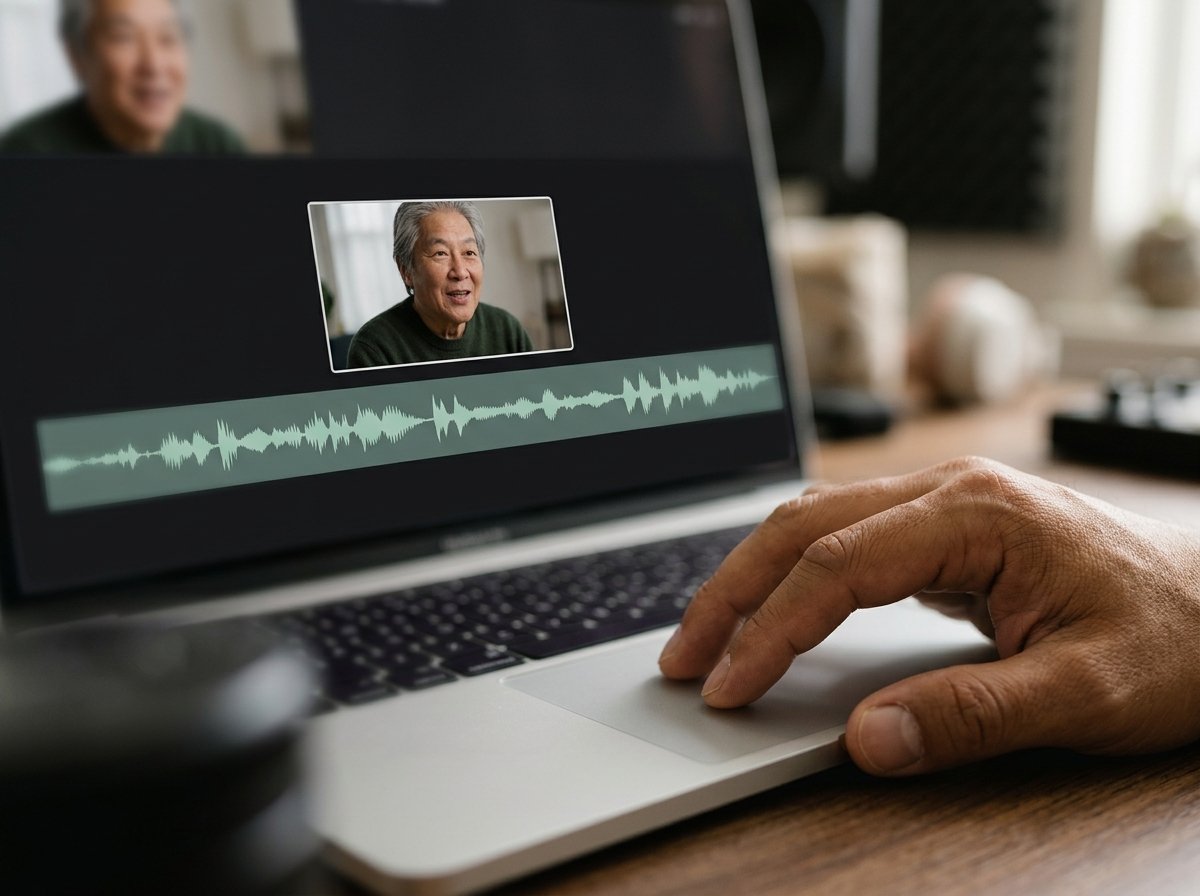
More than joining and cutting, once you are in a full editor. Captions, titles, a music bed and a crop to a different shape are all browser work now, and none of them need a download.
Pick the tool for the hardest thing on your list rather than the easiest. If the job ends at joining, a single-purpose page wins on speed; if it includes titles and music, start in the editor and save yourself the second upload.
For stills in the mix, see mixing stills and clips in one video, and for a run of photographs, making a slideshow.
Frequently Asked Questions
Is an online video editor and cutter safe for private footage?
It depends on the service's retention policy, which is worth reading once. Files sit on a third party's servers until deleted, so for anything sensitive a desktop editor keeps the footage where it started.
Why is my upload so slow?
Home connections send far slower than they receive, and phone video is large. Trimming before you upload cuts both the wait and the file size, which also keeps you under the free tier caps.
Does joining clips in a browser reduce quality?
A re-encode happens whenever the clips differ in codec, resolution or frame rate, and the weakest clip sets the ceiling. Matching sources join without a visible loss.
Can I cut several sections out of one video?
Not on a single-purpose trimming page without repeating the whole cycle. Compared to that, a timeline editor is built for it: split at each point, select the unwanted pieces and delete them, then close the gaps.
What is the largest file I can upload?
Caps differ by tool and by plan, and 500 MB is a common limit on a free plan for a trim. Full editors tend to cap total project size instead of a single file.
Do I need an account?
Single-purpose pages let you work without one and ask at the download. Full editors need an account because the project has to be saved somewhere between sessions.
Can I edit video online on a phone?
You can, and it is uncomfortable. Timeline handles are built for a mouse, so beyond a quick trim a phone app beats a browser.
👉 Cut and join the clips where they land if they are reaching you from a dozen phones, and nothing has to download first.
