
Best Free Video Editors for People Who Are Not Editors
The best free video editor is CapCut on a phone, Clipchamp in a browser, or iMovie on a Mac. All three join clips, trim them, add music and titles, and export without a watermark. DaVinci Resolve is the most capable download at no cost, and the wrong place to start.

| Tool | Best for | Price |
|---|---|---|
| CapCut | Editing on the phone that shot the footage | Free tier, Pro from $19.99 a month |
| Microsoft Clipchamp | A Windows PC or any browser | Free tier, 4K needs Microsoft 365 |
| iMovie | Mac, iPhone and iPad owners | No charge from Apple |
| DaVinci Resolve | Long projects and color work | Free version, Studio $236 |
| The Tribute video editor | Clips sent in by a dozen different people | Paid, DIY from $35 |
| Shotcut | Old laptops and open source preferences | No charge, open source |
Prices as of October 2026.
What does a free video editor need to do for a first-time editor?
Four things, and the rest is decoration.
It has to put clips in a row, cut the dead air off the front of each one, set the volume per clip so one person is not twice as loud as the next, and export a file you can send.
Most tools in this category clear that bar. What separates them is where they run and what they take away when you do not pay.
Watch for three catches: a watermark burned into the image, an export capped at 720p, and a stock music library that turns out to be the paid part.
Your hardware matters more than the brand. A five-year-old laptop will struggle with a browser editor and a 4K timeline no matter which logo is in the corner, and a recent phone will handle the same job without a fan coming on.
Which is the best free video editor for your device?
CapCut
CapCut runs on iPhone, Android, Mac, Windows and in a browser, and the layout is close enough across all five that learning one teaches you the others.
Tap New project, pick your clips, drag them into order on the timeline, then tap Export at the top right.
The resolution label sits beside the Export button.
CapCut's own export help page lists 720P and 1080P on mobile, with 2K and 4K depending on your device, region and app version, and it warns that accounts on the free tier may hit watermarks or bitrate limits on 4K exports.
At 1080p, which is what most people need, nothing is stamped on the image.
Desktop and browser versions follow the same shape: import, arrange, export. Check the export screen in each one before you build a whole edit, because the resolution options differ between the phone app and the web version.
Best for: Editing on the phone that shot the footage.
Why it works: Per-clip volume, captions and a real timeline on a screen you can hold, which no other app on this list does as well.
Microsoft Clipchamp
Clipchamp is built into Windows 11 and also runs at app.clipchamp.com in Edge or Chrome. Click create a new video, open My media, click import media, then drag your files onto the timeline or use the green + button on each one.
Trimming is a drag of the green bars at either end of a clip. To cut a clip in two, move the seeker to the point you want and click split.
Microsoft documents the whole sequence in its guide to editing a video in Clipchamp, and the export button sits in the top right corner.
Best for: A Windows PC, a Chromebook, or a work laptop where you cannot install software.
Why it works: Exports run to 1080p with no watermark, so the free tier produces a file you can hand over. 4K is the part reserved for Microsoft 365 subscribers.

iMovie
Apple gives iMovie away on Mac, iPhone and iPad, and it is the shortest path to a finished video if you already own one.
On an iPhone, tap Start New Project, then Movie, tap each clip so a blue checkmark appears, then tap Create Movie. Apple's iMovie for iPhone guide lists those steps.
Choose Magic Movie instead of Movie and iMovie builds the thing for you, complete with a soundtrack and transitions between clips, which you then adjust. That is the fastest route from a camera roll to something watchable, and it is the one most people skip.
Best for: Mac, iPhone and iPad owners who want a video this afternoon.
Why it works: Nothing to install, nothing to pay, and the Photos app hands clips straight to it. Unlike a browser tool, no footage leaves your device.
DaVinci Resolve
Resolve 21 is the free version of software that color grades feature videos, and Blackmagic hands it over at no cost.
Blackmagic's own product page lists the paid Studio edition at $236, and the gap between the two is AI tools, 10-bit video above 4K and higher frame rates, not basic editing.
The free version handles 8-bit footage up to 3840 by 2160 at 60fps, which covers every phone in your house.
Work is split across pages named Cut, Edit, Fusion, Color and Fairlight. Start on the Cut page, which Blackmagic describes as built for fast turnaround projects, and ignore the rest until you need them.
Be honest about the cost of entry: the download runs to several gigabytes and the interface assumes you know what a bin is.
Best for: A long project, a slideshow with hundreds of photos, or anyone who wants room to grow.
Why it works: You are not going to outgrow it, and nothing is held back behind a payment for the editing most people do.
The Tribute video editor
Here is the paid exception, and the honest framing: if you are shopping for a general editor, skip this one.
The Tribute video editor is a browser-based group video editor: contributors record clips on their phones and Tribute assembles them on a timeline with the music balanced under the voices.
It lives inside a paid Tribute and it cannot open a video you made somewhere else.
It earns a place on this list for one situation. Twelve people each recorded something for one person, the files arrived over text, email and WhatsApp at twelve resolutions, and the editing is the smallest part of the problem.
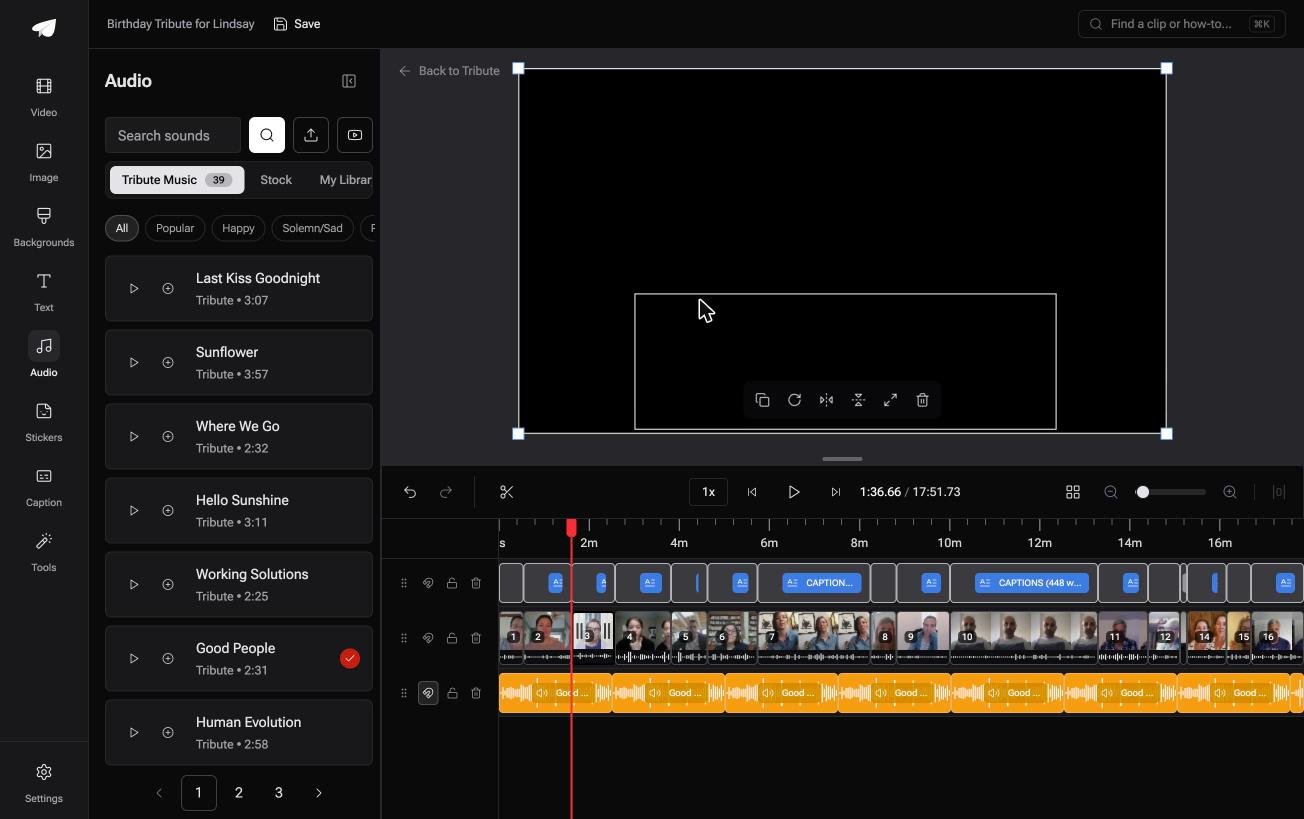
Clips land on the timeline in order before you open the editor, music ducks to 25% under speech on its own, and one switch captions every video on the timeline.
Best for: A video where the hard part is not the editor but the twelve people who owe you clips.
Why it works: Compared with a general editor, the collecting, the ordering and the audio balance are done before you sit down. DIY pricing starts at $35 and a Concierge edit, where Tribute's editors build the video, is $99.
Concierge + Video Book is $149, and the video comes back inside a hardcover case with a screen that plays when the cover opens. For someone who was never shopping for an editor, that is the tier that answers the whole problem.

Shotcut
Shotcut is open source, costs nothing, and runs on Windows, Mac and Linux. Version 26.9 is current. It asks more of you than Clipchamp does and gives back a timeline that does not expire, phone home or hold an export hostage.
This is the pick for an older machine. Browser editors push the work onto a server and lean on your upload speed.
Shotcut does everything on the machine in front of you, so a laptop that chokes on a web editor often handles Shotcut without complaint.
Best for: An old laptop, a Linux machine, or anyone who wants no account at all.
Why it works: No sign-up, no upload, no tier. The trade is a less friendly first hour.
What do the free tiers take away?
Read the export screen before you upload anything, because that is where the catch lives. Three limits turn up again and again across these tools.
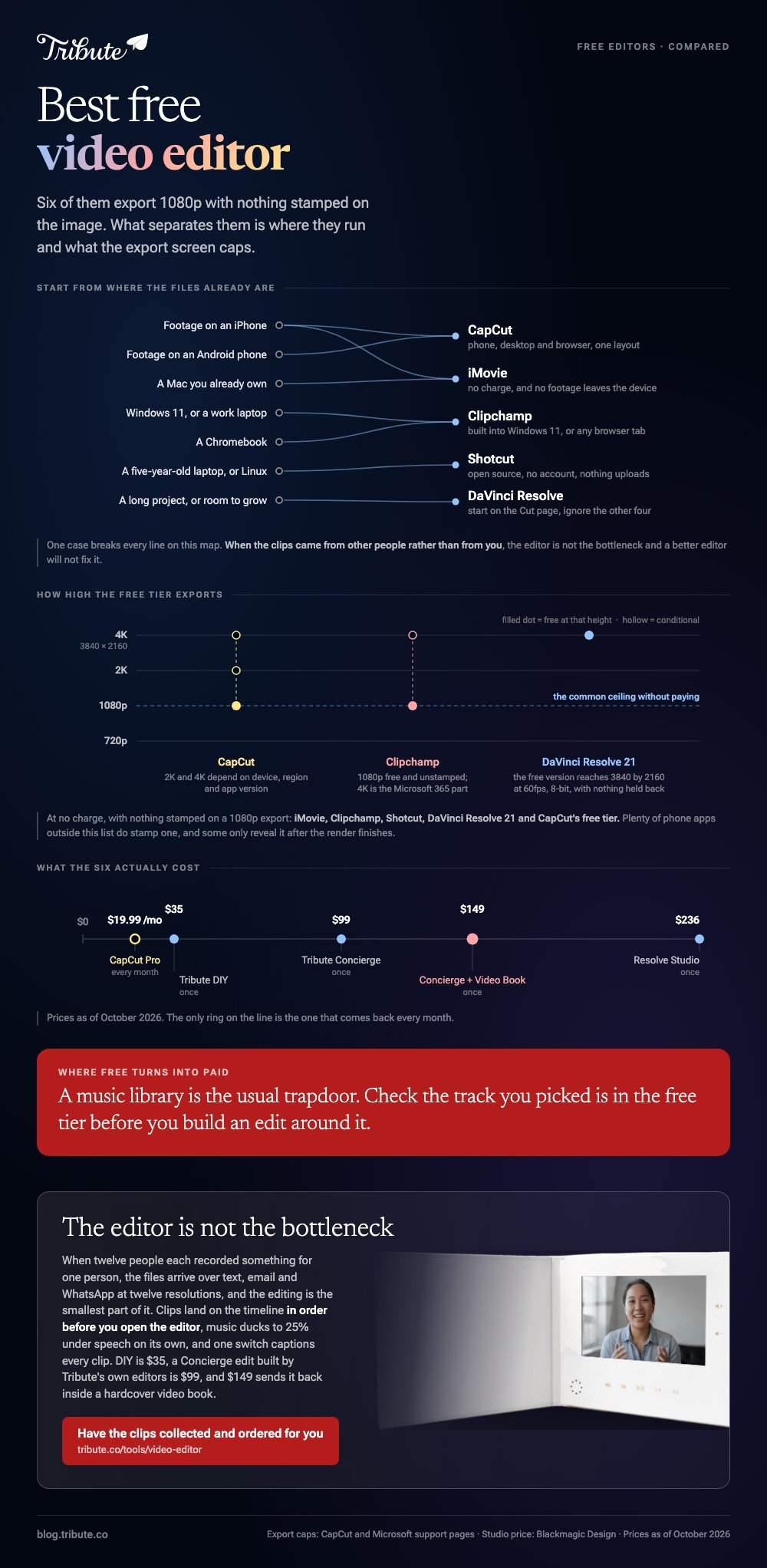
Watermarks. None of the six above stamp a 1080p export. Plenty of phone apps outside this list do, and some only reveal it after the render finishes.
Resolution caps. 1080p is the common ceiling without paying. That is enough for a phone, a laptop and most televisions, and short of what a 4K projector at a wedding wants.
Music and stock. A music library is where free software most often turns into paid software. Check whether the track you picked is in the free tier before you build an edit around it.
Our comparison of the browser-only options goes deeper on these caps: free online video editors compared and editing in a browser with nothing to install.
How do you choose in five minutes?
Start from the device, not the feature list. If the footage is on your phone and you want it finished today, open CapCut or iMovie. If you are on a Windows machine or a locked-down work laptop, Clipchamp.
If the project is long or you want to learn something that scales, Resolve.
Pick based on where the files already are.
Moving 4K clips between a phone, a laptop and a cloud drive costs more time than the edit does, and 91% of US adults own a smartphone, according to the Pew Research Center mobile fact sheet, so for most households the phone is where the footage lives.
One case breaks all of this advice. When the clips came from other people rather than from you, the editor is not the bottleneck and a better editor will not fix it.
Two posts cover that job on its own: how a group video maker handles thirty phones and our main guide to making a video montage.
Still undecided? Join two clips in a browser tab first and see whether the result is already good enough: joining clips in a browser takes about four minutes and costs nothing. A ten minute test tells you more than another hour of comparison tables.

Frequently Asked Questions
What is the best free video editor with no watermark?
Clipchamp, iMovie, DaVinci Resolve and Shotcut add nothing to the image at any resolution they let you export. CapCut is clean at 1080p and reserves some 4K exports for Pro accounts.
Is there a good free video editor for Windows 11?
Clipchamp ships with Windows 11 and opens from the Start menu or by right-clicking a video file. DaVinci Resolve and Shotcut are the stronger downloads if you need more than trimming and titles.
What do people on Reddit recommend?
The recurring answers are DaVinci Resolve for anyone willing to learn and CapCut for anyone who is not. Treat that as a starting point rather than a verdict, since the people answering edit more than you do.
Can I edit video on a Chromebook?
Yes. Clipchamp and CapCut both run in a browser tab, and the heavy work happens on a server rather than on your machine. Your upload speed becomes the limit instead of your processor.
Which free editor is best for TikTok and Reels?
CapCut, by a distance, because it was built around vertical video and auto captions. Its templates are keyed to the formats those apps expect, which saves the resizing step.
Do I need to pay for captions?
No. Captions sit in the free tier of CapCut, Clipchamp and most browser editors. Test the accuracy on one clip before you commit to a tool, because names and places are where automatic transcription still slips.
Is free software safe to install?
Download from the vendor's own site rather than a software aggregator. Clipchamp, iMovie, Resolve and Shotcut all come from the companies that make them, and an installer bundled with extras is the signal to stop.
👉 Get the clips collected, ordered and balanced before the editing starts if the footage is not yours and you are shopping for an editor only because of that, and which tool wins stops mattering.
