
How to Make a Vertical Video Horizontal (Without Black Bars)
You cannot rotate a tall clip into a wide one; you choose what fills the space on either side. The three honest answers are a blurred copy behind the picture, a crop into the middle of the shot, or an auto reframe that follows the subject. Clideo blurs, iMovie crops, CapCut reframes.
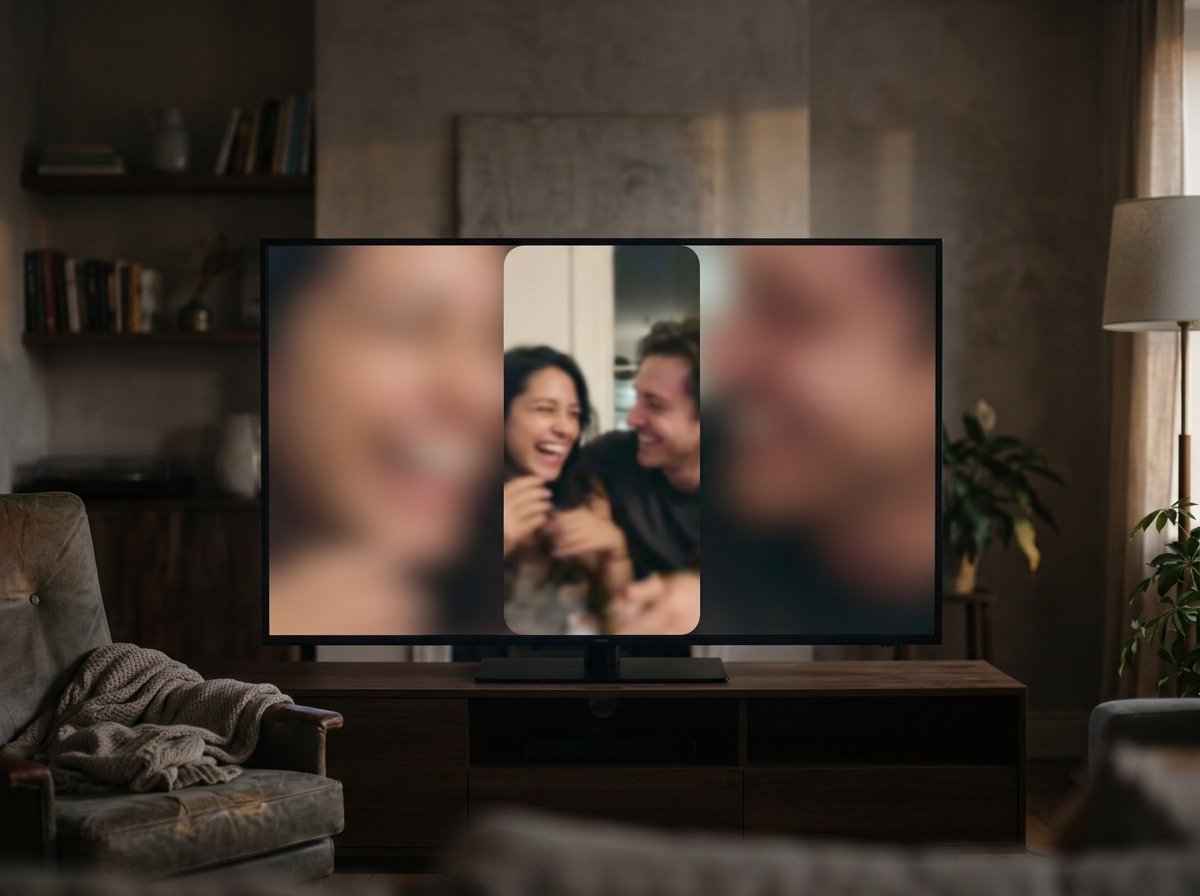
Why does an upright clip leave black bars on a video?
Your phone held upright records a 9:16 picture: tall and narrow. A widescreen player expects 16:9: short and wide. Drop one into the other and the picture keeps its own proportions, which leaves two empty columns down the sides.
Those columns are what people mean by black bars on a video. The player is not broken and the file is not damaged.
The frame is just the wrong shape for the content, and black is the default filler because it is the cheapest thing to render.
This matters more than it did ten years ago.
Phones are now the camera almost everyone has, with 91% of US adults owning a smartphone, according to the Pew Research Center, and a phone in a hand sits upright unless its owner thinks about it.
How to make a vertical video horizontal with a blurred fill?
Blurred fill is the method that looks deliberate. Clideo's Resize Video tool does it in a browser with nothing installed, and the control you want is tucked into the crop options.
- Open the Resize Video tool and click Choose file, or drag the clip onto the page.
- In the Resize for section, pick a social preset, or pick Custom and set a 16:9 size such as 1920 by 1080.
- In Crop options, click Fit. The whole picture stays in frame and bars appear at the sides.
- Click the background color icon and choose the blur option, which fills those bars with a soft copy of the clip.
- Pick an output type in the Format list, click Export, then Download.
One warning before you spend the upload time: Clideo watermarks the export and puts a Remove watermark button on the result page that leads to its pricing plans. Check that before you send a 4K file.
Best for: A clip where a person is near the edge of the frame and cropping would cut them in half.
Why it works: Nothing is lost from the picture, and the eye reads a blurred surround as styling rather than as an error.

What if you crop into the shot instead?
Cropping gives you a full widescreen picture with no filler at all, at the cost of everything outside the new frame. On a Mac, iMovie pushes you down this route, because its cropping frame is constrained to 16:9.
- Select the clip in the timeline.
- Click the Cropping button to show the cropping controls.
- Click Crop to Fill. An adjustable 16:9 frame appears over the picture.
- Move and resize that frame until the person sits inside it.
- Click the Apply button. If you change your mind, Reset clears the crop and Fit restores the clip's own shape with bars at the sides.
Apple sets out both routes, plus the matching control for a clip you have not added to the timeline yet, in its guide to cropping clips in iMovie.
Note what the constraint means in practice: iMovie will not make a square or a vertical video, so 16:9 is the only destination.
Best for: A clip where the subject sits dead center and there is headroom to spare.
Why it works: The finished video fills a television with no surround, which is what a room full of people watching together expects.
Can auto reframe convert portrait video to landscape?
CapCut's desktop editor adds a third option: it tracks the main subject and moves the crop with them as the frame changes shape.
You import the footage, click Ratio and pick 16:9 from the presets, which also include 1:1 and 9:16, then let auto reframe place the picture.
CapCut documents background fillers for the gaps too, including blurred edges and solid colors, so you can mix the two methods on one clip.
Treat the automatic result as a draft. A reframe that follows a face will swing across the frame when two people are talking, and that movement reads as a camera wobble rather than an edit. Watch it once at full size before you export.
Best for: A long clip with one person moving around, where a fixed crop would lose them.
Why it works: The subject stays in frame without you setting a keyframe, and you can still fill any remaining gap with a blur.
Which method should you use for which clip?
Start from what is in the shot. If the subject fills the middle of the frame and nothing important sits near the edges, crop.
If two people are side by side, or a sign or a cake occupies a corner, fit the whole picture and blur the surround. If the subject walks, try the reframe and watch it back.
Resolution decides the rest. A 1080p upright clip cropped to a 16:9 strip keeps about 1080 by 608 pixels, which is softer than the source once it is scaled back up.
Compared to a blurred fill, which leaves the original picture untouched, converting vertical video to horizontal by cropping always costs you detail.
One more thing to check: audio is unaffected by any of this. Changing the shape of the frame does not touch the sound, so a clip that was loud stays loud.
Our guide to adding music without drowning out the voices covers that half of the job.
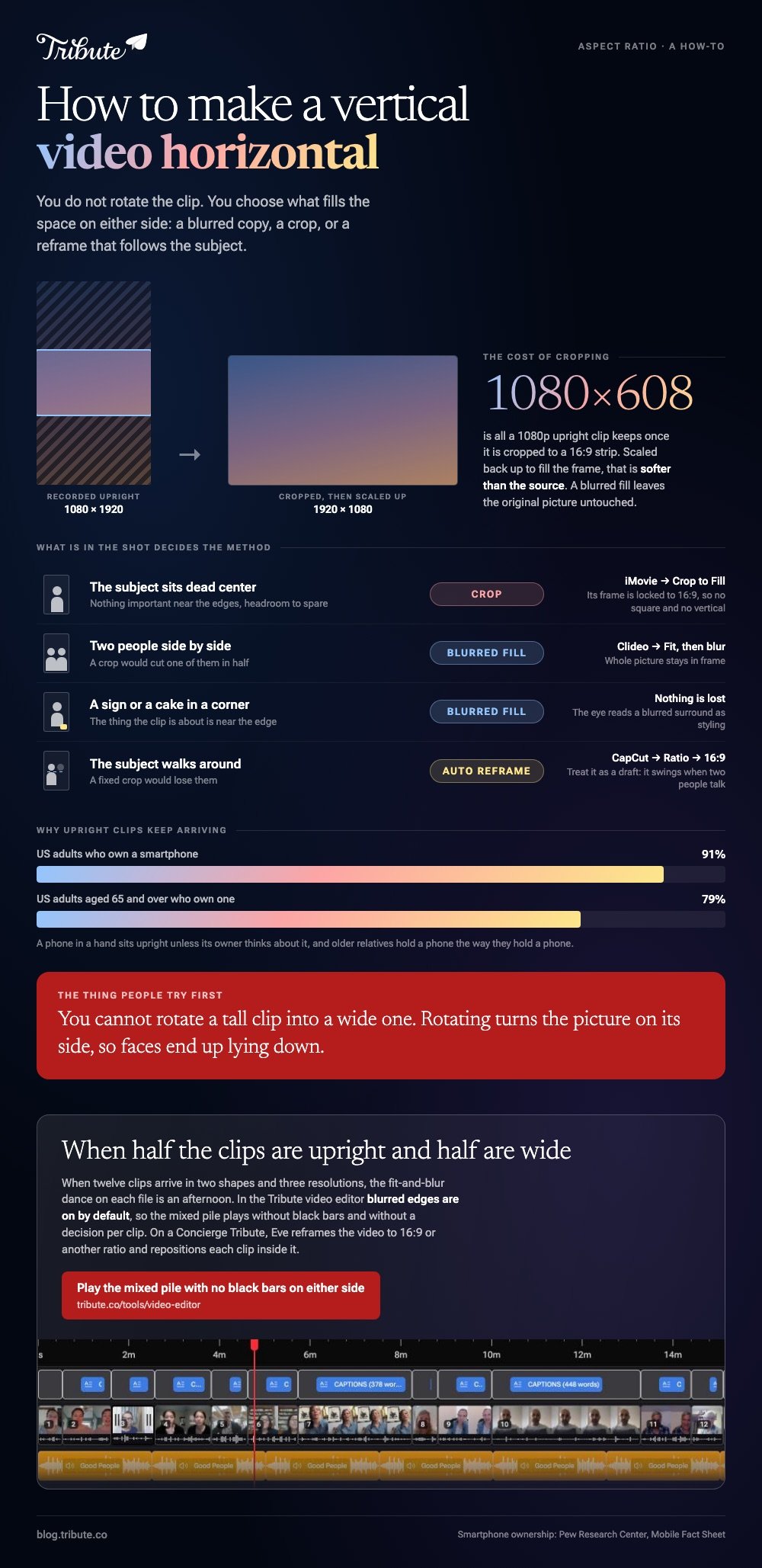
What if half the clips are upright and half are wide?
This is the case that breaks a per-clip workflow. Twelve clips from twelve people arrive in two shapes and three resolutions, and doing the fit-and-blur dance on each one is an afternoon.
The Tribute video editor is a browser-based group video editor: contributors record clips on their phones and Tribute assembles them on a timeline with the music balanced under the voices.
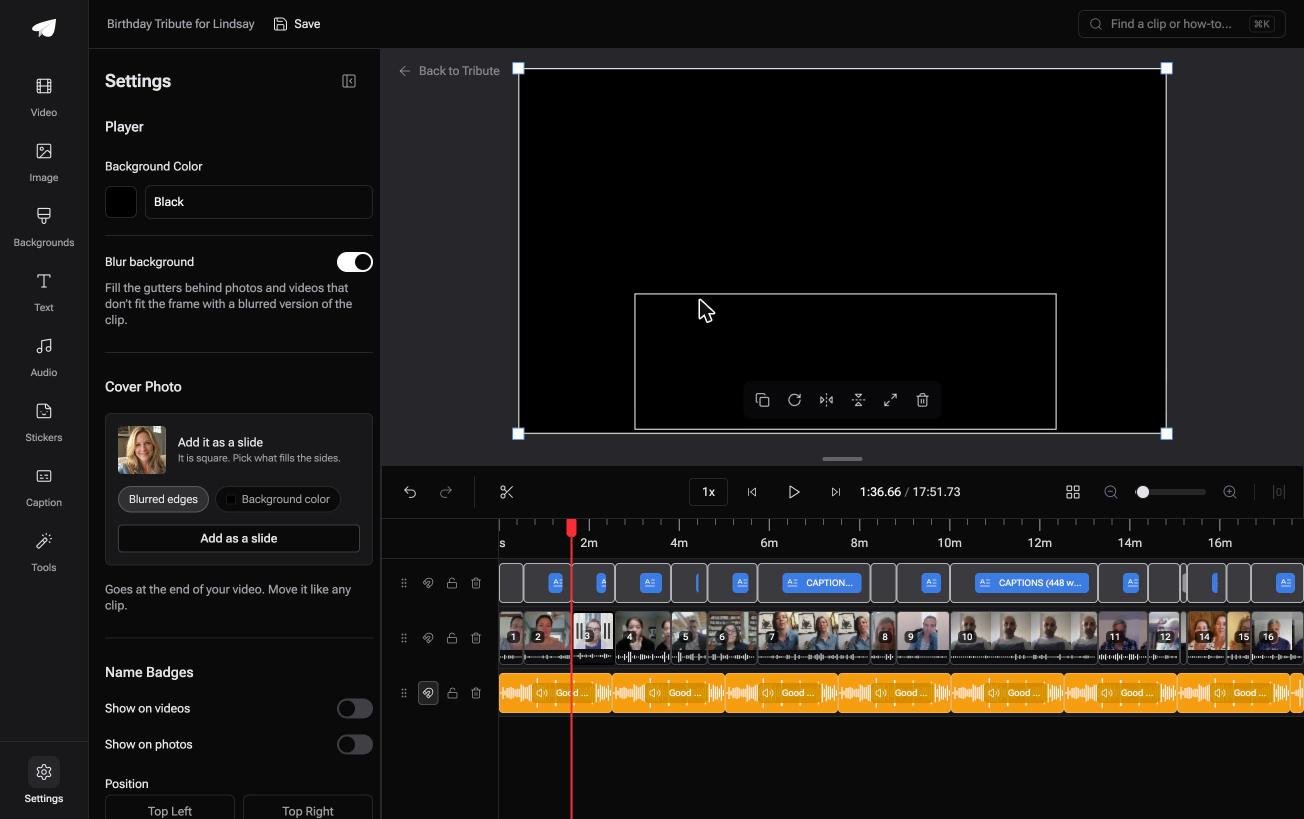
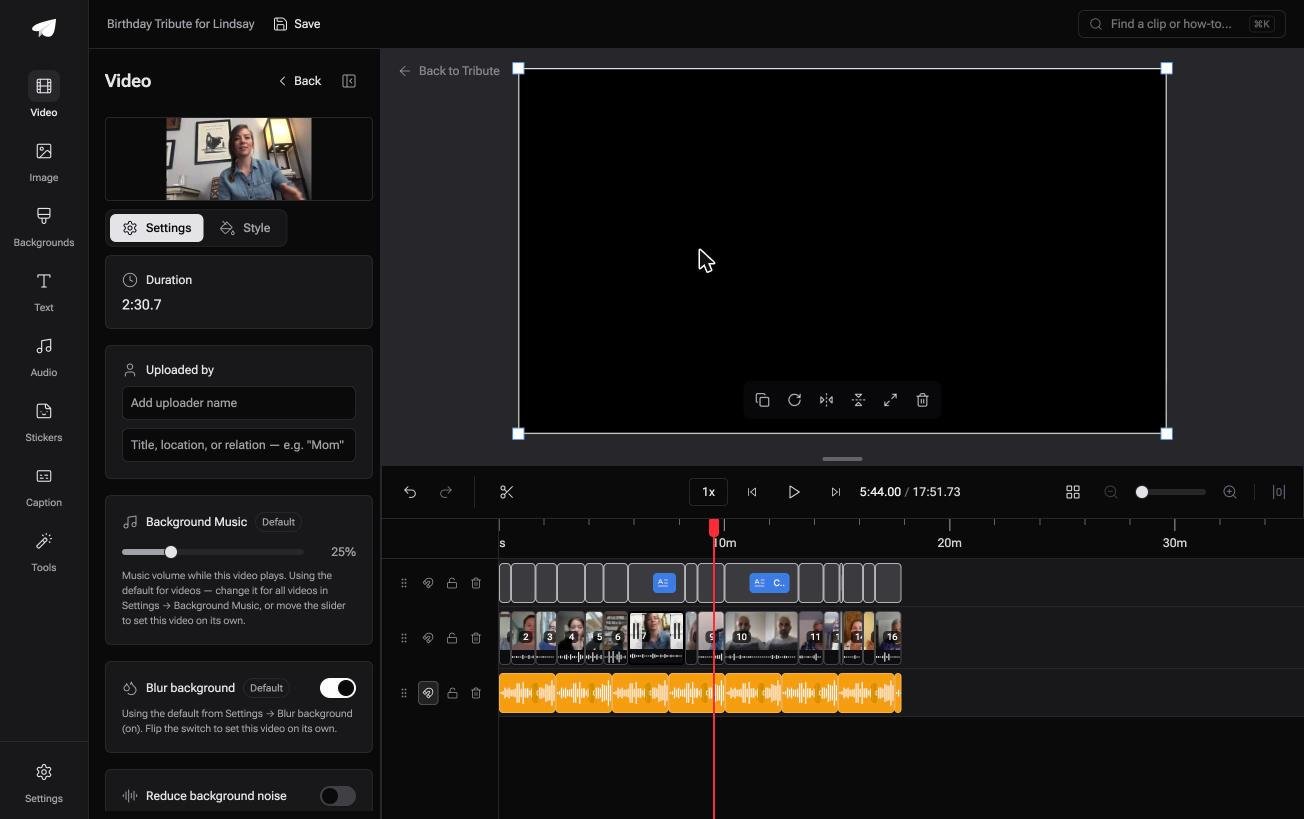
Blurred edges behind upright footage are switched on by default, so the mixed pile plays without black bars and without a decision per clip.
It lives inside a paid Tribute, so it is not a general purpose converter, and on DIY it has no aspect ratio switcher.
On a Concierge or Concierge Deluxe Tribute, Eve reframes the video to 16:9 or another aspect ratio and repositions each clip inside the frame.
Best for: Ten upright clips that have to play on a television in the living room.
Why it works: Unlike a one-file resizer, the fill is a setting on the video rather than a task you repeat twelve times.
Related reading: cropping a video without losing the person in it, putting videos together on a phone or computer and making one video from thirty phones.
How do you avoid the problem when you record?
Ask for the shape you want before anyone presses record. A single line in the message does most of the work: hold the phone sideways, in a quiet room, and start talking after a beat.
Expect some people to ignore it, and plan for that rather than chasing them.
Older relatives in particular hold a phone the way they hold a phone, and 79% of US adults aged 65 and over own a smartphone, so there will be plenty of them in the pile.
If the clip you care about most is upright, use it upright with a blurred surround and stop fighting it. A grandmother's face filling a tall frame reads better than the same face cropped to a letterbox.
Frequently Asked Questions
Can I rotate a vertical video to make it horizontal?
Rotating turns the picture on its side, so faces end up lying down. Rotation only helps when the footage was shot sideways and saved with the wrong orientation flag, which is a different problem.
Does converting vertical video to horizontal lose quality?
Cropping does, because you keep fewer pixels and scale them up to the output size. Fitting the whole picture inside a wider frame does not, since the original is untouched and the tool adds a surround around it.
How do I remove black bars on a video?
Either crop the picture until it fills the frame, or replace the bars with something better. Most resizers let you set the bar color or blur it, and a blur is the one that stops looking like a fault.
Can I make a vertical video horizontal on my phone?
Yes, with a phone editor that sets a project ratio and offers a background fill. The Photos app crops to preset shapes but gives you no way to fill the leftover space, so a phone editor is the better tool here.
What size should the finished widescreen file be?
1920 by 1080 covers almost every player and television. Go to 3840 by 2160 only if the source clips were shot at that size, because scaling up adds file size and no detail.
Is a blurred background unprofessional?
It is the standard treatment on news bulletins and sports highlights for this exact situation. Black bars read as a mistake; a blurred surround reads as a choice someone made.
Should I just publish the vertical version?
If it will be watched on phones, yes. Keep the widescreen export for the screen in a living room and the upright one for a feed, since the two audiences seldom overlap.
👉 Watch the mixed pile play without black bars on either side if the upright clips and the wide ones all arrived together, and skip the fit-and-blur on each file.
