
Canva Crop Video: Cutting the Frame Without Resizing the Design
To crop a video in Canva, select it on the canvas and click Crop on the toolbar, or double-click the video. Drag the handles to set what stays visible, reposition the picture inside them, then click Done.

Where is the Canva crop video control?
On the toolbar that appears above the canvas once a video is selected.
Double-clicking the video opens the same mode, which is the faster route and the one most people find by accident.
- Click the video on the canvas so the toolbar appears above it.
- Click Crop, or double-click the video.
- Drag a corner or an edge handle to set the visible area.
- Drag the picture inside that area to choose which part shows.
- Click Done, or click anywhere outside the element.
Nothing is thrown away. Canva keeps the hidden parts, so to crop video in Canva by a smaller margin you reopen the same mode and drag the handles back out.
When you need an exact size
Canva's page on exact resizing and cropping covers the numeric route: select the element, open Position on the toolbar, and type width and height under Advanced. Turning on Ratio holds the proportions while you do it.
What is the difference between crop and trim in Canva?
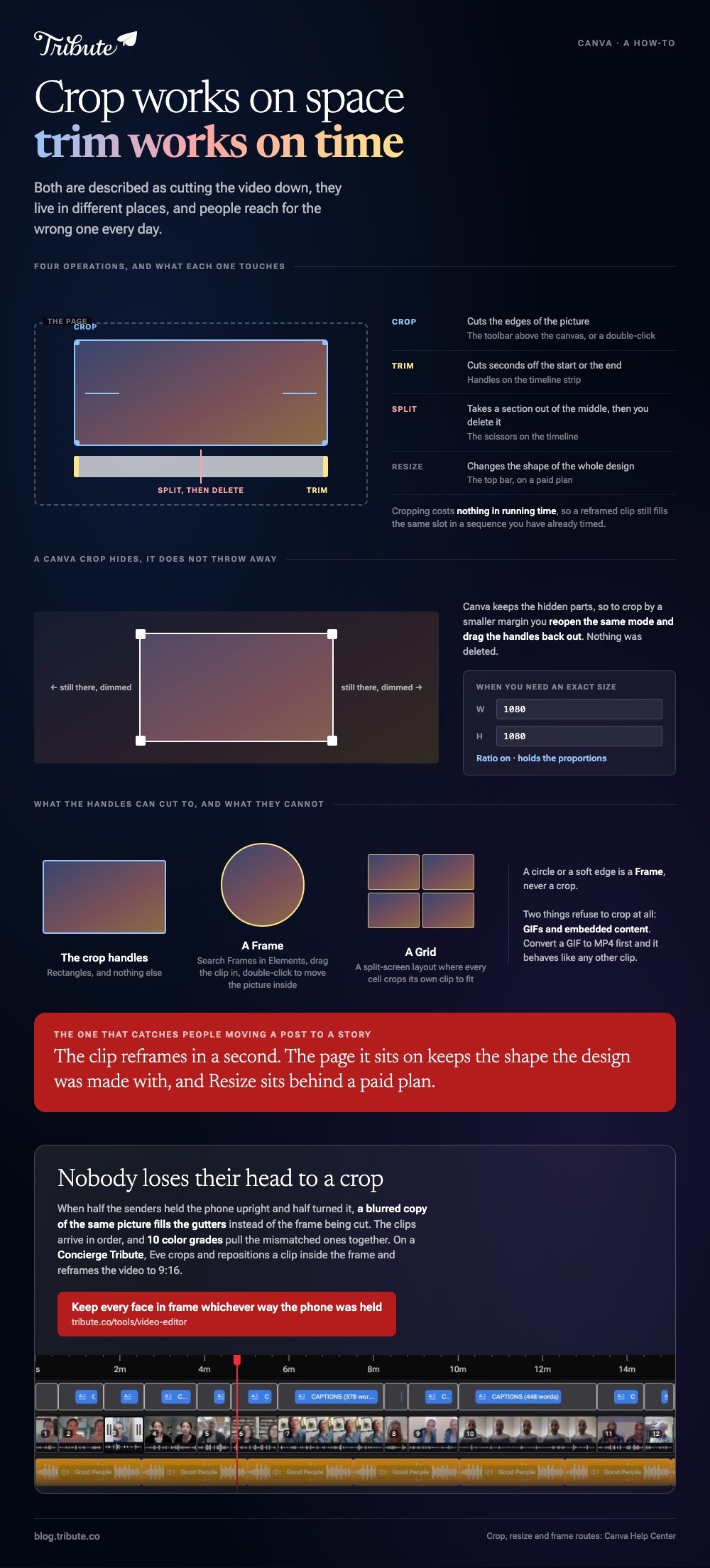
Crop works on space. Trim works on time.
The two live in different places and people reach for the wrong one every day, because both are described as cutting the video down.
| You want to | Use | Where it is |
|---|---|---|
| Cut the edges of the picture | Crop | Toolbar above the canvas |
| Cut seconds off the start or end | Trim | Handles on the timeline strip |
| Cut a section out of the middle | Split, then delete | The scissors on the timeline |
| Change the shape of the whole design | Resize | The top bar, on a paid plan |
Compared with trimming, cropping costs nothing in running time, so a reframed clip still fills the same slot in a sequence you have already timed.
Can the Canva crop video tool change the aspect ratio?
Of the clip, yes. Of the page it sits on, no.
Cropping changes what the viewer sees inside a frame you drew. The page keeps whatever shape the design was created with, and exporting it gives you that shape with your cropped clip inside.
That catches people moving a video between a square post and an upright story. The clip reframes in a second; the page it sits on does not follow it.
- To reframe one clip: crop it and drag the picture inside the handles.
- To change the whole design: use Resize, which sits behind a paid plan.
- Without a paid plan: start a new design at the size you want and paste the elements in.
- To fill a page with a clip: stretch it past the page edges, then crop back to the bleed.
Working out which ratio you need before you crop saves the second pass: the sizes and where they are used are in cropping video online.
How do you crop a video into a shape?
Drop it into a frame rather than cropping it at all.
Search Frames in the Elements panel, drag one onto the page, then drag your video into it. The clip takes the shape of the frame, and double-clicking it lets you move the picture around inside.
Dragging a video into a Canva grid does the same thing for a split-screen layout, with every cell cropping its own clip to fit.
Two things refuse to crop at all: GIFs and embedded content. Convert a GIF to MP4 first and it behaves like any other clip.
Frames are also the route to a circle or a soft edge, which the crop handles cannot give you. The handles cut rectangles and nothing else.
What does the same job look like outside Canva?
Shorter, in most tools, because they are not also page layout software.
Clipchamp is the closest comparison on Windows. Microsoft's page on cropping in Clipchamp puts the crop button on a floating toolbar over the preview: select the clip, click crop, drag the handles, click done.
Unlike Canva, Clipchamp has no canvas underneath, so the crop is the whole operation and there is no page shape to argue with afterwards.
Routes in the other editors are in cropping in Premiere Pro and cropping a video on line.
What if fourteen upright clips landed on one timeline?
Then cropping each one to fit a wide frame is fourteen jobs, and all fourteen cut somebody out of the shot.
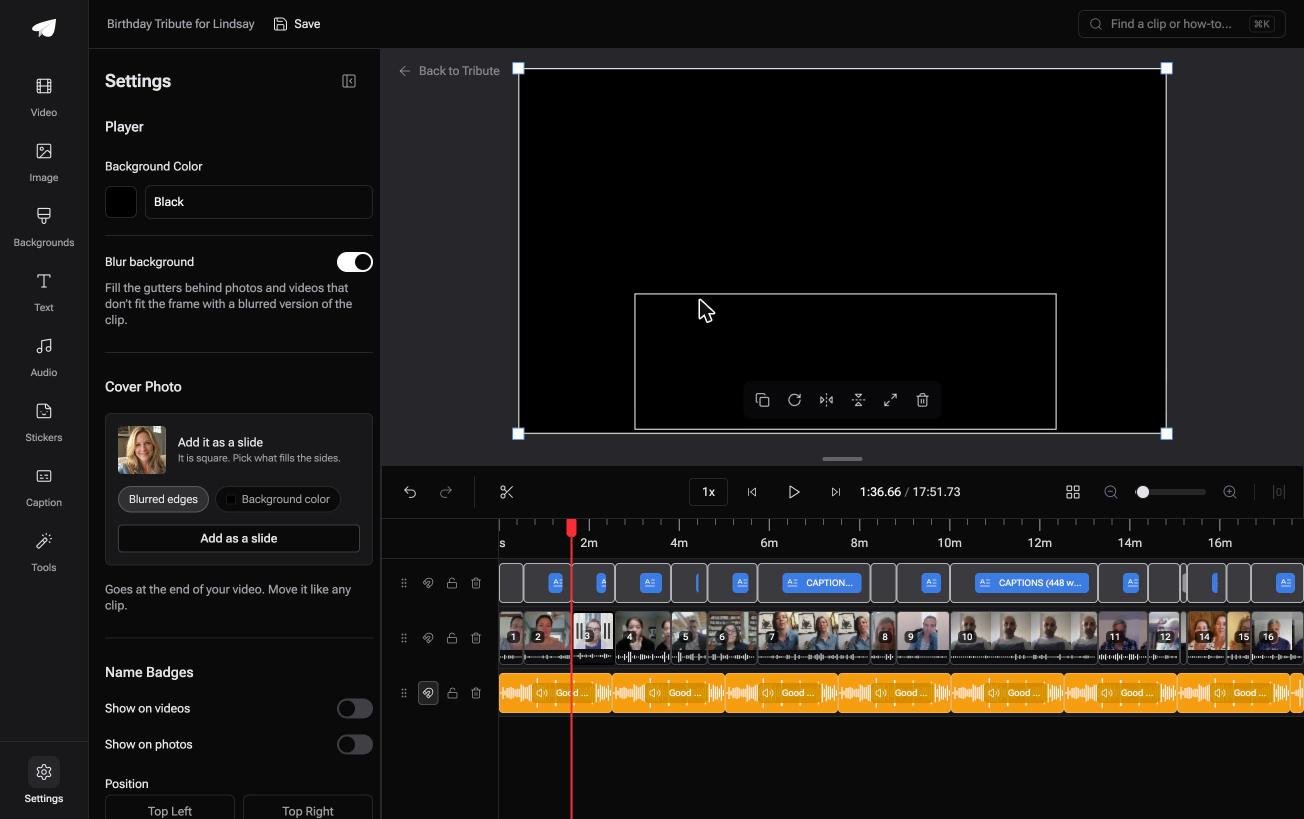
The Tribute video editor is a browser-based group video editor: contributors record clips on their phones and Tribute assembles them on a timeline with the music balanced under the voices. It is ours, and it is the last thing on this page.
- Blurred edges fill the frame behind upright phone footage, switched on by default, with no black bars
- Clips arrive in order on the timeline, with a tick against the ones already placed
- 10 color grades previewed on the real clip, so the mismatched ones can be pulled together
- 83 occasion backgrounds grouped by Celebration, Retirement and Love
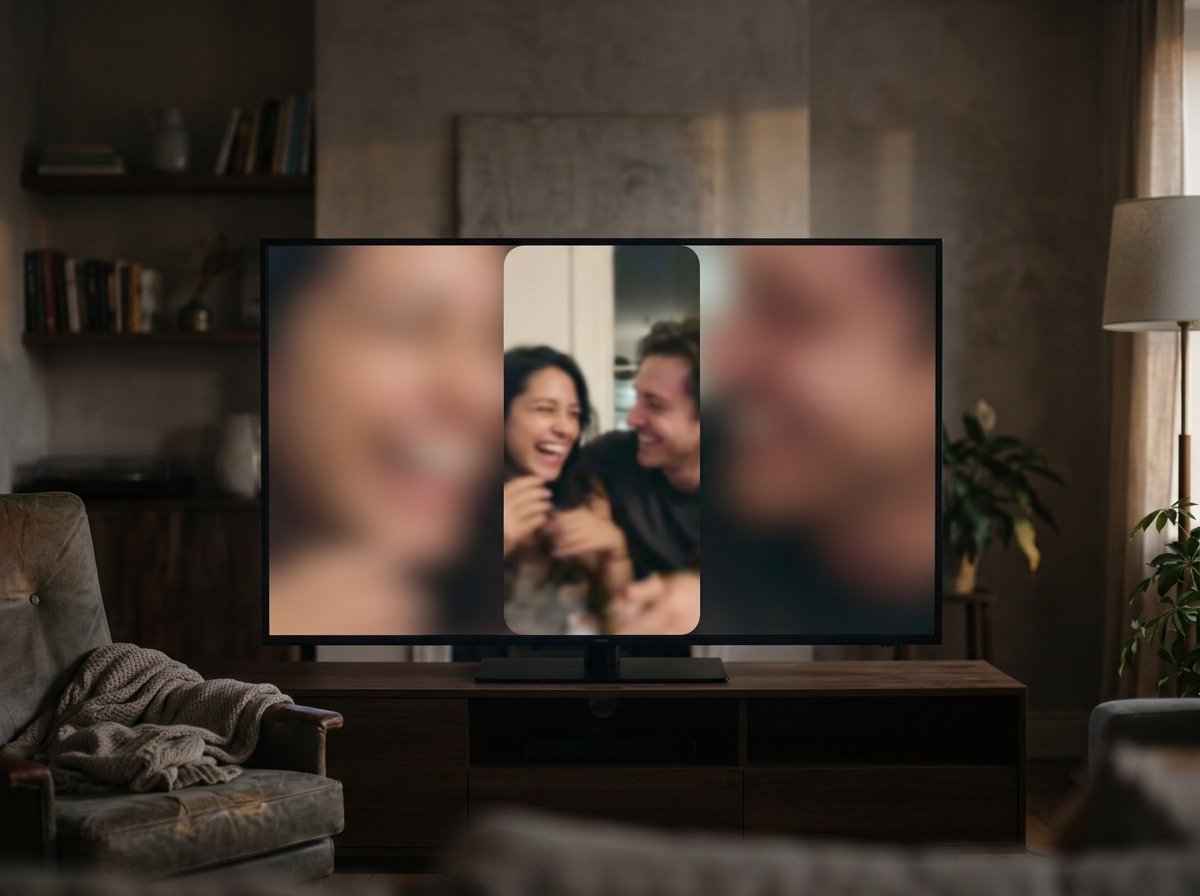
Best for: A set of clips where half the senders held the phone upright and half turned it sideways.
Why it works: Nobody loses their head to a crop, because the gutters are filled rather than the picture cut.
What happens to an upright clip nobody crops?
Every crop above is a decision about what to throw away.
You pick the edges, and whatever sat outside them is gone from the version people watch. On your own footage that is an edit. On somebody else's it is a guess about what mattered to them.
There is one case where the guess is never needed.
The case: the clips came in as people held their phones
You are in it when several people each record something for one person.
A grandmother turning eighty. A colleague leaving after fifteen years. A memorial where the people who should speak are in four time zones.
Half will hold the phone upright and half will turn it. Nobody is going to re-record, and nobody should be cropped out of their own message.

Why the frame stops being a decision
Because the gap beside an upright clip gets filled instead of cut.
A blurred version of the same picture sits behind it, so the frame is full, the subject is whole, and a wide video made of tall clips does not read as a mistake.
That is how the Tribute video editor handles mixed orientations: not a faster crop tool, but nothing to crop.
What you do not have to do
- Drag a crop handle. Upright clips arrive with their edges filled and nothing cut away.
- Standardize anybody's phone. Half upright and half sideways lands in the one frame.
- Assemble or grade it. The clips are in order, and one pick covers the whole set.
- Make the video, on a Concierge Tribute. Tribute's editors cut it, and Concierge Deluxe returns it as a video book.
When this is the wrong answer: you are laying out a designed page with text and brand colors around the video. Then Canva is the right tool and the crop handles above are where the work happens.
The editor is also not a design tool, and a DIY Tribute has no aspect ratio switcher and no crop control: it lives inside a paid Tribute.
On a Concierge or Concierge Deluxe Tribute, Eve crops and repositions a clip inside the frame, and reframes the video to 9:16 or another aspect ratio.
Frequently Asked Questions
Why is the Crop button missing in Canva?
Nothing is selected, or the element is a GIF or an embed, and neither of those can be cropped. Click the video once so the toolbar appears above the canvas.
Can I undo a crop video Canva applied?
Yes. The hidden parts are kept rather than deleted, so reopening crop mode and dragging the handles outward restores them.
Does cropping in Canva reduce the video quality?
Cropping itself does not, but it does enlarge what is left to fill the page. Cropping hard into a 1080p clip and exporting at 1080p means the remaining pixels are stretched.
How do I crop video on Canva using a phone?
Tap the video, then Crop in the bottom toolbar, and drag the handles. The frames and grids route works the same way in the app.
Can I crop one clip and leave the rest alone?
Yes. A crop belongs to the element you selected, so clips on other pages and other slots keep their own framing.
What size should I crop a video to?
Match the page it sits on rather than a number from a guide. If the design is the wrong shape, change the design and let every element reflow once.
👉 Keep every face in frame whichever way the phone was held if half the clips are upright and half are sideways, and no crop handle gets touched.
