
Premiere Pro Crop Video: The Effect, the Frame, and the Export
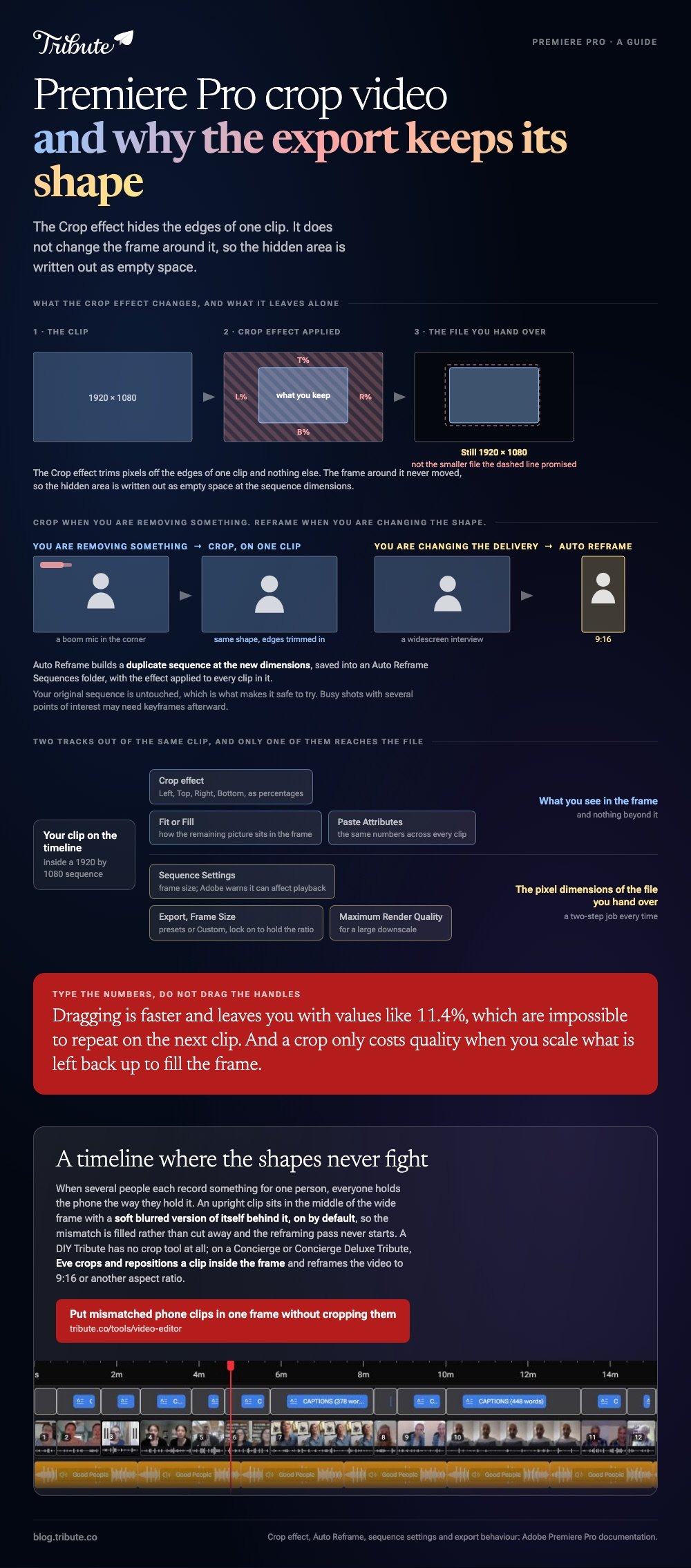
The Crop effect in Premiere Pro hides the edges of a clip. It does not change the size of the frame around it, which is why a cropped clip still exports at the sequence dimensions with empty space where the picture used to be.
What does the Premiere Pro crop video effect do?
It trims pixels off the edges of one clip, and nothing else.
Adobe describes the Crop effect as trimming pixels from the edges of a clip, with Left, Top, Right and Bottom set as the percentage of the image to remove. A Fit or Fill choice decides how what is left sits inside the frame.
Two things follow from that, and both surprise people the first time.
| What you expect | What Premiere does | Where the real control is |
|---|---|---|
| The video gets smaller | The frame stays the same size | Sequence settings or export |
| The crop applies to the project | It applies to one clip | An adjustment layer |
| The export matches the crop | The export matches the sequence | The Frame Size field on export |
How do you crop a video on Premiere without guesswork?
Apply the effect, then type numbers rather than dragging.
Dragging the on-screen handles is faster and it leaves you with values like 11.4%, which are impossible to repeat on the next clip.
Compared with dragging, percentages you chose on purpose are the ones you can copy and paste across a whole timeline.
- Open the Effects panel and search for Crop.
- Drag it onto the clip in the timeline, or onto an adjustment layer above several clips.
- Select the clip and open Effect Controls.
- Set Left, Top, Right and Bottom as percentages of the picture you are removing.
- Choose Fit or Fill to decide how the remaining picture sits in the frame.
- Copy the clip, then use Paste Attributes on the rest so every shot is cropped the same.
The same percentages live in the Properties panel under a Transform setting that offers Fill frame or Fit to frame. Either route writes the same values, so use whichever panel is already open.
One version note: Adobe's current effects list files Crop under Legacy, so on a recent build you may find it grouped with the older effects rather than the new ones.

Why does a Premiere Pro crop video export keep the old shape?
Because the crop and the frame size are two different settings.
Cropping to a tall strip inside a 1920 by 1080 sequence gives you a tall strip inside a 1920 by 1080 file. To crop Adobe Premiere output down to the shape you see, you change the sequence or the export, not the effect.
Three ways to make the file match
- Sequence settings. Open Sequence, then Sequence Settings, and change the frame size. Adobe warns that changing core parameters can affect playback or quality.
- Export settings. The export panel has a Frame Size menu with presets and a Custom option for your own width and height. Leave the lock icon on to hold the ratio.
- Maximum Render Quality. Worth switching on for a large downscale, where it holds detail that would otherwise go soft.
Unlike the Crop effect, all three change the pixel dimensions of the file you hand over. Getting a Premiere Pro export cropped video that matches the shape you framed is a two-step job every time.
Should you crop or change the Premiere Pro crop aspect ratio?
Crop when you are removing something. Reframe when you are changing the shape of the delivery.
A boom mic in the top corner is a crop. A widescreen interview that has to run as a tall video is a reframe, and doing that one by hand means cropping and repositioning every shot so the speaker stays in the middle.
Premiere does that pass for you. Adobe's Auto Reframe overview describes a duplicate sequence at the new dimensions, saved into an Auto Reframe Sequences folder in the Project panel, with the effect applied to every clip in it.
Your original sequence is untouched, which is the part that makes it safe to try. Adobe does note that busy shots with several points of interest may need keyframes afterward.
What about the ratio on a new sequence?
Set it when you create the sequence rather than after.
Adobe's guidance on sequence aspect ratio ties the frame and pixel ratios to the preset you pick at creation. A Premiere crop and resize done on a sequence built for the wrong shape is work you repeat later.
More on the neighboring jobs in cutting in Premiere Pro, adding text over a clip, cropping in a browser instead, and building a montage once the shots are framed.
What if the shots came from a dozen different phones?
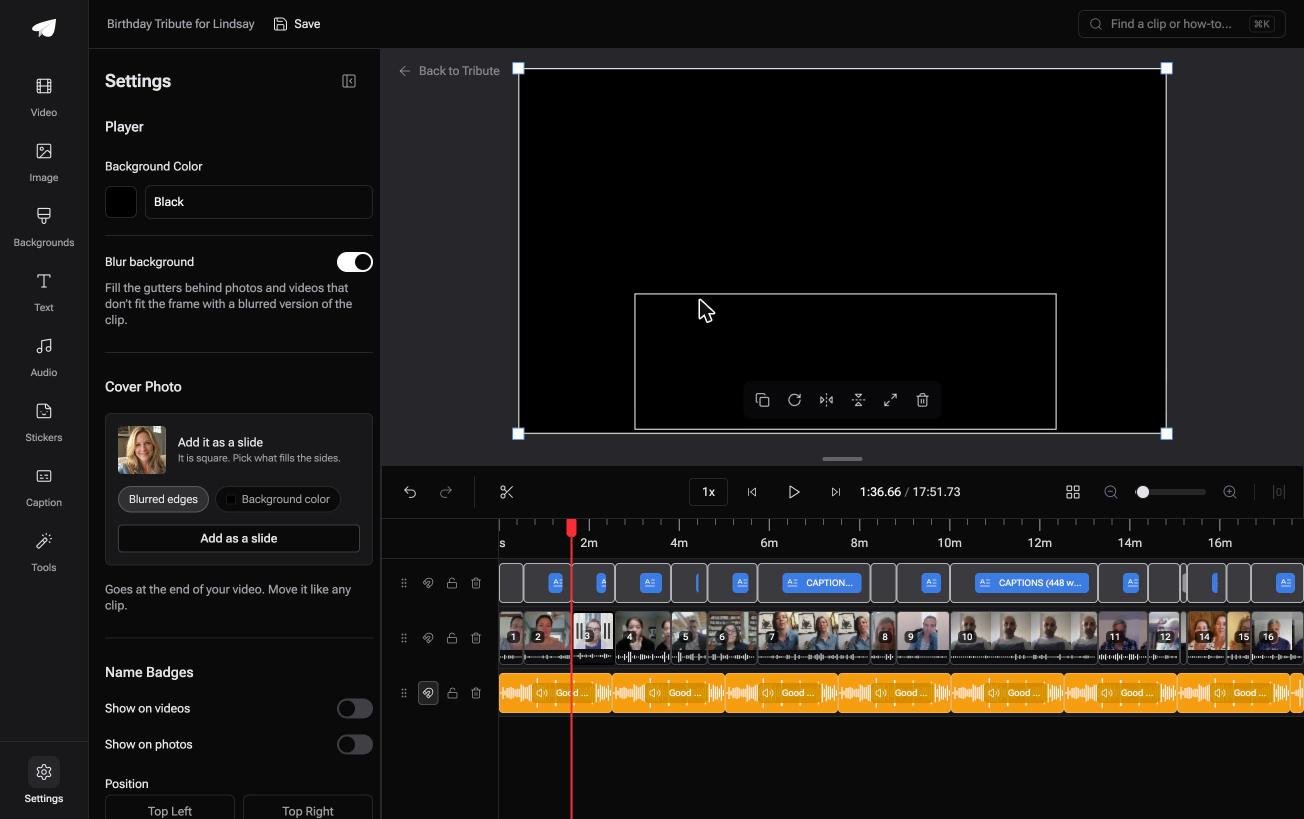
The Tribute video editor is a browser-based group video editor: contributors record clips on their phones and Tribute assembles them on a timeline with the music balanced under the voices.
It is ours, and it is the last thing on this page.
- Blurred edges fill the frame behind upright phone footage, on by default, so nothing arrives with black bars
- Per clip appearance controls for fit, brightness and one of 10 color grades, previewed on the real clip
- 47 entrance and 47 exit animations, including the slow zoom look
- Music set at 25% under speech and 75% under photos, overridable per clip
Best for: A Premiere sequence holding phone footage from people nobody briefed.
Why it works: Mixed shapes land in one frame without a crop pass, because the gutters are filled rather than cut away.
What if nobody has to reframe anything?
Cropping is almost never the goal. It is the repair.
Somebody held the phone the wrong way, or the shot is wider than the place it has to go, and you are fixing the gap between the two. One kind of video never opens that gap.
The case: the footage is sent to you, not shot by you
It starts when several people each record something for one person.
A grandmother turning eighty. A colleague leaving after fifteen years. A memorial where the people who should speak are in four time zones. Everyone holds their phone the way they hold it, and no instruction sheet changes that.

Why the frame stops being a problem
Because the mismatch is filled rather than removed.
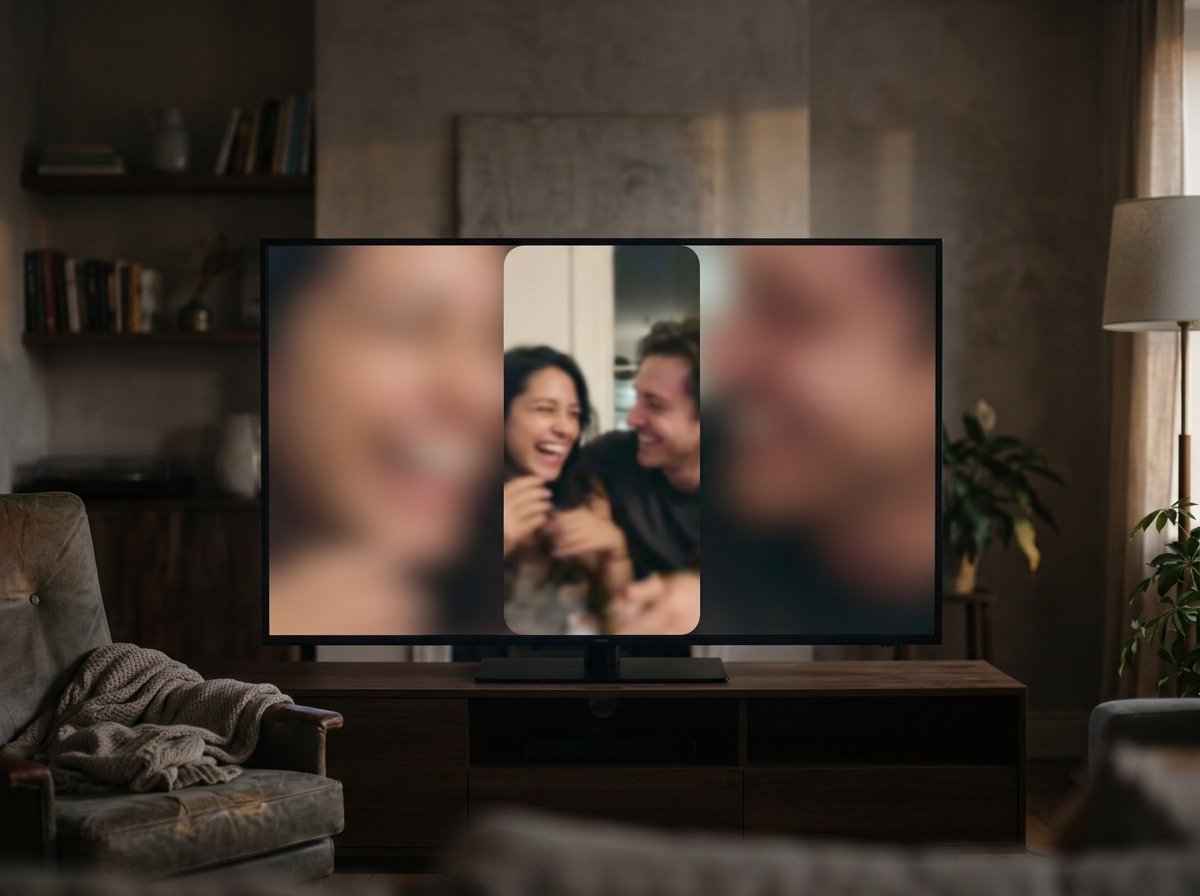
An upright clip sits in the middle of the wide frame with a soft blurred version of itself behind it, on by default.
That is how the Tribute video editor handles mixed footage: not a faster way to crop video on Premiere, but a timeline where the shapes never fight.
What you do not have to do
- Not the collecting. Each person records from the link, however they hold the phone.
- Not the frame repair. The blur fills in behind every upright clip with no setting touched.
- Not the ordering. The clips arrive in sequence, a tick against the ones already placed.
- Not the edit. On a Concierge Tribute, Tribute's own editors trim, name and finish it.
Where it ends up
On a laptop in a living room, with the person it is for sitting in front of it.
It can also arrive as a video book, a hardcover case with a screen inside that plays when the cover opens.

When this is the wrong answer: you are cutting footage you shot yourself and the crop is a creative decision. Then stay in Premiere, where the keyframes are.
A DIY Tribute has no crop tool at all: it fills the frame instead of trimming it, and it lives inside a paid Tribute.
On a Concierge or Concierge Deluxe Tribute, Eve crops and repositions a clip inside the frame, and reframes the video to 9:16 or another aspect ratio.
Frequently Asked Questions
Where is the crop tool in Premiere Pro?
In the Effects panel, as an effect called Crop that you drag onto a clip. Its Left, Top, Right and Bottom values then appear in Effect Controls, and the same percentages show up in the Properties panel.
Why does my cropped clip still have black around it?
The Crop effect hides picture without changing the sequence frame size, so the hidden area reads as empty. Change the frame size in Sequence Settings or set a custom Frame Size on export.
Can I crop every clip at once?
Yes. Put an adjustment layer above the clips and apply Crop to the layer, or copy one cropped clip and use Paste Attributes on the rest.
Does cropping in Premiere lose quality?
Only if you scale the remaining picture back up to fill the frame. A crop that keeps the pixels at their original size costs nothing, and a large upscale from a small crop is where softness appears.
What is the difference between Crop and Auto Reframe?
Crop removes edges from one clip and leaves the frame alone. Auto Reframe builds a duplicate sequence at new dimensions and tracks the subject across every clip in it.
Can I change the aspect ratio of a sequence I already built?
The frame size is editable in Sequence Settings, and Adobe warns that changing core parameters can affect playback or quality. Auto Reframe is the cleaner route because it leaves the original sequence as it was.
Is Premiere worth opening for one crop?
Not often. A browser editor or the Photos app on your phone will crop a single clip in under a minute, and neither asks you to build a sequence first.
👉 Put the mismatched phone clips in one frame without cropping any of them if several people are each recording for one person, and the reframing pass never starts.
