
Adobe Premiere Pro: How to Cut Video Without Breaking the Edit
Adobe Premiere Pro gives you two ways to cut video: the Razor tool, which you click, and Add Edit, which fires at the playhead. Both split one clip in two. The second is faster, and it is the one editors end up living on.
Adobe Premiere Pro: how to cut video with the Razor tool?
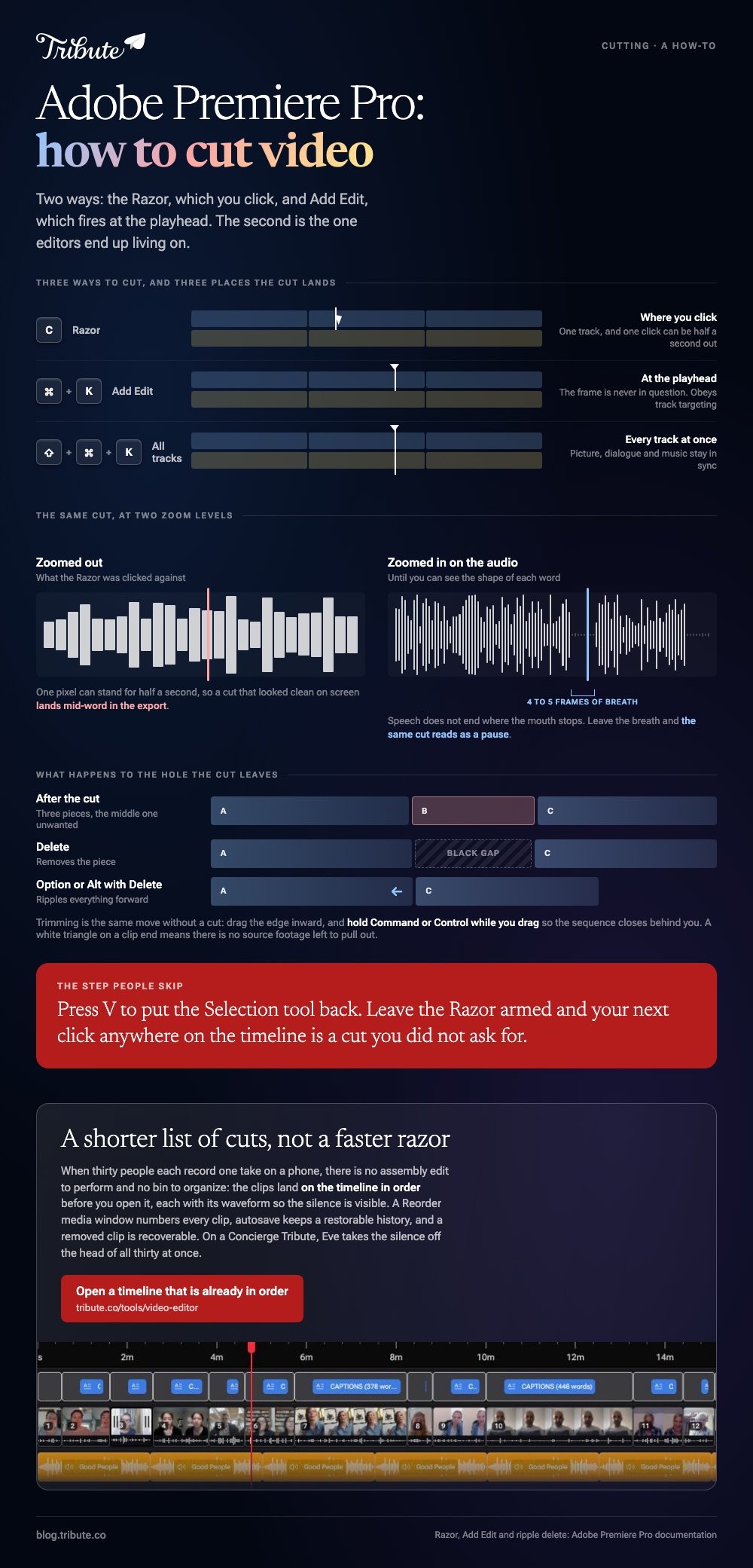
Press C, click the frame where the cut belongs, then press V to get the Selection tool back.
Adobe's tools reference describes the Razor tool as the one that makes incisions in clips on the timeline, and it gives C as the shortcut that switches to it.
- Press C, or click the razor blade icon in the Tools panel.
- Click the clip at the frame you want to divide. One click, one cut.
- Shift-click instead to split every track at that spot, which keeps picture and music lined up.
- Press V to return to the Selection tool before you touch anything else.
- Select the piece you do not want and press Delete.
Step four is the one people skip. Leave the Razor armed and your next click anywhere on the timeline is a cut you did not ask for.
Where the Razor lets you down
It cuts where your mouse was, not where the playhead was.
Zoomed out, a single pixel can stand for half a second, so a cut that looked clean on screen lands mid-word in the export. Zoom in first, or use the keyboard instead.
Adobe Premiere Pro: how to cut video using only the keyboard?
Park the playhead on the frame and press Command+K on a Mac, or Control+K on Windows.
Adobe lists that command as Add Edit in its Premiere keyboard shortcut reference, under the Sequence menu, with Add Edit to All Tracks on Shift+Command+K or Control+Shift+K.
Searches for adobe premiere how to cut a clip all land here: in Premiere Pro you cut a clip at the playhead, so the frame is never in question.
Add Edit obeys track targeting. With nothing selected it splits every targeted track at once, and with one clip selected it splits that clip and leaves the rest alone.
| Method | Where it cuts | Best when |
|---|---|---|
| Razor, C | Where you click | One cut, far from the playhead |
| Add Edit, ⌘K or Ctrl+K | At the playhead | Cutting to audio you are listening to |
| Add Edit to All Tracks | At the playhead, every track | Music and picture have to stay in sync |
Editors who cut dialogue live in the middle row, because the ear picks the frame and the hand never leaves the keyboard.
What happens to the gap after a cut?
Delete leaves a hole in the timeline; Option and Delete together close it.
Adobe's tutorial on removing, trimming and extending clips says to hold Alt on Windows or Option on a Mac as you press Delete, which ripples everything after it forward.
- Delete removes the piece and leaves the gap
- Alt or Option with Delete removes it and pulls the rest up
- Click the gap, then Delete if you have already left one behind
Trimming is the same move without a cut: drag the edge of a clip inward to shorten it.
Hold Command or Control while you drag and the sequence closes behind you, so you are not left tidying gaps afterward. More on that in trimming video in Premiere Pro.
One marker saves a lot of confusion. A small white triangle on the end of a clip means you are on the first or last frame of the source footage, so there is nothing left to pull out.
Why does a clean cut still sound wrong?
Because speech does not end where the mouth stops moving.
Cut on the last frame of a word and the sentence sounds clipped, since the breath after it is part of how we hear the end. Leave four or five frames and the same cut reads as a pause.
Splitting a linked clip splits its audio with it, which is what you want most of the time and not what you want when a laugh runs over the next shot. Unlink the pair first, then cut only the picture.
Compared with cutting to the waveform, cutting to the picture is guesswork. Zoom the audio track up until you can see the shape of each word, and the right frame stops being a judgment call.

Do you need Premiere Pro to cut a clip at all?
Not if the job is removing the first eight seconds of one video.
Clipchamp runs in a browser and does the same split without a project file. Microsoft's own steps for splitting video and audio assets are four clicks long.
- Click the clip on the timeline so it is highlighted.
- Move the seeker to the point where the cut goes.
- Press the split button, the scissors on the timeline, or press S.
- Select the half you do not want and press Delete or Backspace.
Hold Shift to select a video and its audio together and both split at the same point.
Unlike Premiere Pro, a browser editor has no project file, no media cache and no render settings to get wrong. It also has no track targeting, which is the thing you came to Premiere for.
If the real job is assembling a lot of short pieces rather than shaping one, see making a video montage. Reframing instead of cutting is covered in cropping video in Premiere Pro.
What if you did not shoot any of the footage?
Then the hard part was never the cut. It was getting thirty clips off thirty phones and into one place in the right order.
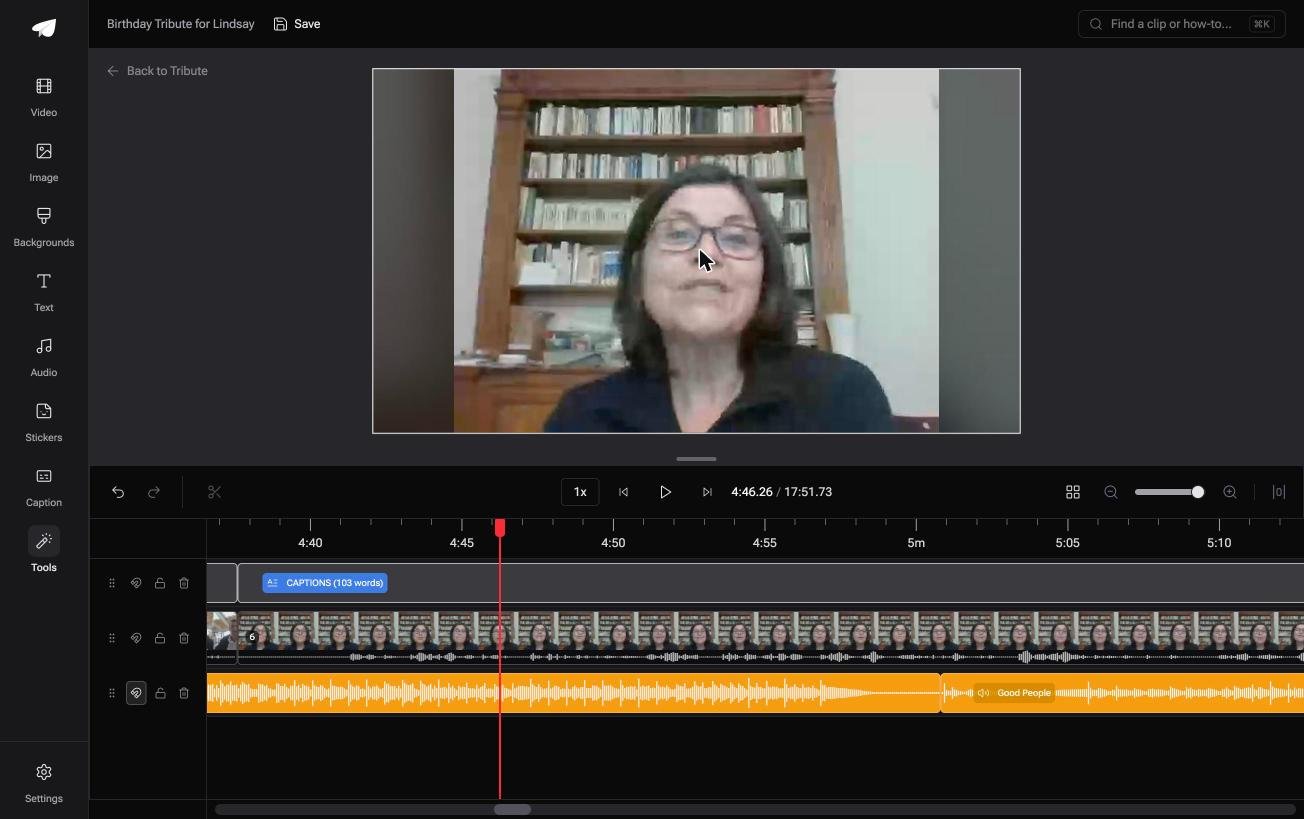
The Tribute video editor is a browser-based group video editor: contributors record clips on their phones and Tribute assembles them on a timeline with the music balanced under the voices.
It is ours, and it is the last thing on this page.
- Clips arrive in order, with a tick against the ones already placed on the timeline
- A waveform under every clip, so you can see the silence and drag the edge to the first word
- A Reorder media window that numbers every clip and moves one to the front, the back or a position
- Autosave and restorable version history, and a removed clip is recoverable rather than gone

Best for: Anyone handed thirty phone clips and told to turn them into one video by Friday.
Why it works: Compared with a folder of downloads, a timeline that is already in order turns a build into a review.
What if most of the cuts are made before you open it?
Every method above assumes an empty timeline and a pile of footage.
You imported, you laid clips end to end, you watched the whole thing, and only then did you start cutting. There is one job where that first hour does not happen.
The case: thirty people, one subject
It starts with an invitation rather than a shoot, and thirty people answering it.
A father turning seventy. A manager leaving after twenty years. A memorial where the people who should speak are spread across four time zones.
Nobody is shooting coverage. Each person records one take on a phone, and the work in front of you is sequence, not craft.
Why the cut list shrinks to almost nothing
Because the pile arrives sorted.
The clips land on the timeline in order before you open it, so there is no assembly edit to perform and no bin to organize. That is how the Tribute video editor handles it: not a faster razor, but a shorter list of cuts.
What you do not have to do
- No ingest. Thirty people upload from thirty phones, with nothing to install.
- No razor pass. Eve takes the silence off the head of all thirty clips.
- No reordering by hand. Ask for the closing message last and Eve moves it.
- No render on your machine. Tribute builds the video on its servers.
Those middle two need a Concierge or Concierge Deluxe Tribute. Eve, the AI assistant inside the editor, works across the whole timeline rather than one selected clip.
When this is the wrong answer: you shot the footage and you are shaping a story out of it. Then you want Premiere Pro, track targeting and every frame under your own hand.
Tribute is also not a general editor. It lives inside a paid Tribute, so an unrelated video cannot be opened in it. For the wider job see what a video tribute involves.
Frequently Asked Questions
What is the shortcut to cut a clip in Premiere Pro?
Command+K on a Mac and Control+K on Windows, for the Add Edit command. Add Edit to All Tracks adds Shift. The Razor tool itself is C.
How do I cut a clip on every track at once?
Shift-click with the Razor tool, or use Add Edit to All Tracks from the keyboard. Both split picture, dialogue and music at the same frame so nothing drifts out of sync.
Why does my cut leave a black gap?
Because a plain Delete removes the clip and leaves the space it occupied. Hold Alt or Option as you press Delete and the following clips move up to close it.
Can I undo a cut in Premiere Pro?
Yes. Command+Z or Control+Z removes the edit point and makes the two pieces one clip again. The source footage is untouched either way, since Premiere never writes to the original file.
How do I cut video without the audio splitting too?
Unlink the clip from its audio first, then select only the video track before you cut. Linked clips split together by default, which is the behavior you want for dialogue.
Is there a way to cut video without installing anything?
Clipchamp runs in a browser: select the clip, move the seeker, press the split button or S. It handles one short video well and gives you none of Premiere's control over tracks.
Why does my cut land in the middle of a word?
You were zoomed out when you clicked. At a wide zoom one pixel can cover many frames, so zoom the timeline in before cutting, or put the playhead on the frame and use Add Edit.
👉 Open a timeline that is already in order if thirty clips are arriving from thirty phones, and the only cuts left are the ones you want.
