
Adobe Premiere Pro Trim Video: Four Ways to Shorten a Clip
To trim a video in Adobe Premiere Pro, hover the edge of a clip until the trim icon appears and drag it. That leaves a gap. The other three tools exist because most of the time you do not want one.
| Tool | Key | What it does to the clips around it |
|---|---|---|
| Selection | V | Leaves a gap where the frames were |
| Ripple Edit | B | Closes the gap by pulling the next clip in |
| Rolling Edit | N | Moves the cut point, total length unchanged |
| Slip | Y | Changes which frames play, nothing moves |
| Slide | U | Moves the clip, trims its two neighbors |
Which Adobe Premiere Pro trim video tool should you use?
Start with the question of what you want the rest of the sequence to do.
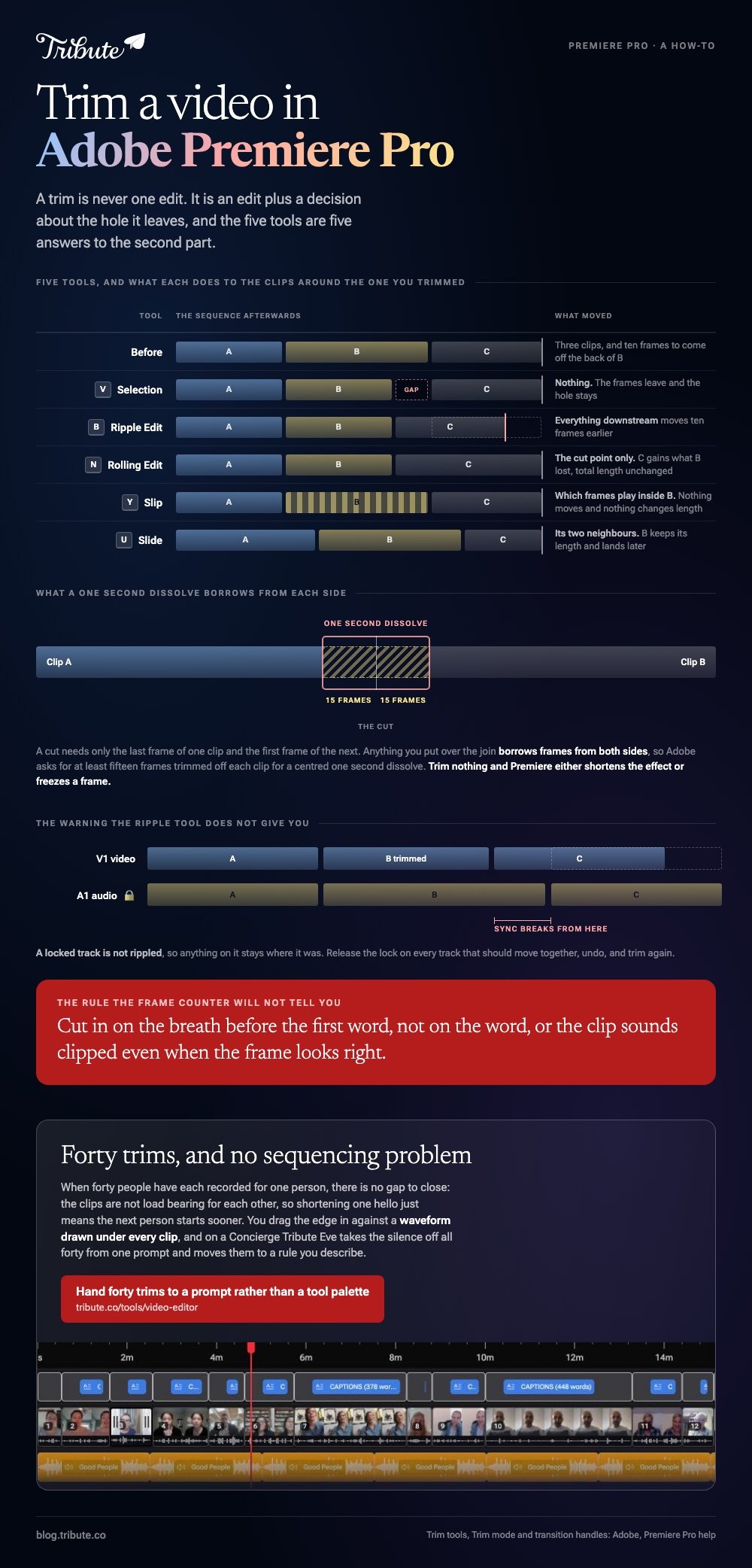
A trim is never one edit. It is an edit plus a decision about the hole it leaves, and the five tools are five answers to that second part.
The plain drag
Adobe's basic sequence is three steps: select the clip, hover the mouse over its edge until the trim icon appears, then drag the edge to the length you want.
Use it on the last clip in a sequence, or anywhere a gap is what you are after.
Ripple Edit, the one you want most days
Press B, then drag the end of a clip left or right. Premiere shortens the clip and pulls everything after it back to meet the new edge.
Adobe's own description is worth keeping in your head: it trims the edge and closes the gap with the clip next to it. Take ten frames off the back and everything downstream moves ten frames earlier.
One warning the tool does not give you. A locked track is not rippled, so anything on it stays where it was and your sync breaks from that point on.
Rolling Edit, for moving a cut
Press N and drag the join between two clips. One clip gets longer by whatever the other loses, and the sequence keeps the same total length.
Clicking the edit point with Rolling Edit selects both sides at once. There is a shortcut between the two: Ctrl-click on Windows, or Command-click on macOS, on an edit point while the Ripple Edit tool is active brings up Rolling Edit.
What do the Slip and Slide tools change?
Neither one touches the length of anything.
They are the tools for a clip that is the right duration in the wrong place, or showing the wrong seconds of itself.
Slip
Press Y and drag across a clip. Its In and Out points move forward or back together by the same number of frames, so the duration and the position both hold.
Adobe calls this a way to adjust the timing of footage inside a clip without touching anything around it. With the playhead parked on the clip, you can slip one frame at a time: Alt+Shift+Left or Right on Windows, Option+Command+Left or Right on macOS.
Slide
Press U and drag a clip sideways. The Out point of the clip before it and the In point of the clip after it both get trimmed by however far you moved.
Unlike Slip, Slide changes what the neighbors show. Both leave the sequence the same length.

How do you trim multiple clips in Premiere at once?
Through Trim mode, which is the one most people skip.
Select the Program or Timeline panel and press Shift+T. The Program Monitor splits to show both sides of a cut, so you are looking at the frames you are choosing between.
- Move the cursor across the boundary between two clips. The icon changes from Trim Out on the left, to Roll in the middle, to Trim In on the right.
- Drag between the clips to roll, adjusting both at once.
- Move toward one clip's edge until the yellow trim icon appears, then drag in or out to trim that side.
- Hold Shift to select several edit points, and your drag applies to all of them.
- Hold Alt or Option to unlink audio from video and trim one of them on its own.
Adobe's page on Trim mode is short and worth the two minutes, because this is where frame-accurate work stops being a fight.
The same modifier covers split edits. To trim one track of a linked clip for a J-cut or an L-cut, hold Alt or Option as you drag.
How much should you trim off each clip?
Enough that an effect has something to work with.
A cut only needs the last frame of one clip and the first frame of the next. Anything you put over the join borrows frames from both sides, and if you trimmed to the exact word, there are none to borrow.
Adobe's number for this is specific: trim at least 15 frames off each clip for a centered one-second dissolve. Trim nothing and Premiere either shortens the effect or freezes a frame.
For speech, the useful rule is different. Cut in on the breath before the first word, not on the word, or the clip sounds clipped even when the frame looks right.
Related: cutting video in Premiere Pro, cropping it, and the browser version of the same job in trimming a video.
What if forty clips all need the same first second gone?
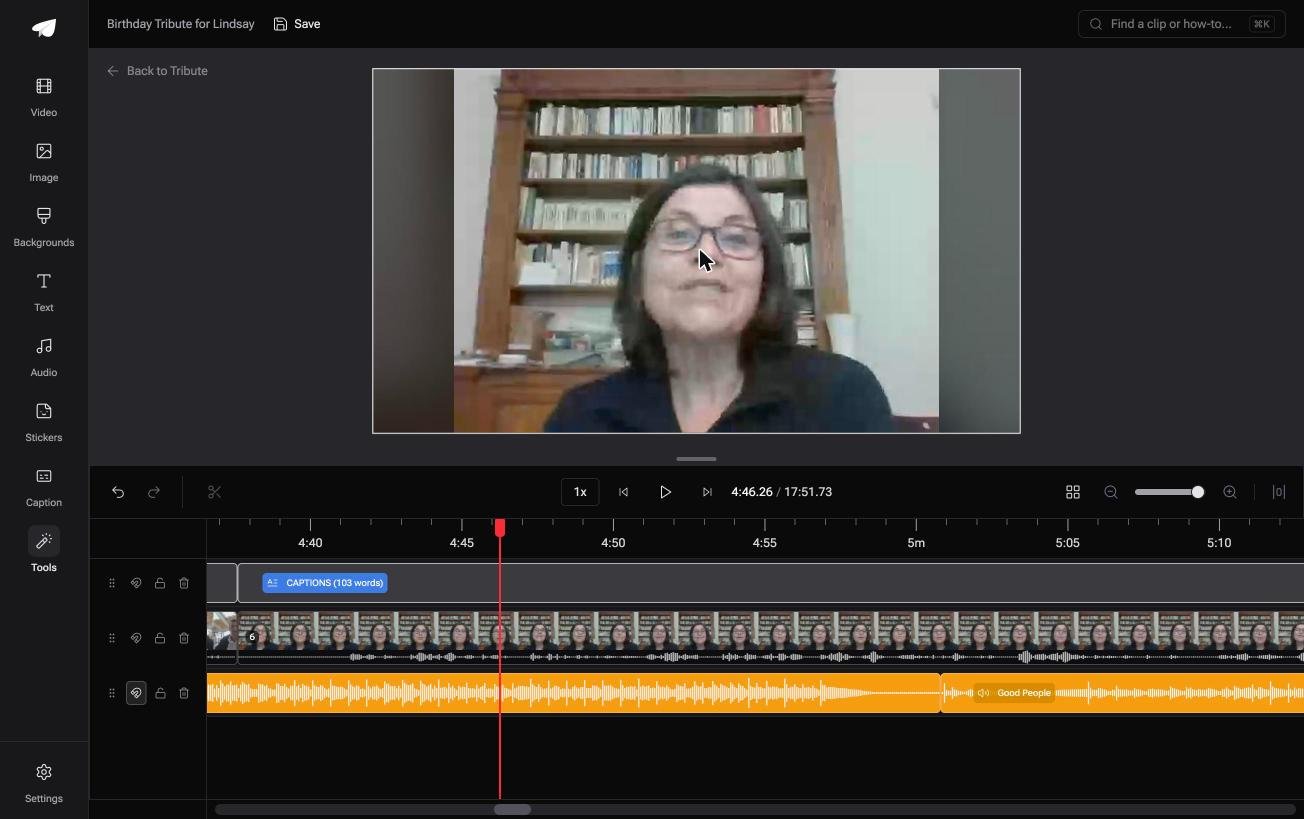
The Tribute video editor is a browser-based group video editor: contributors record clips on their phones and Tribute assembles them on a timeline with the music balanced under the voices.
It is ours, and it is the last thing on this page.
- A waveform under every clip, so the silence before the first word is visible
- Clips arrive in order, already on the timeline, before you open it
- A Reorder media window that numbers every clip, with move to front, move to back and bulk remove
- 47 entrance and 47 exit animations, plus music at 25% under speech
Best for: Forty short clips that each need the same few seconds taken off the front.
Why it works: Compared to a desktop sequence, the trims are the whole job, because the assembly already happened.
Who trims the clips if it is not you?
Every tool above exists because you are the one building a sequence out of raw footage.
Ripple, roll, slip and slide are answers to a question about structure. There is one kind of project where the structure arrives finished and trimming is all that is left.
The case: forty people, one person
You are in it when several people each record something for one person.
A teacher retiring in June. A friend turning fifty. Each clip is one person talking, and nothing has to be arranged around anything else.
Which means the Adobe Premiere Pro trim video workflow that brought you here is solving a sequencing problem you do not have.
Why the ripple question never comes up
There is no gap to close, because the clips are not load bearing for each other.
Shorten one person's hello and the next person starts sooner. Nothing downstream depends on a frame count. In the Tribute video editor you drag the clip edge in against the waveform and that is the whole operation.

What you do not have to do
Three passes, and none of them is yours on a Concierge Tribute.
- No trimming the starts. Eve, the AI assistant inside the editor, takes the silence off all forty clips from a prompt.
- No ordering pass. Eve moves the clips to a rule you describe, across the whole timeline rather than one clip.
- No level pass. Music sits at 25% under speech, and Eve cleans up the clips recorded in bad rooms.

When this is the wrong answer: you are cutting a scene, matching action across angles, or working to a broadcast duration. Then you want Premiere and you want Trim mode. More on the longer build in a video montage maker.
Frequently Asked Questions
How do I trim a clip in Premiere Pro without leaving a gap?
Use the Ripple Edit tool. Press B, drag the clip edge, and Premiere closes the gap by moving the following clips to meet it.
What is the difference between trimming and cutting?
Trimming moves an existing edge. Cutting adds a new edit point in the middle of a clip, which you then trim or delete.
Why did my audio go out of sync after a ripple trim?
A locked track is left out of the ripple. Release the lock on every track that should move together, undo, and trim again.
Can I trim just the video and leave the audio running?
Yes. Hold Alt on Windows or Option on macOS while you drag the edge, which unlinks the two for that one trim and gives you a J-cut or an L-cut.
What is the trim tool in Premiere Pro called?
There is no single trim tool. There is a trim icon on the Selection tool, plus Ripple Edit, Rolling Edit, Slip and Slide, and a dedicated Trim mode on Shift+T.
How do I trim many clips to the same length?
Enter Trim mode, hold Shift to select several edit points, and drag once. Every selected edit moves by the same amount.
Does trimming reduce quality?
No. A trim changes which frames play and leaves the frames themselves untouched until you export.
👉 Hand forty trims to a prompt rather than a tool palette if every clip opens with someone reaching for the record button, and Premiere stays shut.
