
Add Text to Video Premiere Pro: The Type Tool and the Panel That Moved
Pick the Type tool, click in the Program Monitor and start typing. Styling now happens in the Properties panel, because Adobe removed the Essential Graphics panel in version 25.0. That one change makes most tutorials on this subject wrong.
What is the fastest way to add text to video Premiere Pro offers?
Four steps, and none of them involve a menu.
Adobe's own page on creating video titles keeps the route short, and the second step is the one people miss.
- Park the playhead on the frame where the words should appear.
- Select the Type tool from the toolbar, then click in the Program Monitor and type.
- Right-click the title in the Program Monitor and choose Edit Properties to open the Properties panel.
- Set the font, size and alignment there, then drag the ends of the title clip on the timeline to decide how long it holds.
Switch back to the Selection tool before your next click, or you will create a second empty title somewhere in the frame.
Where the title lives
On its own track, above the picture.
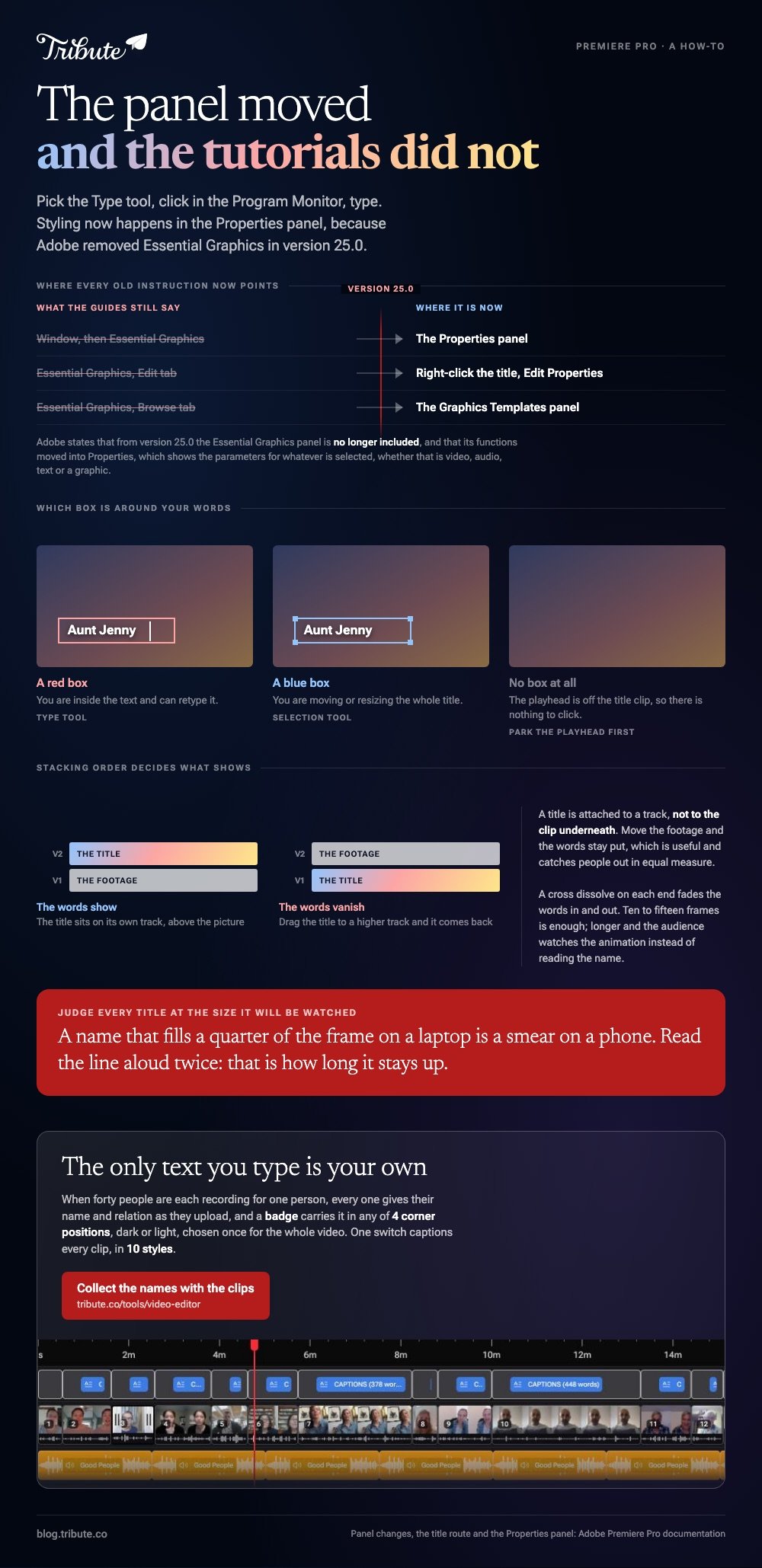
To overlay text on video, Adobe Premiere puts the title on a video track of its own rather than attaching it to the clip underneath. Move the footage and the words stay put, which is useful and catches people out in equal measure.
Drag the title to a higher track if it disappears behind something. Stacking order decides what shows, the same way it does in any layered program.
Which add text to video Premiere Pro guides are out of date?
Any guide that tells you to open Window, then Essential Graphics.
Adobe states that from Premiere Pro version 25.0 the Essential Graphics panel is no longer included, and that its functions moved into the Properties panel. Most of the walkthroughs online predate that.
| Old instruction | What to do now |
|---|---|
| Window, then Essential Graphics | Use the Properties panel |
| Essential Graphics, Edit tab | Right-click the title, Edit Properties |
| Essential Graphics, Browse tab | Use the Graphics Templates panel |
In its description of the Properties panel, Adobe says it shows the parameters and tools you use most for whatever is selected, whether that is video, audio, text or a graphic.
The same logic applies to ready-made titles. Adobe's current tutorial on graphics templates customizes a template through the Properties panel and changes the wording by dragging a Font Size slider in the group controls.

How do you change text that is already on the timeline?
Click into it with the Type tool, not with the Selection tool.
Searches for premiere pro how to edit text land on the same two clicks: select the Type tool, then click the words in the Program Monitor. A red box means you are inside the text and can retype it.
Click the same title with the Selection tool instead and you get a blue box, which moves and scales the whole thing. One tool edits the words, the other edits the object.
- Red box: you are editing characters
- Blue box: you are moving or resizing the title
- No box: the playhead is off the title clip, so there is nothing to click
How do you fade a title in without buying anything?
With the dissolve that ships in the box.
Premiere Pro does a text transition for free: drag a cross dissolve onto the head of the title clip and the words appear over about a second. Put one on the tail as well and they leave the same way.
Ten or fifteen frames is enough. Longer than a second and the audience watches the animation rather than reading the name.
To put video in text, Premiere pairs two layers: the title defines the shape and the footage underneath shows through it. The effect is striking once per video and tiring twice.
Cutting the clip the title sits over is covered in cutting video in Premiere Pro, and reframing it in cropping video in Premiere Pro.
What makes text on screen readable?
Size, contrast and time, in that order.
A name that fills a quarter of the frame width on a laptop is a smear on a phone. Judge every title at phone size, because that is where it will be watched.
Contrast does the rest. White text on a bright kitchen window vanishes, so add a soft shadow or a panel behind the words rather than hunting for a lighter font.
For duration, read the line aloud twice at a normal pace. That is how long it needs to stay up, and it is almost always longer than it looks in the edit.
Compared with a title sequence, a plain name in a lower corner does more work in a video people watch once. General craft notes are in adding text to a video.
What if the only text you need is everyone's name?
Then you are about to build forty titles that all say the same kind of thing.
The Tribute video editor is a browser-based group video editor: contributors record clips on their phones and Tribute assembles them on a timeline with the music balanced under the voices.
It is ours, and it is the last thing on this page.
- Name badges built from each clip's uploader name and relation, in any of 4 corner positions, dark or light
- Captions from one switch, which took 17 minutes of video from 16 people in under a minute
- 10 caption styles with the spoken word highlighted, and every line editable with its own start and end timecode
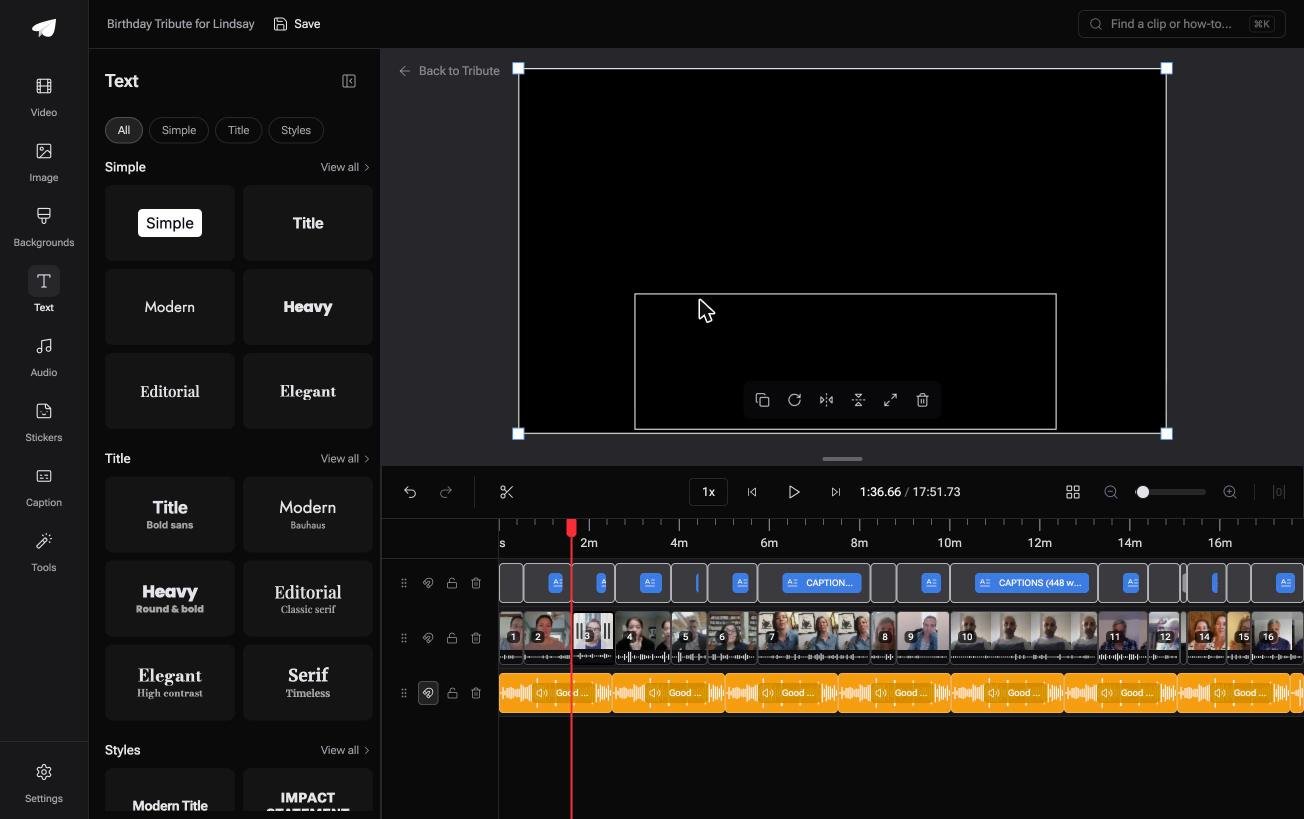
- A text panel that opens on ready-made styles grouped as Simple, Title and Styles rather than a font list

Best for: A video where the text that matters is who is speaking, not a title sequence.
Why it works: Unlike a title you build per clip, the name arrives with the clip from the person who sent it.
Who types the names if you do not?
Forty titles is not a design problem. It is forty chances to spell someone's aunt wrong.
You would set a font, place a box, type a name, check the spelling, copy the title, move it, retype it, and do that until the list ran out. One kind of video takes that list away.
The case: the names come with the clips
That case arrives when several people each record a message for the same person.
A grandfather turning ninety. A head teacher retiring. A memorial where the people who should speak are in four time zones.
Each person says who they are when they upload, so the name and the relation are attached to the clip before you ever open the timeline.

Why the title tool stays closed
Because the words you needed were typed by the people who said them.
A badge in the corner carries the uploader's name and how they knew the person, and the spoken words become captions from a single switch. In the Tribute video editor both are defaults rather than forty pieces of manual work.
What you do not have to do
- Type forty names. Each person gives their own as they upload, and the badge carries it.
- Style them one at a time. Pick a corner and a dark or light badge once, for the whole video.
- Write the captions. One switch captions every clip, and each line keeps its own timecode.
- Build the video, on a Concierge Tribute. Tribute's editors do the edit, and Concierge Deluxe returns it as a video book.
When this is the wrong answer: you are designing titles for footage you shot, and the typography is part of the work. Then Premiere Pro and the Properties panel are where you should be.
Tribute is not a motion graphics tool and it lives inside a paid Tribute. The wider job is covered in making a video montage.
Frequently Asked Questions
Where is the Essential Graphics panel in Premiere Pro?
It is gone. Adobe removed it in version 25.0 and moved its controls into the Properties panel, with motion graphics templates in a separate Graphics Templates panel.
How do I open the Properties panel for a title?
Right-click the title in the Program Monitor and choose Edit Properties. The panel then shows the font, size, color and alignment controls for whatever you have selected.
Why can't I click into my text to change it?
You are holding the Selection tool, which moves the title rather than editing it. Switch to the Type tool and click the words until a red box appears around them.
How long should a name stay on screen?
Long enough to read it aloud twice at a normal pace, which lands at three to four seconds. Shorter than that and half the room misses it.
Can I reuse one title's styling on the rest?
Yes. Copy the title clip, paste it where the next one goes and retype the words, which keeps the font, size and position identical across every name.
Why does my text disappear behind the video?
The title is on a lower track than the footage. Drag it to a track above the clip, since stacking order decides what the viewer sees.
Do I need a plugin to animate a title?
No. A cross dissolve on each end of the title clip fades the words in and out, and ten to fifteen frames is enough for both.
👉 Collect the names with the clips if forty people are each recording for one person, and the only text you type is your own.
