
Compress QuickTime Video: What Export As Does, and When to Use HandBrake
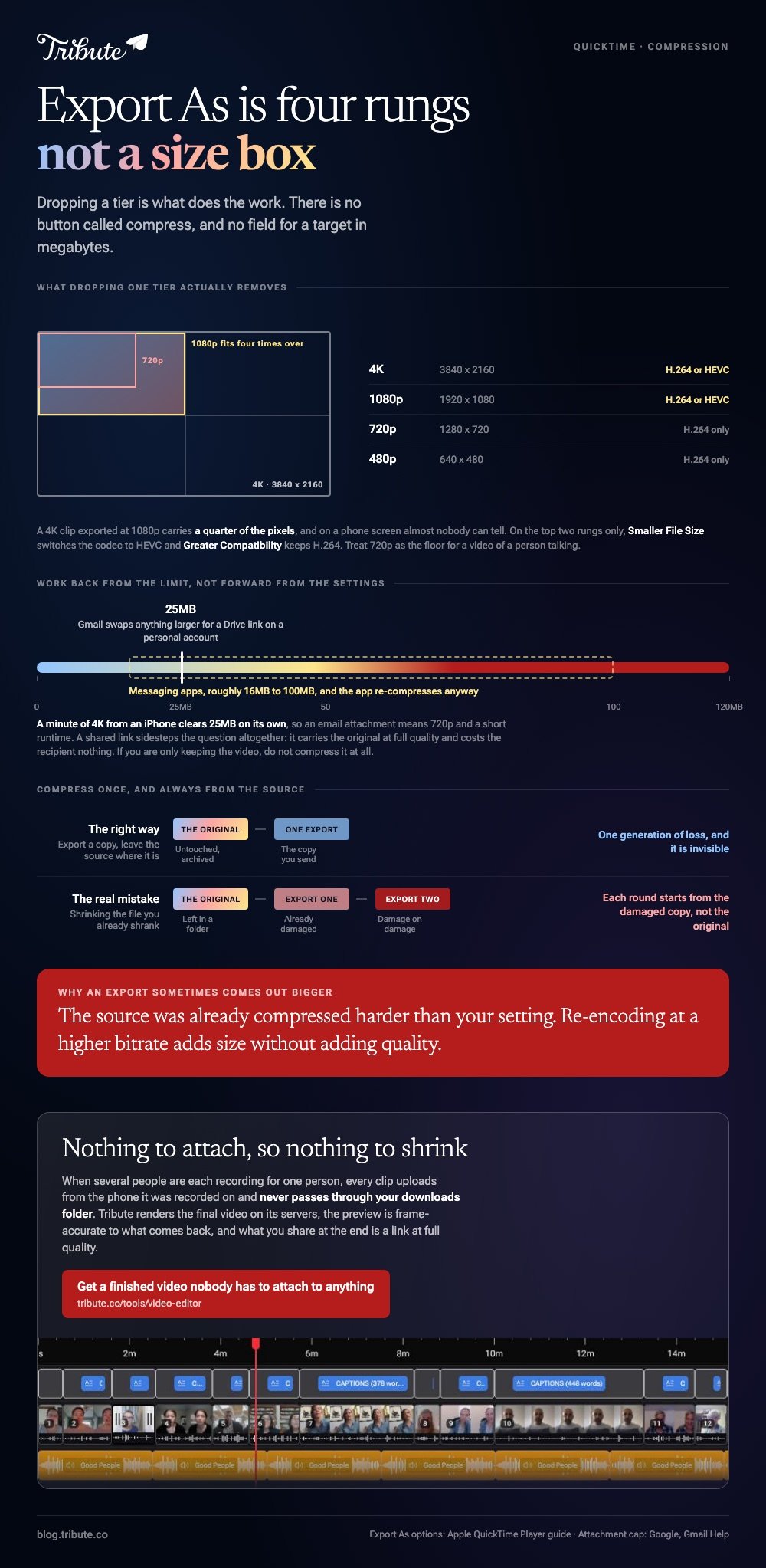
To compress a QuickTime video, open it in QuickTime Player and choose File, then Export As, then a smaller resolution. The 4K and 1080p options add a Smaller File Size setting that switches the codec to HEVC.

| Export As option | Up to | Codec |
|---|---|---|
| 4K | 3840 x 2160 | H.264 or HEVC |
| 1080p | 1920 x 1080 | H.264 or HEVC |
| 720p | 1280 x 720 | H.264 |
| 480p | 640 x 480 | H.264 |
How do you compress QuickTime video with Export As?
Five steps, and the whole thing runs without installing anything.
- Open the video in QuickTime Player.
- Choose File, then Export As, and pick a resolution below the one you started with.
- Set the Format if you chose 4K or 1080p: Smaller File Size uses HEVC, Greater Compatibility uses H.264.
- Name the file and pick where it goes.
- Click Save and wait. Longer videos take minutes rather than seconds.
Dropping a tier is what does the work. A 4K clip exported at 1080p carries a quarter of the pixels, and on a phone screen almost nobody can tell.
Apple points at the 480p option for posting online, which is aggressive for anything you want people to watch twice. Treat 720p as the floor for a video of a person talking.
Trim before you compress
Cutting thirty dead seconds off the front beats any codec setting.
QuickTime has Edit, then Trim, with two yellow handles on a filmstrip. Half the duration at the same quality is about half the file, and nothing on screen gets softer.
Why will QuickTime not save an MP4?
Because it does not export that container at all.
Every video Export As produces is a QuickTime movie with a .mov extension, carrying H.264 or HEVC inside. The phrase people search, compress QuickTime movie to MP4, is two jobs, and QuickTime Player does one of them.
That matters less than it sounds. The video inside a .mov from Export As is the same H.264 an MP4 would hold, so most players, upload forms and editors take it without complaint.
Where a true MP4 is demanded, run the file through HandBrake, which writes MP4 by default. The alternative is iMovie, which exports H.264 MP4 from its Share menu.

Which size does the file have to hit?
Whatever the destination allows, and email is the tightest of them.
Gmail caps attachments at 25MB on a personal account and swaps anything larger for a Drive link. A minute of 4K from an iPhone clears that on its own.
Work back from the target instead of guessing at settings.
- Email attachment: under 25MB, which means 720p and a short runtime
- Messaging app: often 16MB to 100MB, and the app re-compresses anyway
- Upload to a site: read the limit on the page, not a forum post
- Keeping it: do not compress at all, archive the original
Sharing a link sidesteps the whole question. Unlike an attachment, a Drive or iCloud link carries the original file at full quality and costs the recipient nothing.
When should you compress QuickTime video in HandBrake instead?
When you need a size target rather than a resolution tier.
Export As gives you four fixed rungs. HandBrake gives you a quality dial, and its own guidance sets RF 20 to 24 for 1080p, RF 19 to 23 for 720p and RF 18 to 22 for standard definition.
A lower RF number means higher quality and a bigger file. Moving from RF 20 to RF 23 on a 1080p clip of someone talking is hard to see and takes a useful bite out of the size.
Compared to an online compressor, HandBrake keeps the video on your Mac, which matters for a memorial recording or anything with children in it.
The browser route is in compressing a video file online, and the settings in full are in compressing video with HandBrake.
Does compressing a QuickTime movie lose quality?
Yes, and the amount is under your control.
Every pass re-encodes, which discards detail that cannot be recovered. To compress QuickTime movie files more than once is the real mistake: each round starts from the damaged copy rather than the original.
Three habits keep the loss invisible.
- Keep the original. Export a copy and leave the source where it is.
- Compress once, from the source. Never from a file you already shrank.
- Drop resolution before quality. Fewer pixels at a good bitrate beats full pixels at a poor one.
Motion is what decides the outcome. A static interview survives hard compression, while a party scene with movement across the whole frame shows blocking at the same settings.
What if a dozen people each sent you a large clip?
The Tribute video editor is a browser-based group video editor: contributors record clips on their phones and Tribute assembles them on a timeline with the music balanced under the voices.
It is ours, and it is the last thing on this page.
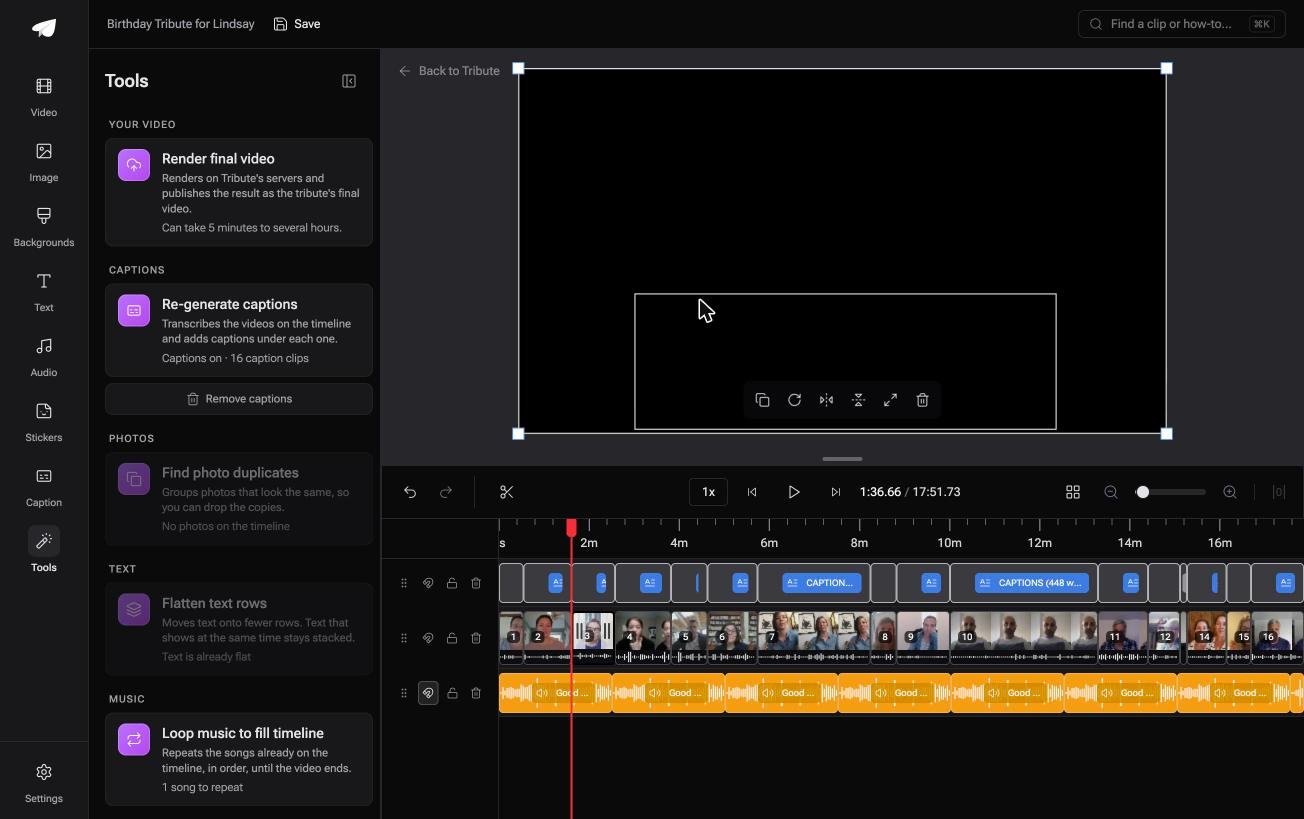
- Tribute renders the final video on its servers, so nothing depends on your Mac staying awake
- Clips upload from each person's own phone, arriving in order with a tick against the ones on the timeline
- The Tools panel carries Render final video, Find photo duplicates and Loop music to fill timeline
- Preview is frame-accurate to the delivered video, so there is no test export to compress
Best for: A video built from clips that were too big to email you in the first place.
Why it works: No file crosses your desk, so no file needs shrinking to get there.
Whose problem is the file size when nobody sends a file?
Compression is a shipping cost. You pay it because a video has to get from your machine to somebody else's.
That cost is real when you shot the video and hold the only copy. Sixteen clips from sixteen phones make it sixteen times over, before you have edited anything.
One kind of video never puts a file in your hands.
The case: the clips were never on your Mac
You are in it when several people each record something for one person.
A grandmother turning eighty. A colleague leaving after fifteen years. A memorial where the people who should speak are in four states.

Nobody emails you a 900MB clip. Each person uploads from the phone they recorded on, and the thing you share at the end is a link rather than a file.
Why there is nothing to shrink
The clips go straight from each phone into the timeline, so they never pass through your downloads folder.
Rendering happens on Tribute's servers rather than your Mac, which is also why a long video does not tie up the machine for an afternoon.
That is how the Tribute video editor handles it: not a better compressor, but a video that never needs attaching to anything.

What you do not have to shrink
- No file, and nothing to attach. What you share at the end is a link, at full quality.
- No render on your Mac. Tribute builds the video on its own servers instead.
- No caption pass on a Concierge Tribute: Eve, the assistant inside the editor, fixes a misspelled name across every clip.
- No edit of your own on Concierge, where Tribute's editors assemble the sixteen clips.

When this is the wrong answer: you have one big file and one person who needs it by email. Then Export As at 720p is a thirty second job and you are done.
Our editor runs in a browser and lives inside a paid Tribute.
The wider craft is in making a video montage.
Frequently Asked Questions
Where is the compress option in QuickTime Player?
There is no button called compress. File, then Export As, then a lower resolution is the compression, and the Smaller File Size format setting is the rest of it.
Does Export As overwrite the original?
No. It writes a new file and leaves the source untouched, which is why you should always export rather than save over.
What is the difference between HEVC and H.264 here?
HEVC makes a smaller file at the same quality. H.264 plays on older devices and in more upload forms, which is why Apple labels it Greater Compatibility.
Can QuickTime compress audio only?
Yes. Export As has an Audio Only option that writes an Apple MPEG-4 audio file with an AAC track inside it.
Why is the exported file bigger than the original?
Because the source was already compressed harder than your export setting. Re-encoding at a higher bitrate adds size without adding quality.
How do you compress a video on a Mac without QuickTime?
HandBrake for control, iMovie for a quick smaller copy, or a browser tool when the video holds nothing private. All three write files QuickTime will open.
👉 Get a finished video nobody has to attach to anything if you are collecting clips from people who cannot email them, and the file size stops being yours.
