
Crop Video macOS: Which Mac App Does a Real Crop?
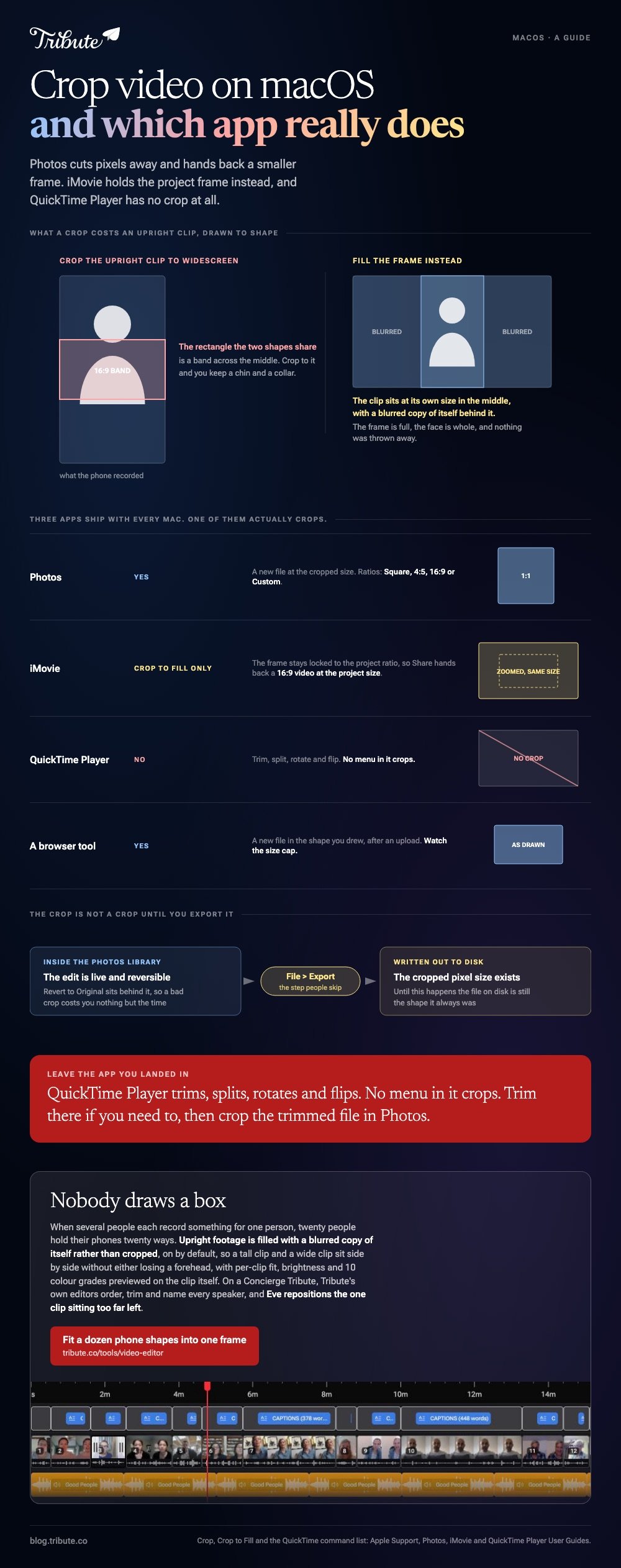
To crop video macOS gives you one app that does a true crop: Photos. Open the clip, click Edit, click Crop, drag the handles, then export. iMovie holds the project frame instead, and QuickTime Player has no crop at all.

Crop video macOS: which app should you use?
Photos, in almost every case.
Three apps ship with every Mac and people reach for all three. One of them cuts pixels away and hands back a smaller frame. The other two do something that looks the same on screen and is not.
| App | Does it crop? | What you get back |
|---|---|---|
| Photos | Yes | A new file at the cropped size |
| iMovie | Crop to Fill only | A video at the project size |
| QuickTime Player | No | Trim, split, rotate, flip |
| A browser tool | Yes | A new file, after an upload |
That distinction decides the whole job when the point of the crop is a square frame or a smaller file. A crop that keeps the old frame has not changed the shape of anything.
How do you crop a video in Photos on a Mac?
Photos has edited video since macOS Ventura, and it crops a clip with the same tool it uses for stills.
- Drag the clip into Photos, or use File > Import.
- Double-click it, then click Edit in the toolbar.
- Click Crop.
- Drag the selection rectangle, or pick a ratio in the sidebar: Square, 4:5, 16:9 or Custom.
- Click Done, then File > Export to write the cropped file out.
Apple sets out the rest of that panel in its guide to cropping and straightening photos and videos on Mac. Auto crops and straightens in one click, Flip mirrors the shot, and Reset clears everything you dragged.
Export is the step people skip. Inside Photos the edit stays live and reversible, and the cropped pixel size only exists once you write out a new file.
Best for: Any crop where the result has to be a different shape or a smaller frame.
Why it works: Revert to Original sits behind every edit, so a bad crop costs you nothing but the time.
What does iMovie's Crop to Fill do instead?
It zooms rather than cuts.
Select the clip, click the Cropping button above the viewer, then click Crop to Fill. An adjustable frame appears over the picture, held to the project shape. Move it, size it, click Apply.
Apple documents the three buttons on that bar in its page on cropping clips in iMovie on Mac. Fit returns a clip to its own shape, and Reset clears every crop and rotation.
Here is the catch. The frame stays locked to the project ratio, so what comes out of Share is a 16:9 video at the project size, not the rectangle you drew.
People search for crop video mac, land on iMovie, and get a tighter shot in the same old frame.
Best for: One wide shot in a timeline of close ones, where matching the others is the whole point.
Why it works: Crop to Fill cannot break the project ratio, so the cropped clip still cuts against everything around it without a jump.

Can QuickTime Player crop a video?
No, and no menu in it will.
Apple's QuickTime Player guide covers trimming a movie with the yellow handles on the trimming bar, splitting a movie into clips, and rotating or flipping one. Cropping is not among them.
QuickTime Pro could mask a frame years ago. Apple retired it, and the masking route needed an image editor to build the mask first.
So when a search for crop in quicktime or crop movie in quicktime sends you into the app, the answer is to leave it. Trim there, then crop the trimmed file in Photos.
How do you crop an MP4 on a Mac without importing it?
Use a browser tab instead of the Photos library.
Photos wants the clip inside your library before it will edit it. That is a real objection when the file is a 3GB export you plan to delete tomorrow.
To crop mp4 mac footage without that step, upload it to a browser cropper, drag the box, download the result.
Compared to Photos, a browser tool costs you an upload and a download and asks nothing of your library. Compared to iMovie, it returns the frame you drew.
Watch the export caps before you send a large file up, since most browser croppers put a ceiling on the size of a single upload.
The browser options are set out one by one in cropping a video online. If the job is a timeline rather than one clip, cropping in Premiere Pro covers the paid end.
Crop video macOS, or fill the frame instead?
Fill it, whenever the clip is an upright phone video.
An upright video is tall and narrow. A widescreen video is short and wide. The rectangle they share is a band across the middle, and cropping to that band keeps a chin and a collar.
With 91% of US adults owning a smartphone, according to the Pew Research Center mobile fact sheet, most of what you are handed was shot upright by someone holding a phone at arm's length.
Put that clip in the middle at its own size and run a blurred copy of it behind. The frame is full, the face is whole, and nothing was thrown away.
What if the clips came from a dozen different phones?
Then cropping each one to match is an afternoon of work for a worse result.
The Tribute video editor is a browser-based group video editor: contributors record clips on their phones and Tribute assembles them on a timeline with the music balanced under the voices.
- Blurred edges on by default behind upright footage, so no clip is cropped to fit and no clip sits in black bars
- Per-clip appearance controls covering fit, brightness, border radius and 10 color grades previewed on the clip itself
- 83 occasion backgrounds behind the video, grouped by occasion
- 47 entrance and 47 exit animations, including the slow zoom look
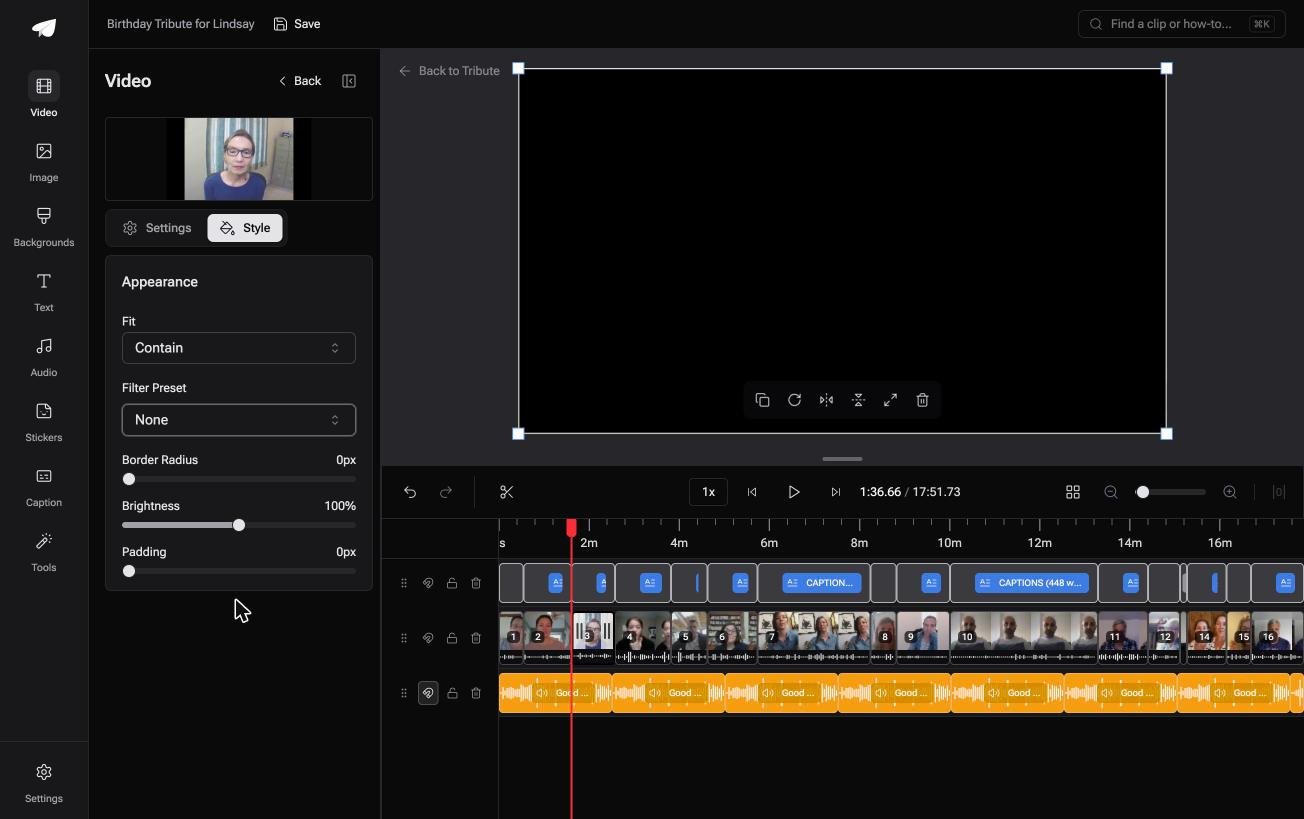
Best for: Twelve clips in twelve shapes, where matching them by hand costs an afternoon and looks worse.
Why it works: Unlike cropping each clip to one shape, filling the frame behind it keeps every face whole.
Who reframes the clips if you do not?
Every step above starts with one clip and one frame you have to draw.
Draw it twenty times and the shapes will not agree, because twenty people held their phones twenty ways. There is one case where nobody draws a box at all.
The case: the clips were sent to you
You are in it when several people each record something for one person.
A grandfather turning ninety. A teacher leaving after twenty years. Nobody shot a scene: they each recorded a message, upright, in a kitchen or a car.
If that is not your situation, the Photos route above is the end of this page for you.
Why the framing question stops arising
Because the frame is decided before the clips reach you.
Upright footage is filled with a blurred copy of itself rather than cropped, so a tall clip and a wide clip can sit next to each other without either one losing a forehead. That is how the Tribute video editor treats mixed footage by default.

What you do not have to do
Three jobs come with the clips, and drawing a box is not one of them.
- Not the framing. A blurred copy fills the gutters behind each upright clip on its own.
- Not the edit. On a Concierge Tribute, Tribute's editors order the clips, trim them and name each speaker.
- Not the one clip that sits too far left. Eve, the assistant on Concierge and Concierge + Video Book, crops and repositions it inside the frame when you say so.
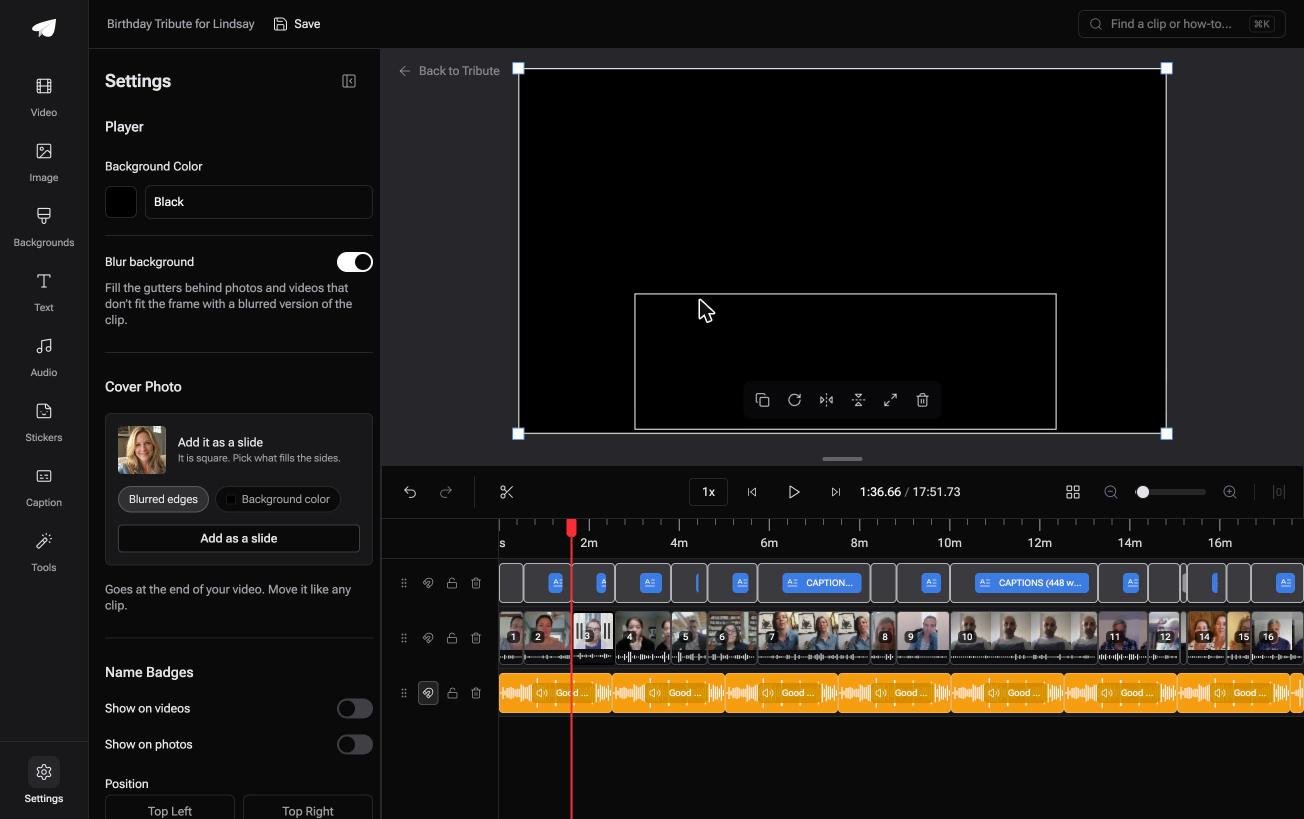
When this is the wrong answer: you shot the video yourself, or the crop is the creative decision rather than a chore. Then Photos is your tool. The editor is not a standalone cropper either: it lives inside a paid Tribute.
For the wider job of putting many clips into one piece, see making a video montage.
Frequently Asked Questions
Can I crop a video in QuickTime Player on a Mac?
No. QuickTime Player trims, splits, rotates and flips, and Apple's own guide lists no crop command. Crop the clip in Photos instead, which is already on the same Mac.
Does cropping reduce quality?
Yes, in a way trimming does not. A crop throws pixels away and the player scales what is left back up to full size. Shot in 4K that is often fine, and at 720p it shows.
How do I crop a video in Photos without changing the original?
Duplicate the clip first, then crop the duplicate. Photos edits in place across albums and slideshows, so a duplicate keeps the untouched version in your library.
What is the quickest way to crop video in mac apps I already have?
Photos, in five clicks: Edit, Crop, drag, Done, Export. Nothing to install and nothing to upload.
Can I crop only part of a clip?
Split the clip where the crop should start, then crop the piece you split off. Every editor treats the two halves as separate clips after a split.
Why does my cropped iMovie export come back the same size?
Because Crop to Fill holds the project ratio. It zooms into the picture and renders at the project dimensions, so the file keeps its old shape with a tighter view inside it.
Is there a Mac app that crops without an import step?
A browser cropper, or a paid editor like Final Cut Pro or Premiere Pro. Photos and iMovie both want the clip in their own library or project first.
👉 Let someone else fit a dozen phone shapes into one frame if the clips were all recorded for the same person, and the crop box never has to be drawn.
