
Cut Video with QuickTime: Trim, Split and Save on a Mac
To cut video with QuickTime, open the file and choose Edit, then Trim, then drag the two yellow handles around the part you want to keep. To remove a section from the middle instead, you split the movie into clips first.

How do you cut video with QuickTime?
Three steps, and the second one is where the care goes.
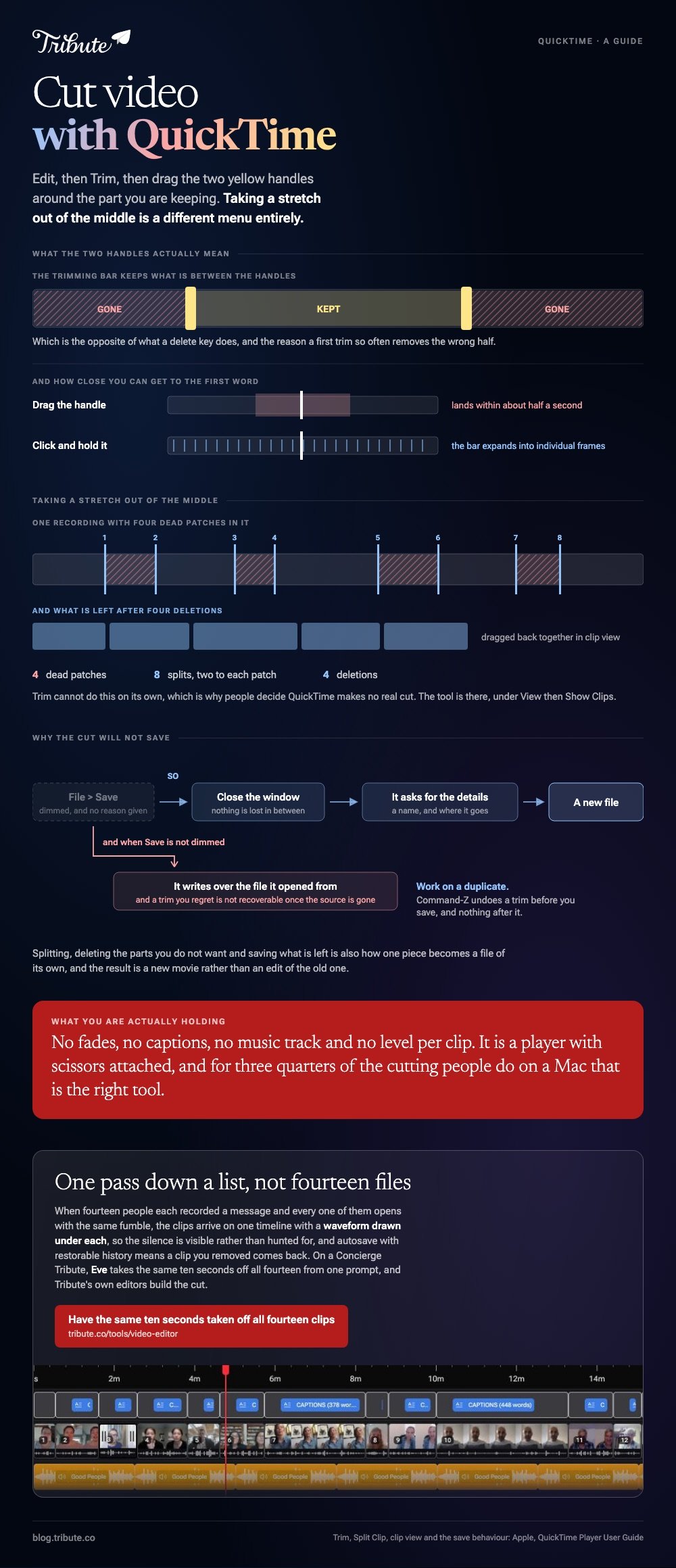
Apple's trimming bar keeps what sits between the handles and discards everything outside them, which is the opposite of how a delete key behaves.
- Open the movie in QuickTime Player and choose Edit, then Trim.
- Drag the yellow handles on the trimming bar to surround the part you are keeping.
- Click Trim.
For frame-level accuracy, Apple says to click and hold a handle and the bar expands to show individual frames. That is the difference between cutting on the breath and cutting through the first word.
Trimming one clip inside a longer movie
A movie you have already split holds several clips, and each one trims on its own.
- Choose View, then Show Clips.
- Double-click the clip you want to shorten.
- Drag the yellow handles to the part you are keeping.
- Click Trim.
Clip view is also where reordering happens, so a recording whose two halves belong the other way round can be split, dragged and saved without ever leaving the player.
How do you remove a section from the middle?
Split it into clips, then delete the one you do not want.
Trim cannot do this on its own, which is the single most common reason people conclude QuickTime cannot make a real cut. The tool exists, it just lives under a different menu.
- Choose View, then Show Clips.
- Move the playhead to the first cut point. Apple notes the arrow keys move it in small steps.
- Choose Edit, then Split Clip.
- Repeat at the far end of the section you are removing.
- Select the middle clip and delete it.
- Click Done.
You can split a movie as many times as you like, so a long recording with four dead patches takes eight splits and four deletions.
| What you want | What to use |
|---|---|
| Chop the start or the end | Edit, then Trim |
| Remove a stretch from the middle | Show Clips, then Split Clip |
| Keep one piece as its own file | Split, delete the rest, then save |
| Reorder what is left | Drag the clips in the clip view |
Why will QuickTime not save the cut?
Because Save is dimmed, and Apple documents the way out.
Choose File, then Save. If Save is unavailable, close the window instead, and QuickTime asks for the details of the clip before letting you save it. Nothing is lost in between.

Keep the original. QuickTime overwrites a file it opened from if you let it, and a trim you regret is not recoverable once the source is gone.
Saving one piece on its own
Split the movie, delete the parts you do not want, then save what is left. Apple describes this as the route to saving an individual part of a clip, and the result is a new file rather than an edit of the old one.
When should you not cut video with QuickTime?
The moment the job stops being a cut.
QuickTime has no fades, no captions, no music track and no level control per clip. It is a player with scissors attached, and that is the right tool for perhaps three quarters of the cutting people do on a Mac.
- Use iMovie when the clips need music, titles or a fade between them
- Use iMovie for frame-level trimming, down to Apple's documented minimum clip length of 0.1 seconds on a Mac
- Use VLC only to record a section out, not to assemble anything
- Use a browser editor when the Mac is not yours to install software on
Compared with iMovie, QuickTime wins on speed and loses on everything else. A thirty second trim takes ten seconds here and two minutes there, including the import.
Doing the same job in the other common player is covered in cutting video with VLC player, the browser options in clip and cut video editors, and the assembly job in making a video montage.
What if the clips came from fourteen different people?
The Tribute video editor is a browser-based group video editor: people record clips on their phones and Tribute lays them on a timeline with the music already balanced under the voices.
It is ours, and it is the last thing on this page.
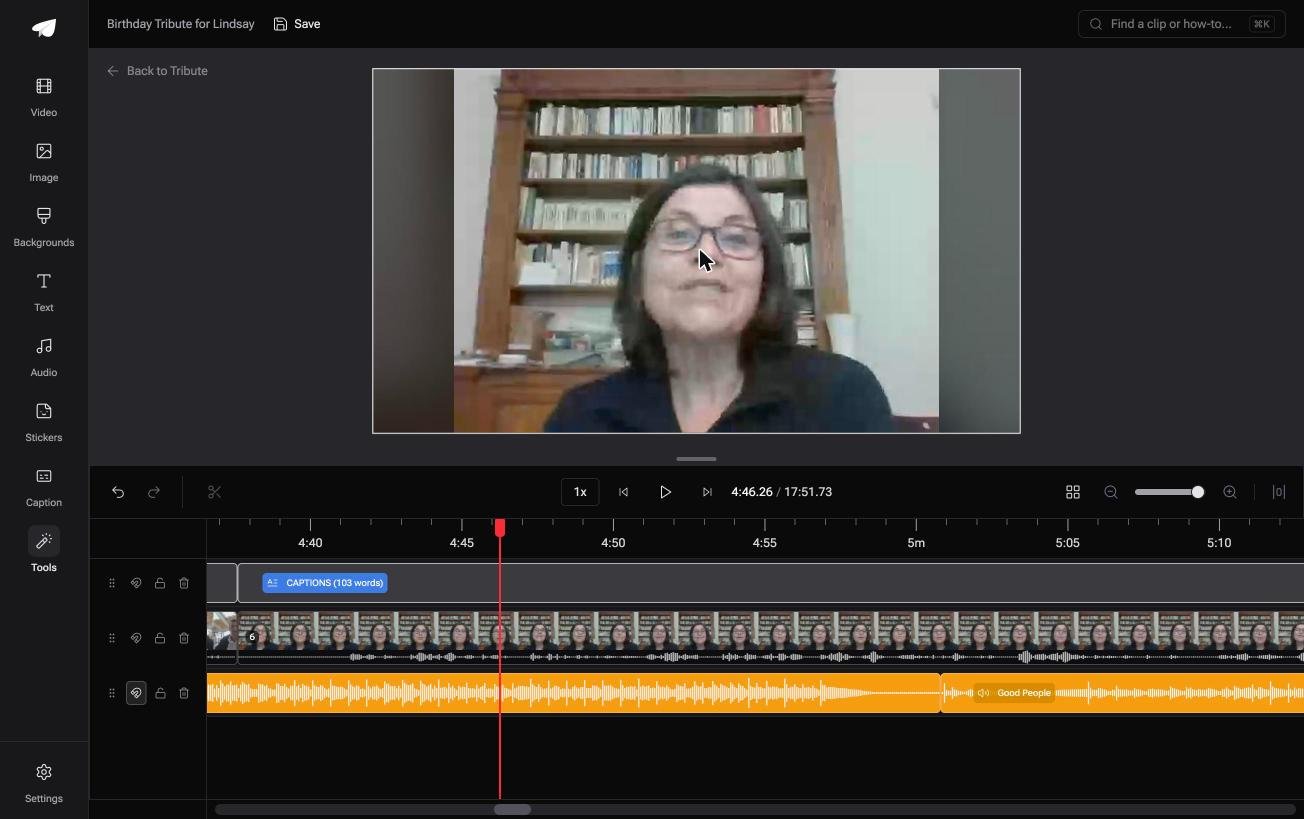
- A waveform under every clip, so you can see the silence and trim to the first word
- Clips arrive in order, already assembled, each ticked once it is on the timeline
- Autosave with restorable history, so a clip you removed is recoverable rather than gone
- A Reorder media window with every clip numbered, plus move to front, move to back and bulk remove
Best for: The one person in a group who said they would handle the video and now has fourteen files with ten seconds of shuffling at the front of each.
Why it works: Compared with trimming by eye in a player, the waveform shows you where the talking starts before you drag anything.
What if the only cut left was the silence at the start?
Almost every cut on this page is housekeeping: the fumble before someone speaks, the walk back to the camera, the ten seconds of a room after the point was made.
None of it is editing. It is tidying, and it is the same tidying on every clip you were sent.
The case: fourteen clips, fourteen identical fumbles
You are in it when a group each record a message for the same person.
Everyone presses record, settles, looks at the screen, then starts. That gives you fourteen clips with the same wasted opening, and a player with scissors means opening each file on its own.
Why the trimming shrinks to one pass
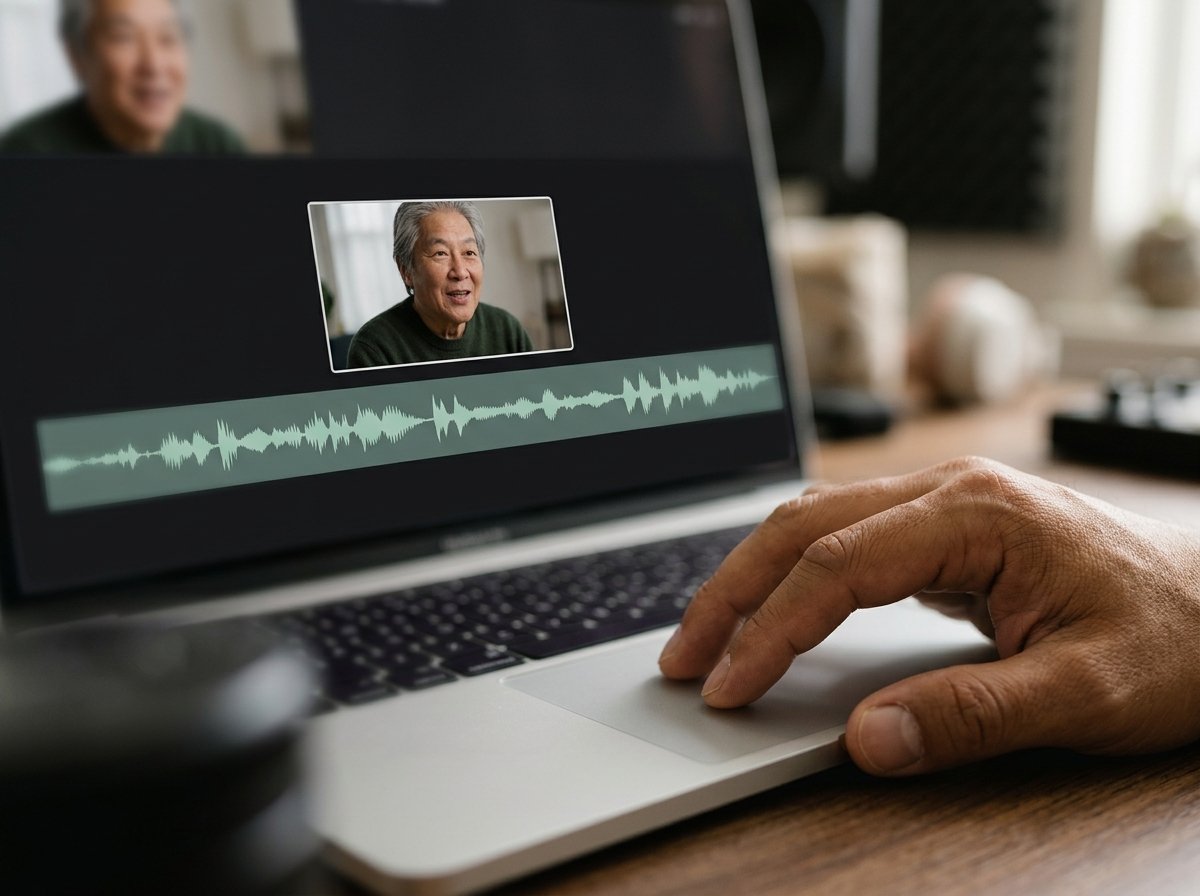
With every clip on one timeline and a waveform drawn under each, the silence is visible rather than hunted for.
Which means the search that brought you here, cut video with QuickTime, is a per-file job the Tribute video editor turns into a single pass down a list.
What you do not have to do
- Not the collecting. One link reaches everyone who should speak.
- Not the ordering. The clips land in sequence with music underneath, quieter under anyone talking.
- Not the dragging. Eve, the AI assistant inside the editor, takes the same ten seconds off all fourteen clips from a prompt.
- Not the render. Tribute produces the finished video on its servers.
Eve comes with a Concierge or Concierge Deluxe Tribute, where the cut is not yours either: Tribute's own editors build it.
When this is the wrong answer: you have one screen recording and thirty seconds of it to remove. Then QuickTime is faster than anything else on the machine. The editor also lives inside a paid Tribute, not on its own.
Frequently Asked Questions
Does trimming in QuickTime reduce quality?
A trim changes where the movie starts and stops rather than redrawing the picture. Exporting afterward at a smaller size is the step that costs quality, so leave the resolution alone if you can.
Can I undo a trim?
Before you save, yes, with Command-Z. After you save over the original, no, which is the argument for working on a duplicate.
Why can I not see the clips in my movie?
Clip view is off by default. Choose View, then Show Clips, and the movie appears as a row of separate pieces you can split, trim and reorder.
Can QuickTime join two videos?
Yes, by dragging one file into an open movie window, and the clip view lets you put them in order. It will not put anything between them, because there are no transitions here.
How accurate is the trimming bar?
Accurate enough once you click and hold a handle, which expands the bar into individual frames. Dragging without holding gets you to about half a second.
Does it work the same on an iPhone?
There is no QuickTime app on an iPhone. The Photos app trims a clip with the same handle idea, and iMovie handles anything beyond that.
What file does the cut produce?
A QuickTime movie, with a .mov extension. If the destination needs an MP4, export from iMovie instead or convert the result afterward.
👉 Have the same ten seconds taken off all fourteen clips if fourteen clips each open with the same fumble, and no file is opened on its own.
