
DaVinci Resolve Cut Clip: Four Ways, and Which One Each Job Wants
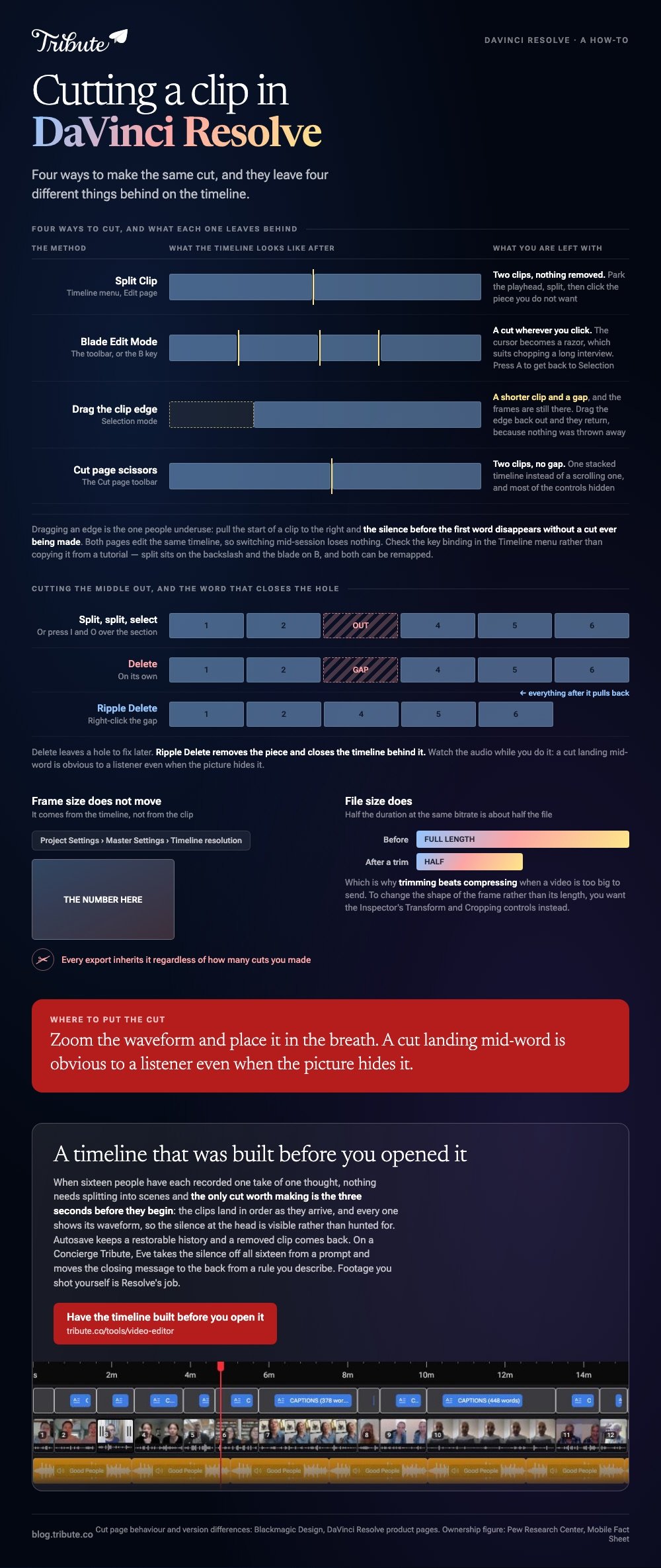
To cut a clip in DaVinci Resolve, park the playhead where you want the cut and choose Timeline, then Split Clip. Blade Edit Mode, edge trimming and the Cut page do the same job in different shapes.
| Method | Where it lives | What it leaves behind |
|---|---|---|
| Split Clip | Timeline menu, Edit page | Two clips, nothing removed |
| Blade Edit Mode | Toolbar, or the B key | A cut wherever you click |
| Drag the clip edge | Selection mode | A shorter clip and a gap |
| Cut page scissors | Cut page toolbar | Two clips, no gap |
How do you make a DaVinci Resolve cut clip at the playhead?
Four steps, and the first three take about five seconds.
- Select the clip in the timeline so Resolve knows which track you mean.
- Move the playhead to the frame you want the cut on. Arrow keys step one frame at a time.
- Choose Timeline, then Split Clip. The shortcut sits beside the command in that menu.
- Click the piece you do not want and press Delete.
Delete on its own leaves a gap where the piece was. Right-click the gap and choose Ripple Delete to close it, which pulls everything after it back along the timeline.
The key binding is worth checking rather than copying from a tutorial. Resolve ships a Split Clip shortcut on the backslash key and a blade on B, and both can be remapped, so read what the Timeline menu shows beside the command in your build.
Blade Edit Mode, when you want to click rather than aim
Press B, then click the timeline wherever a cut belongs.
The cursor becomes a razor and every click makes a cut, which suits chopping a long interview into pieces. Press A to return to Selection mode before you try to drag anything.
Which DaVinci Resolve cut clip method suits which job?
Playhead split for precision, blade for volume, clip edge for tidying.
Dragging an edge is the one people underuse. In Selection mode, pull the start of a clip to the right and the silence before the first word disappears without a cut ever being made.
Older guides shorten the product name, so a search for davinci cut video and one for the full name land on these same four methods. The menus have not moved for several releases.
Compared to the blade, edge trimming is reversible: drag the edge back out and the frames return, because nothing was ever thrown away.

How do you cut part of a video out of the middle?
Two cuts, then a ripple delete.
The phrase people search, DaVinci Resolve cut part of video, means that sequence and no more. Split at the start of the unwanted section, split again at the end, click the piece between them, and ripple delete so the gap closes itself.
There is a faster route for a rough pass. Hold the In and Out points instead: press I at the start of the section you want gone, O at the end, then use Edit, then Ripple Delete.
Watch the audio when you do this. A cut landing mid-word is obvious to a listener even when the picture hides it, so zoom the waveform and place the cut in the breath.
Why does the DaVinci Resolve cut video size stay the same?
Because two different things are called size, and cutting touches only one of them.
The frame size comes from the timeline, not the clip. Open Project Settings, Master Settings, Timeline resolution, and the number there is what every export inherits regardless of how many cuts you made.
File size is the other reading, and that one does fall. Half the duration at the same bitrate is about half the file, which is why trimming beats compressing when a video is too big to send.
To change the shape of the frame rather than its length, you are after the Inspector's Transform and Cropping controls. There is more on that in cropping video in DaVinci Resolve.
Can you cut on the Cut page instead of the Edit page?
Yes, and for a straight assembly it is the faster room.
Blackmagic describes the Cut page as the one built for turning work around fast, and its toolbar carries a scissors button that splits at the playhead with one click.
The Cut page also keeps a single stacked timeline rather than a scrolling one, so a long clip stays visible while you work through it. Unlike the Edit page, it hides most of the controls you do not need for cutting.
Both pages edit the same timeline. Switch between them mid-session and nothing is lost.
Most of the footage reaching either page was shot on a phone. Pew Research Center puts US adult smartphone ownership at 91%, which is also why so many timelines mix upright and wide clips.
Lighter jobs may not need Resolve at all: see cutting clips in a simpler editor.
What if the clips were recorded by a dozen different people?
The Tribute video editor is a browser-based group video editor: contributors record clips on their phones and Tribute assembles them on a timeline with the music balanced under the voices.
It is ours, and it is the last thing on this page.
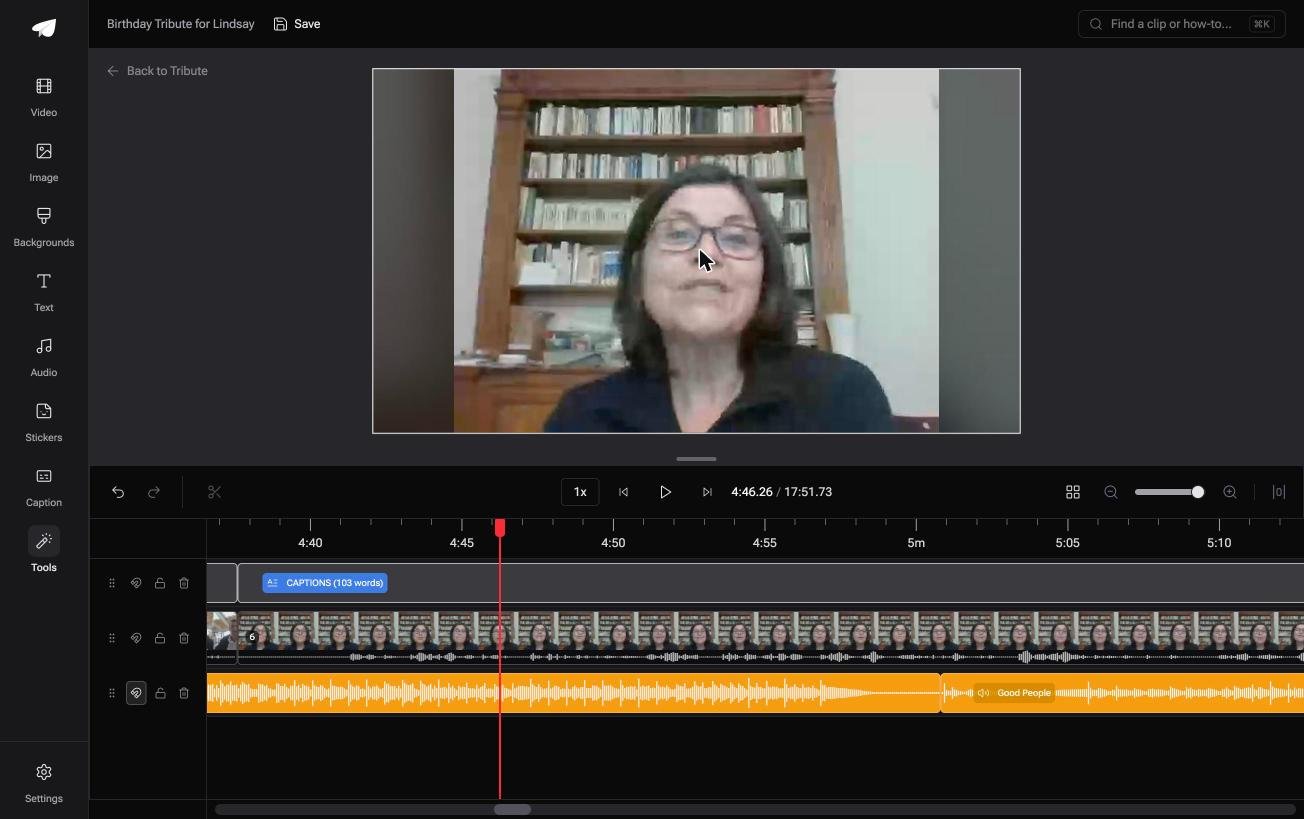
- A waveform under every clip, so you can see the silence and trim to the first word
- Clips arrive in order, with a tick against the ones already on the timeline
- Reorder media numbers every clip and offers move to front, move to back and move to position
- Autosave and restorable version history, with removed clips recoverable rather than deleted
Best for: A pile of one-take messages that need their opening silence gone and nothing else.
Why it works: The only cut most of these clips need is the pause before someone starts talking.
Who cuts sixteen clips when none of them are yours?
The four methods above assume you shot the footage and know where the good part is.
That holds for an interview or a travel edit. You were there, you remember the moment, and the cutting is you finding it again.
There is a kind of video where you were not there for any of it.
The case: sixteen people, sixteen rooms
You are in it when several people each record something for one person.
A grandmother turning eighty. A colleague leaving after fifteen years. A memorial where the people who should speak are in four states.

Each clip is already one take of one thought. Nobody needs splitting into scenes, and the only cut worth making is the three seconds before they begin.
Why the timeline work shrinks to trimming
The clips land in order as they arrive, so there is no assembly to cut your way out of.
Every clip shows its waveform, which means the silence at the head is visible rather than hunted for. Drag the edge in to the first word and move on.
That is how the Tribute video editor handles it: not a faster blade, but a timeline that was built before you opened it.

What you do not have to do
- No media pool to fill. One link, and the sixteen clips arrive on a timeline in order.
- No heads to trim. On a Concierge Tribute, Eve, the AI assistant inside the editor, takes the silence off all sixteen clips from a prompt.
- No order to work out. Eve moves the closing message to the back from a rule you describe.
- No render queue. Tribute builds it on its servers and the preview matches what comes back.

When this is the wrong answer: you shot the footage and the edit is yours to shape. Then Resolve is the right tool and the methods above are the whole job.
Our editor runs in a browser and lives inside a paid Tribute.
The wider craft is in making a video montage.
Frequently Asked Questions
What is the difference between Delete and Ripple Delete?
Delete removes the clip and leaves a gap in its place. Ripple Delete removes it and pulls everything after it back, so the timeline has no hole to fix later.
How do you undo a cut?
Press the undo shortcut, or select both halves and choose Join Clips from the right-click menu. Joining works only when the two pieces are still next to each other in their original order.
Can you cut a clip without re-encoding it?
Not inside Resolve. Every export re-encodes, because the project is rendered from the timeline rather than copied from the source.
Why does the blade cut only one track?
Because the cut follows your selection. Click an empty area first to deselect everything, and the blade then cuts every unlocked track under the pointer.
Does cutting a clip lose audio sync?
No, as long as the audio is linked to the video. If you have unlinked them, cut both at the same frame or relink before you start.
Is the Cut page available in the version that costs nothing?
Yes. Cut, Edit, Fusion, Color, Fairlight and Deliver all appear there, and the paid Studio version adds effects rather than pages.
👉 Have the timeline built before you open it if sixteen one-take messages are waiting to be trimmed, and on Concierge Eve makes the cuts from a prompt.
