
DaVinci Resolve Crop Video: The Inspector, the Viewer and the Catch
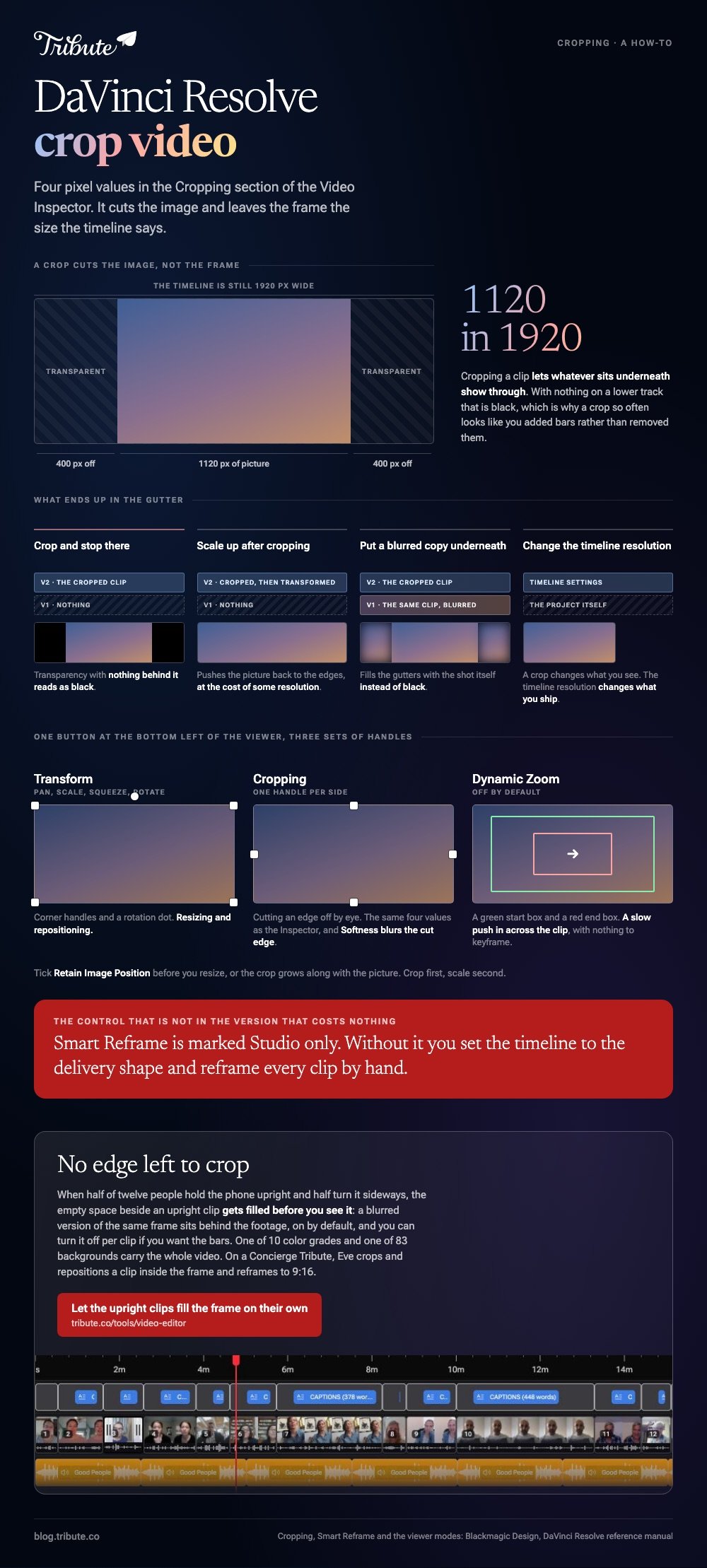
Cropping in DaVinci Resolve lives in one place: the Cropping section of the Video Inspector, with Left, Right, Top and Bottom measured in pixels. It cuts the image. It does not change the size of your video, and that difference causes most of the trouble.
How does DaVinci Resolve crop video in the Inspector?
Select the clip, open the Inspector, and drag the four edge values.
Blackmagic's own reference manual, a large PDF, describes the Cropping controls the same way on the Cut page and the Edit page.
- Click the clip on the timeline so it is the selected one.
- Open the Inspector, which Blackmagic puts at the top right of the screen, and choose the Video tab.
- Open Cropping and set Crop Left, Right, Top and Bottom. Each number is pixels cut off that side.
- Use Softness to blur the cut edge. A negative value softens inside the crop box and a positive value softens outside it.
- Tick Retain Image Position if you plan to resize with the Transform controls above. Left unticked, the crop scales and moves with the image.
That last control is the one people find by accident. Crop first, scale second, and without it the crop grows along with the picture.
The part that surprises people
A crop creates transparency rather than a smaller frame.
Blackmagic says so outright: cropping a clip lets whatever sits underneath show through. With nothing on a lower track, that is black, which is why a crop so often looks like you have added bars rather than removed them.
Can you crop in DaVinci Resolve by dragging instead?
Yes, with on-screen handles, and it is faster for a rough pass.
The manual puts the control at the bottom left of the Timeline Viewer, on a button labeled Transform/Crop/Dynamic Zoom, and gives three modes behind it.
| Mode | What the handles do | Use it for |
|---|---|---|
| Transform | Pan, scale, squeeze, rotate | Resizing and repositioning |
| Cropping | One handle per side | Cutting an edge off by eye |
| Dynamic Zoom | A green start box and a red end box | A slow push in across the clip |
Switch the whole overlay on and off with Shift and the tilde key, or through View, then Viewer Overlay. Turn the button off again when you are done, or your next click in the viewer moves the picture.
Dynamic Zoom is off by default and worth knowing about. Blackmagic describes it on its Resolve edit page as a fast way to reframe a shot and add a gentle push in or pull out.

Why does DaVinci Resolve crop video and leave black bars?
Because you cropped the clip and left the timeline the size it was.
Cutting 400 pixels off each side of a 1920 wide clip gives you a 1120 pixel picture sitting in a 1920 pixel frame. The gap has to be filled with something, and nothing is black.
Three ways out, depending on what you are after:
- Scale up after cropping. Use the Transform controls to push the cropped picture back out to the frame edges, at the cost of some resolution
- Change the timeline resolution in Timeline Settings, so the project itself is the shape you want to deliver
- Put something underneath. A blurred copy of the same clip on a lower track fills the gutters instead of black
The second is the honest answer when the question is about davinci resolve crop video aspect ratio rather than trimming an edge. A crop changes what you see; the timeline resolution changes what you ship.
How do you crop a 16:9 video to 9:16 without recomposing every shot?
With Smart Reframe, if you have the paid version.
Blackmagic's manual puts Smart Reframe in the Sizing tab of the Inspector on both the Cut and Edit pages and marks it Studio only. The steps run like this.
- Duplicate the timeline, then right-click it and open Timelines, Timeline Settings.
- Tick Use Custom Settings and change the Timeline Resolution to the shape you are delivering.
- Set Mismatched resolution files to Scale full frame with crop, then click OK.
- Select the clips, open the Inspector's Video tab and open the Smart Reframe controls.
- Leave Object of Interest on Auto and click Reframe. Resolve analyzes the shot and repositions each clip.
- If Auto misses, switch Object of Interest to Reference Point, click the Target icon, drag the box around your subject and click Reframe again.
On the no-cost version that whole route is closed, and you are back to cropping and keyframing by hand. Unlike the paid tier, nothing tracks the subject for you.
Cropping a single clip in a browser is covered in cropping video online, which takes about a minute for one file.
What size should you crop to?
Whatever the destination asks for, decided before you start rather than after.
Pick the delivery shape first and set the timeline to it, because a crop made against a 16:9 timeline seldom survives the move to a vertical one. Compared with recropping forty clips twice, five minutes in Timeline Settings is cheap.
Related jobs sit in cutting a clip in Resolve and adding text in Resolve.
What if the framing was decided by twelve other people?
Then the framing problem is not one crop. It is twelve clips shot in twelve orientations by people who were not thinking about your timeline.
The Tribute video editor is a browser-based group video editor: contributors record clips on their phones and Tribute assembles them on a timeline with the music balanced under the voices.
It is ours, and it is the last thing on this page.
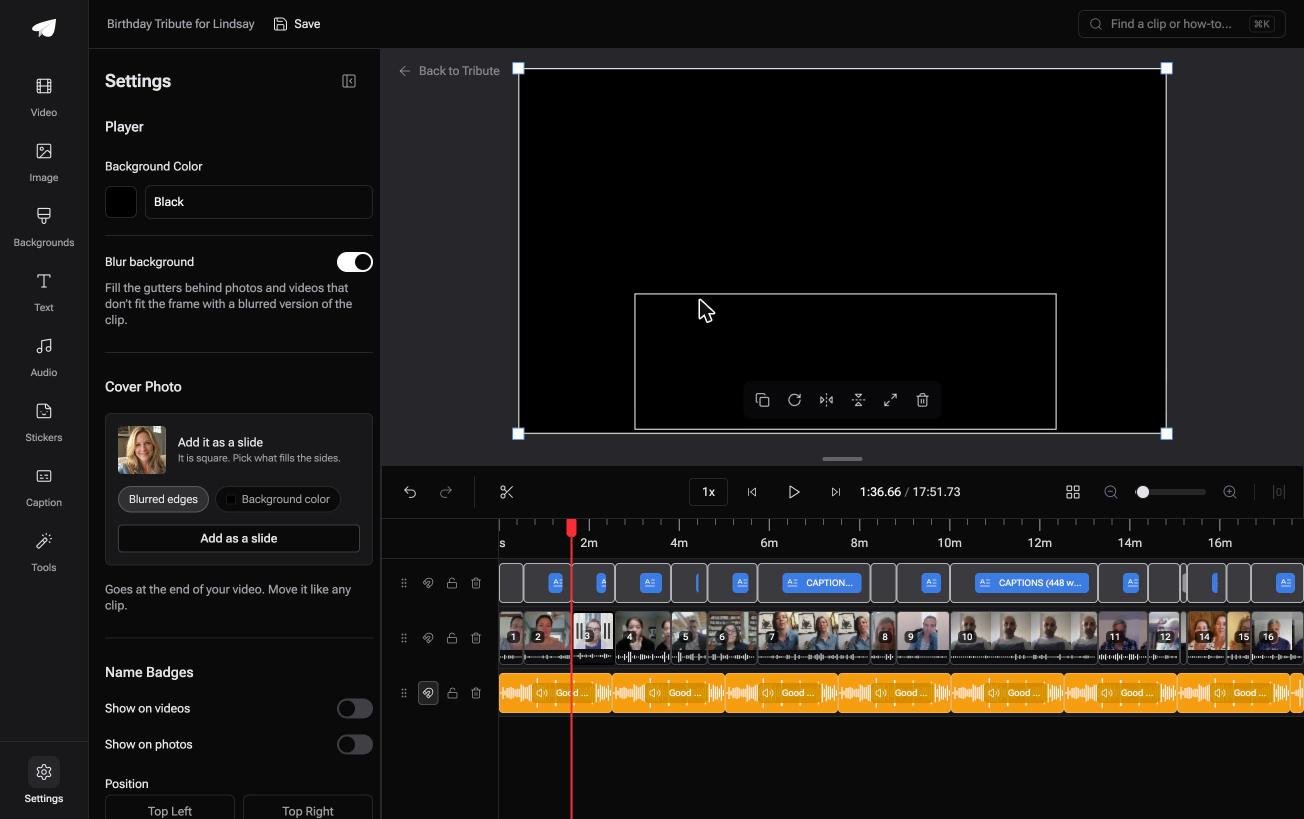
- Blurred edges fill the frame behind upright phone footage, on by default, so an upright clip arrives without black bars
- Clips arrive in order on the timeline, with a tick against the ones already placed
- 10 color grades previewed on the real clip, including Vintage, Video Noir, Warm and Faded
- 47 entrance and 47 exit animations, including Slow zoom, Drift and Breathe
Best for: A video where half the clips were shot upright and half were shot sideways.
Why it works: The mixed-orientation problem is handled once, in a setting, rather than clip by clip.
Is there a version of this with no crop to set?
The shape of the picture being yours to decide is what every control above is for.
You chose a timeline resolution, you cut pixels off an edge, you scaled the result back up and you watched the resolution drop. One kind of video skips that whole conversation.
The case: twelve rooms, one person
That case arrives when several people each record a message for the same person.
A father turning seventy. A colleague leaving after twenty years. A memorial where the people who should speak are spread across four time zones.
Half of them will hold the phone upright and half will turn it sideways, and none of them will ask you which you wanted.
Why the gutters stop being a decision
Because the empty space beside an upright clip gets filled before you see it.
A blurred version of the same frame sits behind the footage, so the picture reaches both edges without a crop and without a black band.
In the Tribute video editor that switch is on when you arrive, and you can turn it off per clip if you want the bars.
What you do not have to do
- Not the collecting. Each person records from the link, wherever they are.
- Not the gutters. The blur fills them in before you see the clip.
- Not the look. One color grade and one background carry the whole video.
- Not the edit. On a Concierge Tribute, Tribute's own editors trim, order and render it.

When this is the wrong answer: you are grading and reframing your own footage, or delivering to a spec. Then Resolve is the right tool and the Inspector is where you should be.
A DIY Tribute has no crop tool and no aspect ratio switcher, and it lives inside a paid Tribute.
On a Concierge or Concierge Deluxe Tribute, Eve crops and repositions a clip inside the frame, and reframes the video to 9:16 or another aspect ratio.
For the wider job see making a video montage.

Frequently Asked Questions
Where is the crop tool in DaVinci Resolve?
In the Cropping section of the Video Inspector, and on the Transform/Crop/Dynamic Zoom button at the bottom left of the Timeline Viewer. Both drive the same four values.
Does a davinci crop change the resolution of my video?
No. It cuts pixels off the image and leaves the frame the size the timeline says. Change Timeline Resolution in Timeline Settings if you want a different delivery size.
Why is my cropped clip surrounded by black?
Because a crop creates transparency and nothing sits on the track below. Scale the clip back up, put a blurred copy underneath, or change the timeline to the shape you want.
How do I reset a crop?
Use the reset control beside the Cropping section header in the Inspector, which returns that section to its defaults and leaves your Transform values alone.
Can I animate a crop?
Yes, with keyframes on the crop values in the Inspector. For a moving reframe rather than a moving edge, Dynamic Zoom is the easier control and it is off by default.
Is Smart Reframe in the version that costs nothing?
No. Blackmagic's manual marks it Studio only. Without Studio you reframe each clip by hand after setting the timeline to the shape you are delivering.
Should I crop a clip or change the timeline resolution?
Crop when you are removing something from the edge of a shot. Change the timeline when every clip needs a new shape, which is the aspect ratio question rather than a crop.
👉 Let the upright ones fill the frame on their own if half the clips are upright and half of them sideways, and there is no edge left to crop.
