
DaVinci Resolve: Add Text to Video Without Opening Fusion
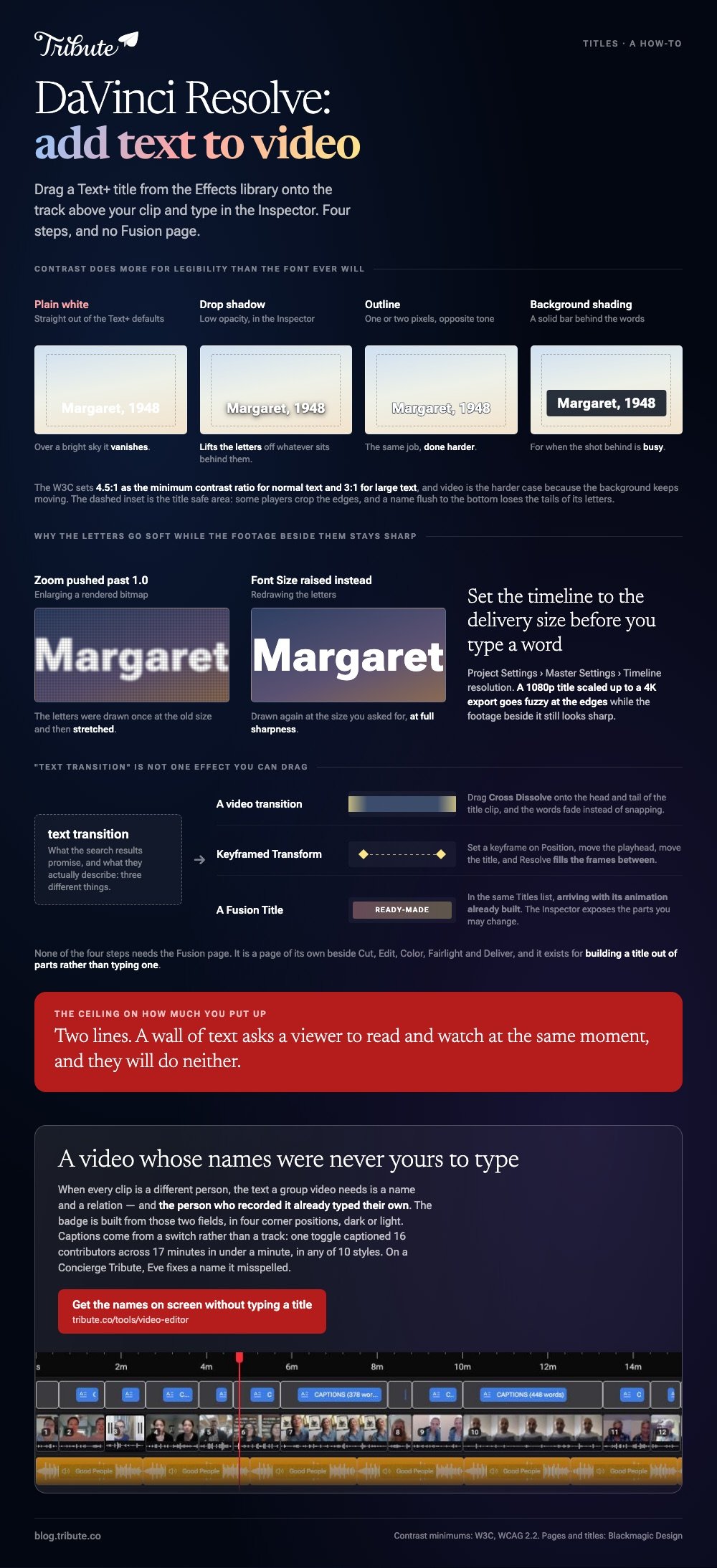
To add text to video in DaVinci Resolve, open the Edit page, drag a Text+ title from the Effects library onto the track above your clip, and type in the Inspector. Four steps, two minutes, no Fusion page.
| What you want on screen | What to use | Where it lives |
|---|---|---|
| A name or a date | Text+ | Effects, then Titles |
| A plain lower third | Text | Effects, then Titles |
| Spoken words, line by line | Subtitle track | Timeline menu |
| Words that move on their own | Fusion Title preset | Effects, then Titles |
Can DaVinci Resolve add text to video in four steps?
Yes, and they are the same four in the free version and in Studio.
- Open the Edit page and click Effects at the top left to show the Effects library.
- Choose Titles in the sidebar, then drag Text+ onto a video track above your clip.
- Select the title and open the Inspector. Replace the placeholder in the Rich Text field.
- Drag the ends of the title clip to set how long the words stay on screen.
The Inspector carries everything else: size, font, color, position, and the Transform controls that move a title around the frame.
None of this needs the Fusion page. Blackmagic lists Fusion as a page of its own, beside Cut, Edit, Color, Fairlight and Deliver, and it exists for building a title out of parts rather than typing one.
Text or Text+: which one do you drag?
Text+ for anything you plan to style, Text for a caption you type once and forget.
Both sit under Titles. The difference is the depth of the Inspector, because Text+ adds layout, shading and character controls that plain Text leaves out.
How do you style a title so people can read it?
Contrast does more for legibility than the font ever will.
White letters over a bright sky vanish. The W3C sets 4.5:1 as the minimum contrast ratio for normal text and 3:1 for large text, and video is the harder case because the background keeps moving.
Three Inspector settings fix most of it.
- Drop shadow at low opacity lifts the letters off whatever sits behind them
- Outline of one or two pixels in the opposite tone does the same job harder
- Background shading gives you a solid bar when the shot behind is busy
Keep the words inside the title safe area. Some players crop the edges, and a name sitting flush to the bottom loses the tails of its letters.
Two lines is the ceiling. Compared to a lower third that names a person once, a wall of text asks a viewer to read and watch at the same moment, and they will do neither.
Most of the footage people title was shot on a phone. Pew Research Center puts US adult smartphone ownership at 91%, so a phone screen is where your title gets judged.

What is a text transition in DaVinci Resolve?
It is not one effect you can drag.
Search results promise a text transition DaVinci Resolve users can download, and what they describe is one of three things: a video transition dropped on the title clip, keyframed Transform settings, or a Fusion Title that animates itself.
Start with the first. Drag Cross Dissolve from Video Transitions onto the head and tail of the title clip, and the words fade in and out instead of snapping.
For movement, select the title and open Transform in the Inspector. Set a keyframe on Position, move the playhead, move the title, and Resolve fills the frames between the two.
Fusion Titles are the ready-made route. They sit in the same Titles list, each one arriving with its animation already built, and the Inspector exposes the parts you are allowed to change.
Why does DaVinci Resolve add text to video that looks soft?
Because the timeline resolution and the delivery resolution disagree.
Text shows it first. A 1080p title scaled up to a 4K export goes fuzzy at the edges while the footage beside it still looks sharp.
Open Project Settings, Master Settings, and set Timeline resolution to the size you plan to deliver before you type a word. The title is then drawn at that size from the start.
The second cause is scaling in the Inspector. Pushing Zoom past 1.0 enlarges a rendered bitmap, while raising the font Size redraws the letters at full sharpness.
Frame size has its own traps in cropping video in DaVinci Resolve. The same job in other tools is in adding text in Premiere Pro and adding text to video.
What if the clips came from a dozen different people?
The Tribute video editor is a browser-based group video editor: contributors record clips on their phones and Tribute assembles them on a timeline with the music balanced under the voices.
It is ours, and it is the last thing on this page.
- Ready-made title styles grouped as Simple, Title and Styles, rather than a raw font list
- Name badges from each person's name and relation, in four corner positions, dark or light
- 10 caption styles with the spoken word highlighted, every line editable with its own timecode
- 47 entrance and 47 exit animations, including Slow zoom, Drift and Breathe
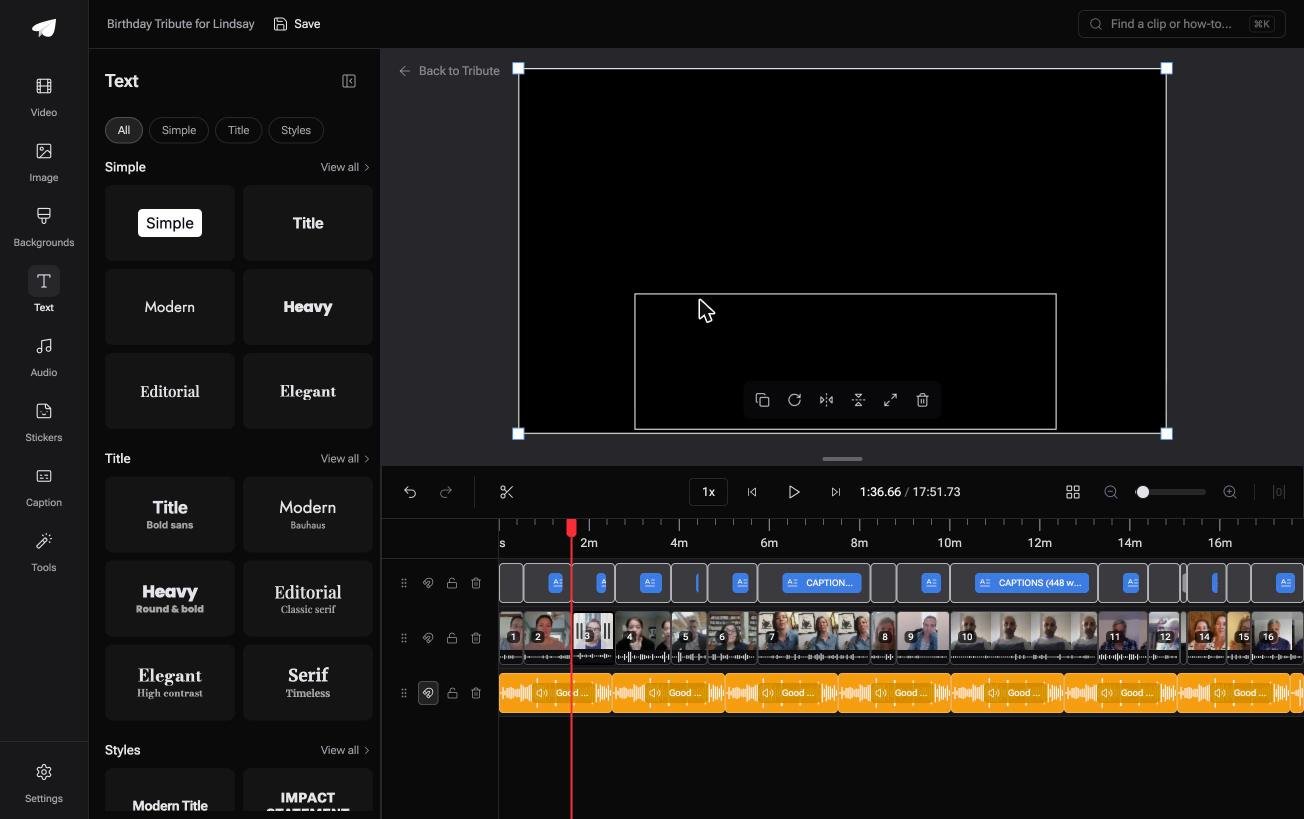
Best for: A leaving video where sixteen people each need a name and a role on screen.
Why it works: The text a group video needs is a name and a relation, and both are typed once per person.
Do you need a titler if the editor already knows who is speaking?
Every step above assumes you are the one deciding what the words say.
You pick the font, set the contrast, keyframe the move. That work earns its time when a title is part of the storytelling.
One kind of video does not work that way. Its words are labels, and the editor is already holding them.
The case: the clips are messages, not shots
You are in it when several people each record something for one person.
A grandmother turning eighty. A colleague leaving after fifteen years. A memorial where the people who should speak are in four states.

Nobody is writing titles here. Each clip needs one line saying who is talking, and the person who recorded it already typed their own name.
Why the title work disappears
Every clip arrives with an uploaded-by name and a relation, and the badge is built from those two fields.
Captions come from a switch rather than a track. One toggle captioned 16 contributors across 17 minutes in under a minute, in any of 10 styles.
That is how the Tribute video editor handles it: not a faster titler, but a video whose names were never yours to type.

What you do not have to do
- No title per person. Each contributor types their own name and relation.
- No Fusion page. Pick a corner and a dark or light badge, once, for all of them.
- No caption typing. One switch covers every clip, and on a Concierge Tribute Eve fixes a name it misspelled.
- No build. Tribute's own editors make the video on that tier and send it back.

When this is the wrong answer: you are cutting your own footage, or the text is doing real work on screen. Then Resolve is the right tool and the four steps above are the whole job.
It also runs in a browser and lives inside a paid Tribute.
The wider craft sits in making a video montage.
Frequently Asked Questions
Where is the Titles list in DaVinci Resolve?
On the Edit page, click Effects at the top left, then Titles in the sidebar. Plain Text and Text+ sit at the top, with the Fusion Titles underneath them.
Can you add text on the Cut page instead?
Yes. The Cut page has its own Titles list in the Effects panel, and a title dropped there appears on the Edit page timeline too. The Inspector controls are the same.
How do you make a title appear at an exact time?
Move the playhead to that frame and drag the start of the title clip to meet it. Timecode for the clip start and end also shows in the Inspector, so you can type the numbers.
Why can I not type in the Text+ box?
The title clip has to be selected in the timeline before the Inspector shows its fields. If the fields are visible but dimmed, you are looking at a different clip on a higher track.
Does the free version include Text+?
It does. Text, Text+ and the Fusion Titles ship with the version that costs nothing, and the paid Studio version adds effects elsewhere rather than extra titles.
How do you put the same title on twenty clips?
Style one title, then copy it and paste it above each clip. Unlike a style preset, a pasted Text+ keeps every Inspector setting, so you change only the words.
👉 Get the names on screen without typing a title if every clip in the video is a different person, and the only words you write are the opening card.
