
DaVinci Resolve No Audio in Timeline: Four Causes, in Order
DaVinci Resolve no audio in timeline has four common causes, and only one is the file. Check the track mute, then the clip's channel mapping, then the output device in Preferences, then the codec.

What causes DaVinci Resolve no audio in timeline?
Four things, and they fail in different places.
Working down the list in order saves you from changing five settings and never learning which one mattered.
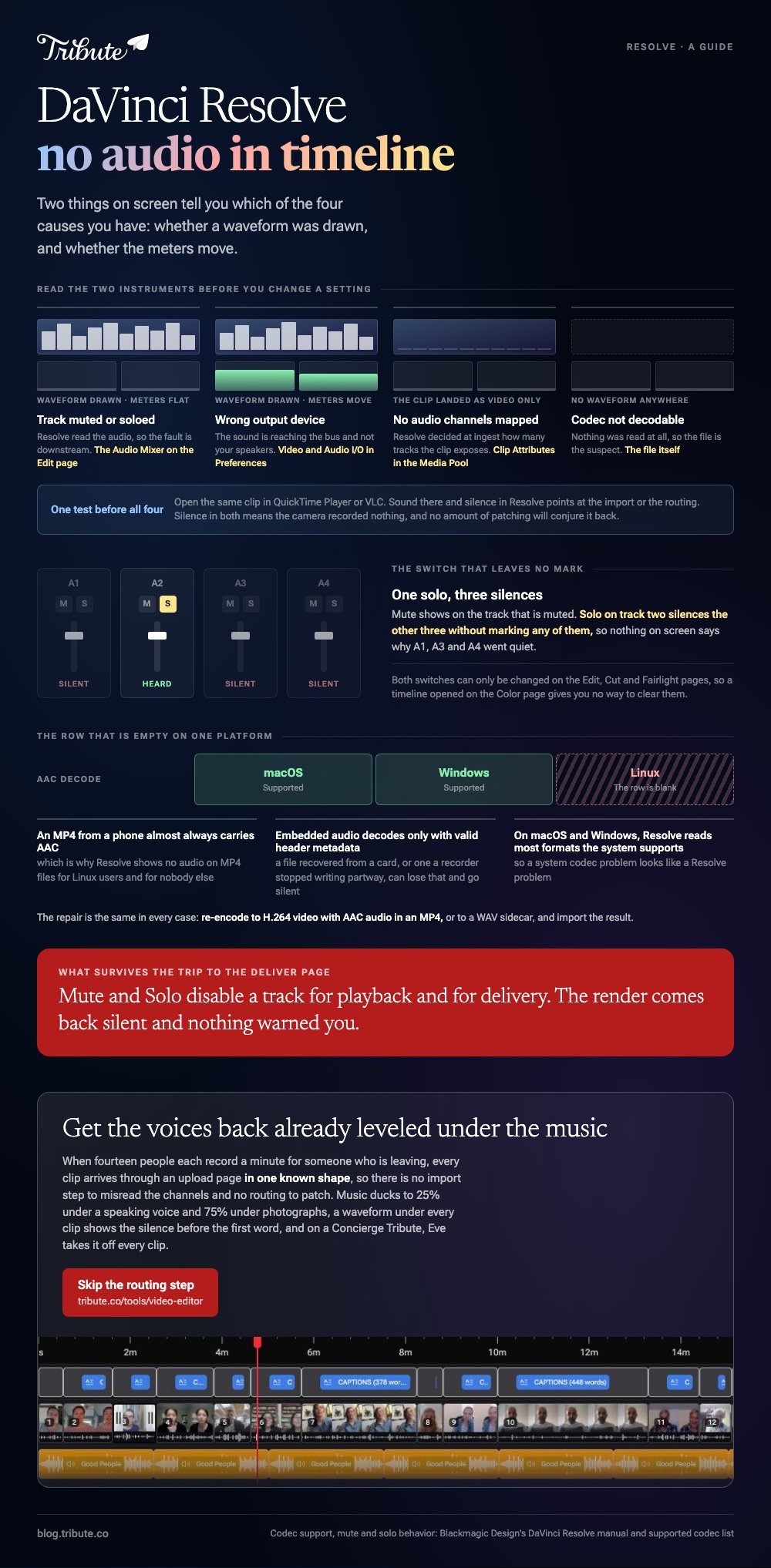
| Cause | What you see | Where to look |
|---|---|---|
| Track muted or soloed | Waveform is drawn, meters stay flat | The Audio Mixer on the Edit page |
| No audio channels mapped | The clip lands as video only | Clip Attributes in the Media Pool |
| Wrong output device | Meters move, speakers stay silent | Video and Audio I/O in Preferences |
| Codec not decodable | No waveform anywhere | The file itself |
The waveform is the fastest test you have. If Resolve drew one, it read the audio, and your problem is downstream. If it drew nothing, the problem is the file or the import.
Tell the file apart from the app first
Open the same clip in QuickTime Player or VLC before you touch a single setting.
Sound there and silence in Resolve points at the import or the routing. Silence in both means the camera recorded nothing, and no amount of patching will conjure it back.
Is the sound missing or is it not reaching your speakers?
Watch the meters while the playhead moves.
Moving meters and no sound is a monitoring problem, which lives in one place. Blackmagic's manual puts the controls in the Video and Audio I/O panel of the System Preferences, under Audio I/O.
- Open Preferences, then System, then Video and Audio I/O.
- Set I/O Engine to System Audio unless you own a Blackmagic or Fairlight interface.
- Set Output Device to the speakers or headphones you are using.
- Leave Automatic speaker configuration checked, which sends audio to the workstation's built-in output.
- Restart DaVinci Resolve, because some of these settings do not take effect until you do.
Flat meters send you somewhere else. Mute and Solo in the Audio Mixer both stop a track, and the manual notes you can only change them on the Edit, Cut and Fairlight pages.
Soloing is the one that catches people, because a solo on track 2 silences every other track without marking them.
Why does the clip arrive with no audio track at all?
Because its channels were never mapped on import.
Resolve decides at ingest how many audio tracks a clip exposes. A multi-microphone recording with an odd channel layout can land with every channel disabled.
So when one DaVinci Resolve video has no audio and the next one is fine, the mapping is the first thing to open.
- Select the clip in the Media Pool.
- Right-click it and choose Clip Attributes.
- Open the Audio panel.
- Set Format to Mono, Stereo or Adaptive to match what the camera recorded.
- Check the Source Channel assignments, then re-edit the clip into the timeline.
Blackmagic's own warning applies here: choosing a channel format with fewer channels than the clip holds disables the extras. A stereo setting on a four-microphone recording drops two of them without telling you.
The opposite case
DaVinci Resolve with only audio and no video is the same fault seen from the other side. The container carried a codec Resolve could not decode for picture, so it kept the sound and discarded the image.
Re-wrap the file to H.264 in an MP4 and import it again.
Can DaVinci Resolve no audio in timeline be a codec problem?
Yes, and the vendor publishes the precise conditions.
Blackmagic's supported formats list gives AAC decode on macOS and Windows, and leaves the same row empty on Linux.
An MP4 from a phone almost always carries AAC. That is why DaVinci Resolve shows no audio on MP4 files for Linux users and for nobody else.
Two more lines in that document matter.
- Embedded audio decodes only with valid header metadata. A file recovered from a card, or one a recorder stopped writing partway, can lose that and go silent.
- On macOS and Windows, Resolve reads most formats the operating system supports. So a system codec problem looks like a Resolve problem.
The repair is the same in every case: re-encode to H.264 video with AAC audio in an MP4, or to a WAV sidecar, and import the result.

Why does the render come back silent?
Because a mute survives the trip to the Deliver page.
Blackmagic states it in the manual: using Mute or Solo in the Audio Mixer disables that track for playback and for delivery, and you should re-enable anything you need before you render. A soloed track is the same trap with a friendlier face.
Check three things before a long export.
- No track is muted and nothing is soloed.
- The audio section of the render settings is switched on, with a codec chosen.
- The main bus carries the tracks you expect, which the meters confirm during playback.
Full documentation for all of this sits in the DaVinci Resolve reference manual, which Blackmagic publishes at no charge.
How do you cut audio from video in DaVinci Resolve on purpose?
Unlink the two, then delete the half you do not want.
Imported clips arrive with picture and sound linked, and a chain icon before the clip name shows it. To break that link, select the clip, right-click it and choose Link, or press Option-Command-L.
- Select the clip in the timeline.
- Right-click and choose Link so the chain icon disappears.
- Click the audio item on its own track.
- Delete it, leaving the picture in place.
Compared with muting the track, this is permanent and tidy, which matters when you are handing the timeline to someone else.
Audio that vanishes on a phone has its own short list of causes, covered in an iPhone video with no audio and in YouTube videos with no audio.
For stitching the repaired clips into one piece afterward, see making a video montage.
What if sixteen people each sent you one clip?
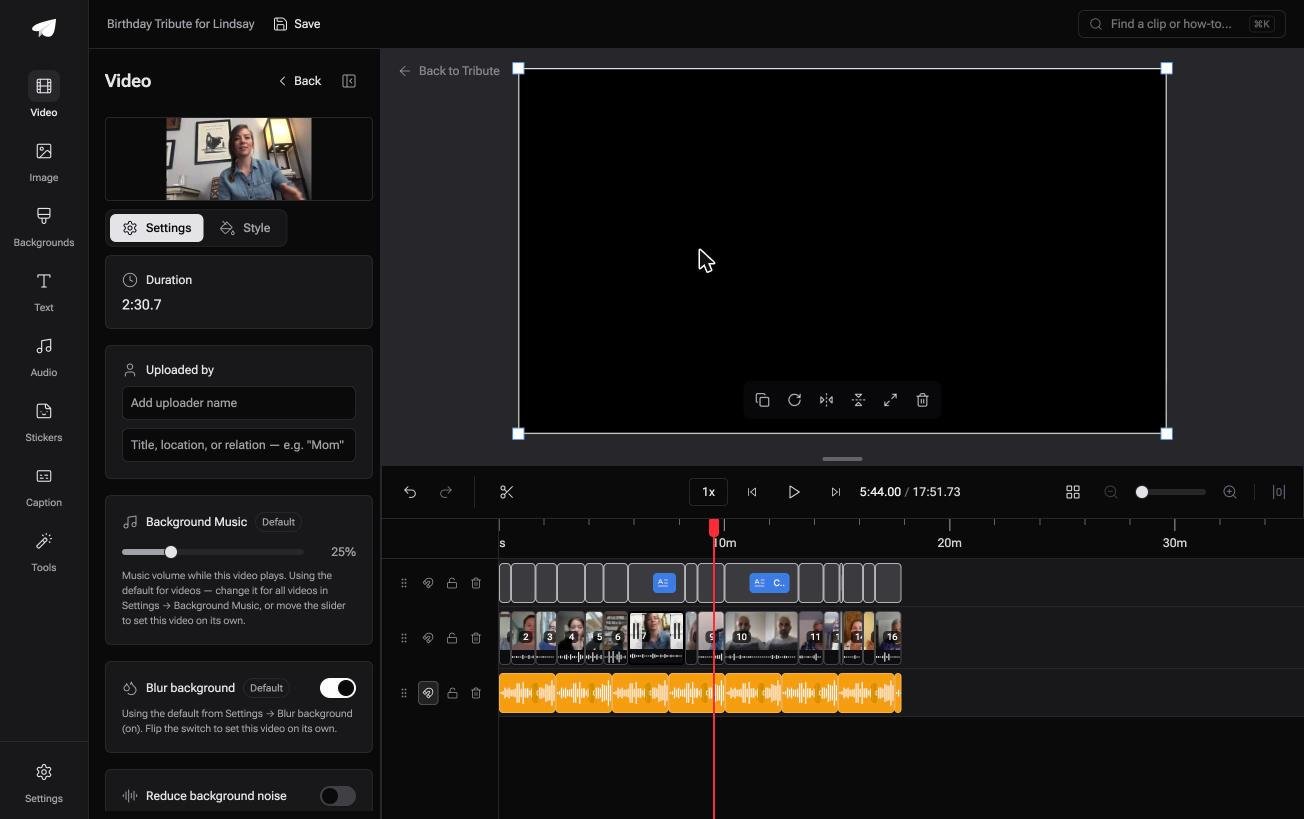
The Tribute video editor is a browser-based group video editor: people record clips on their phones and Tribute lays them on a timeline with the music already balanced under the voices.
It is ours, and it is not a Resolve replacement.
- Music ducks on its own: 25% under a speaking voice, 75% under photographs, overridable per clip
- A waveform under every clip, so you can see the silence and trim to the first word
- Clips arrive in order with a tick against the ones already placed
- One switch captions all of it: 16 people and 17 minutes in under a minute
Best for: Someone who was handed a folder of phone clips and a deadline, and who has never opened a professional grading suite.
Why it works: Unlike a timeline you build yourself, there is no routing to get wrong, because the tracks were never yours to patch.
When does the audio never go missing in the first place?
Every fix above is a repair on a file that arrived on your machine in a state you did not choose.
Codecs, channel maps, output devices and mute switches are all the same problem wearing different clothes: you are the one assembling material somebody else recorded.
The case: the clips were recorded into the edit
You are in it when a group of people each record a message for the same person.
Eleven colleagues for a leaving party. Grandchildren in three states for a ninetieth. Each one records in a browser on a phone, and nothing passes through a card reader or a download folder on the way.
Why the channel map stops existing
A clip recorded through an upload page arrives in one known shape, because the page decided the shape.
Which means the search that brought you here, DaVinci Resolve no audio in timeline, describes a failure the Tribute video editor does not have a place to put. There is no import step to misread the channels.
What you do not have to do
- Not the import. Each clip arrives through an upload page in one known shape.
- Not the routing. The music is under the voices before you press play.
- Not the trims. On a Concierge Tribute, Eve, the AI assistant inside the editor, takes the silence off every clip.
- Not the render. Tribute produces the finished video on its servers.

When this is the wrong answer: you are grading a short, or cutting footage you shot, or someone is paying for a Resolve project. Then fix the routing and stay where you are. The editor also lives inside a paid Tribute, not on its own.
Frequently Asked Questions
Why does the waveform show but nothing plays?
Resolve decoded the audio, so the fault is after that point. Check for a muted or soloed track first, then the output device in the Video and Audio I/O preferences.
Does the paid version decode more audio formats?
For the audio codecs most people hit, no. Blackmagic's format list marks very few audio rows as Studio only, and AAC is not one of them on macOS or Windows.
Why does one MP4 work and another does not?
Different encoders write different headers. Blackmagic's list says embedded audio decodes when the header metadata is valid, so a file written by an unusual app or recovered from a card can fail where its neighbor succeeds.
Can I add audio back without reimporting?
Yes, if the sound exists as a separate file. Drag the WAV onto an audio track and line it up against the picture using a clap or a door.
Why is the audio there in the Media Pool but not in the timeline?
The clip was edited in before its channel mapping was corrected. Fix the mapping in Clip Attributes, then edit the clip into the timeline again.
Does changing the timeline frame rate silence audio?
It can put it out of sync rather than silence it. Set the frame rate before you edit anything, because Resolve locks it once a timeline holds clips.
What should I check before a long render?
Mute and solo states, the audio section of the render settings, and the meters during playback. Those three catch almost every silent export.
👉 Get the voices back already leveled under the music if fourteen people are each recording a minute for someone who is leaving, and skip the routing step.
