
iMovie Cut Video: Split on iPhone, Trim on Mac, and the Part It Crops
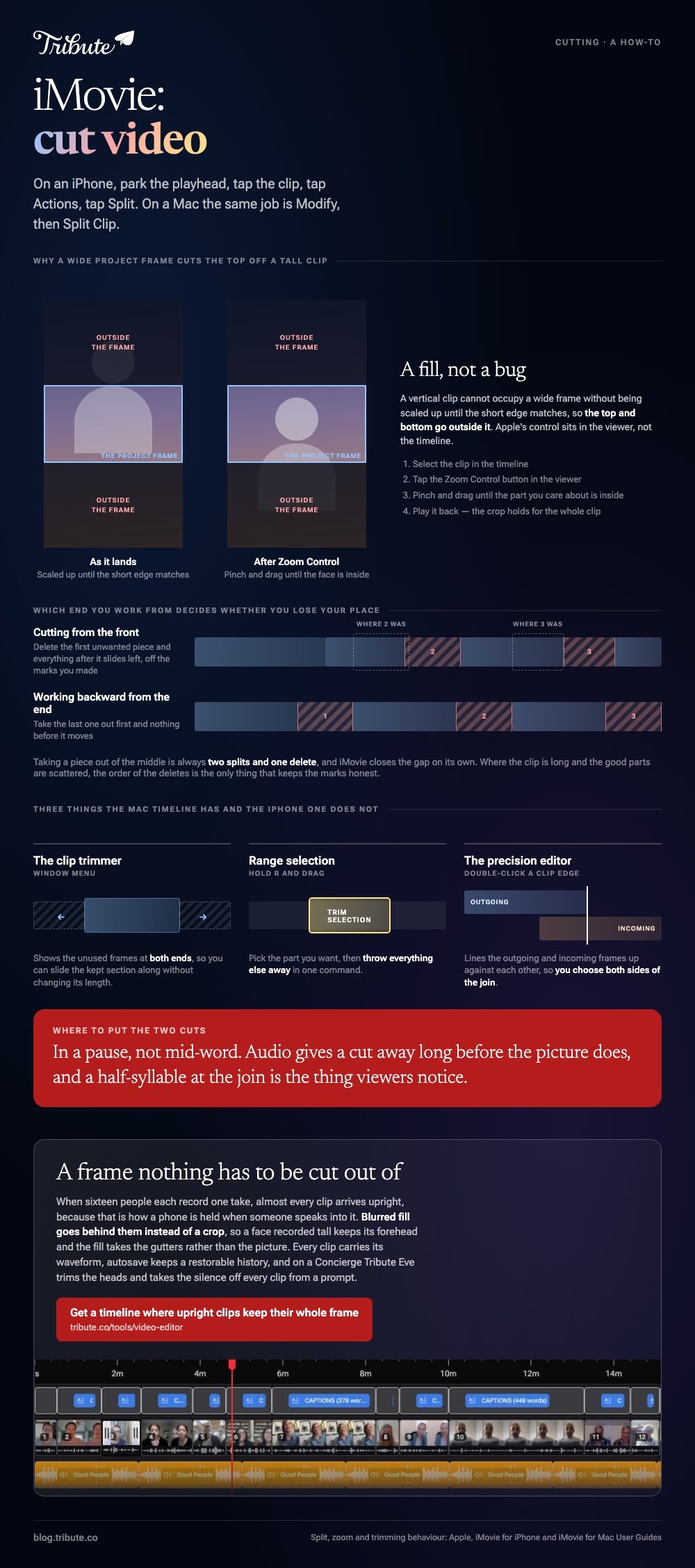
To cut video in iMovie on an iPhone, put the playhead where the cut belongs, tap the clip, tap the Actions button and tap Split. On a Mac the same job is Modify, then Split Clip.

| What you want | iPhone | Mac |
|---|---|---|
| Cut at one point | Actions, then Split | Modify, then Split Clip |
| Shorten an end | Drag a yellow handle | Drag the clip edge |
| Remove the middle | Two splits, then Delete | Two splits, then Delete |
| Reframe a tall clip | Zoom Control in the viewer | Crop tools above the viewer |
How do you make iMovie cut video on an iPhone?
Four steps, and the playhead placement is the one that goes wrong.
- Open the project and scroll the timeline so the playhead sits on the frame you want to cut.
- Tap the clip so it is outlined in yellow and the inspector appears along the bottom.
- Tap the Actions button, then Split. Swiping down over the playhead does the same thing.
- Tap the piece you do not want and tap Delete.
Apple warns against leaving the playhead at the very start of a clip, where there is nothing to split. The app then drops a cut between the two halves, which you can swap for a cross dissolve.
Only video can be split this way. To cut a photo into two pieces you duplicate it first, because a still has no frames to divide.
Trimming instead of splitting
Tap the clip and drag either yellow handle inward.
A handle that refuses to move outward means there are no spare frames on that end. Photos behave another way: dragging changes their duration, which starts between six and twelve seconds.
How do you make iMovie cut video on a Mac?
Click the clip, park the playhead, then choose Modify and Split Clip.
The keyboard shortcut is Command-B, and it is the one worth learning because a rough assembly is dozens of cuts in a row. Everything after the cut stays where it is.
Three Mac-only tools are worth knowing.
- The clip trimmer under Window shows the unused frames at both ends, so you can slide the kept section along
- Range selection by holding R and dragging picks the part you want, then Trim Selection throws the rest away
- The precision editor, opened by double-clicking a clip edge, lines up the outgoing and incoming frames
Compared to the iPhone version, the Mac timeline gives you a second track and a wider zoom, which is what makes the precision editor worth opening.
How do you take a piece out of the middle?
Two splits, then one delete.
What people mean by iMovie cut middle of clip is that sequence: split at the start of the unwanted section, split again at its end, tap the piece between and delete it. iMovie closes the gap on its own.
Place both cuts in a pause rather than mid-word. Audio gives the cut away long before the picture does, and a half-syllable at the join is the thing viewers notice.
Where the clip is long and the good parts are scattered, work backward from the end. Cutting from the front keeps shifting everything after it and you lose your place.
Why does iMovie cut off the top of your video on iPhone?
Because the project frame is wide and your clip is tall.
The complaint behind the search imovie cuts off top of video on iphone is a fill, not a bug. A vertical clip cannot occupy a wide frame without being scaled up until the short edge matches, and the top and bottom go outside the frame.
Apple's control for this is in the viewer rather than the timeline.
- Select the clip in the timeline.
- Tap the Zoom Control button in the viewer.
- Pinch and drag the image until the part you care about sits inside the frame.
- Play it back before you move on, because the crop holds for the whole clip.
Apple documents the pinch and drag as the way to set a clip's zoom. A two-finger twist in the same viewer rotates footage that came in sideways.
Most of this footage was shot upright on a phone. Pew Research Center puts US adult smartphone ownership at 91%, which is why a wide timeline keeps meeting tall clips.
Other tools draw the line in other places: see cutting clips in a simpler editor and cutting video with VLC.
What if the clips came from a dozen different people?
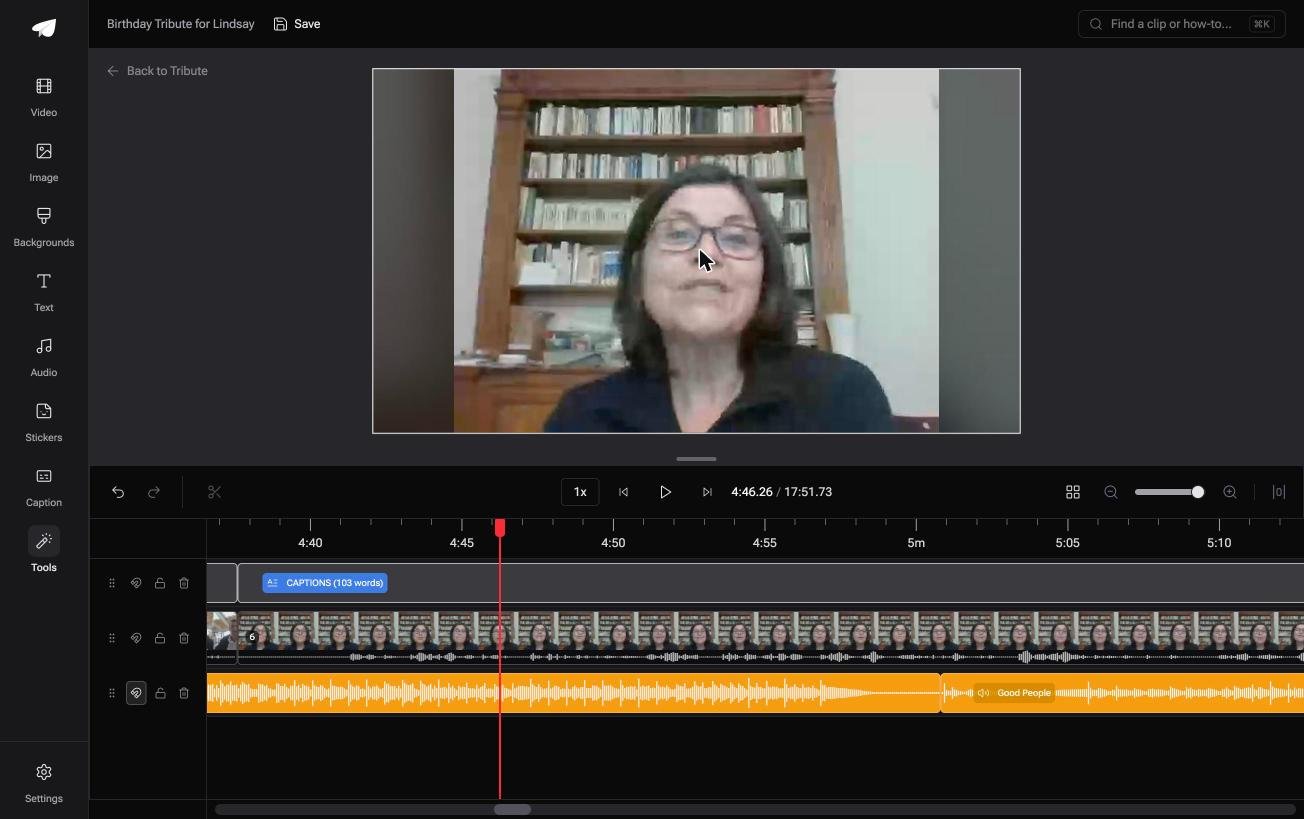
The Tribute video editor is a browser-based group video editor: contributors record clips on their phones and Tribute assembles them on a timeline with the music balanced under the voices.
It is ours, and it is the last thing on this page.
- A waveform under every clip, so the silence before the first word is visible rather than hunted for
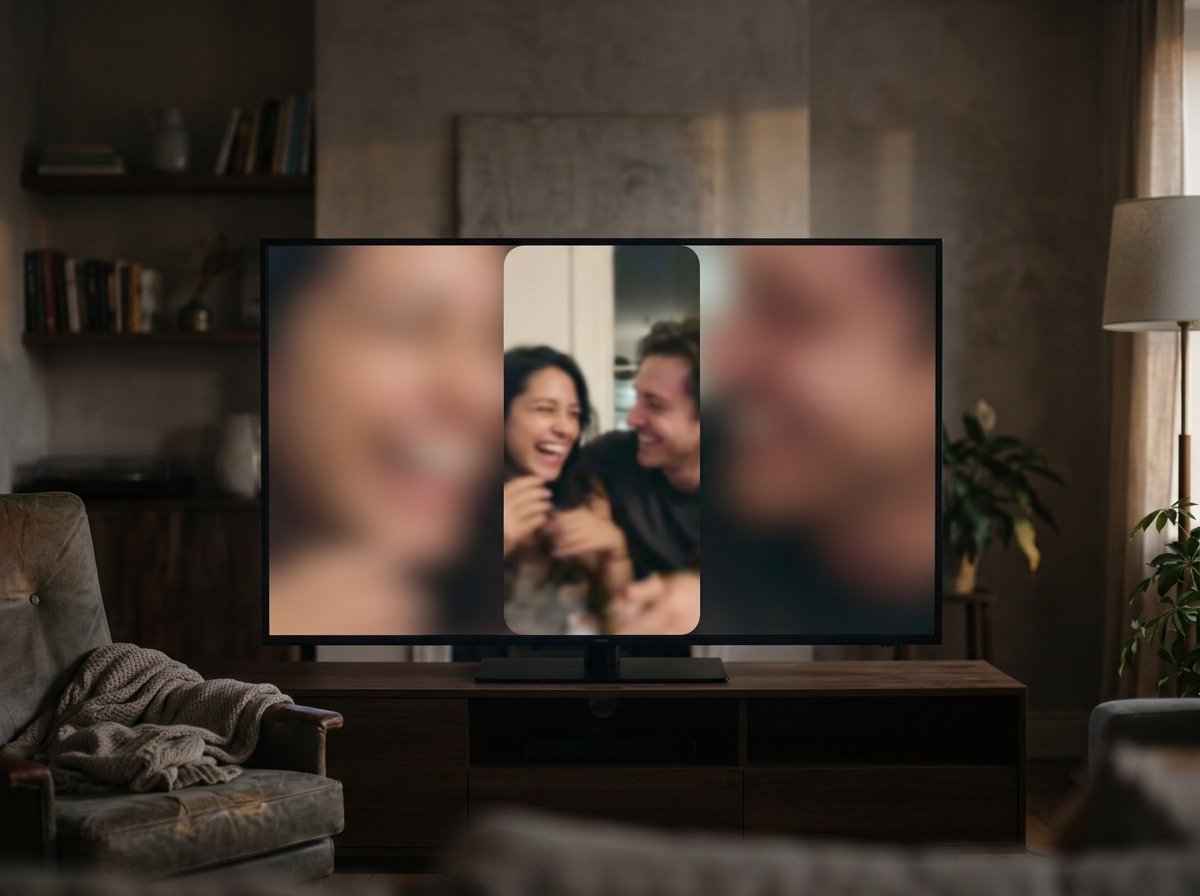
- Blurred edges fill the frame behind upright phone footage, so nothing is cropped away
- Clips arrive in order, with a tick against the ones already on the timeline
- Autosave and restorable version history, with removed clips recoverable rather than deleted
Best for: Upright phone messages that a wide project frame would crop to the chin.
Why it works: Upright clips keep their whole frame, so the crop question never reaches you.
What happens when no clip needs cutting?
Each method above starts with you knowing which part of a clip matters.
That knowledge comes from having been there. You held the camera, you remember the moment, and the cutting is you finding it again on a small screen.
There is a kind of video where you were present for none of it.
The case: one take each, from sixteen people
You are in it when several people each record something for one person.
A grandmother turning eighty. A colleague leaving after fifteen years. A memorial where the people who should speak are in four states.

Each clip is one person saying one thing, once. There is no middle to remove, and the only cut anyone needs is the pause before they start.
Why the cropping question disappears too
Almost every clip arrives upright, because that is how a phone is held when someone speaks into it.
Blurred fill goes behind them instead of a crop, so a face recorded tall keeps its forehead. Unlike a wide project frame, the fill takes the gutters rather than the picture.
That is how the Tribute video editor handles it: not a gentler crop, but a frame nothing has to be cut out of.

What you do not have to do
- Not the collecting. Each person records from one link, wherever they are.
- Not the ordering. The clips arrive in sequence, the closing message movable in one window.
- Not the cropping. Blurred fill takes the gutters and leaves the face alone.
- Not the edit. On a Concierge Tribute, Tribute's own editors cut it and send the video back.
On a Concierge or Concierge Deluxe Tribute, Eve, the AI assistant inside the editor, trims the heads for you and takes the silence off every clip from a prompt.

When this is the wrong answer: you shot the footage and the edit is yours to shape. Then iMovie is the right app and the steps above are the whole job.
Our editor runs in a browser and lives inside a paid Tribute.
The wider craft is in making a video montage.
Frequently Asked Questions
Why is Split dimmed in iMovie?
Your playhead is at the very start or end of the clip, or the item you selected is a photo. Move the playhead into the body of a video clip and the option returns.
How do you undo a cut in iMovie?
Shake the iPhone to undo, or press Command-Z on a Mac. Dragging the clip edges back out also recovers the frames, because iMovie keeps them rather than deleting them.
Does cutting in iMovie reduce quality?
Cutting itself does not. The export does, because the whole project is re-encoded when you share it, whatever you did on the timeline.
Can you cut the audio on its own?
Yes. Detach the audio first, which puts it on its own track, and from then on the two can be split at different frames.
Why did my clip come back with black bars?
The clip was fitted into the project frame instead of filled. Use the Zoom Control in the viewer to fill it, accepting that the edges go outside the frame.
How do you cut a video without iMovie on an iPhone?
Apple's Photos app trims the start and end of a single clip, which covers most quick jobs. It will not split a clip in the middle or join two of them.
👉 Get a timeline where upright clips keep their whole frame if tall phone messages are meeting a wide project frame, and nothing is cropped to the chin.
