
Photo Transition Video Maker Online: Three That Work, and the Steps
A photo transition video maker online means one of three places: Clipchamp, Canva, or the photo app already on your phone. Clipchamp is the quickest of them, because its transitions tab drags straight onto the gap between two images.
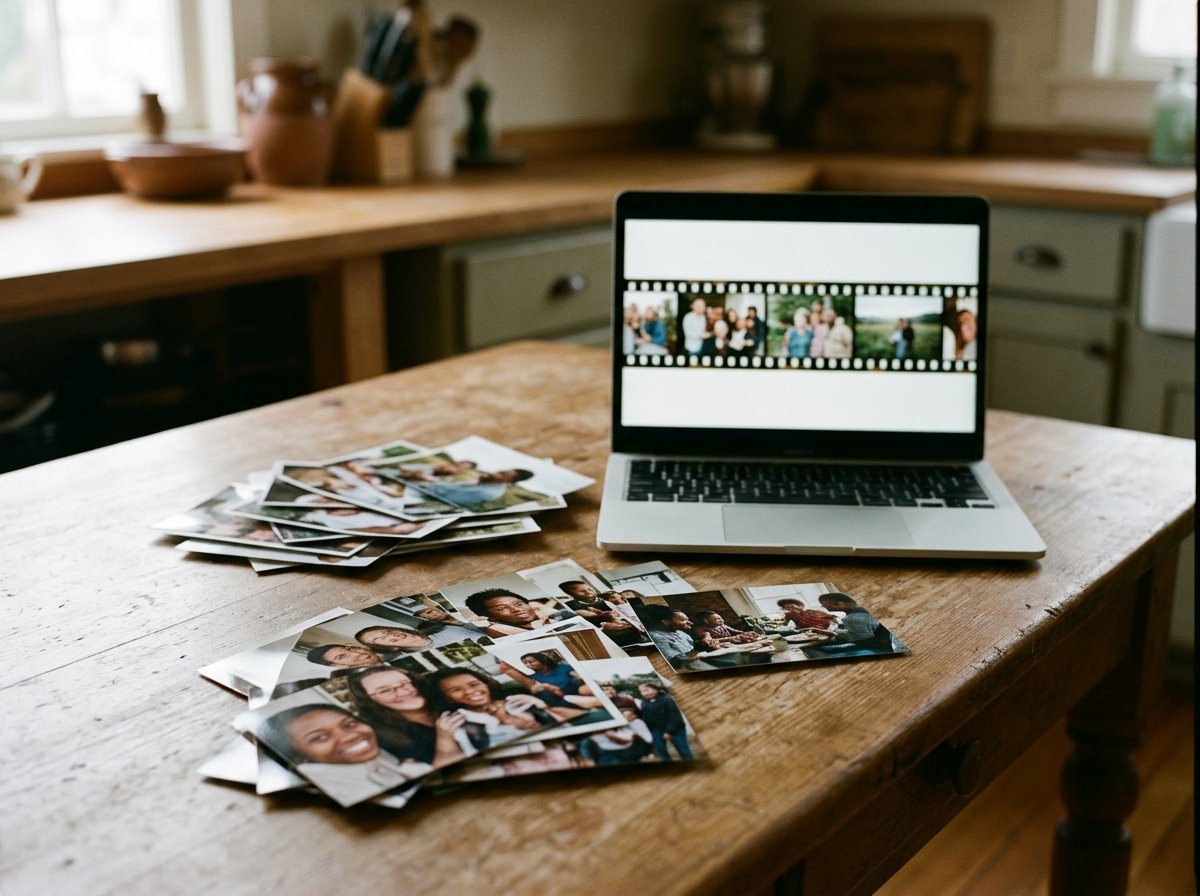
Which photo transition video maker online should you use?
The one that matches how much control you want over the join.
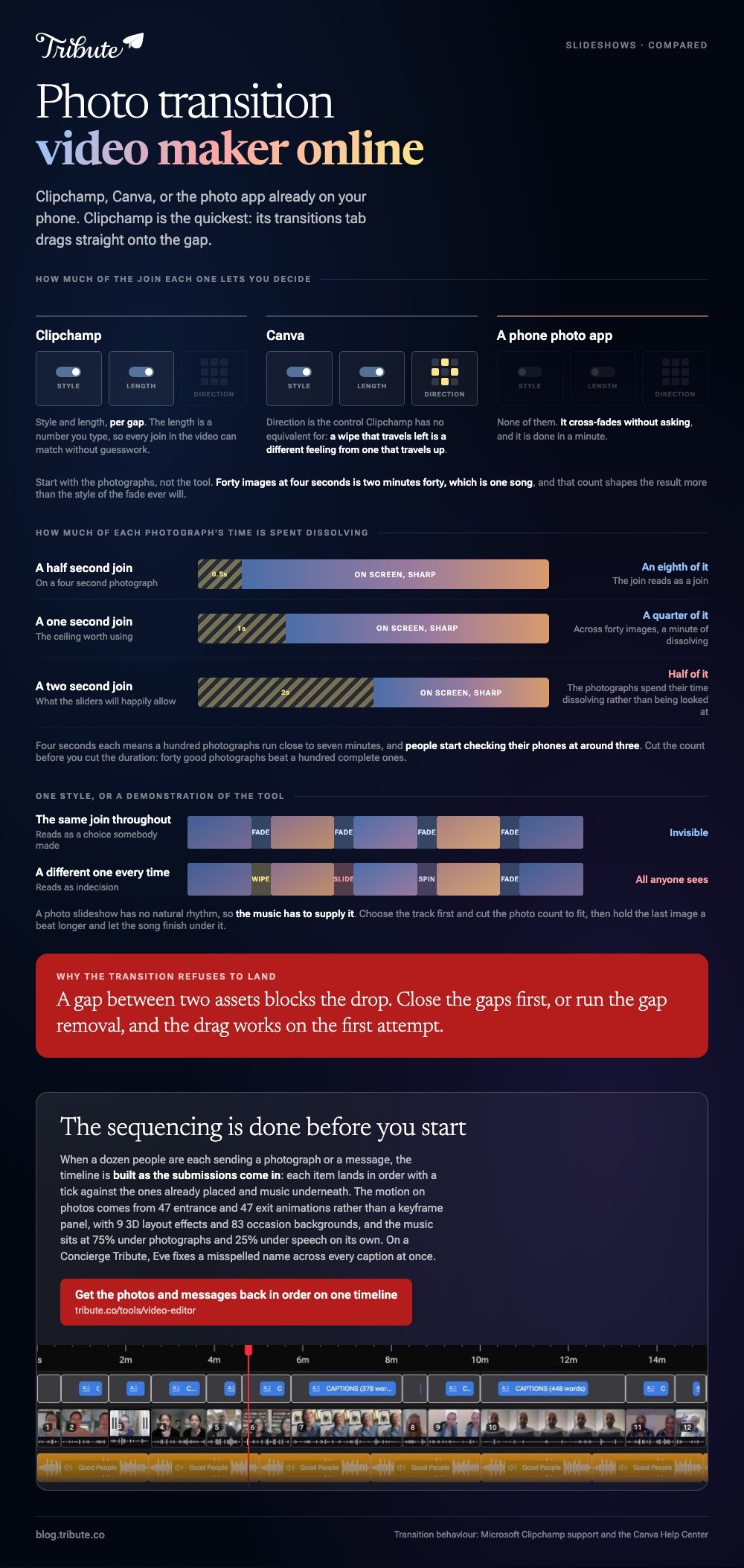
A video editor online with transitions gives you the style and the length of each one; a phone slideshow picks both for you. Most video transition effects online are built into the editor rather than sold on top.
| Tool | Control over the join | Best when |
|---|---|---|
| Clipchamp | Style, length, per gap | Forty photos and a song |
| Canva | Style, length and direction | Text and layout matter too |
| Phone photo app | None, it cross-fades | You want it done in a minute |
Start with the photos, not the tool. Forty images at four seconds is two minutes forty, which is one song.
Compared to a phone slideshow, a browser editor costs ten extra minutes and hands you every decision inside them. That count of photos shapes the result more than the style of the fade ever will.
How do you add transitions between photos in Clipchamp?
By dragging one onto the seam between two images.
- Drop the photos on the timeline in order, with no gaps between them.
- Click the transitions tab on the toolbar and hover a style to preview it.
- Drag it onto the timeline between two photos, or use the add transition button that sits between them.
- Select the transition, then set its length with the slider in the property panel or by typing the seconds.
Microsoft's guide to adding transitions and fades notes that a gap between two assets blocks the drop, and that cross fade is picked for you unless you change it.
Gaps are the usual reason a transition refuses to land. Close them first and the drag works on the first attempt.
Best for: A slideshow of thirty or more photos that needs one consistent look.
Why it works: The length is a number you type, so every join in the video can be the same length without guesswork.
How does Canva handle the same job?
Through the timeline's own menu rather than a panel of drag targets.
- Show the timeline if it is hidden, using the page thumbnails control.
- Select the track the photo sits on.
- Open the three-dot menu and choose Add transition.
- Pick a style, then set its duration and its direction.
Canva's own guide to creating and editing videos has the timeline and the rest of the editor. Direction is the control Clipchamp has no equivalent for: a wipe that travels left is a different feeling from one that travels up.

Best for: A slideshow with titles, captions or a layout per page.
Why it works: The transition belongs to the track, so duplicating a page carries the join with it.
Is a photo transition video maker online enough for a long slideshow?
For sixty photos, yes. Past that the transitions are not the problem.
A browser editor holds up fine; attention does not. Four seconds each means a hundred photos run close to seven minutes, and people start checking their phones at around three.
- Pick one style and use it throughout. A different fade every time reads as indecision.
- Keep each join under a second. Longer and the photos spend their time dissolving rather than being looked at.
- Cut the count before the duration. Forty good photos beat a hundred complete ones.
- Hold the last image a beat longer than the rest, and let the song finish under it.
Unlike a video of people talking, a photo slideshow has no natural rhythm, so the music has to supply it. Choose the track first and cut the photo count to fit.
Two companion routes are in making a photo video with music in a browser and building one around a particular song. For grids rather than sequences, see the photo and video collage makers.
What if people are talking between the photos?
Then the joins matter far less than who is on screen and what they are saying.
The Tribute video editor is a browser-based group video editor: contributors record clips on their phones and Tribute assembles them on a timeline with the music balanced under the voices.
- 47 entrance and 47 exit animations, including Slow zoom, Drift and Breathe for the Ken Burns look
- 9 3D layout effects built for photos: Tilt, Book, Floating, Billboard and Skewed
- 83 occasion backgrounds behind the photos, grouped by occasion
- Music at 75% under photos and 25% under speech, so a talking clip in the middle does not get buried
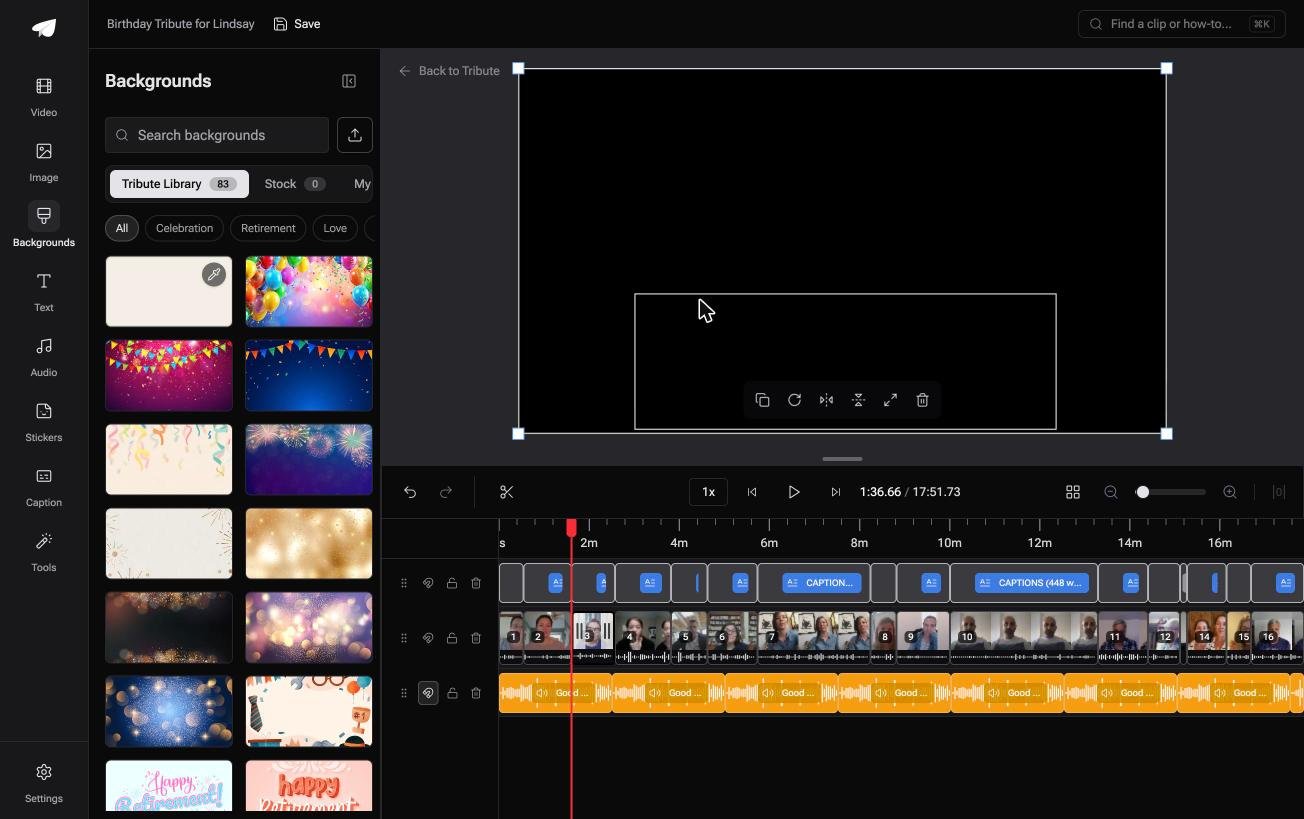
Best for: A slideshow with half a dozen spoken messages dropped between the photographs.
Why it works: Photos and talking clips sit on one timeline, and the music level changes between them on its own.
What if the order and the motion were set before you opened it?
Every route above starts with an empty timeline and a folder of images you have to put in order.
Dropping them in, closing the gaps, choosing a style, setting each length. For forty photos that is an evening, and most of it is sequencing rather than design.
One kind of video arrives sequenced.
The case: other people are supplying the content
You are in it when several people each send something for the same person.
A photograph from a holiday twenty years ago, a thirty second message from a cousin, a scan of a letter.
None of it is in a folder on your machine. It arrives one piece at a time, from people working off their own camera roll.
If the photos are all yours and already in one album, Clipchamp at the top of this page is the shorter road.

Why the sequencing work disappears
Because the timeline is built as the submissions come in.
Each item lands in order with a tick against the ones already placed, music underneath, and the motion on photos chosen from the animation list rather than drawn by hand in a keyframe panel.
The ordering work that is left in the Tribute video editor is a numbered window: move to front, move to back, or move to a position.
What the evening stops being about
Three jobs go, and dragging thumbnails into order is the first.
- No sequencing. Photos and messages land on one timeline in order.
- No look to set per slide. One animation and one background cover the lot.
- No spelling pass. On a Concierge Tribute, Eve fixes a misspelled name across every caption at once.
- No build. Tribute's own editors assemble it on that tier and send the video back.
When this is the wrong answer: the photos are yours, the order is obvious and you want a wipe that travels left. Then Canva gives you the direction control and this page is done.
The editor is not a standalone slideshow tool either: it lives inside a paid Tribute.
For the wider job of turning many pieces into one video, see making a video montage.
Frequently Asked Questions
How long should a transition between photos be?
Half a second to a second. Longer joins eat the time the photo itself should be getting, and across forty images that adds a minute of dissolving.
Why will Clipchamp not let me drop a transition?
There is a gap between the two assets. Close it, or run the gap removal, and the transition snaps into place between them.
Can I use a different transition between every photo?
You can, and it looks restless. One style throughout reads as a choice; a dozen styles reads as a demonstration of the tool.
Do these tools put a watermark on the result?
Clipchamp and Canva export without one on their standard plans. Single-page upload tools are where watermarks tend to appear, along with a cap on file size.
What size should my photos be?
Anything from a recent phone is more than enough. Scans of old prints are the ones to check, because a small scan shows its edges when the frame moves across it.
Can I make the slideshow on my phone instead?
Yes, and 91% of US adults own a smartphone according to the Pew Research Center mobile fact sheet. The trade is control: phone apps cross-fade without asking.
👉 Get the photos and messages back in order on one timeline if a dozen people are sending them, and the sequencing is done before you start.
