
VEED Subtitle Generator: How the Auto Subtitles Work
VEED transcribes your video in the browser, then gives you the lines to correct and style. The free plan covers ten minutes of subtitles a month and stamps a watermark on the export.

| What you want | VEED plan | Price as of October 2026 |
|---|---|---|
| Try it on one short clip | Free plan | $0, watermarked, 10 subtitle minutes a month |
| Regular captioned video | Creator | $25 a month, or $147 for a year |
| SRT files and speaker labels | Pro | $45 a month, or $265 for a year |
How does the VEED subtitle generator work?
Upload, choose the spoken language, press one button, then fix what it got wrong.
The transcription is the fast part. The correcting is where the time goes, and no tool on the market has removed that step.
- Sign in at veed.io and select Edit Video on the dashboard.
- Drag your video or audio file into the window.
- Open the Subtitles tab in the left menu.
- Choose the language spoken in the video, then select Auto-subtitle.
- For a project with several clips, pick one clip from the dropdown or choose Full project.
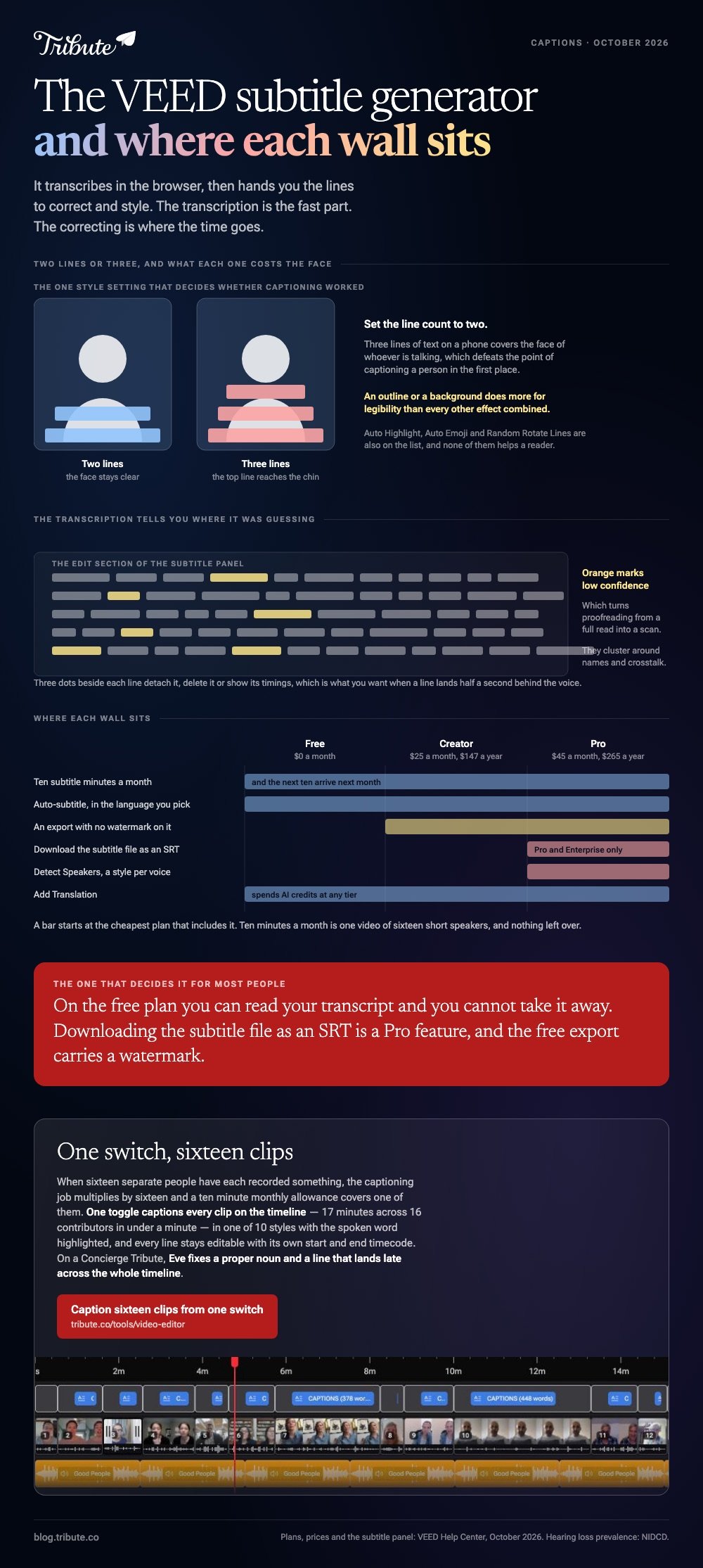
Two switches sit beside that button and both cost something. Detect Speakers, which gives each voice its own style, needs the Pro plan or higher. Add Translation spends AI credits.
VEED's own help article is the reference for all of this, and it is kept current with the interface.
How do you fix the lines VEED gets wrong?
In the Edit section of the subtitle panel, one line at a time.
Click a line to change its text. Highlight a word to make it bold, italic or underlined, change its color, or add it to your dictionary so the next pass gets the name right.
The useful detail is the color coding. Words shown in orange are the ones the transcription was least sure of, which turns proofreading from a full read into a scan.
Three dots beside each subtitle let you detach it, delete it, or show its timings. That last one matters when a line lands half a second behind the voice, which happens most often after a pause.
Styling, and the two settings that decide readability
Presets open the Styles section, and Edit under a preset gives you font, size, color, alignment, casing, spacing and the number of lines.
Set the line count to two. Three lines of text on a phone covers the face of whoever is talking, which defeats the point of captioning a person in the first place.
Optional effects include outline, shadow, background, animation, Auto Highlight, Auto Emoji and Random Rotate Lines. An outline or a background does more for legibility than any of the rest.

How do you get the subtitles out of VEED?
Two routes, and the plan decides which one you get.
Burned in: select Done after editing, then turn on Burn Subtitles before you export. The text becomes part of the picture and cannot be switched off by a viewer.
As a file: downloading the subtitle file itself is a Pro and Enterprise feature. On the free plan you can see your transcript and you cannot take it away as an SRT.
Which is the deciding fact for most people. If you need an SRT to upload alongside a video elsewhere, the free plan will not give you one.
Which free tools generate subtitles without a VEED plan?
Three, depending on where the video is going.
Captions are not a nicety. The NIDCD puts it at 1 in 8 people in the United States aged 12 or older, 30 million, with hearing loss in both ears.
YouTube, if the video is going to YouTube
YouTube generates captions with speech recognition and publishes them in the video's default language. You can also correct them, which is the step most channels skip.
In YouTube Studio, open Subtitles, pick the video, select ADD LANGUAGE, then ADD. Google documents three ways in: upload a file with or without timing, Auto-sync from a transcript you paste, or type the transcript and let YouTube time it.
Final Cut Pro, if you are already on a Mac
Select the clips and press Shift-Command-S for subtitles. It needs a Mac with Apple silicon and it covers US English alone.
CapCut, if the video is for social
CapCut generates captions and burns them into the export. Unlike VEED, its styling choices are built for vertical video first, and the defaults assume a phone held upright.
More on the wider choice in free caption generators and subtitle editing programs.
What if sixteen people each sent you a clip to caption?
The Tribute video editor is a browser-based group video editor: contributors record clips on their phones and Tribute assembles them on a timeline with the music balanced under the voices.
It is ours, and it is the last thing on this page.
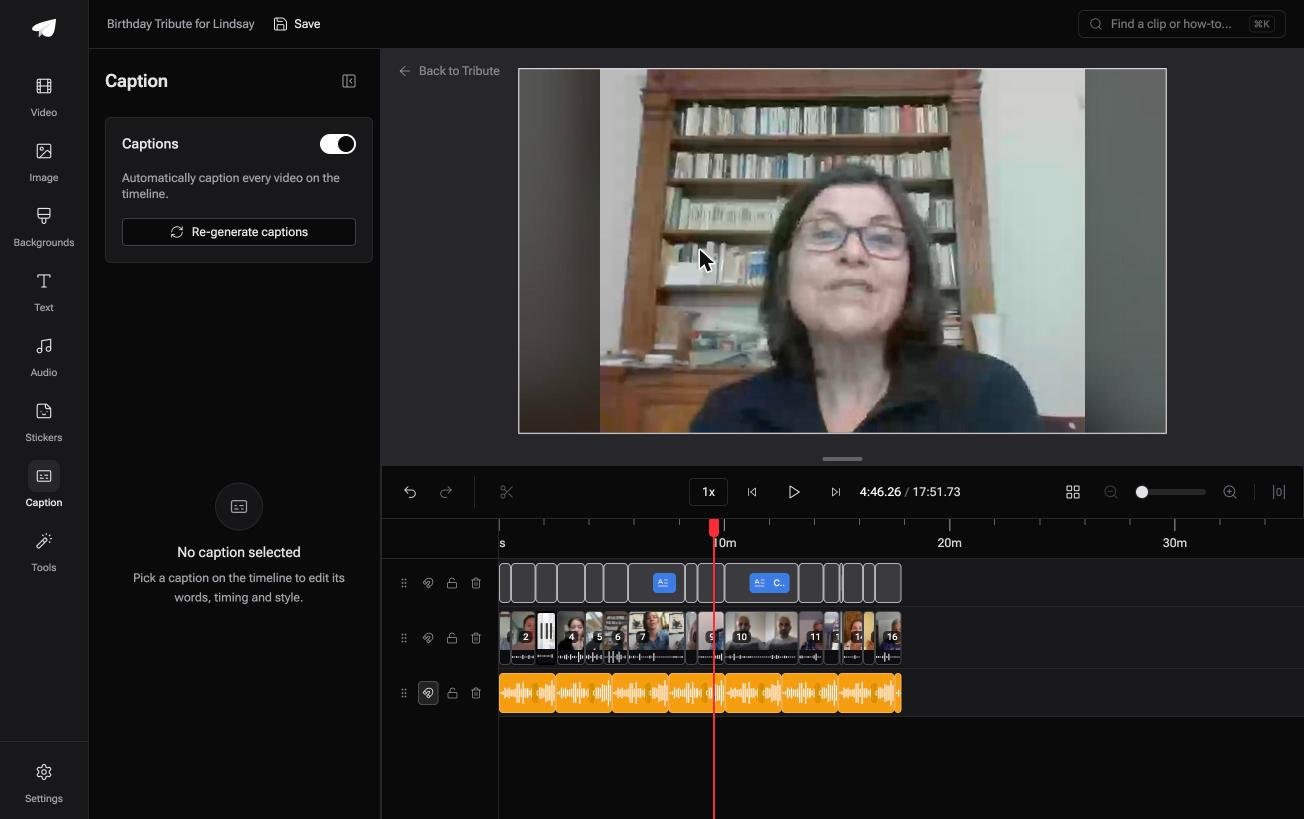
- One toggle captions every clip: seventeen minutes across sixteen contributors in under a minute
- 10 caption styles, with the spoken word highlighted as it is said
- Every line editable, with its own start and end timecode
- Re-generate captions and Remove captions as bulk actions in the Tools panel
Best for: A long video of many short speakers, where captioning clip by clip is the whole afternoon.
Why it works: Compared to captioning one file, the saving scales with the number of people who sent something.
Where does the per-clip captioning job go?
Those steps assume one video, one timeline and one person doing the proofreading.
That assumption holds for a tutorial or a reel. It stops holding the moment the video is sixteen separate people, because then the captioning job multiplies by sixteen.
The case: one video, many speakers
You are in it when several people each record something for one person.
A retirement where eleven colleagues sent a minute each. A fiftieth birthday with cousins in three countries. Different rooms, different microphones, different accents.
Which means the VEED subtitle generator workflow that brought you here would run sixteen times, and the free plan's ten minutes covers one of them.
Why the per-clip pass disappears
One switch does the whole timeline at once.
In the Tribute video editor captioning is a toggle rather than a job you queue per file, and the lines stay editable afterwards with their own timecodes.

What you do not have to do
Three passes go away, and the upload was never one of them.
- No clip by clip job. One switch captions all sixteen at once.
- No hunt for mangled names. On a Concierge Tribute, Eve fixes a proper noun and a line that lands late, across the timeline.
- No styling one at a time. One of ten styles covers the whole video.

When this is the wrong answer: you need an SRT file to hand to a broadcaster, a translation into four languages, or captions on a video you shot alone. VEED and YouTube both do those and we do not.
More on the surrounding build in a video montage maker and a photo slideshow generator.
Frequently Asked Questions
Is the VEED subtitle generator free?
There is a free plan with ten subtitle minutes a month, and it watermarks the export. Removing the watermark and downloading an SRT both sit on paid tiers.
How accurate are VEED's auto subtitles?
Good enough that correcting is faster than typing, and never good enough to publish unread. Names, places and technical words are where it slips, and crosstalk between two voices is where it gives up.
Can I add subtitles in VEED.io without uploading a file?
You can start a project from a link rather than a local file. The video still has to reach VEED's servers to be transcribed.
Can VEED create subtitles in another language?
Yes, through Add Translation, which spends AI credits. Translate after you have corrected the original, or you translate the mistakes too.
Why are some of my words orange?
Orange marks low confidence. Those are the words to check first, and they cluster around names and crosstalk.
What is the difference between subtitles and captions?
Subtitles carry the dialogue. Captions also carry sound that is not speech, which is what a deaf or hard of hearing viewer needs.
Should I burn subtitles in or keep them as a file?
Burn them in for social video, where nobody turns captions on. Keep a file for anywhere a viewer can choose, so they can also be switched off.
👉 Caption the whole timeline with one switch if you are working through sixteen separate clips rather than one video, and spend the afternoon reading rather than uploading.
