
Vertical Frame Size Premiere Pro: 1080 x 1920 and What Follows
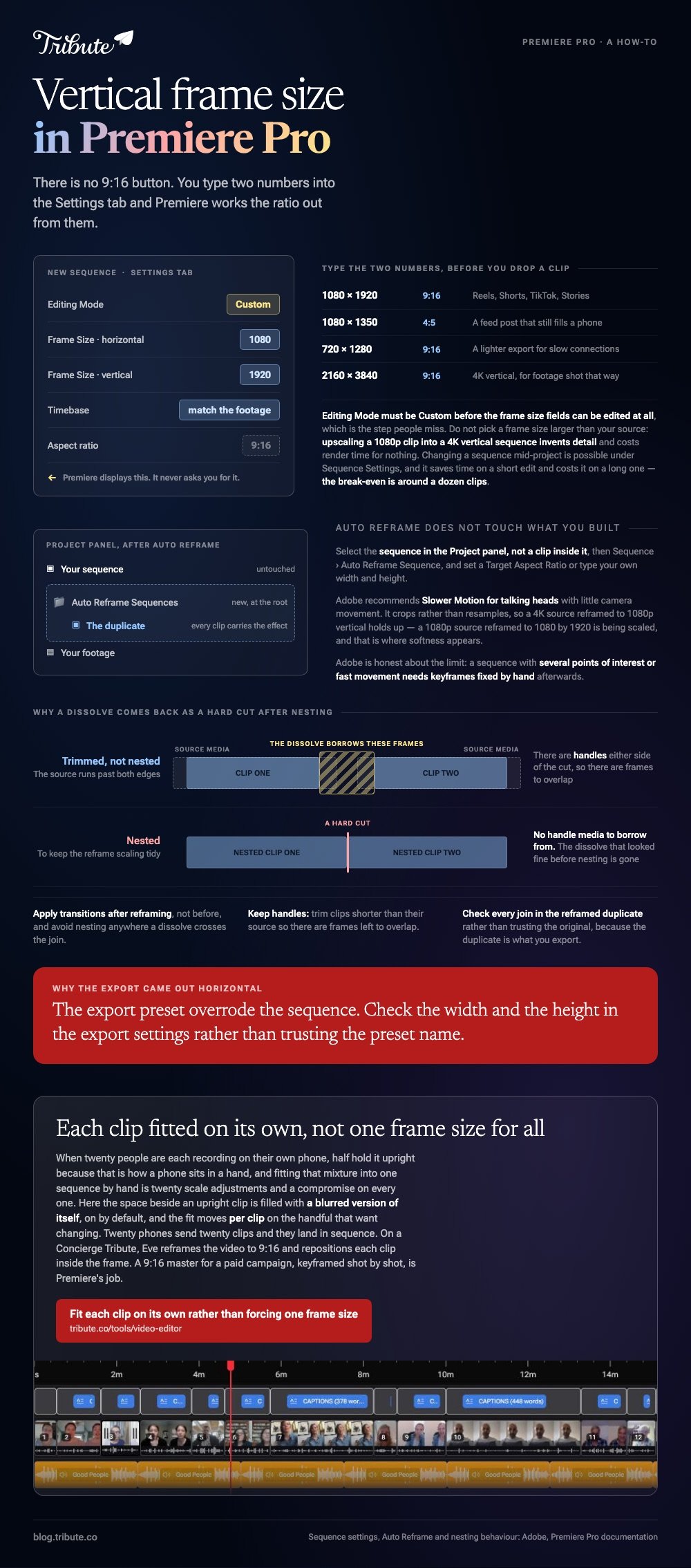
The vertical frame size Premiere Pro wants for a 9:16 video is 1080 wide by 1920 high. You set it in the Settings tab of the New Sequence window, under Frame Size, and Premiere works out the ratio from the two numbers.

How do you set the vertical frame size Premiere Pro needs?
Before you drop a single clip, because the order matters.
Adobe's documented route is the Settings tab of a new sequence, where the horizontal and vertical values live under Video.
- Choose File, then New, then Sequence.
- Open the Settings tab of the New Sequence window.
- Set Editing Mode to Custom so the frame size fields can be edited.
- Enter 1080 as the horizontal value and 1920 as the vertical one, under Frame Size.
- Match the timebase to the frame rate your clips were shot at.
- Name the sequence and click OK.
Premiere displays the aspect ratio it has calculated rather than asking you for one. That is why entering the two numbers is the whole job, and why there is no 9:16 button to look for.
What happens to horizontal clips you drop in
They arrive letterboxed, with empty bars above and below. That is correct behavior, not a mistake, and you fix it per clip with Scale and Position in Effect Controls.
Scaling a 1920 by 1080 clip to fill a 1080 by 1920 frame means throwing away most of the width. Decide what matters in each shot before you start pushing sliders.
Does the vertical frame size Premiere Pro uses have to be 1080 by 1920?
No, and three other numbers come up often.
The right vertical video dimensions in Premiere Pro depend on where the video lands, so pick the destination first and the frame size falls out of it.
| Frame size | Ratio | Where it goes |
|---|---|---|
| 1080 x 1920 | 9:16 | Reels, Shorts, TikTok, Stories |
| 1080 x 1350 | 4:5 | A feed post that still fills a phone |
| 720 x 1280 | 9:16 | A lighter export for slow connections |
| 2160 x 3840 | 9:16 | 4K vertical, for footage shot that way |
Do not pick a frame size larger than your source. Upscaling a 1080p clip into a 4K vertical sequence invents detail and costs you render time for nothing.
If the file also has to be small at the end, see compressing video in Premiere Pro and shrinking a video online.
Can you change a sequence after you have started editing?
Yes, with a warning attached.
Open Sequence, then Sequence Settings, and change the frame size there. Adobe notes that altering core sequence parameters can affect playback and quality, so expect to revisit the scale on every clip afterward.
Compared with starting again in a correct sequence, changing one mid-project saves time on a short edit and costs time on a long one. The break-even point is around a dozen clips.
Preview resolution is not frame size
The Video Previews section sets how Premiere renders previews, and changing it does nothing to the output dimensions. People edit it by mistake and conclude the sequence is broken.
What is the fastest way to make a video vertical in Premiere Pro?
Let Premiere reframe the whole sequence, then fix the shots it misreads.
To make a video vertical in Premiere Pro from a horizontal edit, select the sequence in the Project panel and choose Sequence, then Auto Reframe Sequence, then pick a target aspect ratio or type a custom one.
- Select the sequence in the Project panel, not a clip inside it.
- Choose Sequence, then Auto Reframe Sequence.
- Set the Target Aspect Ratio to the vertical preset, or enter your own width and height.
- Pick a motion setting. Adobe recommends Slower Motion for talking heads with little camera movement.
- Open the duplicate Premiere creates in the Auto Reframe Sequences folder at the root of the Project panel.

Every clip in that duplicate carries the Auto Reframe effect, and your original sequence is untouched. Adobe is honest about the limits: a complex sequence with several points of interest or fast movement needs keyframes fixed by hand afterward.
Do vertical video transitions in Premiere Pro need a different approach?
The transitions do not. What breaks is the nesting people do around them.
Premiere Pro transitions for vertical video are the same effects you already use, applied to the same cut points. The problem starts when reframed clips get nested to keep their scaling tidy.
Adobe warns that nesting does not keep soft transitions working, because a nested clip has no handle media to borrow frames from. A dissolve that looked fine before nesting comes back as a hard cut.
- Apply transitions after reframing, not before
- Avoid nesting where a dissolve crosses the join
- Keep handles: trim clips shorter than their source so there are frames to overlap
- Check every join in the reframed duplicate rather than trusting the original
Going the other direction has its own problems, covered in turning a vertical video horizontal.
What if the clips arrive from twenty different phones?
The Tribute video editor is a browser-based group video editor: people record clips on their phones and Tribute lays them on a timeline with the music already balanced under the voices.
It is ours, and it answers a narrower question than Premiere does.
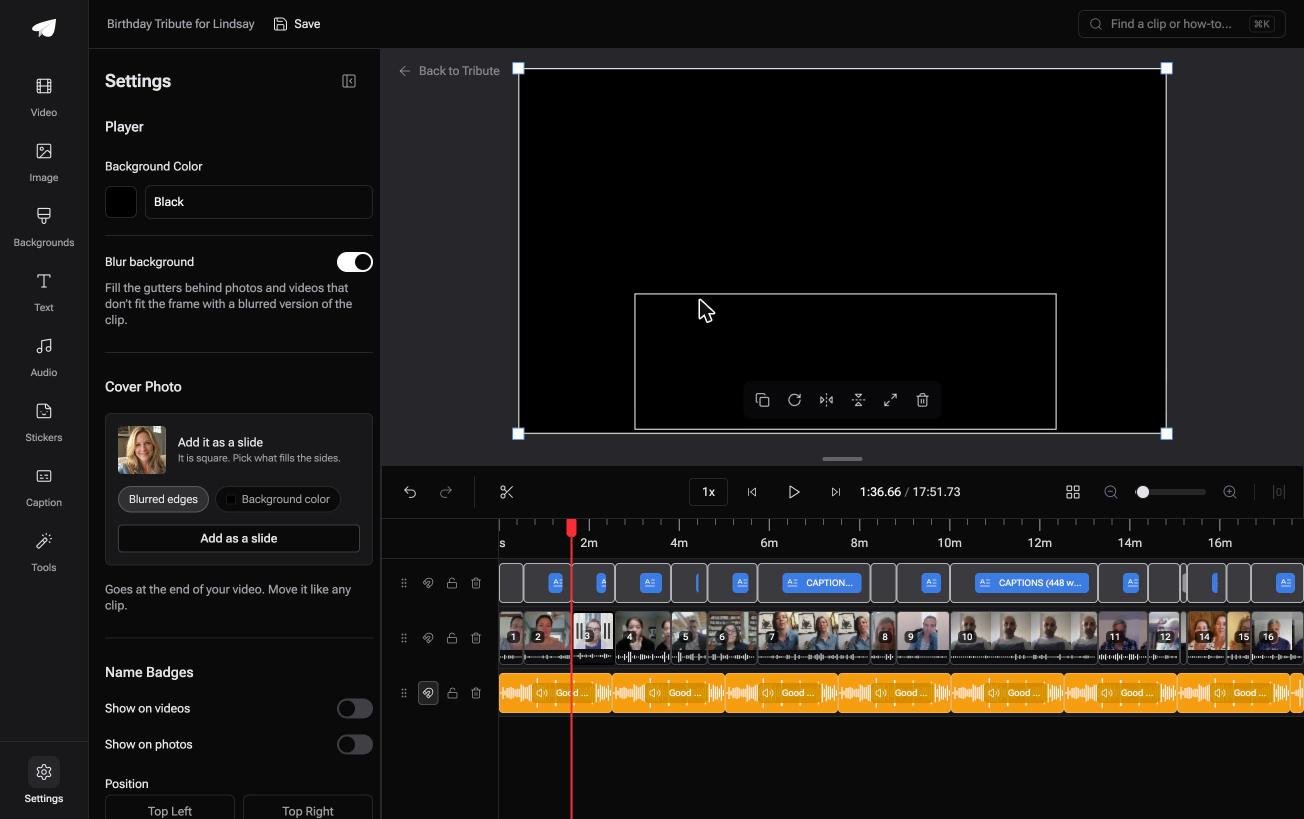
- Blurred edges fill the frame behind upright phone footage, on by default, so there are no black bars
- Clips arrive in order, already on the timeline, each ticked once placed
- 47 entrance and 47 exit animations, including Slow zoom, Drift and Breathe
- Per-clip appearance controls for fit, filter preset, border radius and brightness
Best for: Someone assembling upright phone clips from people who will never be told how to hold a phone.
Why it works: Unlike a sequence you configure once for everything, each clip is fitted on its own, so a mixed batch does not force a single compromise.
What happens when half the clips arrive upright?
Every decision on this page comes from one assumption: you control how the footage was shot.
Frame size, scaling, reframing and handles are all ways of imposing one shape on material that already has one. That assumption fails the moment the footage is not yours.
The case: twenty people, twenty ways of holding a phone
You are in it when a group each record a message for the same person.
Half will hold the phone upright because that is how a phone sits in a hand. A few will turn it sideways because someone told them to once. One will record in a mirror.
Why the frame size stops being a decision
Fitting that mixture into one sequence by hand is twenty scale adjustments and a compromise on every one of them.
Which means the search that brought you here, vertical frame size Premiere Pro, is a setting the Tribute video editor handles per clip instead, filling the space beside an upright clip with a blurred version of itself.
What you do not have to do
- Set a sequence size. Upright clips arrive filled out to the frame, with blurred edges behind them.
- Scale twenty shots by hand. The fit moves per clip, on the handful that want changing.
- Collect or order them. Twenty phones send twenty clips and they land in sequence.
- Produce it, on a Concierge Tribute. Tribute's editors build the video, and Concierge Deluxe returns it as a video book.

When this is the wrong answer: you need a 9:16 master for a paid campaign, with keyframed scale and position on every shot. That is Premiere's job, and a DIY Tribute has no aspect ratio switcher and no crop control.
On a Concierge or Concierge Deluxe Tribute, Eve reframes the group video to 9:16 and repositions each clip inside the frame. The editor still lives inside a paid Tribute, not on its own.
Frequently Asked Questions
Why is my vertical sequence showing black bars at the sides?
The clip inside it is horizontal and has not been scaled. Select it, open Effect Controls and raise Scale until the picture fills the width, then set Position for the part of the frame that matters.
Does Auto Reframe lower quality?
It crops rather than resamples, so a 4K source reframed to 1080p vertical holds up. A 1080p source reframed to 1080 by 1920 is being scaled, and that is where softness appears.
Can one project hold vertical and horizontal sequences?
Yes. A project holds as many sequences as you want at different frame sizes, which is how most people deliver both shapes from one edit.
What frame rate should a vertical video use?
Match the footage. Social platforms accept 24, 25, 30 and 60, and converting between them costs more than any of them gains.
Why did my export come out horizontal?
The export preset overrode the sequence. Check the width and height in the export settings rather than trusting the preset name.
Is 4:5 better than 9:16 for a feed post?
For a scrolling feed, often yes, because it fills most of a phone without being cut off in a preview. For Reels and Shorts, 9:16 is the native shape.
Should I shoot vertical or crop later?
Shoot vertical when you know the destination. Cropping later always throws away picture you paid for in the first place.
👉 Fit each clip on its own rather than forcing one frame size if twenty people are recording on twenty phones held every way at once.
