
Video Smaller Size Converter Online: What Shrinks a File, and What Does Not
A video smaller size converter online changes two numbers: the frame size and the bitrate. Lowering the bitrate is what shrinks the file. Lowering the resolution is what lets you lower the bitrate without the picture falling apart.

What does a video smaller size converter online change?
Five things, and only two of them move the number much.
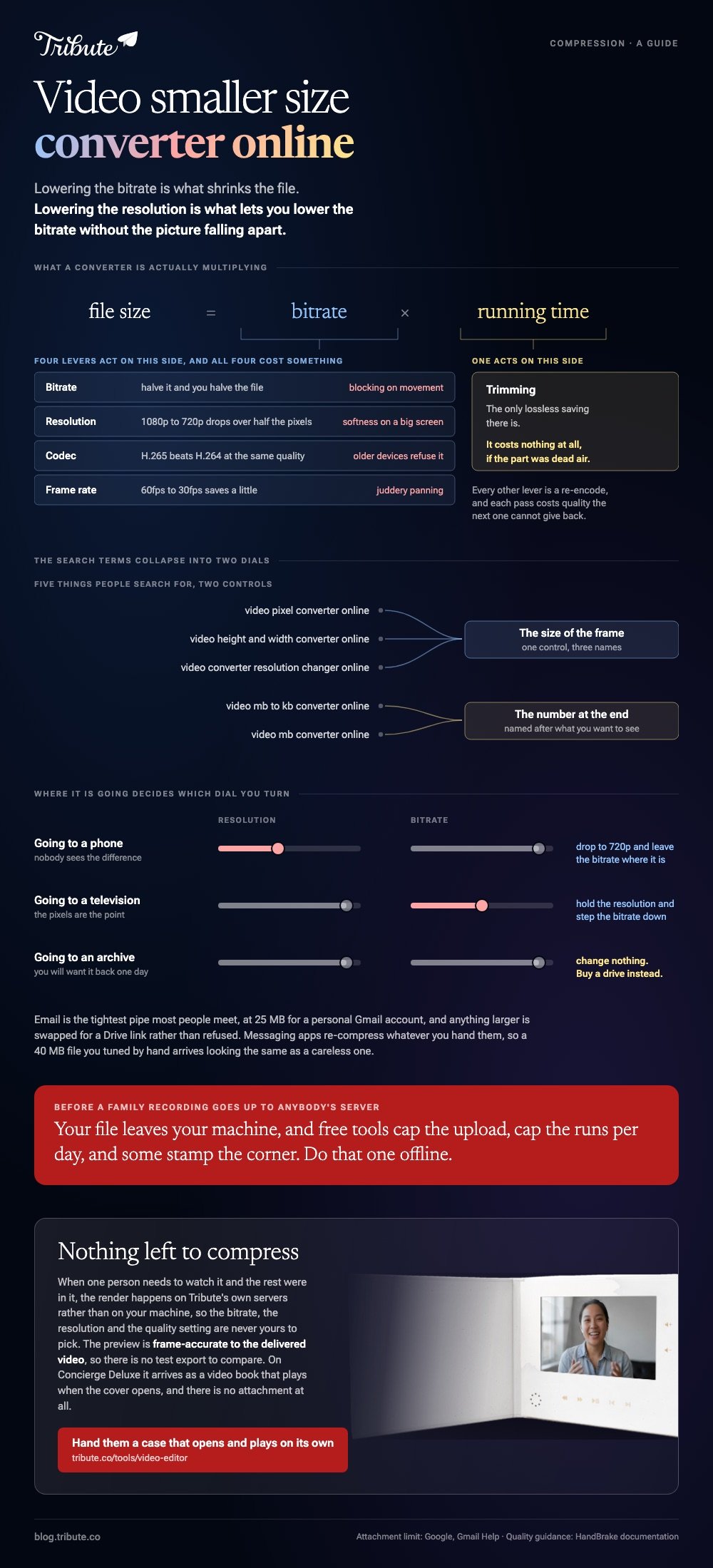
File size is bitrate multiplied by running time. Everything a converter offers is either a way to lower the bitrate or a way to make a lower bitrate look acceptable.
| The lever | What it does to size | What it costs |
|---|---|---|
| Bitrate | Halve it, halve the file | Blocking on movement |
| Resolution | 1080p to 720p drops the pixels by more than half | Softness on a large screen |
| Codec | H.265 beats H.264 at the same quality | Older devices cannot play it |
| Frame rate | 60fps to 30fps saves a little | Juddery panning |
| Trimming | The only lossless saving there is | Nothing, if the part was dead air |
A video pixel converter online, a video height and width converter online and a video converter resolution changer online are three names for one control: the size of the frame.
The same control reappears as a video mb to kb converter online, or a video mb converter online, named after the number you want to see at the end.
How do you shrink a video in a browser?
Six steps, and the fourth is the one worth slowing down for.
- Open the converter and upload the clip, watching for the size cap on the upload page.
- Pick resolution, or type a target size in MB if the tool offers one.
- Choose MP4 with H.264 unless you know every device that will play it.
- Read the estimated output size before you start, and change a setting rather than running it twice.
- Convert, then download the result.
- Watch thirty seconds of the busiest part before you send it anywhere.
Three warnings belong with that list. Your file leaves your machine, free tools often cap the upload and the number of runs per day, and a few stamp a mark on the corner of the output.
None of that matters for a clip off a phone. It matters a great deal for a memorial video of your own family, which is a reason to do that one offline.
Resolution or bitrate: which number should you change?
Ask what the video will be watched on, then change the other one.
Dropping 1080p to 720p removes more than half the pixels before a single bit of quality is traded. On a phone screen nobody sees the difference, and the file lands at about half.
- Going to a phone: drop to 720p and leave the bitrate alone.
- Going to a television: hold the resolution and lower the bitrate a step at a time.
- Going to an archive: change nothing. Buy a drive instead.
- Vertical footage: the frame size question is a different one, covered in vertical frame sizes.
Unlike trimming, every one of these is a re-encode, so each pass costs a little quality that the next pass cannot give back.
How small does the file need to be?
Smaller than the pipe you are pushing it down, and no smaller.
Email is the tightest pipe most people meet. Google states a 25 MB limit for attachments on its page about sending attachments, and anything larger is replaced with a Drive link rather than refused.
That is the number worth aiming at. Messaging apps re-compress whatever you hand them anyway, so a 40 MB file you tuned by hand arrives looking the same as a careless one.

When is a video smaller size converter online the wrong tool?
When the file is large, private, or one of forty.
A desktop encoder does the same job without an upload, and it gives you the control that browser tools hide. HandBrake's quality setting is the one to learn.
Its guide to adjusting quality recommends an RF of 20 to 24 for 1080p, 19 to 23 for 720p and 22 to 28 for 4K, with x264 or x265. A lower RF means higher quality and a bigger file.
Start at the top of the range, encode two minutes, and look at it. The step-by-step version is in compressing video with HandBrake.
What if the big file never reached your laptop?
Then there is nothing on your disk to shrink and nothing to attach to anything.
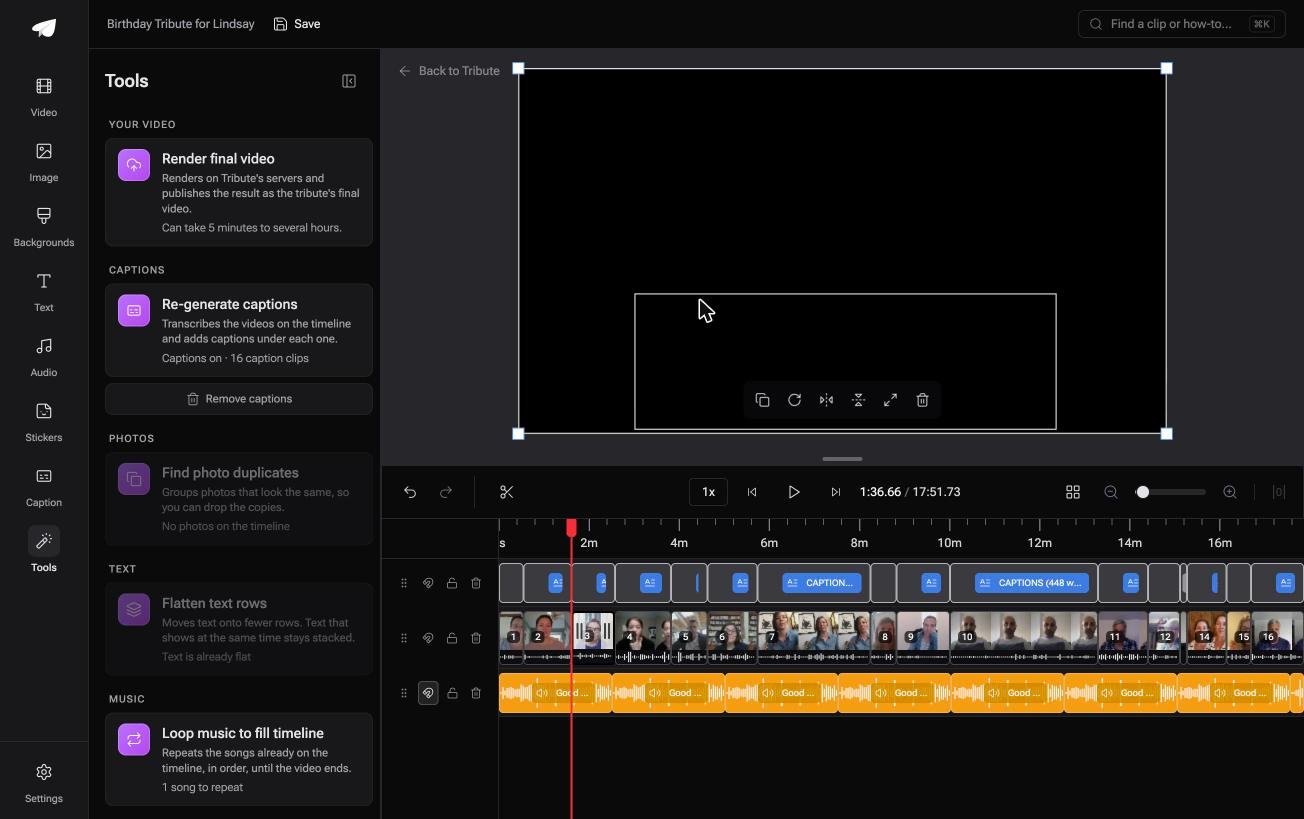
The Tribute video editor is a browser-based group video editor: contributors record clips on their phones and Tribute assembles them on a timeline with the music balanced under the voices. It is ours, and it is the last thing on this page.
- Clips arrive in order on a timeline in the browser, with a tick against the ones already placed
- Tribute renders on its own servers: the Tools panel quotes 5 minutes to several hours by length
- The preview is frame-accurate to the delivered video, so there is no test export to compare
- Find photo duplicates and the other bulk actions run over the whole timeline at once
Best for: A seventeen minute video that forty relatives need to watch, where emailing it was never going to work.
Why it works: Compared with compressing one copy for email and another for a phone, there is one video in one place and no copies to make.
Is there a version of this that never becomes an attachment?
Every number above exists because the video has to travel as a file.
You shrink it so it fits through email, then shrink it again because somebody's phone refused the first one. The compression is not for the viewer. It is for the pipe.
There is one case where nothing is sent at all.
The case: the audience is one person in one room
You are in it when several people each record something for one person.
A grandmother turning eighty. A colleague leaving after fifteen years. A memorial where the people who should speak are in four time zones.
Nobody needs a copy. One person needs to watch it, and the rest were in it.

Why the size question never comes up
Because the render happens on Tribute's servers rather than on your machine.
The bitrate, the resolution and the quality setting are not yours to pick, so none of the trade-offs above land on you, and the version somebody watches is the one you approved rather than a copy of a copy.
That is how the Tribute video editor sidesteps it: not a better converter, but a job that never reaches the converting step.
What you do not have to do
- No upload from your laptop. Each clip comes off the phone that recorded it.
- No compression. Nothing has to shrink to reach the person it is for.
- No edit. On a Concierge Tribute, Tribute's own editors order the clips, trim them and caption the lot.
- No file to send at all. On Concierge Deluxe it arrives as a video book that plays when the cover opens.

When this is the wrong answer: you have one file on your disk and one place it has to go. Then a converter is the right tool and the sections above are the whole job.
The editor is also not a compression tool: it lives inside a paid Tribute. For an edit that mixes clips and photographs, see making a video montage.
Frequently Asked Questions
Does shrinking a video always lose quality?
Only when it re-encodes. Trimming the dead parts and remuxing to a different container cost nothing, while every change to resolution or bitrate throws data away for good.
What size should a video be for email?
Under 25 MB for a personal Gmail account. Above that the file is swapped for a Drive link, which works but puts the recipient through an extra step.
Is an online converter safe for personal video?
The file is uploaded to somebody else's server, so read the retention policy before you send anything you would not post. For family footage, a desktop encoder keeps it on your machine.
Which codec gives the smallest file?
H.265 at the same visible quality, by a wide margin. The catch is playback: older televisions and some browsers will not open it, which is why H.264 is still the safe default.
Can I convert a video to a target number of MB?
Some tools take a target size and work the bitrate backwards from it. The result hits the number and the quality is whatever is left, so check the busiest thirty seconds.
Why is my phone video so much bigger than it looks?
Phones record at high bitrates and often at 60 frames a second. Dropping to 30fps and 720p turns a 300 MB clip into something you can send without thinking about it.
👉 Hand them a case that opens and plays on its own if the video is for someone who will not download an attachment, and there is nothing left to compress.
