
Adobe Premiere Pro Compress Video: The Export Settings That Shrink a File
File size in Premiere comes down to one number: Target Bitrate. Drop it, switch the encoding to VBR 2 pass, and leave the frame size alone. Most oversized exports are a default bitrate nobody changed.

| Setting | What it does to size | What it costs you |
|---|---|---|
| Target Bitrate | Close to one for one | Detail in busy shots, past a point |
| VBR, 2 pass | Smaller at the same quality | A longer export |
| Frame size | Large, 4K to 1080p | Resolution you cannot get back |
| Frame rate | Moderate, 60 to 30 | Motion smoothness |
| Audio bitrate | Small on a long video | Very little under 320 kbps |
Which Adobe Premiere Pro compress video settings matter?
Four of them, and they sit in two panels of the export window.
Adobe defines bitrate as the amount of data in a video signal measured in bits per second. Everything else in the export dialog is a way of spending that budget well or wasting it.
- Open Export and set Format to H.264 for anything going online.
- In Bitrate Settings, set Bitrate Encoding to VBR, 2 pass.
- Set Target Bitrate [Mbps] to the number your destination asks for.
- Leave Frame Size and Frame Rate on Match Source unless you have decided to lose some.
- Check the estimated size at the bottom, then export.
Adobe's own reference for these settings is the place to check a label, and it is kept in step with the current release.
CBR or VBR
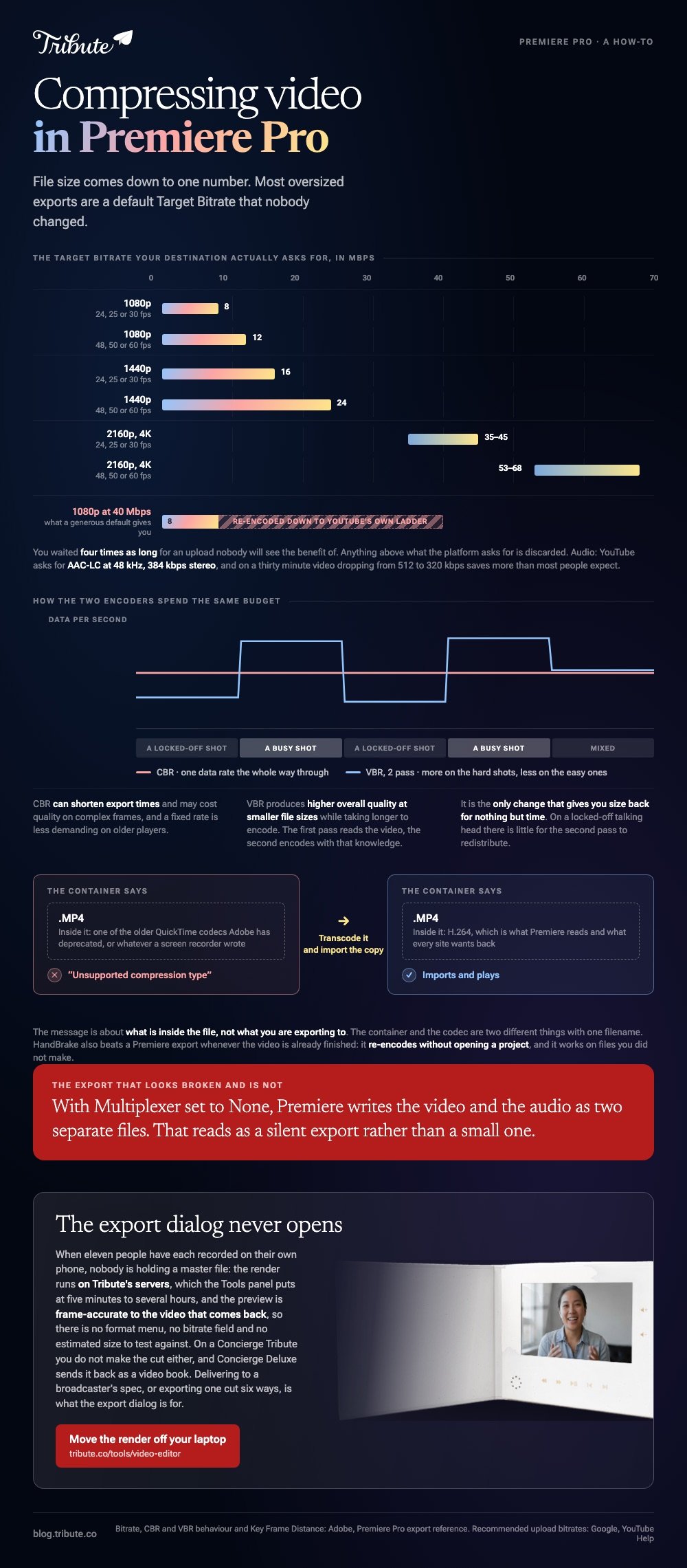
CBR holds one data rate the whole way through. Adobe notes it can shorten export times and may cost quality on complex frames, and that a fixed rate is less demanding on older players.
VBR spends more data on the hard shots and less on the easy ones. In Adobe's words, it produces higher overall quality at smaller file sizes while taking longer to encode.
Two pass is the version worth waiting for. The first pass reads the video, the second encodes with that knowledge, and Adobe describes the result as greater encoding efficiency and often higher quality output.
What bitrate should you export at?
Whatever the platform asks for, because anything above it is discarded.
This is the part most people get wrong. A video compressor in Premiere Pro cannot help you if the target number was never set, and the defaults are generous.
YouTube publishes its recommended upload bitrates, and they are lower than most people guess.
| Resolution | 24, 25 or 30 fps | 48, 50 or 60 fps |
|---|---|---|
| 1080p | 8 Mbps | 12 Mbps |
| 1440p | 16 Mbps | 24 Mbps |
| 2160p (4K) | 35 to 45 Mbps | 53 to 68 Mbps |
Export 1080p at 40 Mbps and YouTube re-encodes it down to its own ladder anyway. You waited four times as long for an upload nobody will see the benefit of.
For audio, YouTube asks for AAC-LC at 48 kHz, 384 kbps in stereo. On a thirty minute video, dropping audio from 512 to 320 kbps saves more than most people expect.

How do you compress a video without losing quality in Premiere Pro?
By cutting the data the picture does not use, in this order.
- Switch to VBR 2 pass first. It is the only change that gives you size back for nothing but time
- Match the target bitrate to the destination. Not to the source file
- Drop the frame rate if the footage was shot at 60 and nobody is slowing it down
- Drop the resolution last. A clean 1080p beats a starved 4K at the same size
- Leave Key Frame Distance alone unless you know why: Adobe warns a lower value raises quality and can raise file size
Compared to shrinking the frame, lowering the bitrate is reversible in the sense that your sequence is untouched. You can export again at a different number in minutes.
One more thing to check on a short export. If Multiplexer is set to None, Premiere writes the video and the audio as separate files, which looks like a silent export rather than a small one.
Why does Premiere say unsupported compression type?
Because of what is inside the file, not what you are exporting to.
An unsupported compression type message in Premiere Pro about an MP4 is the application telling you it cannot decode that file's codec. The container says MP4 and the codec inside it is something Premiere does not read.
Adobe has deprecated a set of older QuickTime codecs, which is where most of these come from. Screen recorders and older phone apps are the other common source.
The fix is to transcode the file and import the copy. Run it through HandBrake to H.264 in an MP4, then bring the new file in.
Our walkthrough of that route is in compressing video with HandBrake, and the framing side of the same export sits in vertical frame size in Premiere Pro.
When is HandBrake the better tool to compress MP4 for Premiere Pro work?
When the file is already finished and you want it smaller.
Premiere compresses as part of an export, which means re-rendering a sequence. HandBrake takes a finished MP4 and re-encodes it on its own, without opening a project.
Unlike a Premiere export, that also works on files you did not make: a clip someone emailed, a download, a screen recording that arrived at 300 MB a minute.
What if nobody has to export anything?
The Tribute video editor is a browser-based group video editor: contributors record clips on their phones and Tribute assembles them on a timeline with the music balanced under the voices.
It is ours, and it is the last thing on this page.
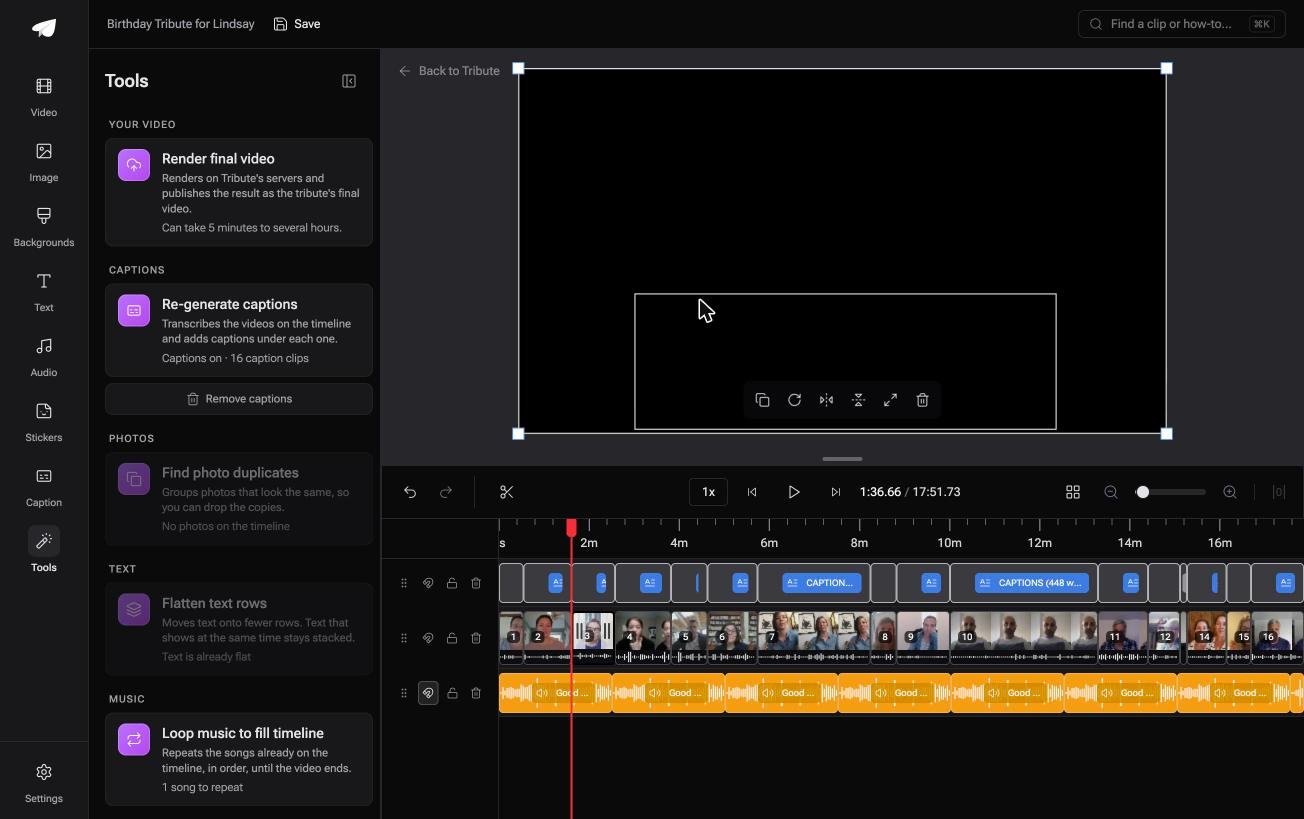
- Tribute renders on its servers, which the Tools panel puts at five minutes to several hours
- The preview is frame-accurate to the video that comes back, so there is nothing to test export
- Music at 25% under speech and 75% under photos, set once or per clip
- Bulk actions in the Tools panel: render, re-generate captions, find photo duplicates, loop music
Best for: A long video made of many short clips, where a desktop export would run overnight.
Why it works: Nothing encodes on your laptop, so a slow machine costs you nothing but patience.
Whose machine should be doing the encoding?
Every number above is a bargain you are striking with your own processor.
Bitrate against minutes, quality against fan noise, a second pass against an evening. That trade only exists because the encoding runs where you are sitting.
The case: the clips were never yours to begin with
You are in it when several people each record something for one person.
A colleague leaving after twenty years. A grandparent's ninetieth. Eleven people record on eleven phones and the footage uploads from each of them.
Which means the Adobe Premiere Pro compress video question that brought you here belongs to a workflow where you hold the master file. Here, nobody does.
Why the export dialog never opens
The render happens on a server and arrives as a finished video.
In the Tribute video editor there is no format menu, no bitrate field and no estimated size, because the output is one thing rather than a setting. What you watched in the preview is what you get.

What you do not have to do
Three things, and a codec decision is not among them.
- Set a bitrate. Tribute renders the final video from the preview you watched, frame for frame.
- Tie up your laptop. The render runs on Tribute's servers and tells you when it lands.
- Touch the edit, on a Concierge Tribute. Tribute's own editors cut it, and Concierge Deluxe sends it back as a video book.

When this is the wrong answer: you are delivering to a spec, hitting a broadcaster's bitrate, or exporting the same cut six ways. Then the export dialog is the job and Premiere is where it belongs.

More on building the thing before you shrink it in a video montage maker and making a video tribute.
Frequently Asked Questions
What is the best format to export a smaller file?
H.264 in an MP4 for anything going online. HEVC gives smaller files at the same quality and is still refused by some older players and sites.
Does VBR 2 pass make a difference worth the wait?
On footage with a mix of still and busy shots, yes. On a locked-off talking head there is little for the second pass to redistribute.
Why is my exported file bigger than the source?
Your export bitrate is higher than the camera's was. Match Source presets can raise it, so check the target number rather than trusting the preset name.
Can I compress a video after exporting it?
Yes, with HandBrake or a similar encoder. It re-encodes rather than re-renders, so it costs a little quality and no project time.
Does lowering the frame size lose quality?
It removes resolution you cannot restore. At the same file size, a 1080p export looks better than a 4K one starved of bitrate.
What does Key Frame Distance change?
How often a full frame is stored. Adobe notes a lower value gives higher quality and can increase file size, so leave it on the default unless something told you otherwise.
My export has no sound. Is that a compression setting?
Check the Multiplexer. Set to None, it writes video and audio as two separate files rather than one.
👉 Move the render off your laptop if several people are each recording for one person, and no export window opens all evening.
