
VLC Combine Video: What It Can Do, and Why VideoLAN Says Not To
VLC will combine video files, and VideoLAN's own wiki warns that the result carries broken timing. The joined file plays but will not scrub, so use QuickTime, Clipchamp or Google Photos instead and keep VLC for what it is good at.

Can VLC combine video files at all?
Yes, through its streaming engine rather than a timeline.
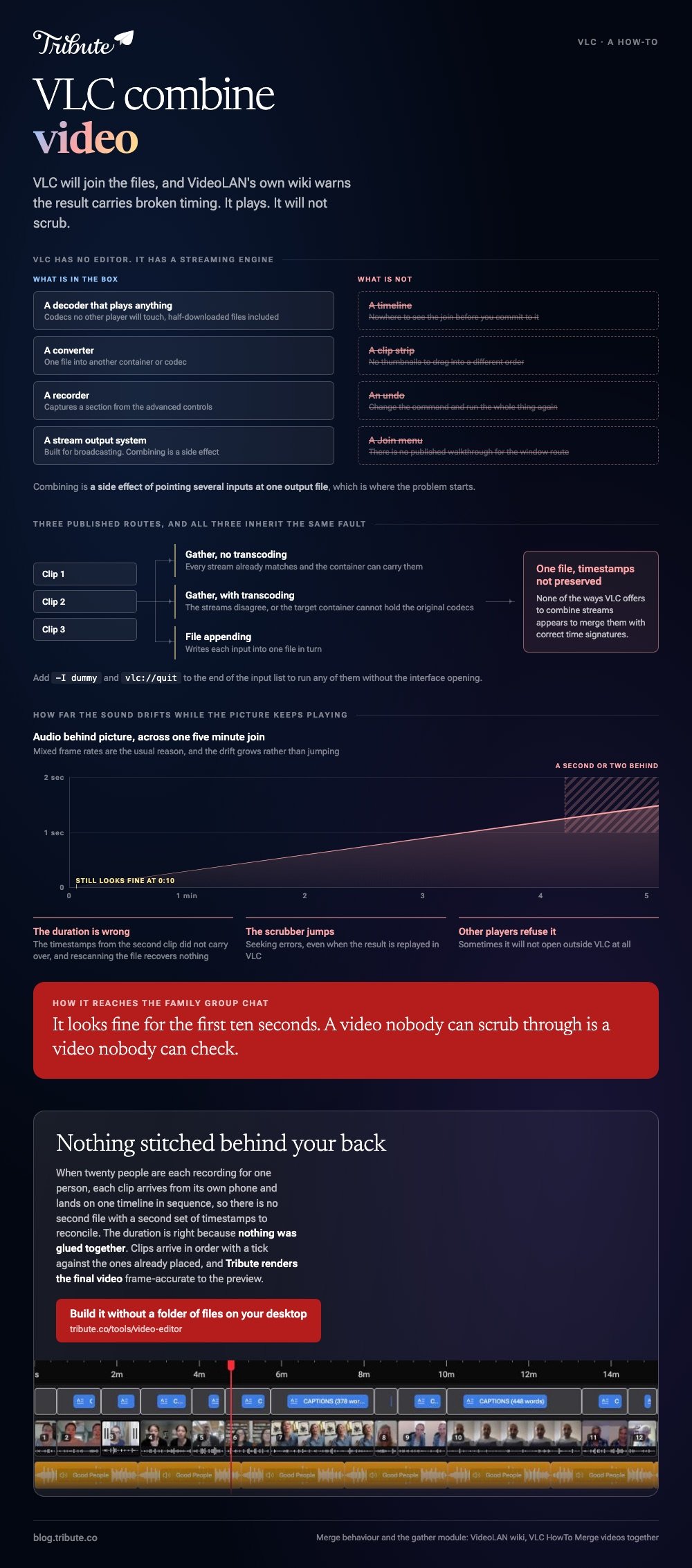
VLC has no editor. What it has is a stream output system built for broadcasting, and combining is a side effect of pointing several inputs at one output file.
That is why there is no Join menu, no clip strip and no undo. Every route into it runs through the same machinery, which is also where the problem starts.
How do you combine mp4 files in VLC?
On the command line, with the gather stream output module.
VideoLAN's wiki page on merging videos documents three approaches, and they are the only published ones:
- Gather without transcoding, where every stream already matches and the container can carry them.
- Gather with transcoding, where the streams disagree or the target container cannot hold the original codecs.
- File appending, which writes each input into one file in turn.
Add -I dummy and vlc://quit to the end of the input list to run any of them without the interface opening.
To combine mp4 files in VLC through the window instead, you pass the same job to the convert and save dialog. VideoLAN publishes no walkthrough for that route, which tells you something about how supported it is.
Why does the combined video refuse to seek?
Because the timestamps do not survive the join.
The same wiki page says none of the ways VLC offers to combine streams appears to merge them with correct time signatures, and that this causes seeking errors even when the result is replayed in VLC.
In practice that means a file which plays end to end, shows the wrong duration, jumps when you drag the scrubber, and sometimes refuses to open in anything else. A video nobody can scrub through is a video nobody can check.
Unlike a broken export, this one looks fine for the first ten seconds, which is how it reaches a family group chat before anybody notices.
| What you get | VLC | A real editor |
|---|---|---|
| Correct duration | Often wrong | Correct |
| Scrubbing | Jumps or fails | Works |
| Reordering clips | Change the command | Drag them |
| Trimming the silences | No | Yes |
What should you use to combine video instead?
Whatever is already on the machine.
Compared to a streaming command, a timeline shows you the join before you commit to it, which is the whole difference here.
On a Mac: QuickTime Player
Open the first clip, choose View > Show Clips, then with nothing selected choose Edit > Add Clip to End. Select the next video, click Choose media, then Done, and export with File > Export As.
Apple documents that sequence in its guide to adding a movie or clip in QuickTime Player.
Best for: Two to six clips already in the order you want.
Why it works: Nothing installs, nothing uploads, and the output seeks the way it should.
On Windows or in a browser: Clipchamp
Import the clips, drag them side by side on one timeline track, trim with the handles, delete the gaps, then export at 1080p. Microsoft sets out each step in its guide to combining videos in Clipchamp.
Best for: Ten or more clips, or any set that also needs captions.
Why it works: A full-width timeline turns reordering into a drag rather than a rewritten command.
On Android, Google Photos builds a single video from several clips without installing anything. Other routes are compared in combining video clips online and combining videos on iPhone.

What is VLC still the right tool for?
Quite a lot, which is why it is on your machine.
- Playing anything. Codecs no other player will touch, including half-downloaded files.
- Converting one file to another container or codec, where timing is not being stitched together.
- Recording a section of a single video with the record button on the advanced controls.
- Showing a subtitle file that sits beside the video rather than inside it.
Keep it for all of that. Combining video is the one job where its reputation for handling everything leads people somewhere they should not go.
What if twenty people each sent you a clip?
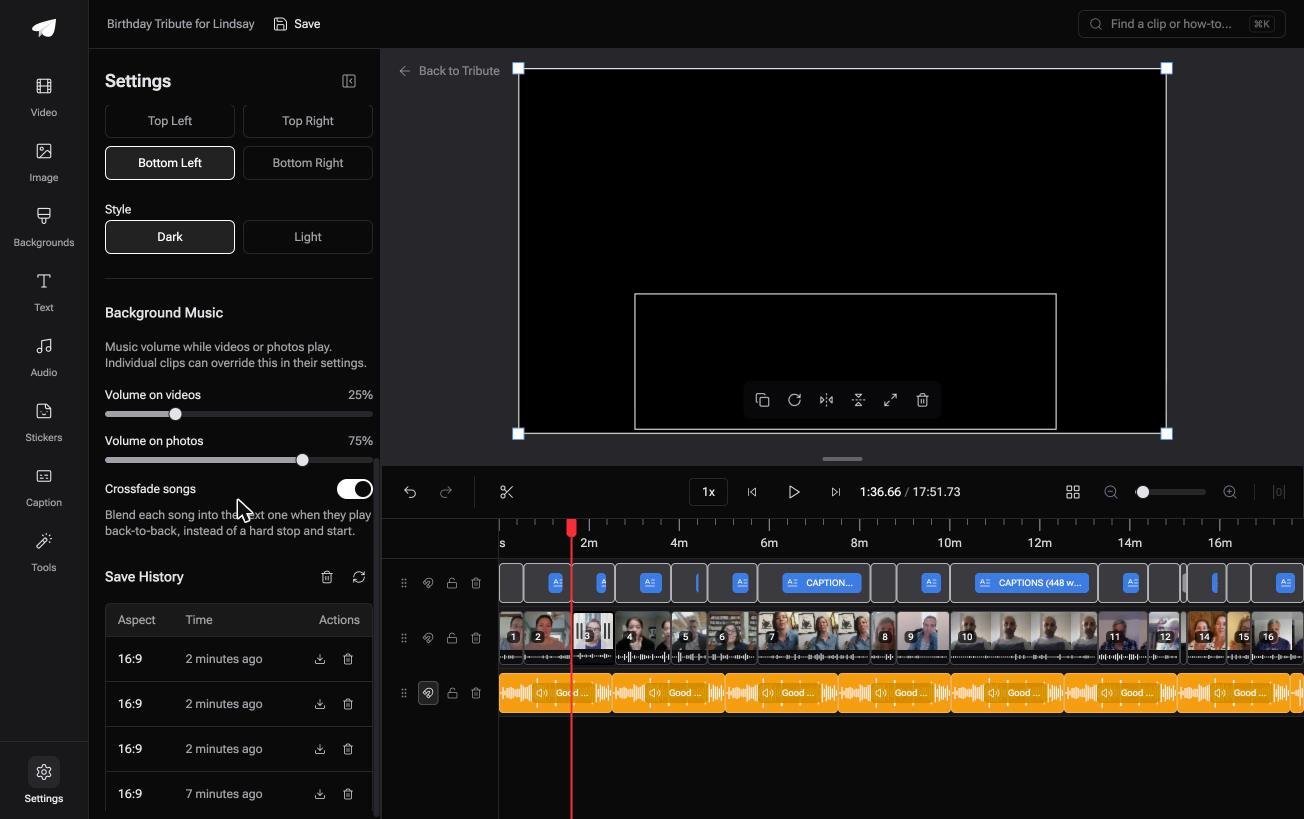
The Tribute video editor is a browser-based group video editor: contributors record clips on their phones and Tribute assembles them on a timeline with the music balanced under the voices.
It is ours, and it is the last thing on this page.
- Clips arrive auto-assembled in order, with a tick against the ones already on the timeline
- A reorder window numbering every clip, with move to front, move to back, move to position and bulk remove
- Autosave and restorable version history, so a clip you removed is recoverable rather than gone
- A waveform under every clip, so the silence before the first word is visible rather than guessed at
- Tribute renders the final video on its servers, and the preview is frame-accurate to what comes back
Best for: A set too large for a concatenate trick, assembled from what twenty people recorded at home.
Why it works: There is no command to rewrite when the order changes, and nothing to re-export when it changes again.
What if the files never land on your desktop?
Every method on this page starts with a folder of videos.
Getting that folder is the week nobody writes about: the chasing, the two people who send a link, the clip that arrives the morning after you exported.
One situation skips the folder altogether.
The case: several people each recorded for one person
You are in it when the clips were never files you had to handle.
A grandmother turning eighty. A colleague leaving after fifteen years. A memorial where the people who should speak are in four states.
Nobody is combining anything yet. Everyone is recording a message, and your job is assembly, not file handling.
Why timestamps stop being your problem
Nothing is being stitched after the fact.
Each clip arrives from its own phone through a link and lands on one timeline in sequence, so there is no second file with a second set of timestamps to reconcile. The duration is right because nothing was glued together behind your back.
That is how the Tribute video editor handles it: not a safer way to combine video, but a video that was never in pieces on your machine.

What you do not have to handle
- No folder of files. Each clip arrives from its own phone and lands in sequence.
- No timestamps to reconcile, because nothing is stitched together after the fact.
- No reordering by hand on a Concierge Tribute: tell Eve, the assistant inside the editor, to group the clips by family and it moves them.
- No hands on the timeline on Concierge, where Tribute's editors build it and it can arrive as a video book.
Where it ends up
It can stay a link, or arrive as a video book: a hardcover case with a screen inside that plays when the cover opens.
When this is the wrong answer: you hold all the clips already, or you want a command you can script. Then use QuickTime or Clipchamp. Tribute's editor is not a desktop tool at all and it lives inside a paid Tribute.

The wider job is covered in making a video montage.
Frequently Asked Questions
Is there a join option in the VLC menus?
No. VLC can point several inputs at one output file through its streaming engine, and that is the closest thing to a join it has. There is no timeline and no undo.
Does VLC combine video without re-encoding?
It can, where every stream matches and the container will carry them. The output still inherits the timing problem VideoLAN describes, so skipping the re-encode does not fix the result.
Why is the duration wrong on my joined file?
The timestamps from the second clip did not carry over. Nothing in the file is recoverable by rescanning it, so the fix is joining the originals again in a real editor.
Can VLC combine an MKV and an MP4?
Only by transcoding, since the two containers carry different codec sets. That is a full re-encode, which takes about as long as an export from an editor that would also let you trim.
Will the audio stay in sync?
Often it will not, and mixed frame rates are the usual reason. Drift of a second or two across a five-minute video is the usual symptom.
Can I trim clips in VLC before combining them?
You can record a section with the record button on the advanced controls, which is a capture rather than a trim. Precise cutting belongs in an editor.
What should I use on a Chromebook?
A browser editor, since VLC's desktop build is not the right fit there. The Clipchamp steps above work in any Chromium browser.
👉 Build it without a folder of files on your desktop if twenty people are each recording for one person, and the merge never happens on your machine.
