
Wondershare Filmora Add Text to Video: Titles, Timing and Styles
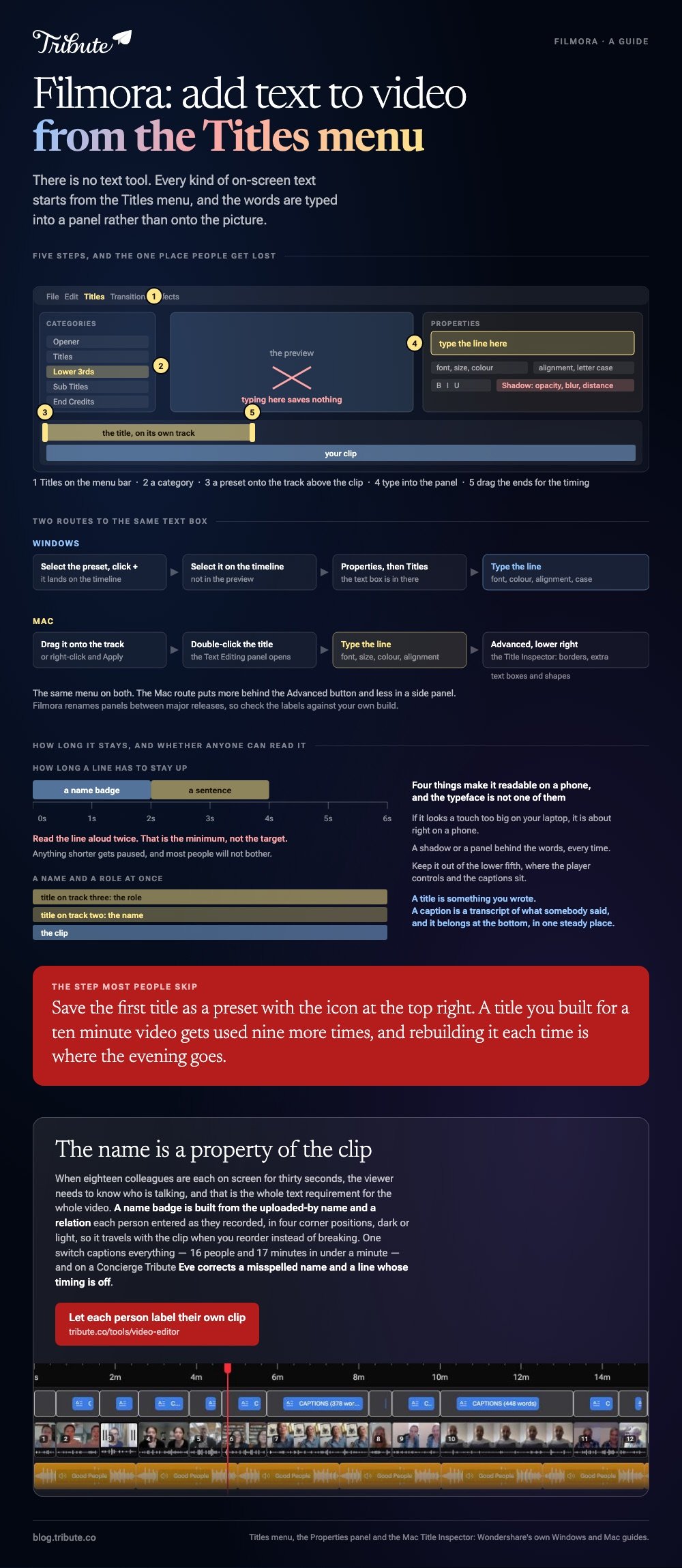
To make Wondershare Filmora add text to video, you use the Titles menu rather than a text tool. Pick a preset, drop it on the timeline above your clip, then type into the Properties panel on the right.

How do you make Wondershare Filmora add text to video?
Five steps on Windows, and the first one is the only place people get lost.
Filmora keeps every kind of on-screen text in one menu, so an opener, a lower third and a plain caption all start from the same list.
- Open Titles from the menu bar, then choose a category in the left panel.
- Select a preset and click the + icon to add it to the timeline.
- Select the title on the timeline, then open Titles in the Properties panel.
- Type into the text box, and set font, text color, alignment and letter case with the controls underneath.
- Drag the ends of the title clip to set when it appears and how long it stays.
Those labels come from Wondershare's own Windows guide, which is worth checking against your build, because Filmora renames panels between major releases.
Bold, italic and the rest
The same Properties panel carries toggles for Bold, Italic and Underline, and a Shadow control with opacity, blur and distance.
Shadow is the one that matters. A white title over a bright window is unreadable without it, and a soft shadow fixes that faster than changing the font.
Where does Wondershare Filmora add text to video on a Mac?
In the same Titles menu, with a different route onto the timeline.
Wondershare's Mac guide lists the categories as Opener, Titles, Lower 3rds, Sub Titles and End Credits. Drag the one you want onto the timeline, or right-click it and choose Apply.
- Open the Titles menu and pick a category.
- Drag a preset onto the track above your video, or right-click and choose Apply.
- Double-click the title on the timeline to open the Text Editing panel.
- Type your line and set font, size, color and alignment.
- Click Advanced at the lower right of that panel for the Title Inspector, which handles borders, extra text boxes and shapes.
To remove one, select the title on the timeline and press Delete, or right-click and choose Delete. Compared with the Windows build, the Mac route puts more behind the Advanced button and less in a side panel.
How do you edit text in Filmora after you have added it?
Select the title first. Everything else is in one place after that.
The commonest mistake is typing into the preview window and wondering why nothing saves. Filmora expects you to edit text in the panel, not on the picture.
| What you want | Where it is |
|---|---|
| Change the words | The text box in Properties, or the Text Editing panel on Mac |
| Font, size, color, alignment | The controls below the text box |
| A background behind the words | Bubble, beside Basic |
| An outline or a glow | Shape and Glow, under Basic |
| Reuse this look again | The Save icon at the top right |
Saving a preset is the step most people skip and the one that pays back. A title you built for a ten minute video gets used nine more times, and rebuilding it each time is where the evening goes.

If you came looking for Filmora how to put text over video
The answer is the same menu. There is no separate overlay tool, because a title in Filmora already sits on its own track above the picture.
Stack a second title on a third track when you need a name and a role on screen at once.
What makes on-screen text readable on a phone?
Four things, and font choice is not one of them.
- Size: if it looks a touch too big on your laptop, it is about right on a phone
- Contrast: a shadow or a panel behind the words, every time
- Margins: keep text out of the lower fifth, where player controls and captions sit
- Duration: read the line aloud twice, and that is the minimum
A name badge needs about two seconds. A sentence needs four. Anything you cannot read aloud twice before it disappears will be paused, and most people will not bother.
Titles and captions are different jobs. A title is something you wrote. A caption is a transcript of what someone said, and it belongs at the bottom in a steady position.
A general walk through sits in adding text to a video and the phone route in adding text on an iPhone. The professional one is in adding text in Premiere Pro.
What if sixteen people each need their name on screen?
The Tribute video editor is a browser-based group video editor: people record clips on their phones and Tribute lays them on a timeline with the music already balanced under the voices.
It is ours, and it covers one narrow case rather than general titling.
- Name badges built from an uploaded-by name and a relation, in four corner positions, dark or light
- A text panel that leads with ready-made styles grouped Simple, Title and Styles rather than a raw font list
- 10 caption styles with the spoken word highlighted, every line editable with its own start and end timecode
- One switch captions everything: 16 people and 17 minutes in under a minute
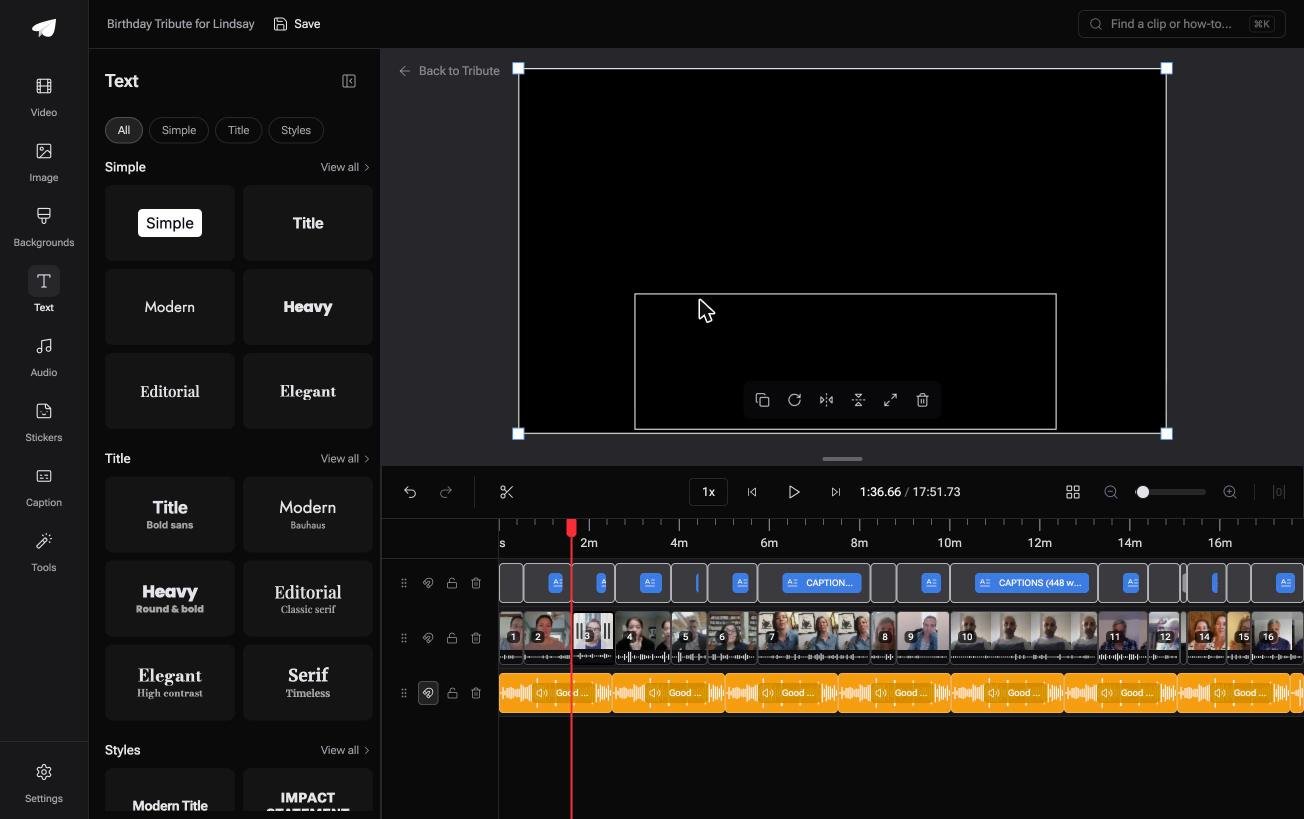
Best for: Anyone naming a dozen speakers nobody in the room will recognize by face alone.
Why it works: Unlike a title you build and copy, a name badge is a field attached to the clip, so it travels with the clip when you reorder.
What if the only text you needed was a name?
Most of this page is about building a title from scratch, and most of the text in a real video is not a title at all.
It is a name. Sometimes a name and a relation. The rest is what the person said, which nobody should be typing by hand in the first place.
The case: everyone on screen is a different person
You are in it when a group each record a message for the same person.
A retirement with eighteen colleagues on it. Cousins in four states for a ninetieth birthday. The viewer needs to know who is talking, and that is the whole text requirement for the whole video.
Why the Titles menu stops being the tool
Eighteen titles typed, positioned and timed by hand is an afternoon, and reordering the clips afterward breaks every one of them.
Which means the search that brought you here, Wondershare Filmora add text to video, is reaching for a titling workflow this video can skip. The Tribute video editor treats the name as a property of the clip instead.
What you do not have to do
- No name typing. Each person labels their own clip as they upload it.
- No style per title. One badge position and one light or dark look, for all of them.
- No caption fixes by hand. On a Concierge Tribute, Eve corrects a misspelled name and a line whose timing is off.
- No build. Tribute's own editors make the video on that tier and send it back.
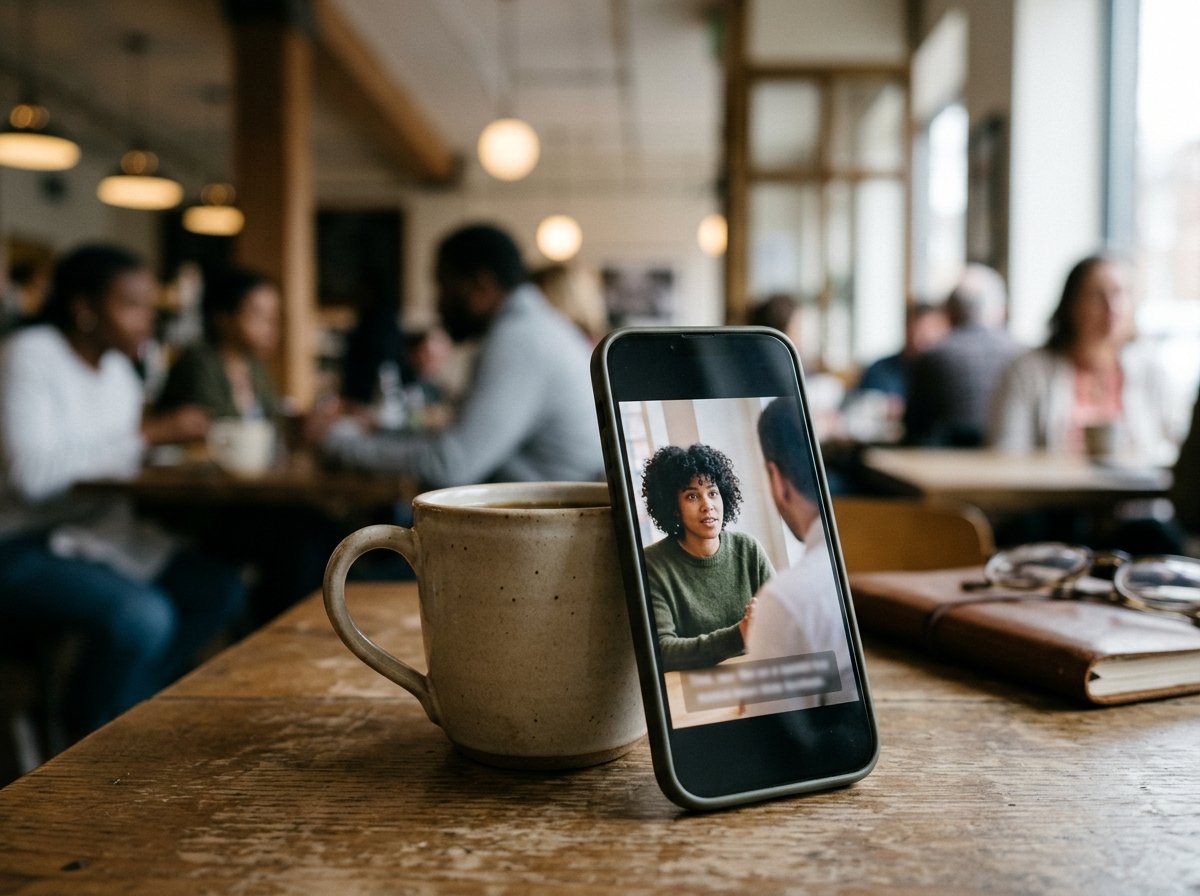
When this is the wrong answer: you are designing an opener, a lower third or end credits with a look of their own. Then Filmora is the better tool, and its presets are the reason. The editor lives inside a paid Tribute.
Frequently Asked Questions
Why can I not type onto the video itself?
Filmora edits title text in a panel rather than on the preview. Select the title on the timeline first, and the text box appears in Properties on Windows or the Text Editing panel on Mac.
How do I keep one text style across a whole project?
Build the first title the way you want it, then use the Save icon at the top right to store it as a preset. Every later title starts from that instead of from a stock design.
Can I animate the text?
Yes. Filmora documents animation apart from the text controls, so look for the animation section rather than expecting it in the same panel.
Why does my title disappear before anyone can read it?
The default duration is short. Drag the right edge of the title clip on the timeline until the line lasts as long as it takes to read aloud twice.
Does Filmora add a watermark to exported text?
Watermarks come from the plan rather than from titles. A trial export carries one over the whole frame, and paying removes it from everything including your text.
What size should text be for social video?
Larger than feels right on a desktop. Check it by playing the export on your own phone at arm's length before you post anything.
Should names go at the top or the bottom?
Top or upper corner, because the bottom belongs to captions and player controls. Pick one position and keep it for every person in the video.
👉 Let each person label their own clip if eighteen of them are on screen and nobody in the room is sure who is who, and stop typing names at midnight.
