
Add Audio to Video Clip: Three Tools and the Levels That Decide It
To add audio to video clip footage, put the new sound on its own track under the picture, line its start up with the frame it belongs to, then set its level against the voice in the clip. Every tool below does those three things.
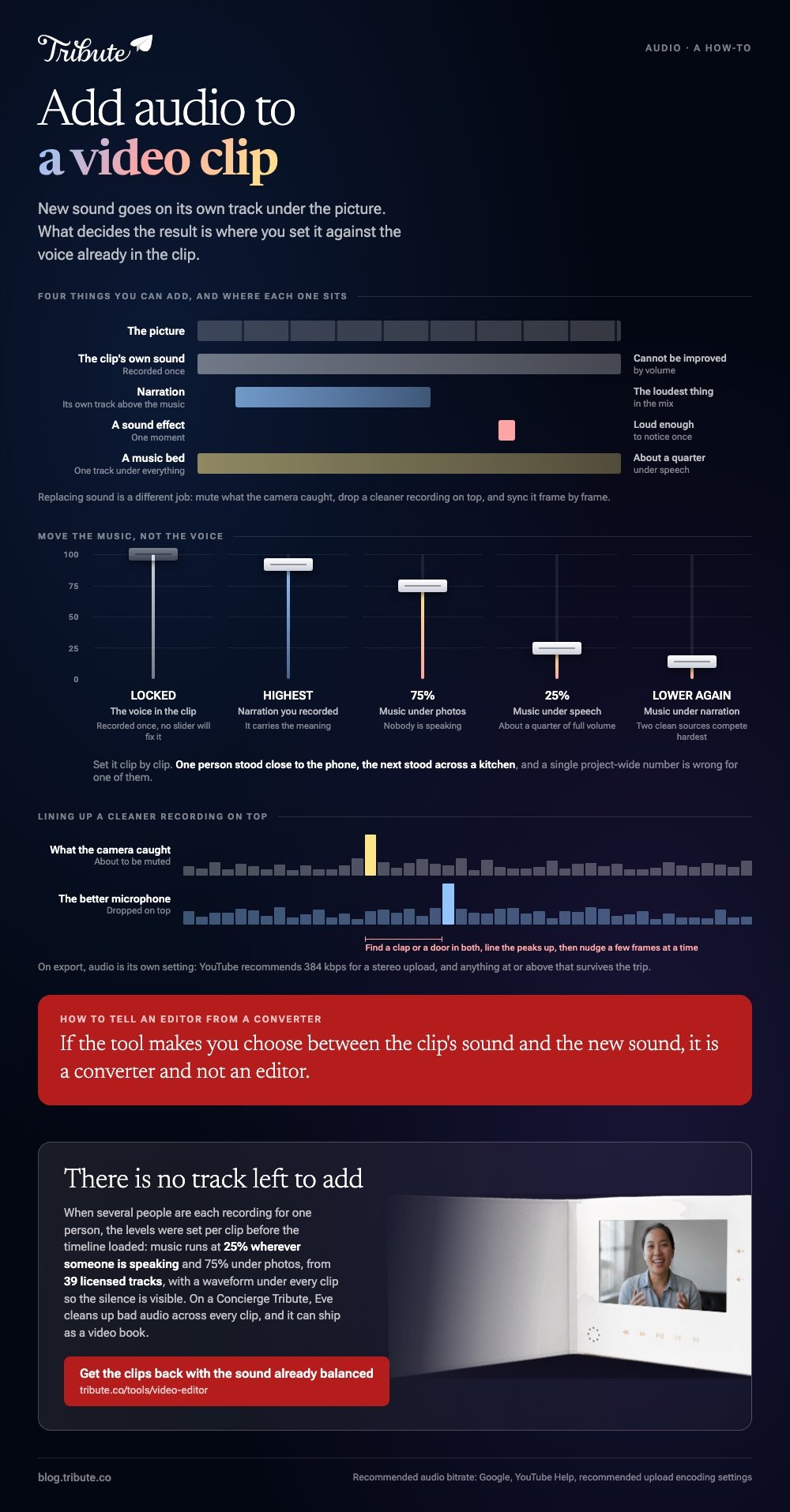
| What you are adding | Where it sits | Level to aim for |
|---|---|---|
| A music bed | One track under everything | About a quarter under speech |
| Narration | Its own track above the music | The loudest thing in the mix |
| A sound effect | A short track at one moment | Loud enough to notice once |
| Better audio from another mic | On top, original muted | Matched to the room |
Which kind of audio are you adding to a video clip?
The answer changes the whole job, so settle it first.
A music bed runs the length of the video and never competes for attention. Narration carries the meaning and has to win every time.
Replacing sound is a different task again: you mute what the camera caught and sync a cleaner recording on top, frame by frame, until the lips match. Unlike a music bed, that one has to be right to the frame.
Any audio video maker worth opening gives each of those its own track. If the tool makes you choose between the clip's sound and the new sound, it is a converter and not an editor.
How do you add audio to video clip files in a browser?
Clipchamp keeps the whole job on one page and needs nothing installed.
- Start a new video, then use the import media button, or drag your files into My media.
- Drag the video down to the timeline.
- Click the content library tab, then the audio category, to use a cleared track. To insert audio of your own into the video, drag that recording in from My media instead.
- Drop the track on the timeline under the video, or click the + button on it.
- Click the audio clip, open the audio tab in the property panel, and drag the volume slider.
- Click export and choose a quality. Microsoft lists 480p, 720p, 1080p and 4K.
Drag the green bars at either end of the audio to shorten it. That is trimming, and it is how you put audio to video in a way that stops where the picture stops.
Where are the sound controls in Canva?
On the toolbar above the editor, once the track is selected.
Select the audio on the timeline and the volume icon appears there. A slider and a number box both work, so you can set one clip to 20 and the next to 35 without guessing.
Two other controls earn their place. Fade sets how the track arrives and leaves, and Balance all levels every piece of audio in the design at once.
Trimming works by hover: run the pointer over the track, grab a handle at either end, and drag. Compared with Clipchamp, the controls live above the canvas rather than in a side panel, which takes a minute to get used to.
There is a separate walk through for adding audio to a video in Canva, and for the one job browser tools do fastest, Clideo.
How do you add audio to video clip recordings on a phone?
In iMovie on an iPhone, since the Photos app has no second audio track.
- Open iMovie, tap Start New Project, choose Movie, pick the clip and tap Create Movie.
- Tap the Add Media button, then Audio.
- Choose Soundtracks, My Music or Sound Effects.
- Tap the item, then tap the Add Audio button that appears.
- Tap Done, then the share button, then Save Video.
Apple notes that a song under one minute behaves as a sound effect, which is why a short sting lands on a blue clip instead of the green music row.
The same page states that songs carrying digital rights management will not load at all.
CapCut follows the same order on both phones: Audio, a track, then the volume control on the audio clip.
Its Extract audio option pulls the sound out of another video, which is the quickest fix when one person's camera caught the speech better than yours.
For the version of this with music in mind, see adding music to a video on iPhone.
How do you stop the new audio from burying the old?
By moving the music, not the voice.
The voice in the clip was recorded once and cannot be improved by volume. The track you added has a slider, so the track is what gives way.
- Under speech: about a quarter of full volume
- Under photos or b-roll: about three quarters
- Under narration you recorded: lower again, because two clean sources compete harder than a clean one and a noisy one
Set it clip by clip. One person stood close to the phone, the next stood across a kitchen, and a single project-wide number is wrong for one of them.
On export, audio quality is its own setting. YouTube recommends 384 kbps for stereo uploads, and anything at or above that will survive the trip.
Structure, rather than sound, is covered in building a video montage.
What if the clips came from a dozen different people?
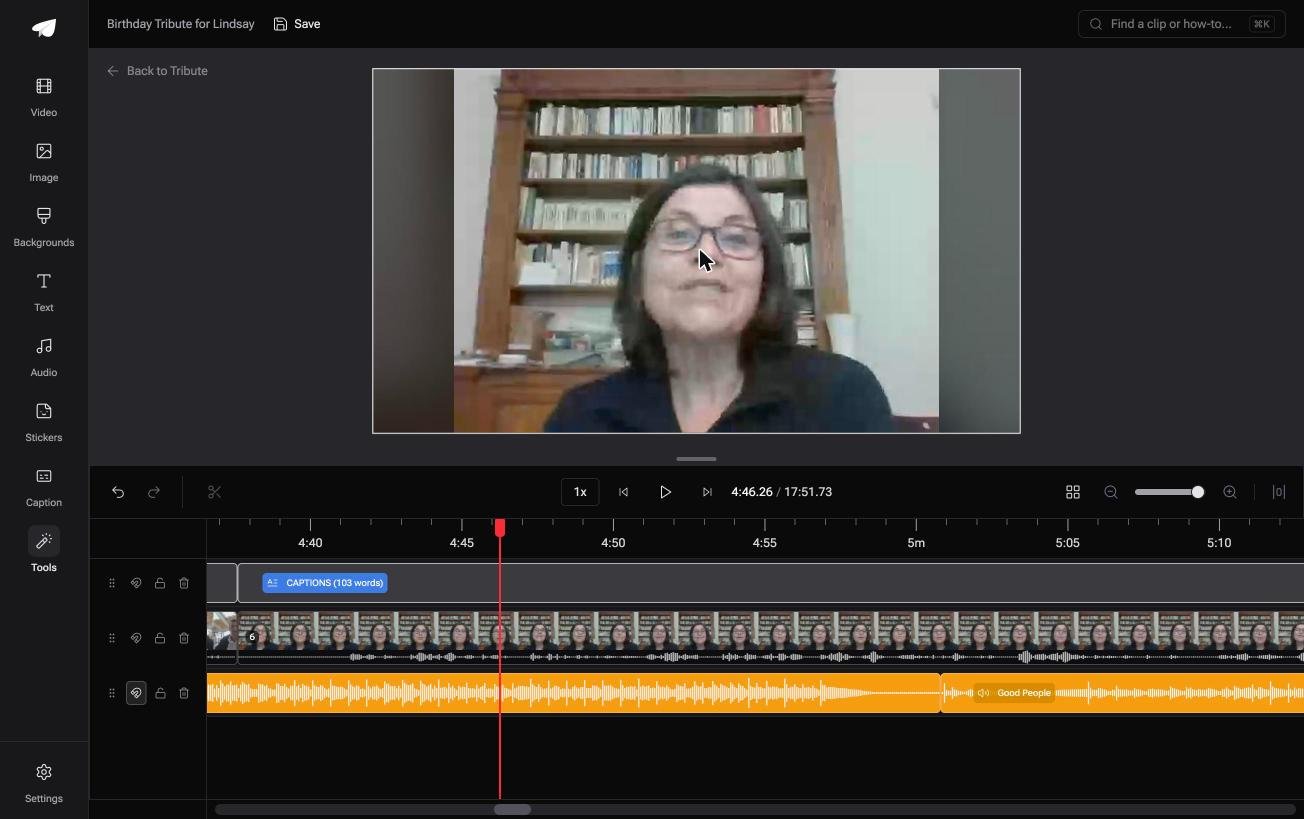
The Tribute video editor is a browser-based group video editor: contributors record clips on their phones and Tribute assembles them on a timeline with the music balanced under the voices.
It is ours, and it is the last thing on this page.
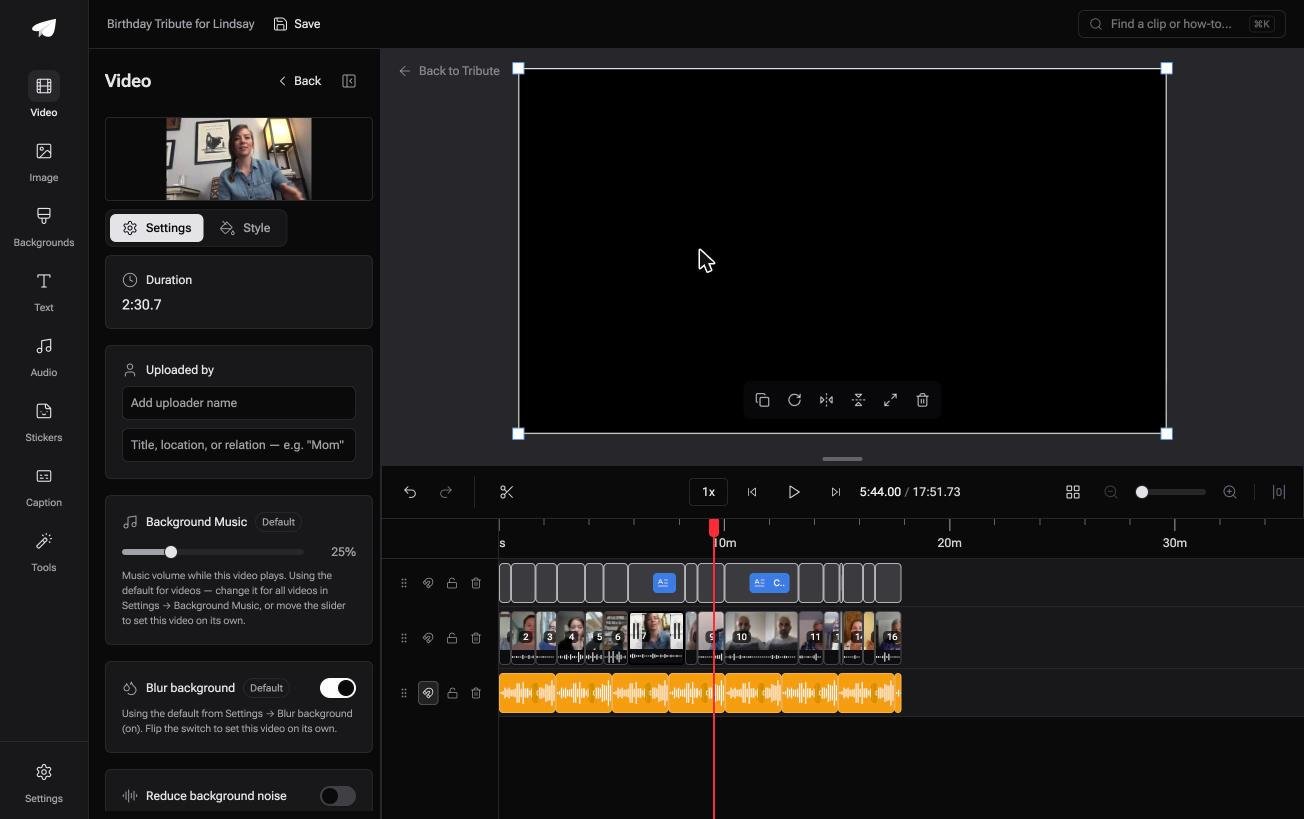
- 25% under video and 75% under photos as the shipped defaults, overridable on any single clip
- 39 licensed tracks across 11 genres, plus a YouTube link or an MP3, WAV, M4A or FLAC upload
- Crossfade songs blends one track into the next across a long timeline
- A waveform under every clip, so silence is visible before you trim it
Best for: A clip whose own sound has to stay audible while a track plays under it.
Why it works: A video editor with audio editing attached still asks you to set every level. Here the levels start where they should and you move the exceptions.
Can the audio be balanced before you open the clip?
Everything above starts from an empty track and a decision.
One situation removes both.
The case: several people recording for one person
A grandfather turning ninety. A teacher retiring. A friend who moved abroad and will not be at the party.
Each person records a message on their own phone, in their own room, at their own distance from the microphone. Nobody is shooting footage, and the work waiting for you is assembly.
Which means the job that brought you here, adding audio to a video clip, has already happened.
Why the levels are not yours to set
Because they were set per clip before the timeline loaded.
Music runs at a quarter wherever a person is speaking and three quarters under photos. The Tribute video editor treats that as the starting point, and the slider is there for the two clips that need it.
What you never have to do
- No audio track to add. The music is under the voices when the timeline loads.
- No noisy kitchen to rescue by hand on a Concierge Tribute: Eve, the assistant inside the editor, cleans up bad audio across every clip.
- No export and reimport. Tribute renders it, and what the preview plays is what comes back.
- No hour in headphones at all on Concierge, where Tribute's editors build the video and send it back.
When this is the wrong answer: you shot the footage yourself, or the sound you need is a voiceover you will record tonight. Then open Clipchamp or iMovie and use the steps above.
Frequently Asked Questions
Can I add audio without losing the sound already in the clip?
Yes. New audio lands on its own track, and the original keeps its own volume control. Mute the original only when you are replacing it.
How do I sync replacement audio to the picture?
Find a sharp sound in both recordings, such as a clap or a door, and line those peaks up on the waveform. Then zoom in and nudge a few frames at a time.
Which file types can I insert audio from?
MP3 and WAV are accepted almost everywhere, with M4A and FLAC supported in most editors. Convert anything unusual before you import it.
Why is my added track longer than the video?
Songs seldom match a video's length. Trim the end and fade the last two seconds, or loop a shorter track and crossfade the join.
Do I need a video editor and audio editor, or one tool?
One tool is enough for levels, fades and trims. A dedicated audio editor earns its place for noise removal or repairing a bad recording.
Does adding audio reduce the picture quality?
Only through the export settings you choose, since the video is re-encoded on the way out. Pick the highest quality your upload will accept.
Can I add audio to a video clip on a phone without an account?
iMovie on an iPhone works without one. Most browser editors ask you to sign in before they will export.
👉 Get the clips back with the sound already balanced if several people are recording for one person, and there is no track left to add.
