
Clideo Add Audio to Video: The Steps, the Limits, and When to Use Something Else
To use Clideo add audio to video, you upload the clip, drop a track underneath, set the two volumes, and export. It takes about three minutes in any browser. The free plan stamps the result with a Clideo mark.

| Tool | Where it runs | The catch |
|---|---|---|
| Clideo | Any browser, files upload to Clideo | A mark on the export unless you subscribe |
| Clipchamp | Any browser | A timeline to learn rather than one screen |
| Google Photos | The phone holding the clips | Music only inside a highlight video |
| iMovie | iPhone, iPad, Mac | Apple devices and nothing else |
How does Clideo add audio to video in a browser?
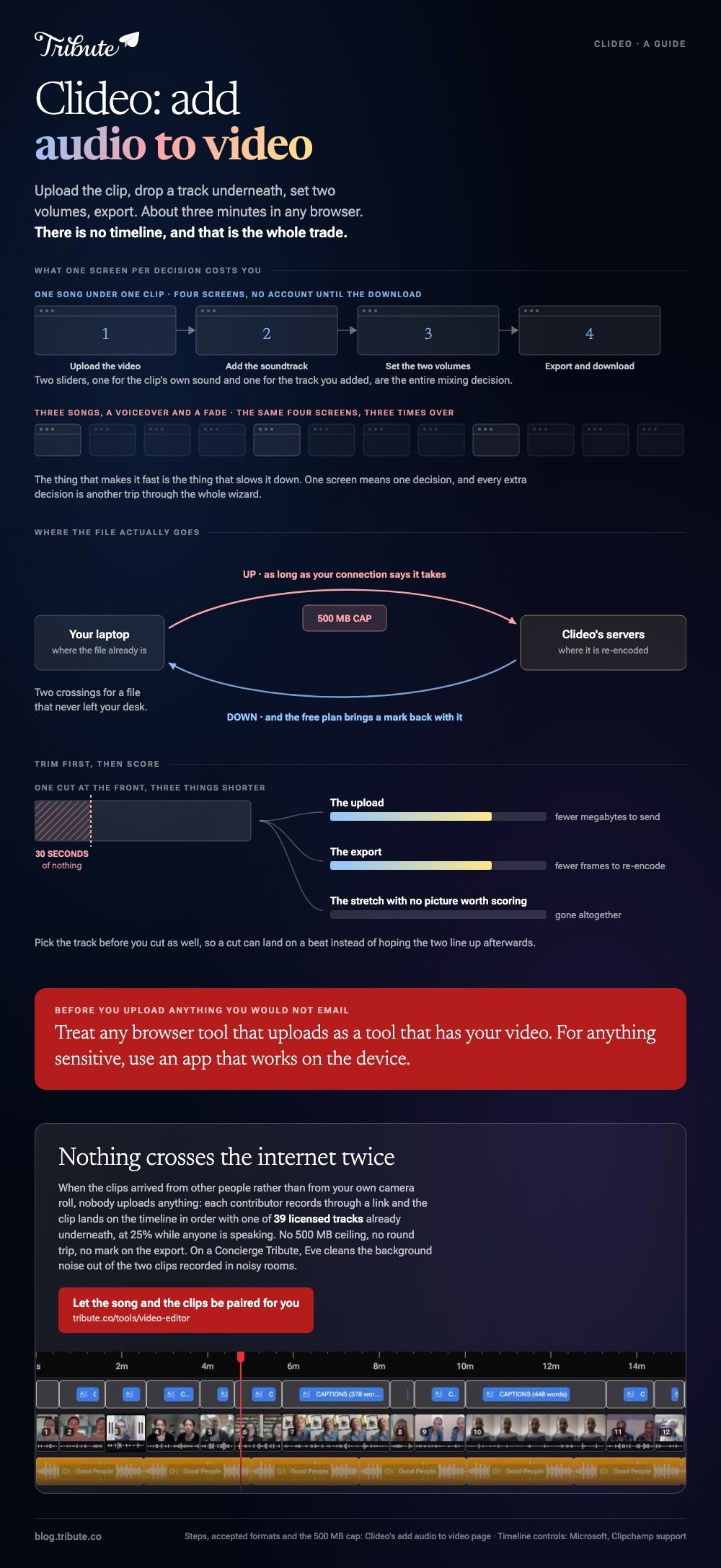
In four screens, with no account until the download.
- Upload the video. Pick it from the computer, the phone, Google Drive or Dropbox.
- Add the soundtrack. Upload an audio file, then trim it or loop it to the length of the clip.
- Set the two volumes. One slider for the video's own sound, one for the track you added.
- Choose an output format and click Export.
- Preview, then download or save to cloud storage. If it is wrong, go back and edit.
Clideo lists that sequence on its own add audio to video page, which names MP3, WMA, OGG, WAV, M4A and AAC among the audio it accepts.
Best for: One clip that needs one song under it, on a machine where you cannot install anything.
Why it works: There is no timeline. The two volume sliders are the entire mixing decision.
What the free plan does not include
A clean export.
Clideo marks the video unless you move to a paid plan, and uploads are capped at 500 MB per file, which a few minutes of phone footage will pass. Check the current pricing page before you pay, since the tiers move.
There is a second cost nobody mentions. Your video leaves your computer, crosses the internet twice and comes back re-encoded, so a long clip takes as long as your upload speed says it will.
When should you let Clideo add audio to video, and when not?
Use it for one short clip and a single track.
Past that, the thing that makes it fast turns into the thing that slows you down: one screen means one decision, and a video with three songs, a voiceover and a fade needs three screens.
Clipchamp, when there is more than one track
- Open My media on the toolbar and import the video, or add it from OneDrive.
- Click the green + button or drag the clip onto the timeline.
- Drag the audio onto its own row underneath, so both play together.
- Select each asset and use the property panel for volume, fades and speed.
- Click export and choose a quality.
Microsoft documents those controls in its guide to editing a video in Clipchamp, including the stock music that ships with it.
Best for: A video that needs a song, a voiceover and the original sound kept low behind both.
Why it works: Separate rows mean separate volumes, and you can hear the balance before you commit to it.
Google Photos, when the clips are on a phone
- Tap Create at the bottom, then Highlight video.
- Tap Select content, choose the clips, then tap Next.
- Tap Edit, then Add Music, and pick a track.
- Tap Section to move to a different part of the song.
- Tap Volume to balance "Video audio" against "Soundtrack", then tap Save.
Google sets out those steps in its guide to making creations in Google Photos, and it cuts the music to the length of the video for you.
What to do before you upload anything
Trim first, then score.
Cutting thirty seconds off the front shrinks the upload, shortens the export and removes the stretch where the song has nothing to sit under. It is the one step that makes every later step faster.
Pick the track before you cut, too. Unlike a song chosen at the end, one chosen first lets you land a cut on a beat instead of hoping the two line up.
How loud should the music sit under a voice?
Lower than it feels when you set it.
| Underneath | About |
|---|---|
| Someone talking | A quarter of full volume |
| Photographs, nobody speaking | Three quarters |
Music is mastered to sound good on its own, which means it will bury a voice recorded on a phone in a kitchen.
Compared to a level set once for the whole video, a level set per clip survives the moment someone steps away from the microphone.
Fade in and out rather than letting the track stop dead. Two seconds reads as a decision.
More on the wider job in adding audio to a video clip, the Canva route in adding audio in Canva, and the phone version in adding music to a video on iPhone.
What if the clips came from a dozen different people?
The Tribute video editor is a browser-based group video editor: contributors record clips on their phones and Tribute assembles them on a timeline with the music balanced under the voices.
It is ours, and it is the last thing on this page.
- 39 licensed tracks across 11 genres, cleared for use inside the editor
- Your own audio too: a YouTube link, or an MP3, WAV, M4A or FLAC upload
- 25% under a voice, 75% under a photo by default, and overridable per clip
- Crossfade songs blends one track into the next when the video runs past the end of a song
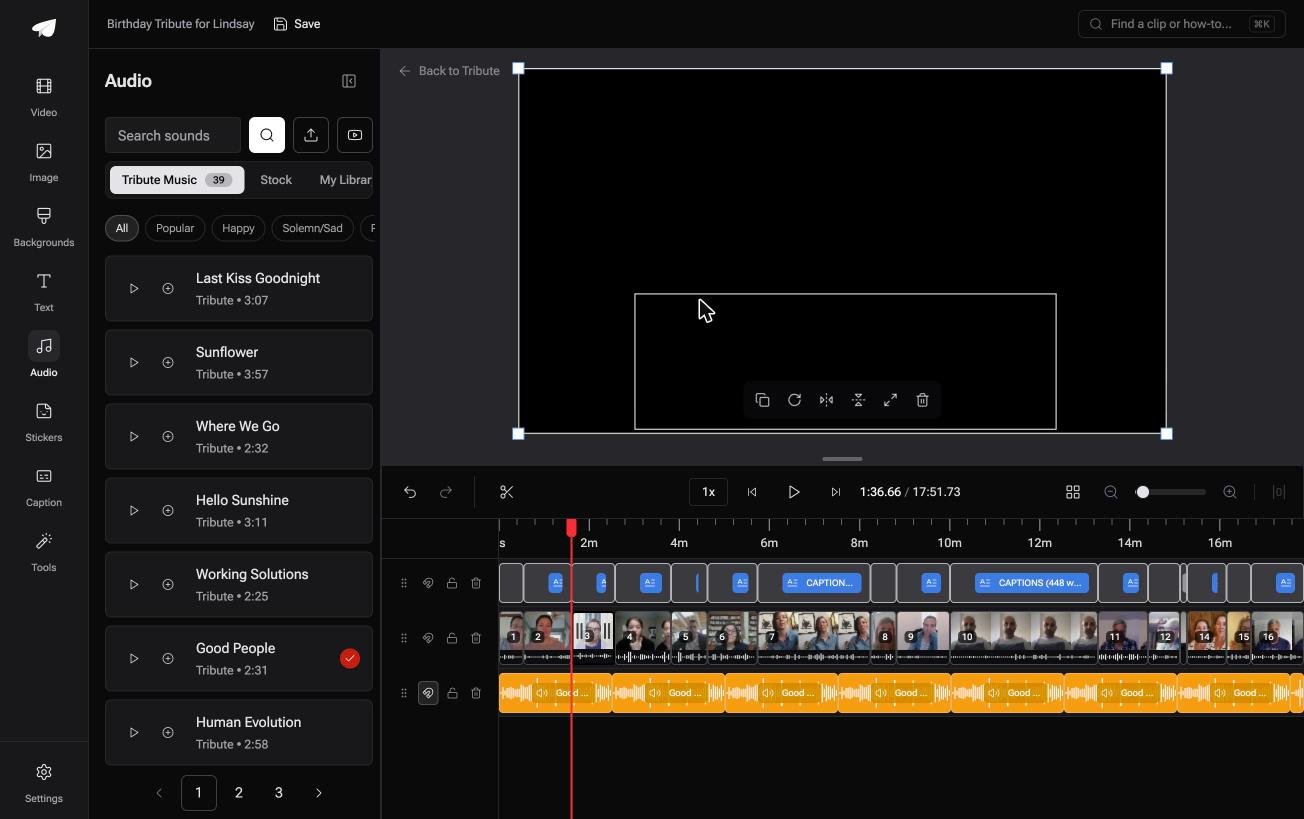
Best for: Sixteen separate clips that all need the same song underneath, each at its own level.
Why it works: The balance between music and speech is set before you open it, per clip, rather than by two sliders for the whole video.
What if the audio was already under the clips when you opened the page?
Clideo exists because the music and the video turned up as two separate files.
Somebody has to put them together, and the person holding the clips is the person who ends up doing it. There is one case where that pairing never happens.
The case: the clips are messages for one person
It applies when several people each record something for the same person.
A grandfather turning ninety. A ward sister retiring after thirty years. A memorial where the people who should speak are in four time zones.
Nobody is scoring a video. Everyone is talking to a phone, and the job in front of you is assembly.
Why the upload step disappears
Nothing is uploaded by you at all.
Each contributor records through a link and their clip lands in the Tribute video editor in order, already on a timeline, with a track underneath at 25% while anyone is speaking. No 500 MB ceiling, no round trip, no mark on the export.

What you do not have to do
- Not the upload. Each clip arrives through a link with the track already under it.
- Not the pairing. On a Concierge Tribute, Tribute's editors choose the song, set it against the speech and trim each clip.
- Not the two clips recorded in noisy rooms. Eve, the assistant on Concierge and Concierge + Video Book, cleans the background noise out of both.
When this is the wrong answer: you shot the video yourself, or you need one specific commercial song under it. Then Clideo or Clipchamp is the shorter path.
Unlike a single-purpose tool, the editor is not something you can open on its own: it lives inside a paid Tribute.

Assembly itself is covered in making a video montage.
Frequently Asked Questions
Does Clideo put a mark on every export?
On the free plan, yes. A paid plan removes it, and the pricing page is the only place worth checking for what that costs this month.
Is there a file size limit?
Uploads are capped at 500 MB per file. A few minutes of 4K phone footage goes past that, so compress the clip first or use a tool that runs on your own machine.
Can I add audio to video Clideo has already exported?
You can, and each pass re-encodes the picture as well as the sound. Do the audio once, at the end, rather than in two visits.
Will it keep the original sound of the clip?
Yes. There are two volume sliders, one for the clip's own audio and one for the track you added, so you can keep both or mute either.
What format should I export?
MP4 unless something downstream demands otherwise. It plays on every phone, every browser and every television, which no other container can claim.
Is my video private while it is on their servers?
Treat any browser tool that uploads as a tool that has your video. For anything sensitive, use an app that works on the device instead.
What is the quickest route on an iPhone?
iMovie, which is already installed. Drop the clip into a project, tap the plus button, choose Audio, and export through Share then Share Video then Save Video.
👉 Let the song and the clips be paired for you if they arrived from other people rather than from your camera roll, and nothing crosses the internet twice.
