
Canva Add Audio to Video: The Steps, and Why It Drifts Out of Sync
In Canva, add audio to video by opening the video design, clicking Add Audio in the timeline, and picking a track from the library or your uploads. Drag it along the timeline to place it, then set the level in the toolbar.
| What you want | Where it comes from | Watch out for |
|---|---|---|
| Background music | Canva's audio library | Premium tracks are marked |
| Your own song | Uploads, up to 250MB | An audio fingerprint check runs |
| A voiceover | Record in the editor | Drift over a long design |
| A sound effect | Canva's effects list | It sits on its own track |
How do you make Canva add audio to video?
Five steps, and only the last one is easy to get wrong.
- Open the video design and look at the timeline across the bottom of the editor.
- Click Add Audio in that timeline. Canva offers its music library, sound effects, your uploads and an AI voice.
- Pick a track. It lands in its own section of the timeline, under the clips rather than on them.
- Drag it sideways to set where the sound starts, then pull the handles at either end to trim it.
- Select the track and set the level using the volume control in the toolbar above the editor.
Trimming lives on the timeline itself now. Canva's help center notes that the separate trim tool has been removed from video designs, so hovering the track is what brings the handles up.
There is also a Balance all button beside the volume slider. It evens the level across every audio and video element in the design, which is the one click most people miss.
Lining a cut up with the beat
Beat Sync reads the track and drops snap points on the audio.
It works in presentation, social media and video designs, and the audio has to run ten minutes or less. Your clip edges then pull toward the beats instead of you nudging each one.
Which audio files will Canva accept?
Seven formats, with a single size ceiling.
Canva's upload requirements list AAC, M4A, MP3, OGG, WMA, WAV and WEBM, each capped at 250MB. A three minute song in any of them is a few megabytes, so the cap only bites on uncompressed recordings.
Uploads pass through an audio fingerprint check. A track that matches a copyrighted recording will stop you publishing the design with its sound, which is the thing to know before you build a whole video around it.
Export is where it comes back together. Share, then Download, then MP4 Video, and the audio is baked into the file.
How loud should the music sit under a voice?
Lower than it feels while you are setting it.
Library music is mastered to sound good alone, so it will bury a voice recorded on a phone across a kitchen. A quarter of full volume under speech and three quarters under silent footage is the ratio that survives a phone speaker.
| Underneath | About |
|---|---|
| Someone talking | A quarter of full volume |
| Photos, no voice | Three quarters |
Set it per section rather than once. Each clip was recorded in a different room at a different distance, and one level for the whole design will be wrong for half of it.
This is not a niche concern. The NIDCD reports disabling hearing loss in 55% of adults aged 75 and older, and in 22% of those aged 65 to 74.
Why is your Canva video audio out of sync?
Four causes, and the first one is not a problem with your video.
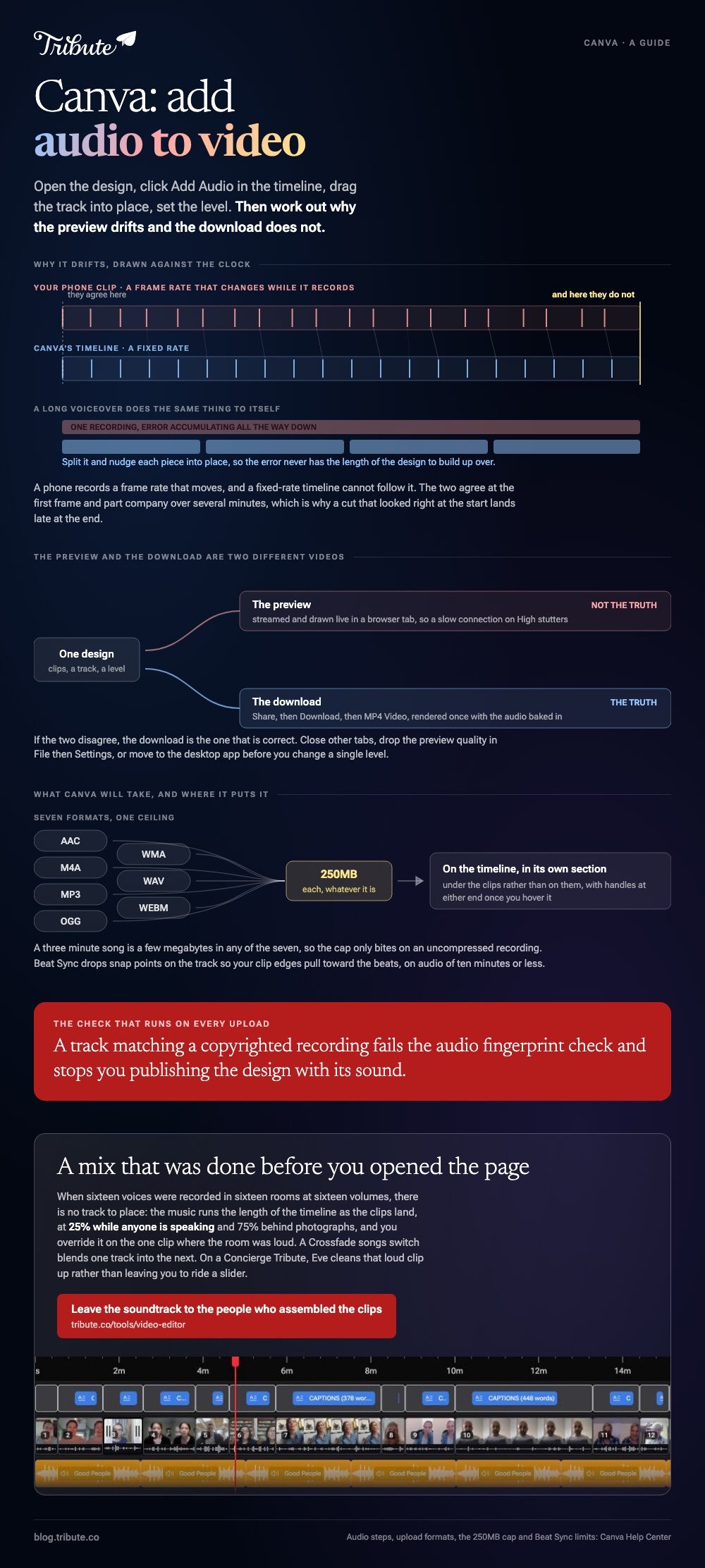
- Preview lag. Canva renders the editor live in a browser tab. Download the MP4 and watch that before you change anything.
- Playback quality. File, then Settings, lets you drop the preview quality. A slow connection on the High setting stutters.
- Variable frame rate footage. Phone clips record a changing frame rate, and a fixed-rate timeline drifts against them over several minutes.
- A long voiceover. One continuous recording over a multi-scene design accumulates error. Split the track and nudge each piece into place.
The browser itself is worth ruling out. Canva supports Chrome, Firefox, Safari and Edge, and its own advice for a lagging editor is to close other tabs, turn off a VPN, clear the cache, or move to the desktop app.
Unlike a desktop editor working on local files, Canva is streaming your media while it plays, so the preview and the export are two different things. Trust the download.
Can Canva add audio to video it did not make?
Yes, with one upload step in between.
Put the finished video in through Uploads, drop it on a page, then add the audio track underneath as above. Mute the original sound on the clip if you are replacing rather than layering.
Compared to doing this on a phone, the browser version gives you a visible timeline and a numeric volume, which is worth the extra minute. The phone route is in adding music to a video on iPhone.
More on the general job in adding audio to a video clip and adding music in Canva.
What if the audio came from a dozen different rooms?
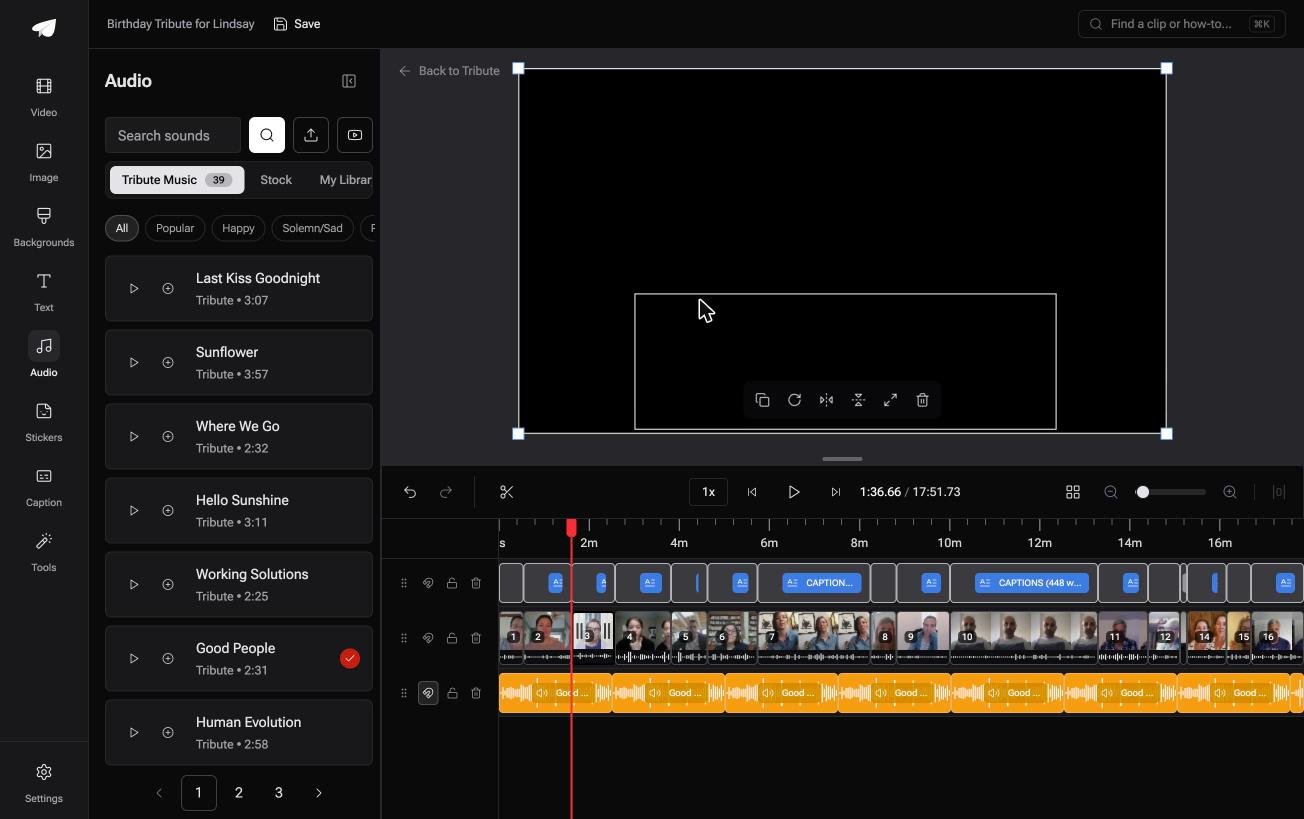
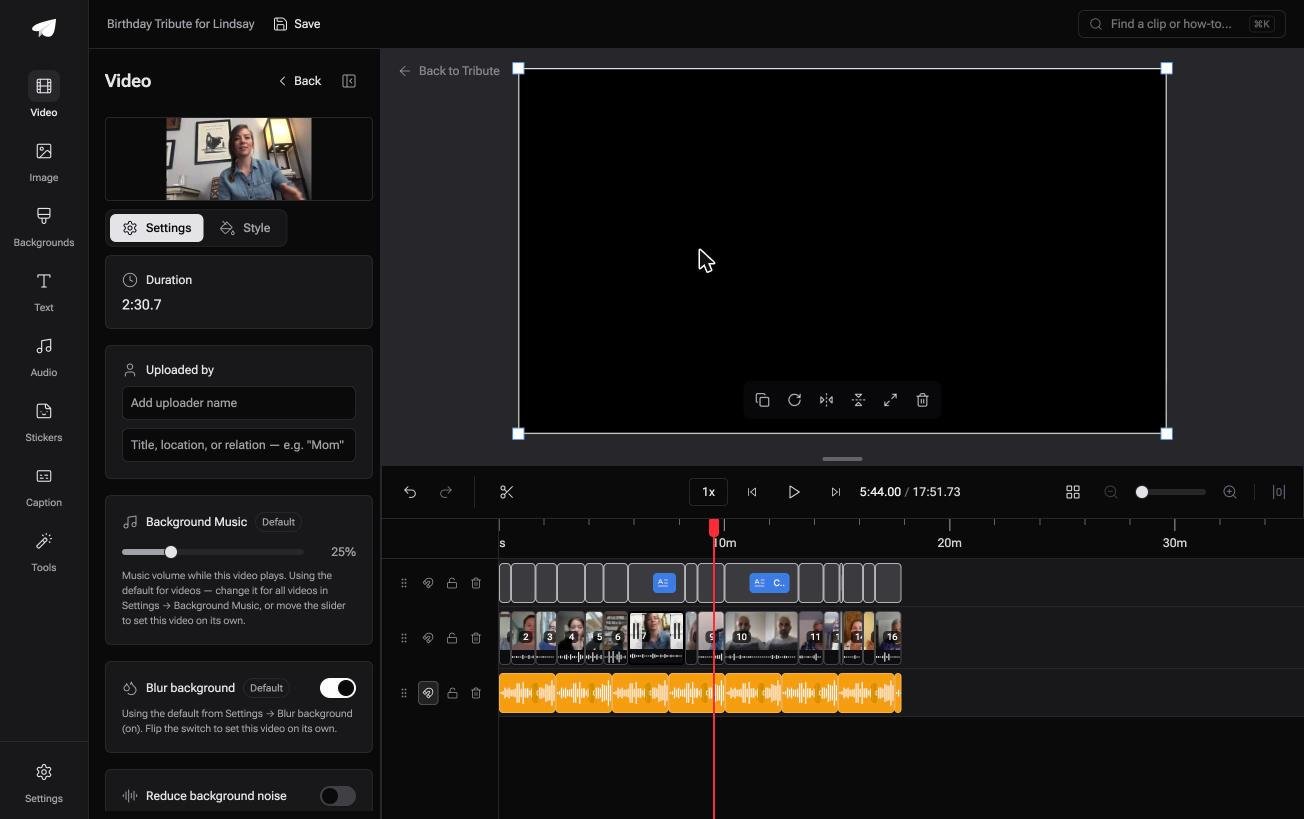
The Tribute video editor is a browser-based group video editor: contributors record clips on their phones and Tribute assembles them on a timeline with the music balanced under the voices.
It is ours, and it is the last thing on this page.
- Music ducks automatically to 25% under video and 75% under photos, overridable on a single clip
- 39 licensed tracks across 11 genres, plus a YouTube link import and MP3, WAV, M4A or FLAC upload
- A Crossfade songs switch blends one track into the next when the video outlasts a song
- Loop music to fill timeline sits in the Tools panel as a one-click bulk action
Best for: A video whose sixteen voices were recorded in sixteen rooms at sixteen volumes.
Why it works: The level under each voice is set before you arrive, and you change it only where a room was loud.
Does anyone have to set the music level at all?
Everything above is you deciding what a viewer hears first.
You chose a track, placed it, pulled it down under the speech, then checked it on a phone. That is a fair hour when the music is carrying the video.
For one kind of video, the music is never carrying anything.
The case: the voices are the content
You are in it when several people each record something for one person.
A grandmother turning eighty. A colleague leaving after fifteen years. A memorial where the people who should speak are in four states.

Nobody came for the soundtrack. The music is there so the silences between messages do not feel like a mistake, and every word on top of it matters more than it does.
Why the level is already right
Each clip arrives with the music under it at 25% while anyone is speaking, rising to 75% behind photos.
Those are the defaults in Settings, and you override them on the one clip where the room was loud. There is no track to place, because the music runs the length of the timeline already.
That is how the Tribute video editor handles it: not a better volume slider, but a mix that was done before you opened the page.
What you do not have to do
- Not the placing. The music runs the length of the timeline as the clips land.
- Not the ducking. It sits at 25% under speech and 75% behind photographs by default.
- Not the one loud room. Eve, the assistant on Concierge and Concierge + Video Book, cleans that clip up rather than leaving you to ride a slider.
- Not the edit. On a Concierge Tribute, Tribute's editors choose the song and cut the video for you.
When this is the wrong answer: you are scoring your own edit and the music is the point. Then Canva is the right tool and the steps above are the whole job.
Our editor runs in a browser and lives inside a paid Tribute.
The wider craft is in making a video montage.
Frequently Asked Questions
Why can I not hear the audio in the Canva editor?
Check the track is not muted and that the clip above it is not muted either. Browser tabs can also be muted at the tab level, which the editor cannot see or fix.
Does Canva's free plan let you add music?
It does, from the part of the library that is not marked premium. A premium track stops the download until you remove it or upgrade.
How do you fade music in and out?
Select the audio track and open the audio effects in the toolbar, where fade in and fade out are set in seconds. Two seconds at each end reads as a decision rather than a mistake.
Can you extract the sound from a video in Canva?
Not as a separate file. You can mute a clip or lower its volume, but Canva exports audio only as part of a video download.
Why does the downloaded MP4 sound different from the preview?
The preview is streamed and the download is rendered. If the two disagree, the download is the one that is correct.
How long can an uploaded track be?
Length is not capped, but the file is, at 250MB. Beat Sync is the feature with a time limit, at ten minutes.
👉 Leave the soundtrack to the people who assembled the clips if sixteen voices were recorded in sixteen different rooms, and no level is yours to ride.
