
Add Text to YouTube Video: What Is Possible After Upload
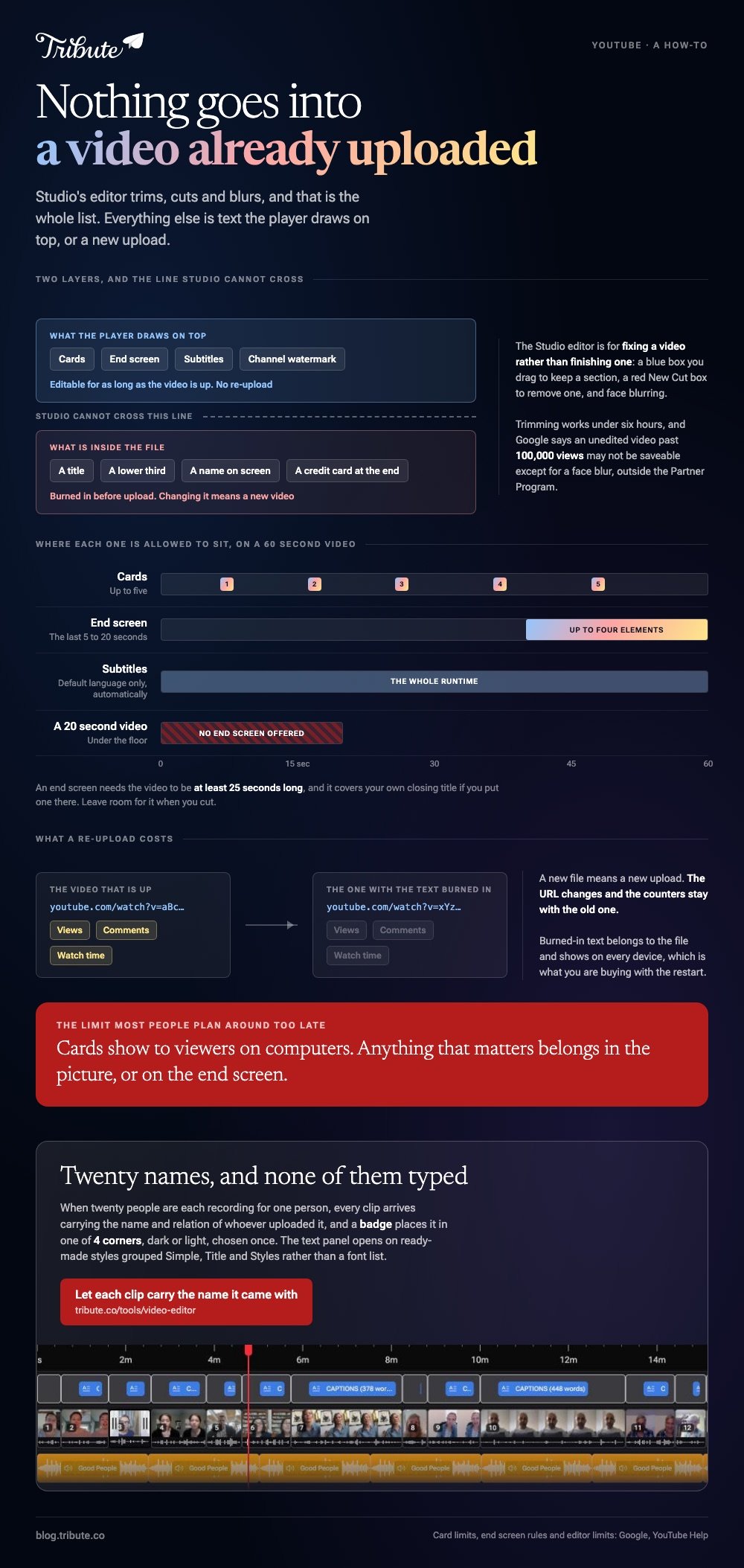
You cannot burn text into a video once it is on YouTube. Studio's editor trims, cuts and blurs, and that is the whole list. Everything else is text that sits over the player, or a new upload.

| What you want on screen | Where it comes from | Needs a re-upload |
|---|---|---|
| A title or a lower third | An editor, before upload | Yes |
| A clickable prompt | Cards and end screens | No |
| The words being spoken | Subtitles in Studio | No |
| A correction or a credit | Description or pinned comment | No |
What does the YouTube Studio editor let you change?
Three things, and none of them is text.
The editor exists for fixing a video rather than finishing one. Its tools are a blue box you drag to keep the part you want, a red New Cut box you drag over a section to remove it, and a separate face blurring tool.
You can type exact times rather than dragging, and Preview, Undo, Discard changes and Save manage the rest.
Three limits worth knowing before you start
- Six hours. Trimming works on videos shorter than that
- 100,000 views. Google says an unedited video past that count may not be saveable, except for face blurring, and the limit does not apply to Partner Program channels
- No undo after saving. As of June 2025 the Revert to original option is gone
Google's page on trimming and cutting is the reference, and it describes no way to put text or an overlay into the picture.
How do you add text that sits over the player?
Three features, all of them YouTube's own interface rather than your footage.
They are not a title sequence. They are clickable or switchable elements the player draws on top of your video, which is why they survive without a re-upload.
Cards
A card is a small prompt that appears at a time you choose. Google documents four types: Video, Playlist, Channel and Link, with Link reserved for Partner Program channels.
You get up to five cards per video. A teaser shows at the start time you set, and after that a card icon appears when the viewer hovers the player.
Message and teaser text are optional on most types and required on channel cards. Cards show to viewers on computers, which is the catch most people miss.
End screens
An end screen fills the last stretch of the video with up to four elements on a standard 16:9 upload.
Two rules decide whether you can use one. It goes in the last 5 to 20 seconds, and the video has to be at least 25 seconds long. Anything shorter never offers the option.
Leave room for it when you cut. An end screen over your own closing title covers the title.
Subtitles
If the text you want is the words being said, subtitles put them on screen without touching the file.
In Studio, open Subtitles, pick the video, select ADD LANGUAGE, then ADD. You can upload a file with or without timing, paste a transcript and let Auto-sync time it, or type the transcript and let YouTube do the timing.
Automatic captions appear in the video's default language alone. Correcting them takes a tenth of the time writing them does.

How do you add text to YouTube video files before upload?
In whatever editor is already on the machine holding the footage.
All three of the obvious ones carry a text tool, none of them charges for it, and the sequence is the same in each: drop the clip on a timeline, add a text layer, drag it over the stretch you want, export.
- Clipchamp in a browser, on any machine
- iMovie on a Mac or an iPhone
- CapCut if the video is vertical and going to social too
Two rules save most of the rework. Keep text inside the safe area, away from the edges where the player draws its controls, and hold a line on screen long enough to read it twice.
What re-uploading costs
A new upload is a new video. The URL changes, and the views, comments and watch time stay with the old one.
So the decision is a trade rather than a chore. Unlike a card, burned-in text belongs to the file and shows on every device. Compared to leaving the old video up, re-uploading restarts the counter.
Related: adding text to a video in general, the desktop version in Premiere Pro, and the soundtrack question in adding music to a YouTube video.
What if the text you need is just everybody's name?
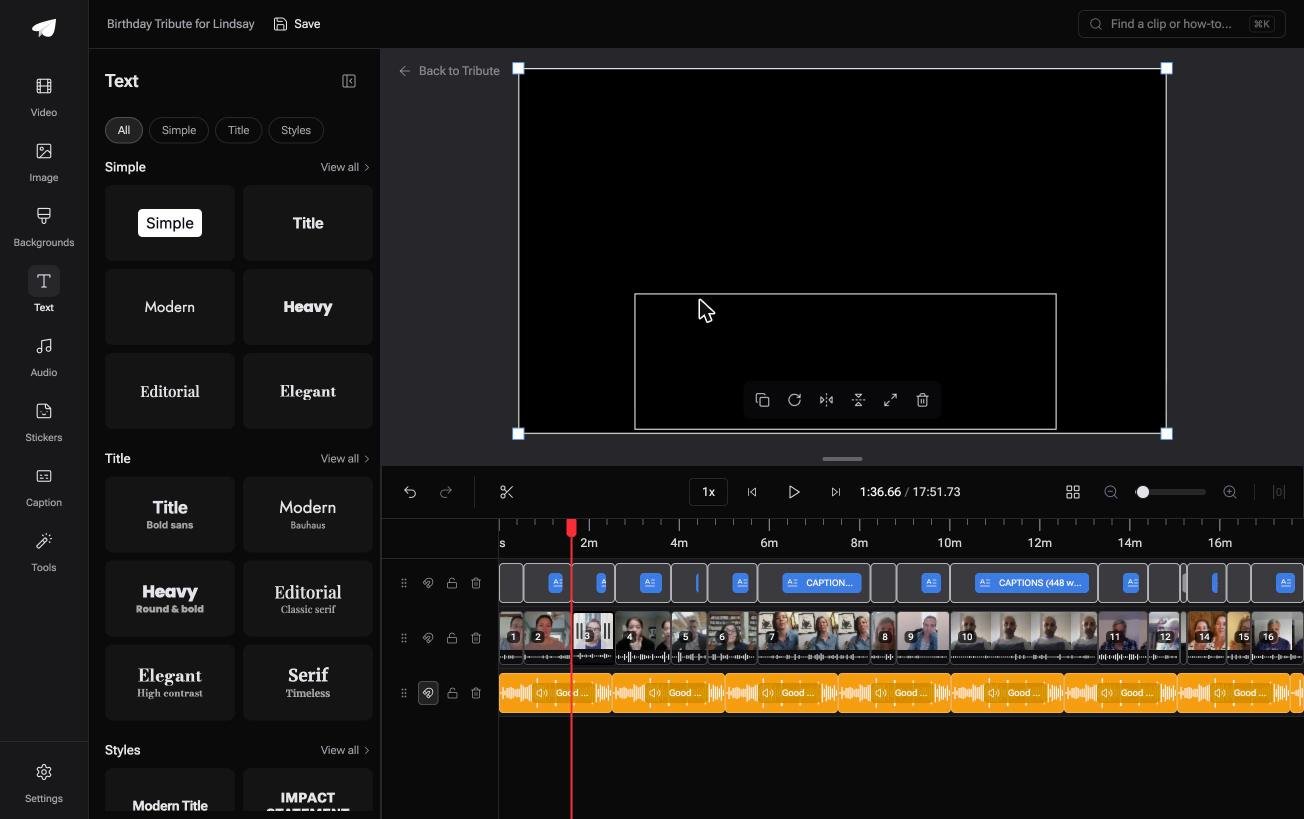
The Tribute video editor is a browser-based group video editor: contributors record clips on their phones and Tribute assembles them on a timeline with the music balanced under the voices.
It is ours, and it is the last thing on this page.
- Name badges built from each clip's uploaded-by name and relation, in 4 corner positions, dark or light
- A text panel that leads with ready-made styles grouped Simple, Title and Styles, rather than a font list
- 47 entrance and 47 exit animations for the text and the clips
- 83 occasion backgrounds for a title card between sections
Best for: A video where the text you need is a name and a relation, repeated twenty times.
Why it works: The names arrive with the clips, so nobody types them twice.
Who types the names if you never open an editor?
Everything above treats text as something you author, shot by shot.
That is the right model for a title sequence or a tutorial. It is the wrong model when the text is twenty people's names, because then the typing is the whole job and none of it is creative.
The case: the names came with the clips
You are in it when several people each record something for one person.
An uncle's seventieth. A coach leaving after fifteen seasons. Each person records on their own phone and says who they are at the top, because they are not sure the viewer will know.
Which means the add text to YouTube video problem that brought you here is twenty lower thirds, and you were going to type all of them.
Why the typing disappears
Each clip already carries the name of the person who uploaded it.
In the Tribute video editor that name and their relation become a badge on the clip, in one of four corners, light or dark. You are choosing a position rather than writing a caption.

What you do not have to do
Three decisions, and none of them is typing.
- No names to key in. Each badge carries the name the clip came with, in any of four corners.
- No title to design. A ready-made style over an occasion background marks where the video changes subject.
- No spellings to chase. On a Concierge Tribute, Eve corrects a misspelled name across the whole timeline.

When this is the wrong answer: you want kinetic typography, a branded lower third, or text keyed to a specific frame. Then an editor is the tool and the pre-upload route above is the one to take.

More on the build itself in a video montage maker.
Frequently Asked Questions
Can I add text to a YouTube video I already posted?
Not into the picture. You can add cards, an end screen and subtitles, or re-upload a version with the text burned in.
Can I replace the file and keep the URL?
Treat the answer as no. A new file means a new upload, and the views and comments stay with the original.
Why is the end screen option missing?
The video is shorter than 25 seconds, or it is set as made for kids. End screens are not offered in either case.
Do cards show on phones?
Google states cards are available to viewers on computers. Plan anything important as burned-in text or as an end screen instead.
How many cards can one video have?
Five. Spread them across the runtime rather than stacking them in the first minute.
Is there a way to add a watermark with my name?
A channel branding watermark is a separate setting from the editor and shows on the player. For a name inside the frame, burn it in before upload.
Will editing a popular video break it?
It can be blocked. Google warns that an unedited video with more than 100,000 views may not be saveable, outside the Partner Program.
👉 Let each clip carry the name it came with if twenty people are in the video and twenty names go on screen, and the typing never starts.
