
Adobe Premiere: Join Clips the Way the Timeline Wants
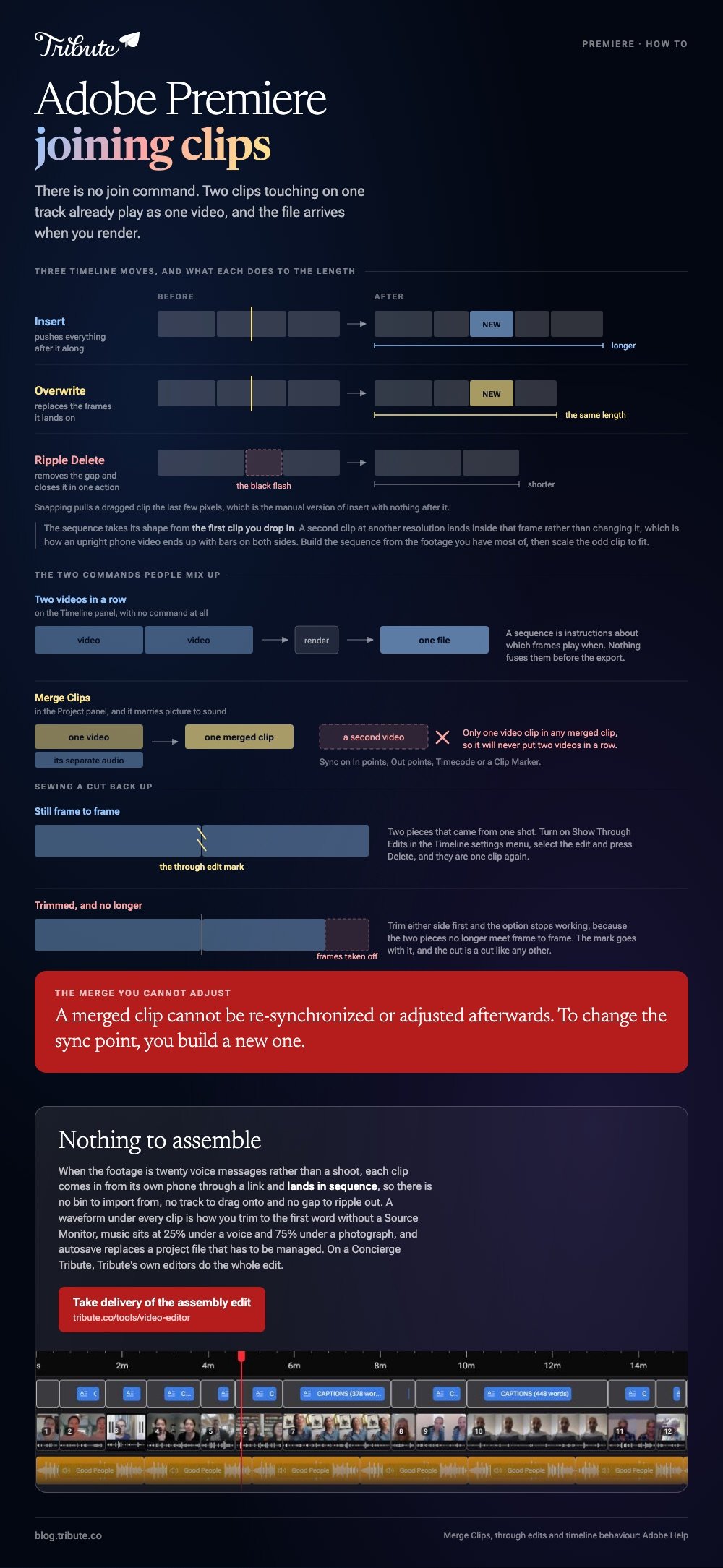
There is no join command. You drag both clips onto one video track so they touch, close any gap with Ripple Delete, and the export turns them into a single file. The command called Merge Clips does something else.

Can Adobe Premiere join clips into a single file?
Yes, at the point you export, not at the point you edit.
A sequence is a set of instructions about which frames play when. Two clips sitting against each other on one track already play as one video; the file arrives when you render. Nothing in the timeline fuses them before that.
That difference explains most of the confusion. In Premiere Pro, join two clips by placing them on a track in the right order, and the rest is tidying.
| What you want | What to use |
|---|---|
| Clips end to end | Drag to one track, or the Insert and Overwrite buttons |
| No black flash between them | Ripple Delete on the gap |
| A cut you made undone | Select the through edit, press Delete |
| Camera video with separate audio | Merge Clips |
So what does the Merge Clips command do?
It marries picture to sound, and it will not put two videos in a row.
Merge Clips exists for footage shot with a separate recorder. Adobe's page on merging clips in the Project panel states the limit in one line: you can have only one video clip in any merged clip.
Select the video, Command-click or Shift-click the audio, then choose Clip > Merge Clips and pick a sync point: In points, Out points, Timecode or Clip Marker.
One warning from the same page: a merged clip cannot be re-synchronized or adjusted afterward. To change it you build a new one.
Why will Adobe Premiere join clips only on the timeline?
Because the timeline is the only place order exists.
- Import the footage with Import media in the Project panel.
- Drag the first clip from the Project panel onto the Timeline panel.
- Drag the second clip so its head meets the tail of the first. Snapping pulls it the last few pixels.
- Or load a clip in the Source Monitor and use the Insert and Overwrite buttons. Insert pushes everything after it along; Overwrite replaces the frames it lands on.
- Select any gap, then choose Edit > Ripple Delete. Adobe describes this as removing the selection and closing the gap in one action.
- Export with File > Export, format H.264, and a Match Source preset so the output follows the footage.

Premiere Pro will join clips together as one continuous shot only in the next case, where the cut was yours to begin with.
What happens when the two clips do not match?
The sequence takes its shape from the first clip you drop in.
A second clip at another resolution or frame rate lands inside that frame rather than changing it, which is how an upright phone video ends up with bars on both sides.
Build the sequence from the footage you have most of, then scale the odd clip to fit it.
Undoing a cut you already made
Two clips that came from one piece of footage can be sewn back together.
In the Timeline settings menu, turn on Show Through Edits. Adobe's timeline panel guide describes through edit marks as cuts added to clips that could be continuous, and says you remove one by selecting the edit and pressing Backspace or Delete.
Trim either side first and the option stops working, because the two pieces no longer meet frame to frame.
Is Premiere the right tool for a plain join?
For two clips, no.
Premiere is a subscription with a project structure, a render queue and a learning curve, and joining two phone videos uses none of it. Compared to iMovie or a browser joiner, it costs an hour before it saves a minute.
Worth noting if you are following an older tutorial: Adobe's current desktop help calls the app Premiere rather than Premiere Pro. The menus on this page are the same either way.
Lighter routes are in joining clips in iMovie, merging video clips online and joining two videos together.
What if the clips arrived from a dozen phones?
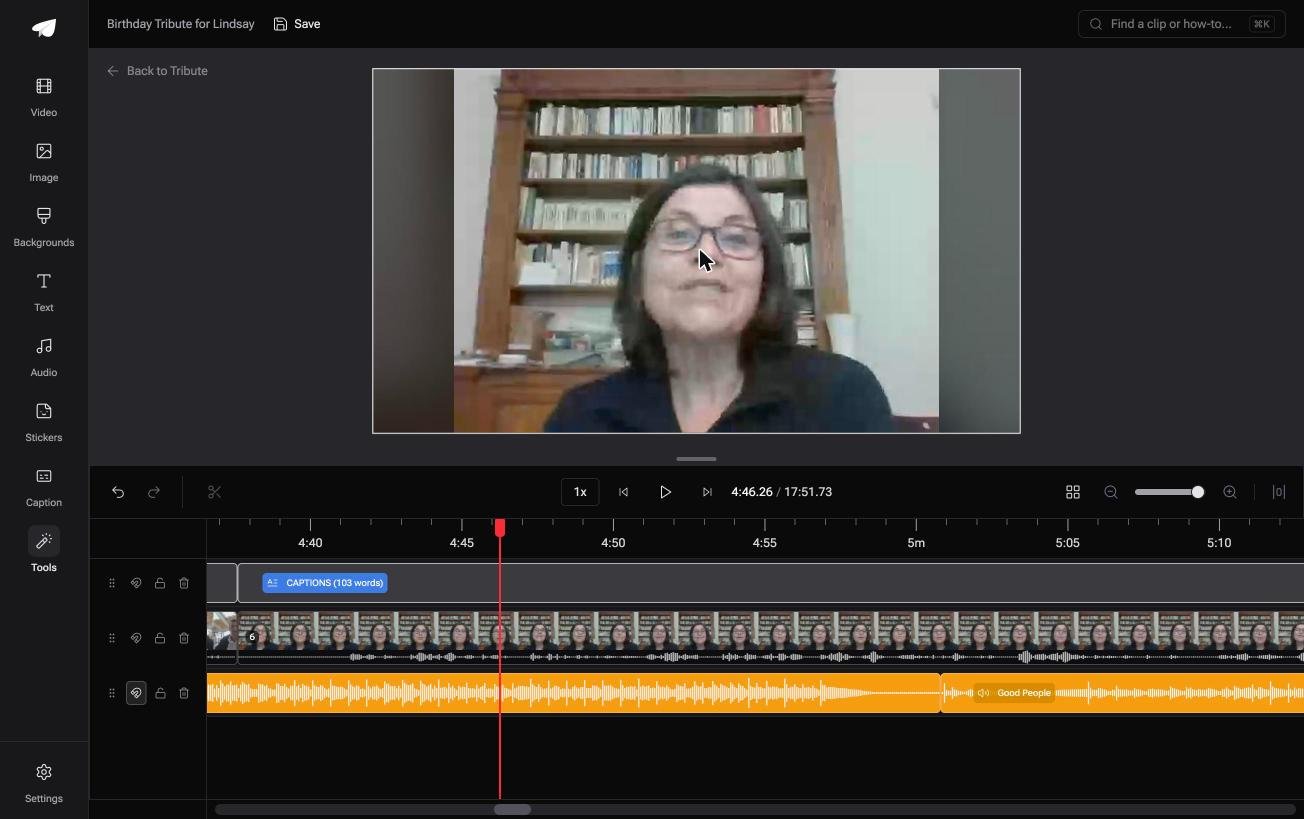
The Tribute video editor is a browser-based group video editor: contributors record clips on their phones and Tribute assembles them on a timeline with the music balanced under the voices.
It is ours, and it is the last thing on this page.
- Clips arrive in order, with a tick against the ones already on the timeline, so there is no assembly edit to perform
- A waveform under every clip, which is how you trim to the first word without a Source Monitor
- Music ducks to 25% under speech and 75% under photographs, overridable per clip, with a Crossfade switch between tracks
- Autosave and restorable version history, in place of a project file that has to be managed
Best for: A simple end to end assembly that does not justify a professional sequence.
Why it works: Unlike a professional sequence, there is nothing to set up before the first clip is in place.
Does anyone need to open a timeline at all?
Premiere assumes an editor who already has the footage.
It is built for someone with cards from a shoot, a bin to organize and a cut to find. None of that describes a person with twenty voice messages and a deadline on Friday.
There is one case where the timeline work disappears.
The case: several people each recorded for one person
You are in it when the clips arrived rather than being shot.
A ninetieth birthday. A colleague's last day. A memorial where the eulogies have to come from four states.
With 98% of US adults owning a cellphone of some kind, per the Pew Research Center mobile fact sheet, every one of them is holding a camera. None of them is holding a project file.

Why the assembly edit never happens
The clips are against each other before you arrive.
Each one comes in from its own phone through a link and lands in sequence, so there is no bin to import from, no track to drag onto and no gap to ripple out.
That is the exchange the Tribute video editor makes: none of Premiere's control, none of its setup.

What you do not have to do
- Import and lay out twenty clips. They arrive numbered and in order on one timeline.
- Balance the bed. Music sits at 25% under a voice and 75% under a photograph.
- Close the gaps. There is nothing to ripple delete, because nothing was dropped in by hand.
- Cut it at all, on a Concierge Tribute. Tribute's editors do the whole edit, and Concierge Deluxe returns it as a video book.
When this is the wrong answer: you need keyframes, masks or a color pass. Then Premiere is the tool and nothing here replaces it. The editor is not a standalone joiner and lives inside a paid Tribute.
The wider job is covered in making a video montage.
Frequently Asked Questions
How do I join two clips in Premiere Pro without a transition?
Put them against each other on one track with snapping on. A straight cut is the default and needs nothing added to it.
Why is Merge Clips dimmed?
You have more than one video clip selected, or nothing audio-only selected. A merged clip takes one video and the audio that belongs with it.
What is the black flash between my clips?
A gap. Select it and use Ripple Delete, which removes the gap and pulls everything after it back along the timeline.
Can I join clips of different resolutions?
Yes, and the sequence settings decide what happens to the smaller one. Set the sequence to match the footage you have most of, then scale the odd clip to fit.
Does nesting join clips?
Nesting wraps a selection into a sub-sequence so it behaves as one item. The clips inside stay separate, which is useful for applying one effect across several.
How do I export the joined clips as one file?
File then Export, with H.264 as the format and a Match Source preset. The render is the only step that produces a single video.
Is there a cheaper tool that does the same join?
Several. iMovie on a Mac, Clipchamp on Windows and Shotcut on either will put two clips in a row and export them without a subscription.

👉 Take delivery of the assembly edit if the footage is twenty voice messages rather than a shoot, and the only cut left is the one you want to make.
