
Canva Merge Videos: How to Join Clips on One Timeline
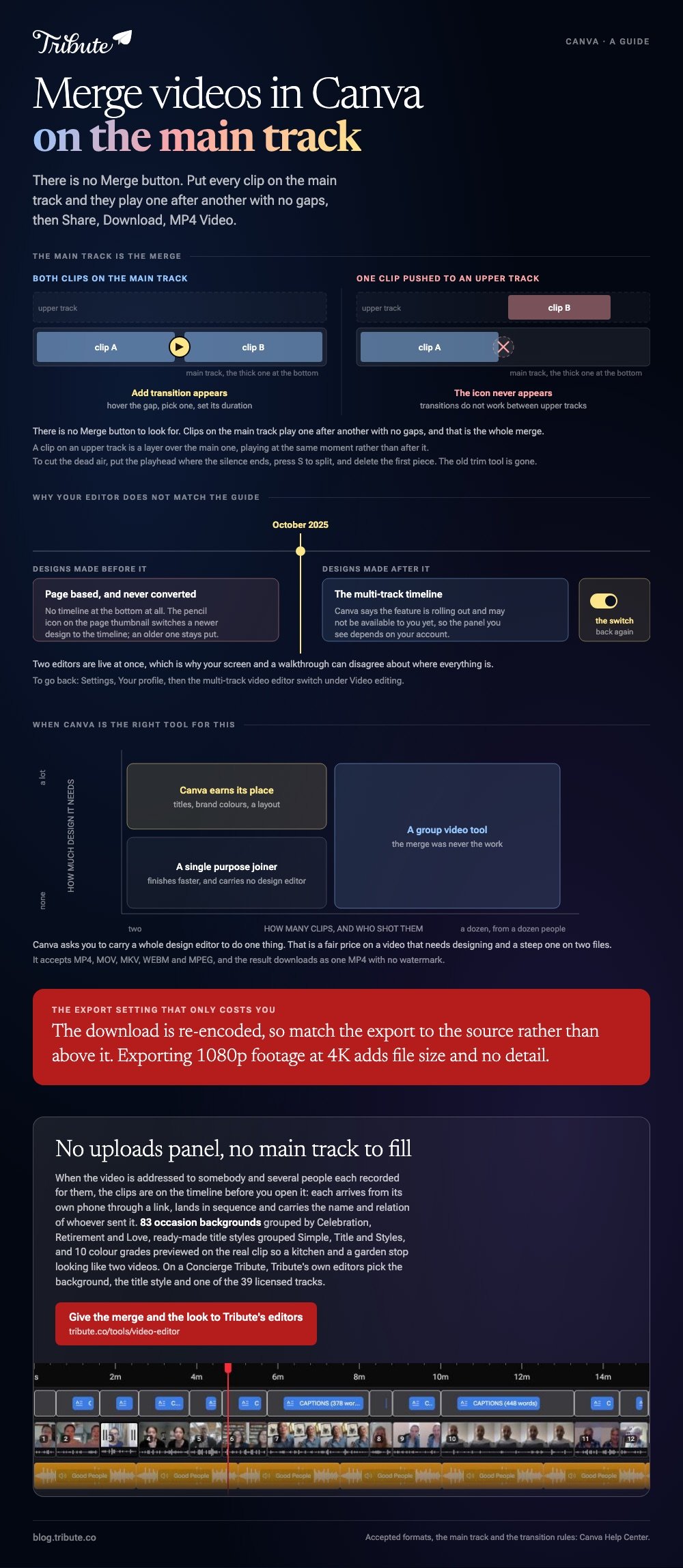
To merge videos in Canva, open a video design, add every clip to the main track with the plus button, and they play one after another with no gaps. Trim the edges, then Share > Download > MP4 Video.

Can Canva merge videos into one file?
Yes, and the merge is the easy half.
Canva is a design tool that grew a timeline, so joining clips is a side effect of putting them on the same track rather than a command you run. There is no Merge button to look for.
Canva's own video merger page lists MP4, MOV, MKV, WEBM and MPEG as the formats a video project accepts, and says the result downloads as a single MP4 with no watermark.
| What you want | Where it happens |
|---|---|
| Clips end to end | The main track, the thick one at the bottom |
| Two clips at once | An upper track, layered over the main one |
| A fade between clips | The gap between two main-track clips |
| Music under everything | The separate audio section |
How do you make Canva merge videos without gaps?
Put every clip on the main track and the gaps cannot happen.
- From the Canva home page, choose Video, then a video design type. The editor opens with the timeline along the bottom.
- Select the plus button beside the main track and choose Uploads, or drag your files from a folder straight onto the timeline.
- Add the clips in the order you want them. Canva's help center states that clips in the main track play one after another with no gaps.
- Drag a clip left or right along the track to change when it starts.
- Drag the left and right handles of a clip to trim its head and tail.
Cutting the dead air at the front
Position the playhead where the silence ends, select the clip and press S to split it, then delete the first piece.
Canva has retired the old trim tool and the auto-trim option, so dragging the edge is the route. Three seconds of somebody reaching for the record button at the top of each clip adds up fast over a dozen of them.
Adding a transition at the join
Hover between two clips on the main track and select Add transition, then pick one and set its duration.
If the icon never appears, the clips are on different tracks. Canva's help page is blunt about this: transitions cannot be added between clips on upper tracks.
Why does your Canva editor look different from the guide?
Because two editors are live at once.
Canva rebuilt video around a multi-track timeline and says the feature is rolling out and may not be available to you yet, so the panel you see depends on your account. Treat every step on this page as true of the timeline version.
- No timeline at the bottom? You are in page mode. Select the pencil icon on the page thumbnail to switch to the video timeline.
- An older project with no timeline at all? Designs made before October 2025 keep the page-based structure and are not converted.
- Want the old editor back? Settings, Your profile, then the multi-track video editor switch under Video editing.
How do you download the merged video?
Share, then Download, then MP4 Video.
Pick 1080p unless the footage was shot higher and the video is going on a television. Larger exports take longer and gain nothing on a phone screen, where most of this gets watched.
With 91% of US adults owning a smartphone, per the Pew Research Center mobile fact sheet, the audience for a family video is a group of handsets, not a projector.
One caution before you upload anything: 16% of US adults own a smartphone and no home broadband, so a browser editor is not a neutral ask for every contributor.
When is Canva the wrong tool for a merge?
When the clips outnumber the design decisions.
Canva earns its place on a video that needs titles, brand colors and a layout. Compared to a plain joiner, it asks you to carry a whole design editor to do one thing.
For a straight two-file join, a single purpose tool finishes faster. Our guides to merging video clips online and merging videos online cover those, and making a Canva slideshow covers the stills version.
What if the clips came from a dozen different people?
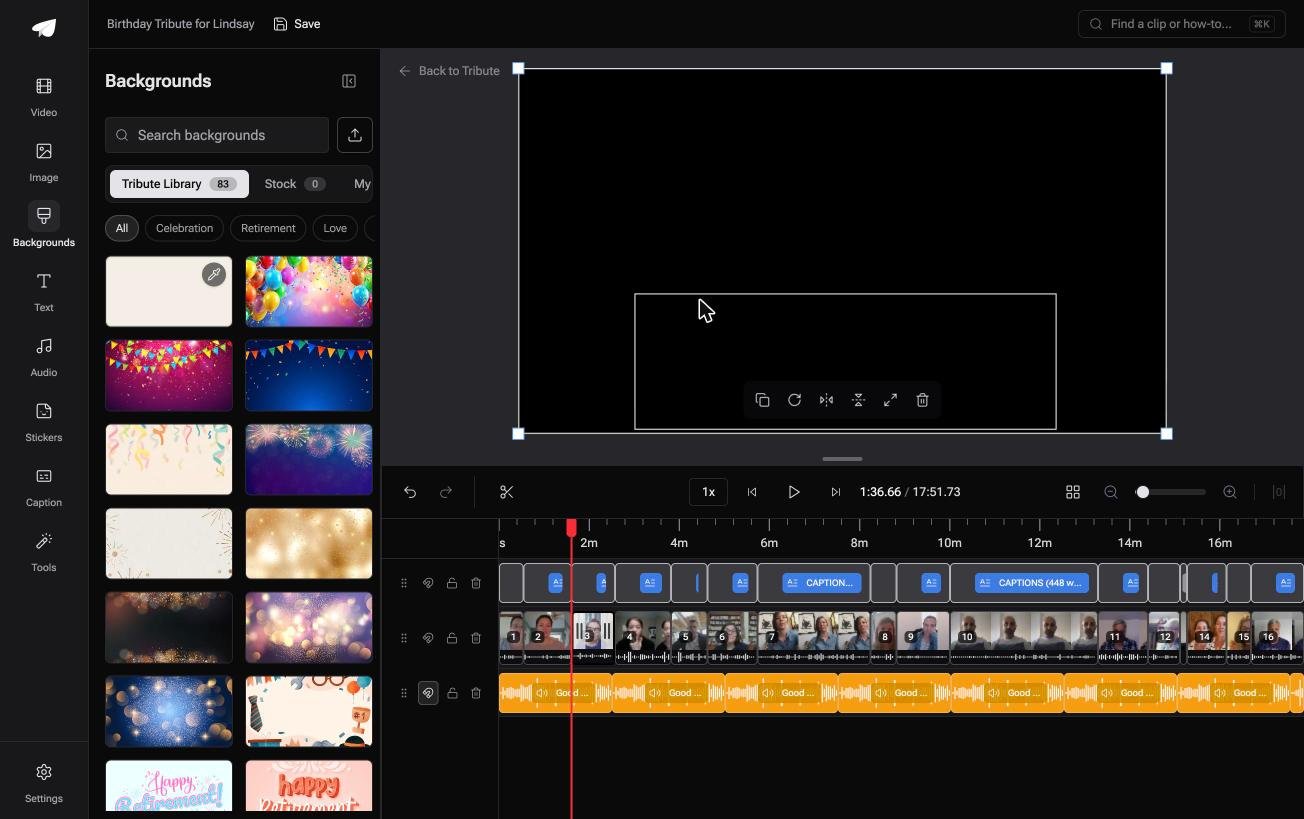
The Tribute video editor is a browser-based group video editor: contributors record clips on their phones and Tribute assembles them on a timeline with the music balanced under the voices.
It is ours, and it is the last thing on this page.
- 83 occasion backgrounds grouped by Celebration, Retirement and Love, which is the design layer most of these videos need
- Ready-made title styles grouped Simple, Title and Styles, rather than a font list to work through
- 10 color grades previewed on the real clip, so a kitchen and a garden stop looking like two videos
- Captions on every clip from one switch, with 10 styles and each line editable
Best for: A timeline that has to look designed, and nobody on it is a designer.
Why it works: Unlike a blank design document, the choices are narrowed to the ones an occasion video uses.
Who builds the timeline when the clips are not yours?
All of that assumes you are the one holding the footage.
You collected it, uploaded it, put it in order and only then started designing. The merge was never the slow part.
There is one case where the collecting is not yours either.
The case: several people each recorded for one person
You are in it when the video is addressed to somebody.
A teacher retiring in June. Four siblings putting something together for a parent's anniversary. A memorial where the people who should speak are across three time zones.

Why there is nothing to drag onto a track
The clips are on the timeline before you open it.
Each one arrives from its own phone through a link, lands in sequence and carries the name and relation of whoever sent it. No uploads panel, no main track to fill.
That is where the Tribute video editor parts company with a design tool: it is not a better merge, it is an arrival.

What you do not have to do
- Not the uploading. Each clip lands in sequence from the phone that recorded it.
- Not the design. On a Concierge Tribute, Tribute's editors pick the background, the title style and one of the 39 licensed tracks.
- Not the line where the captions misheard a name. Eve, the assistant on Concierge and Concierge + Video Book, corrects it across the whole timeline.
When this is the wrong answer: you shot the footage yourself, or the video is a brand asset that has to match a style guide. Then stay in Canva. The editor is not a standalone merger and lives inside a paid Tribute.
The wider job is covered in making a video montage.
Frequently Asked Questions
Can you merge videos in Canva on a free plan?
Yes. Canva states that merged videos download as MP4 with no watermark. Some elements, animations and the Magic Switch resize sit behind a paid plan, and the join itself does not.
Why can I not add a transition between my clips?
One of the clips is on an upper track. Transitions work only between clips sitting on the main track, which is the bottom-most one in the timeline.
How do I merge videos in Canva on a phone?
The mobile app has the same timeline and the same plus button, and the steps match the desktop ones. Trimming on a small screen is the part worth doing on a laptop if you have one.
What video formats will Canva accept?
MP4, MOV, MKV, WEBM and MPEG, per Canva's own merge page. A clip that refuses to upload is often Apple ProRes, which re-exports from the phone or camera app in a common format.
Does Canva reduce the quality when it merges videos?
The download is re-encoded, so match your export to the source rather than above it. Exporting 1080p footage at 4K adds file size and no detail.
Can two people work on the same Canva video?
Yes, a design can be shared for editing. It is a shared document rather than a collection point, so somebody still gathers the clips and uploads them.
How long can a Canva video be?
Long enough for anything built out of greetings, though a browser tab slows down as the track fills. Past twenty clips, do the ordering first and the design second.

👉 Give the merge and the look to Tribute's own editors if you are collecting clips from a group rather than shooting them, and the uploads panel never opens.
