
Canva Trim Video: The Timeline Handles, Split, and Scene Length
Canva trims on the timeline at the bottom of the editor: select the clip, then drag the handle at either end. To lose something from the middle, split the clip first and delete the piece you do not want.

Where is the Canva trim video control?
On the timeline, not on the clip in the page.
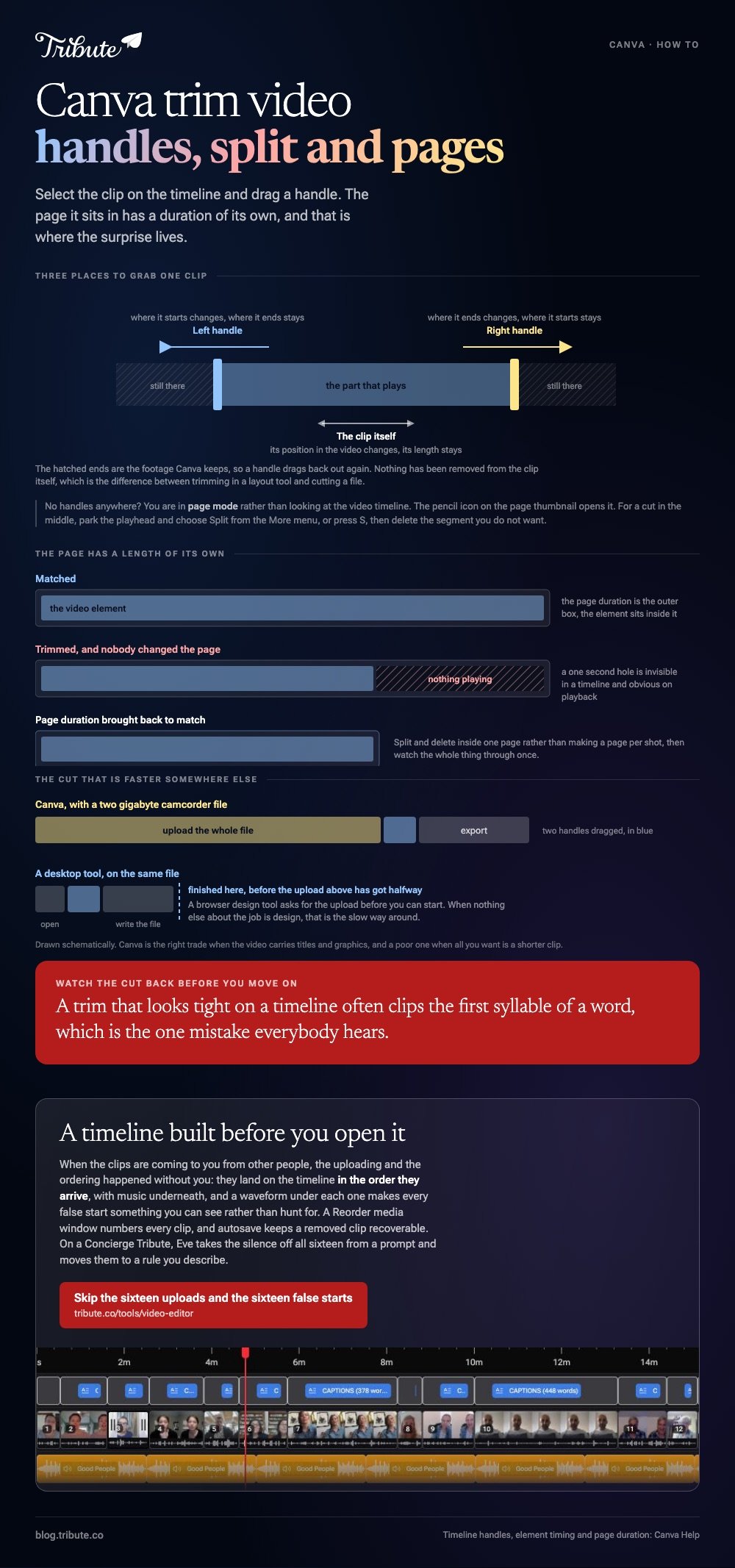
Canva's help on creating and editing videos has you select an element in the timeline, then drag its left handle to change when it starts or its right handle to change when it ends.
Dragging the body of the element does something else again: it moves the clip along the video without changing its length.
If no timeline is showing, you are in page mode. Open the video timeline with the pencil icon on the page thumbnail and the timing controls appear.
| What you drag | What changes | What stays |
|---|---|---|
| Left handle | Where the clip starts | Where it ends |
| Right handle | Where the clip ends | Where it starts |
| The clip itself | Its position in the video | Its length |
How do you trim a clip on the Canva timeline?
Work from the ends inward, and split only when you have to.
Most trims are dead air at the front and a hanging second at the back. Both come off with a handle, and neither needs a cut.
- Open the video timeline at the bottom of the editor.
- Select the clip so its handles appear at each end.
- Drag the left handle in until the first word or the first movement.
- Drag the right handle back to where the shot should stop.
- For a cut in the middle, park the playhead and choose Split from the More menu, or press S.
- Select the unwanted segment and delete it.
Canva keeps the footage you trimmed away, so the handles drag back out again. That is the difference between trimming in a layout tool and cutting a file: nothing has been removed from the clip itself.
On a phone, the same job runs through the scissors icon rather than a visible timeline, and the handles work the same way once the trimming view is open.
Watch the cut back before you move on. A trim that looks tight on a timeline often clips the first syllable of a word, which is the one mistake everyone hears.
Does a Canva trim video edit change the page length?
It can, and that is where the surprise lives.
A page in a Canva design has its own duration, and a video element sits inside it. Trim a clip shorter than its page and you are left with a stretch of page and nothing playing in it.
Canva's guidance on element timing separates the two: timing controls when an element appears and disappears, while the page duration controls how long the whole page shows.
- Trim the clip, then check the page duration matches it.
- Split and delete inside one page rather than making a page per shot.
- Watch the whole thing through once, because a one second hole is invisible in a timeline and obvious on playback.
Unlike a plain video editor, Canva is a design tool with a timeline bolted to it, and the page is still the unit.
That is a good trade when the video carries titles and graphics. It is a poor one when all you want is a shorter clip.
When is Canva the wrong place to trim?
When nothing else about the job is design.
Picture a two gigabyte clip from a camcorder, and all you need is the middle ninety seconds. Uploading it to a browser design tool to cut out a minute and a half is the slow way around.
Faster routes for that: trimming in VLC, or ffmpeg when you want the cut without a re-encode. Compared with either, Canva asks for an upload before you can start.
For the general version of this job, see how to trim a video. Once the clips are the right length, a montage maker is what puts them in order.
What if sixteen clips all need the same cut?
The Tribute video editor is a browser-based group video editor: contributors record clips on their phones and Tribute assembles them on a timeline with the music balanced under the voices.
It is ours, and it is the last thing on this page.
- Clips arrive in order on the timeline, with a tick against the ones already placed
- A waveform under every clip, so the silence before the first word is something you can see
- A Reorder media window: every clip numbered, select all, move to front, move to back, move to position
- Autosave and restorable version history, with removed clips recoverable rather than deleted

Best for: Someone facing sixteen phone messages that each open with four seconds of a person squinting at the record button.
Why it works: The same small trim repeats sixteen times, and the waveform shows where it should land on each one.
What is left to trim when the timeline builds itself?
A handle is not what makes this job long. The length comes from sixteen uploads, sixteen file names and a decision about what follows what.
Canva assumes you brought the footage. A different kind of video arrives in pieces from people who are not in the room, and the trimming is the smallest part of it.
The case: the clips were sent to you
This is the case where several people each record something for one person.
A fiftieth wedding anniversary, with messages from children, grandchildren and two old neighbors. Nobody rehearsed. Every clip has a false start at the front, and one has a dog in it.

Why the trimming stops being the job
Because the uploading and the ordering happened without you.
Clips land on the timeline in the order they arrive, with music underneath, and the waveform makes each false start visible. One pass down the timeline and the dead air is gone.
That is how the Tribute video editor treats a pile of messages: not a quicker handle to drag, but a timeline that was built before you opened it.
What you do not have to do
- No sixteen uploads. One link, and each person uploads from their own phone.
- No trimming. On a Concierge Tribute, Eve, the AI assistant inside the editor, takes the silence off all sixteen clips from a prompt.
- No ordering. Eve moves them to a rule you describe, across the whole timeline.
- No export to wait on. The preview matches the video you get back, frame for frame.

When this is the wrong answer: the video is a piece of design, with brand colors, titles and a layout. Canva is built for that and an assembly tool is not.
The editor also has no page concept, no graphics library of the kind a designer expects, and it lives inside a paid Tribute rather than standing alone.
Frequently Asked Questions
How do I trim a video in Canva?
Select the clip on the video timeline and drag the handle at either end. The left handle sets where it starts, the right handle sets where it stops.
Why can I not see the trim handles?
Because the editor is in page mode rather than showing the video timeline. Open the timeline with the pencil icon on the page thumbnail and the handles appear.
How do I cut a section out of the middle?
Put the playhead where the cut should go and choose Split, or press S. That gives you two segments, and you delete the one you do not want.
Does trimming in Canva delete the footage?
No. The clip keeps what you trimmed away, so dragging the handle back out restores it.
Why is there a gap after my clip?
The page is longer than the trimmed clip. Shorten the page duration, or extend the clip to fill it.
Can I trim video in the Canva app on a phone?
Yes, through the scissors icon on the selected clip. The trimming view works the same way as on a laptop, with a handle at each end.
Is there a size limit on what I can upload?
Uploads depend on your plan, and a long camera file is slow either way. For one cut on a large file, a desktop tool finishes before the upload would.
👉 Skip the sixteen uploads and the sixteen false starts if the clips are coming to you from other people, and on Concierge Eve does the trimming.
