
VLC Media Player Trim Video: The Record Button Method and Its Limits
VLC Media Player cannot trim video the way an editor does. There is no handle to drag. Two things work instead: the record button, which writes back whatever you play, and the Convert/Save dialog, which accepts a start and a stop time.
Can VLC media player trim video at all?
Yes, but by capture rather than by editing.
VLC is a player with a transcoding engine bolted on. Nothing in it holds a clip on a timeline, so every trim is a second pass over the file while it plays or converts.
VideoLAN is candid about where that falls down. Its own wiki warns that none of the ways VLC offers to combine streams merges them with correct time signatures, which causes seeking errors even inside VLC. Treat the trim features the same way: useful, not precise.
| Method | What it costs you | Use it when |
|---|---|---|
| Record button | You wait out the clip in real time | The piece you want is short |
| Convert/Save start and stop | Re-encoding, and the times can be ignored | The piece sits deep in a long file |
| A real editor | An install or a browser tab | You care about the exact frame |
How do you trim video using VLC with the record button?
The record button is hidden until you ask for it.
On Windows and Linux it lives behind View > Advanced Controls, which adds a second row of buttons under the seek bar. On a Mac the same command sits in the Playback menu.
VideoLAN's hotkey reference maps Advanced controls to Ctrl + A and Record to Shift + R, so you can skip the menus once you know the clip.
- Open the file in VLC with Media > Open File.
- Turn on View > Advanced Controls. A red record button appears at the left of the new row.
- Drag the seek bar to a second or two before your in point and pause.
- Press play, then press Record the moment you reach the first frame you want.
- Press Record a second time at your out point. VLC closes the file and writes it.
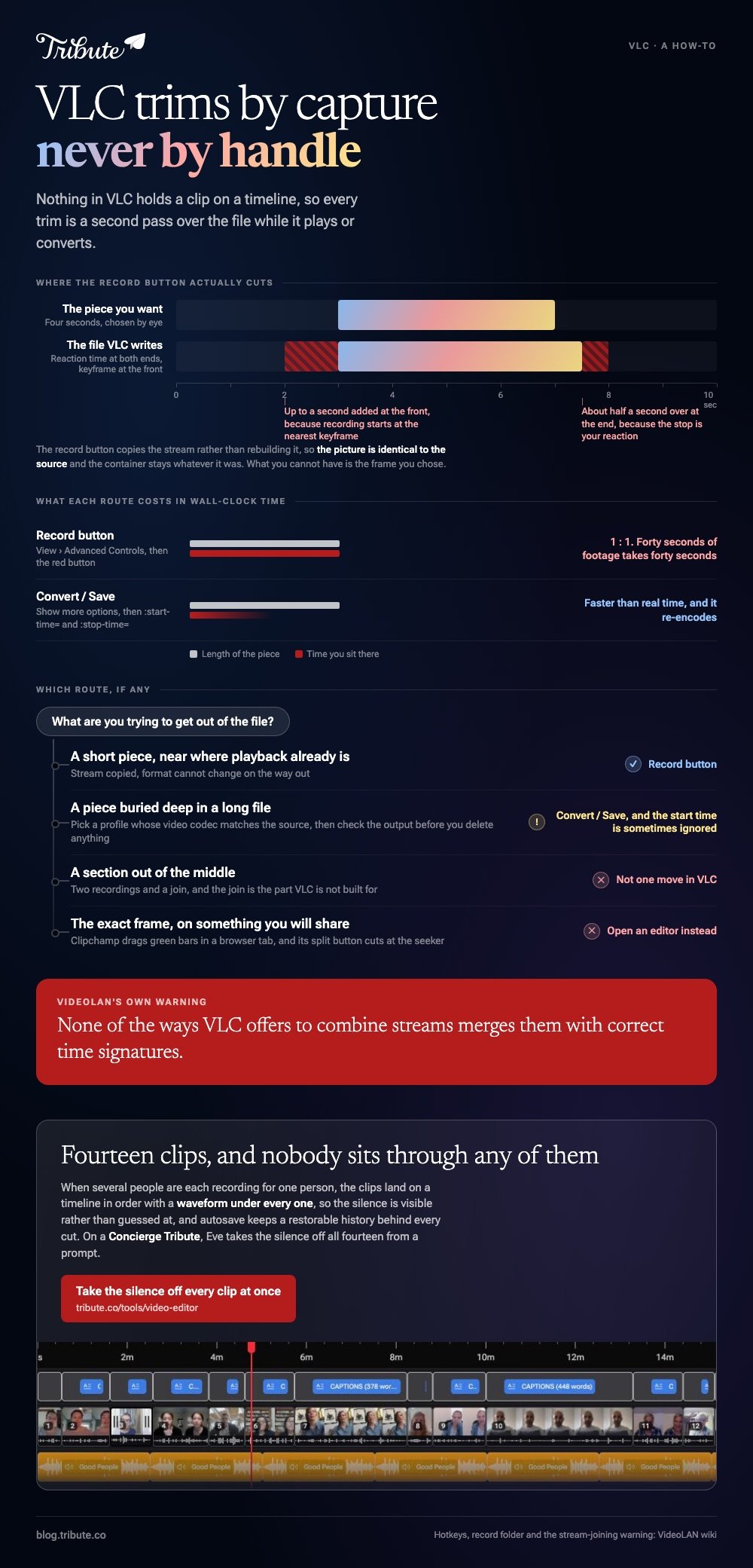
A trim with VLC done this way copies the stream rather than rebuilding it, so the picture is identical to the source and the container stays whatever the source was. You cannot change the format on the way out.
The catch nobody mentions: you sit through the whole section in real time, because VLC is recording playback. Forty seconds of footage takes forty seconds.
Where does the recording end up?
In your system video folder, unless you tell VLC otherwise.
The setting is buried. VideoLAN's wiki puts it at Tools > Preferences > Input & Codecs, in the "Record directory or filename" field, and says to press Save and restart VLC before the change takes effect.
Set it once to somewhere you will find again, because the generated file names are long and start with "vlc-record".

How do you trim in VLC with Convert/Save instead?
This path does not play the clip back, so it finishes faster than real time.
It hides the controls behind a checkbox most people never tick. The start and stop values go in as command line style options in a text field, not as timecodes in a box.
- Choose Media > Convert / Save and add your file.
- Tick Show more options at the bottom of the dialog.
- Type your start and stop seconds into the Edit Options field, after whatever is already there: :start-time=120 :stop-time=300.
- Click Convert / Save, pick a profile, and choose a destination file.
- Click Start and watch the progress run along the seek bar.
Check the output before you delete anything. VideoLAN's own bug tracker and support forum carry a long tail of reports where the start time was ignored and the new file began at zero, or where the video stream vanished and only the audio survived.
Unlike the record method, this one re-encodes, so the profile you pick decides the quality. Choose a profile whose video codec matches the source if you want to keep what you had.
Should you let VLC media player trim video, or open an editor?
Use VLC when the file is already open in VLC and the cut does not have to be tidy.
Everything else is faster somewhere else. A trim in VLC snaps to where playback happened to be, there is no waveform to read, and nothing shows you the frame you landed on.
Microsoft Clipchamp runs in a browser tab and does the same job with handles: you drag the clip onto the timeline, click it, and drag the green bars back and forth until the clip starts and ends where you want.
The split button cuts a clip in two at the seeker, which is the move VLC has no answer for at all.
Compared with that, a VLC trim is a stopwatch exercise. It is worth knowing because VLC is free software that is already installed on most desktops, and it is the wrong default for anything you plan to share.
More on the wider job in how trimming a video should work and cutting a section out with VLC. The frame itself is a different problem: see cropping in VLC, and building a video montage once the pieces are the right length.
What if a dozen people each sent you a clip?
Then trimming is the small part of the job and VLC is the wrong tool twice over.
The Tribute video editor is a browser-based group video editor: contributors record clips on their phones and Tribute assembles them on a timeline with the music balanced under the voices. It is ours, and it is the last thing on this page.
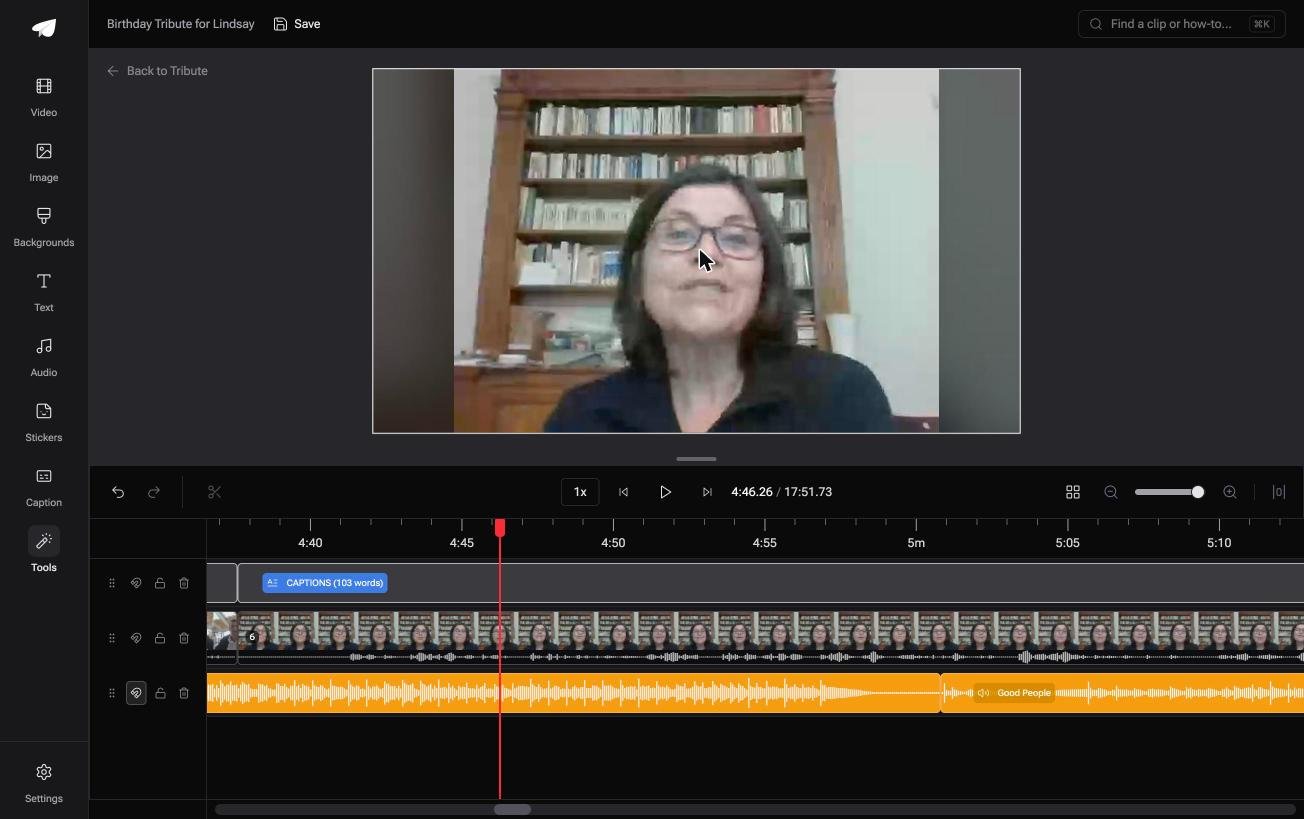
- A waveform under every clip, so the silence before the first word is visible rather than guessed at
- Autosave and a restorable save history, so a bad trim costs nothing
- Music already set at 25% under speech and 75% under photos, overridable per clip
- Reorder media, with every clip numbered and bulk moves to front, back or any position
Best for: Fourteen clips to trim, and VLC willing to do one of them at a time.
Why it works: The clips arrive in order with the sound already balanced, so trimming is the only job left.
Can you skip the trimming job altogether?
Nobody trims for fun.
You are doing it because twenty clips arrived with four seconds of throat clearing at the front of each one, and the finished video runs nine minutes longer than it should. There is one case where that pile never forms.
The case: you are collecting, not shooting
That case arrives when several people each record something for one person.
A grandmother turning eighty. A colleague leaving after fifteen years. A memorial where the people who should speak are in four time zones. Nobody is shooting footage: everyone is recording a message, and the job is assembly.

Why the VLC question never comes up
Because the clips are never loose files on a desktop.
They land on a timeline in the order they arrived, with a tick against the ones already placed. That is how the Tribute video editor handles it: not a better way to trim video with VLC, but a way of never opening VLC.
What you do not have to do
- Record a playback to make a cut. Each clip arrives whole, from the phone it was recorded on.
- Hunt for the first word. A waveform sits under every clip, so the silence is visible.
- Trim at all, on a Concierge Tribute. Eve, the AI assistant inside the editor, takes the silence off all fourteen clips from a prompt.
- Do the edit yourself. Concierge means Tribute's editors build the video, and Concierge Deluxe returns it as a video book.

When this is the wrong answer: you shot the footage yourself and want one clip shortened. Then go back up this page, or open a browser editor. The Tribute editor is not a standalone trimmer either: it lives inside a paid Tribute.
Frequently Asked Questions
Does VLC have a trim function?
Not a true one. VLC trim is done by recording playback or by setting a start and stop time in Convert/Save, and neither gives you a draggable handle or a frame-accurate cut.
Why is my VLC recording longer than I expected?
The record button starts and stops on your reaction, not on a timecode, so half a second at each end is normal. Recording also begins at the nearest keyframe in some containers, which can add a second at the front.
Can I trim a video with VLC without losing quality?
Yes, with the record button. It copies the stream rather than re-encoding it, so the output matches the source. The Convert/Save route re-encodes and the profile you pick sets the quality.
Where does VLC save a recording?
In your system video folder by default. You can change it under Tools, Preferences, Input and Codecs, in the record directory field, then save and restart VLC.
Can VLC cut a section out of the middle of a clip?
Not in one move. You would record the part before and the part after as two files, then join them in something else, and VideoLAN warns that VLC does not join files with correct timing.
What should I use for a video I plan to share?
A browser editor such as Clipchamp, or the editor already on your phone. Both show you the frame you are cutting on, which is the one thing VLC never does.
👉 Hand the silences to Eve on a Concierge Tribute if several people are each recording for one person, and the stopwatch evening never happens.
