
Clipchamp Crop Video: The Crop Button, Fill, and Every Aspect Ratio
Clipchamp crops from the floating toolbar above the stage: select the clip, click the crop button, drag the handles on the preview, click done. The fill button does the other half of the job by clearing black bars when the shape changes.

Where is the Clipchamp crop video button?
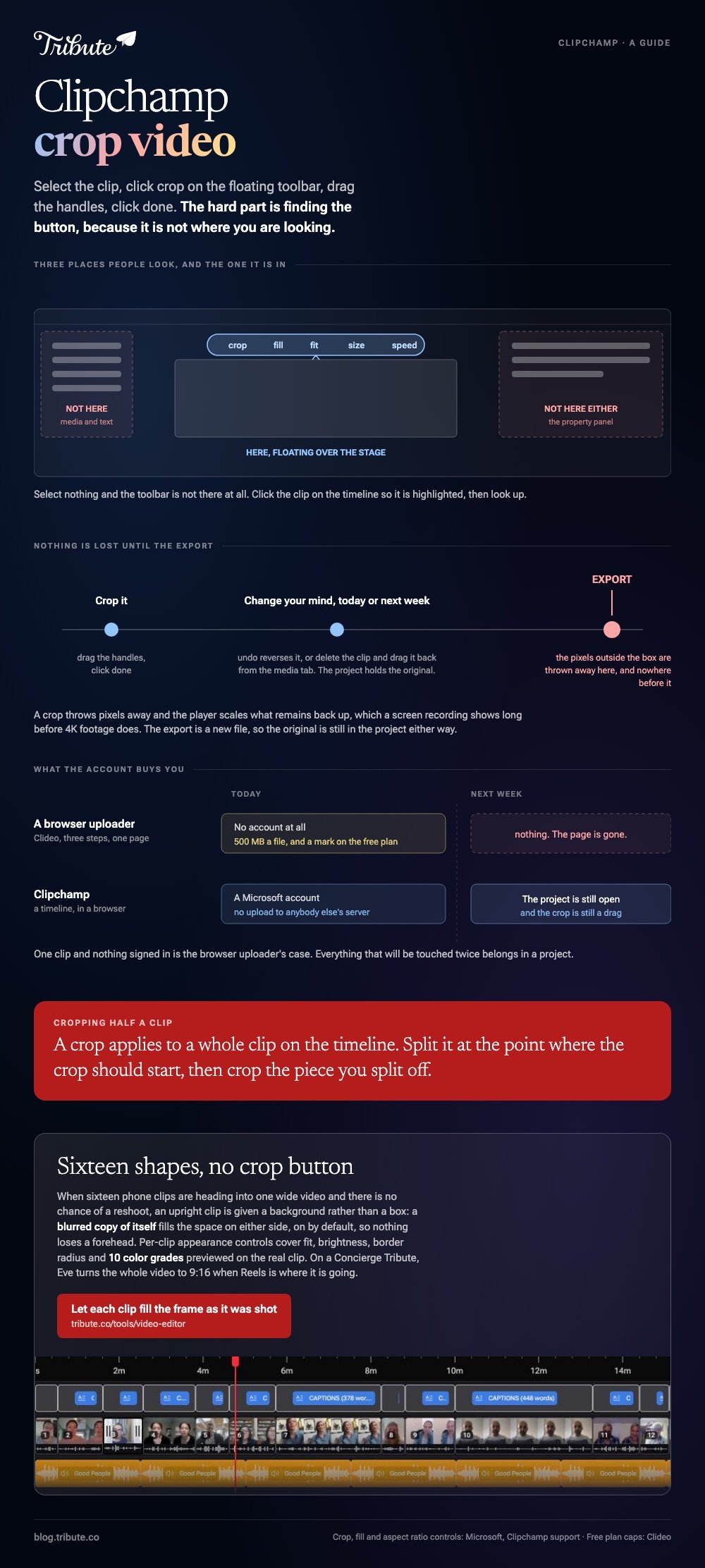
On the floating toolbar that appears above the stage once a clip is selected.
It is not in the left sidebar with the media and the text, and it is not in the property panel on the right. Clipchamp puts framing controls over the preview itself, which is why people hunt for it.
Select nothing and the toolbar is not there at all. Click the clip on the timeline first, then look up.
How do you crop a video in Clipchamp step by step?
Four clicks, and none of them re-encode anything until you export.
- Add the clip. Import from your device or OneDrive, then drag it onto the timeline.
- Select it so it is highlighted, and click the crop button on the floating toolbar.
- Drag the handles on the sides, top and bottom of the preview, sideways, up and down or on the diagonal.
- Click done. The undo button reverses it, and deleting the clip and dragging it back from the media tab starts over.
Microsoft sets the same path out in its guide to cropping videos or images in Clipchamp, which also covers the fill button.
Best for: Trimming a boom microphone, a doorway or a stranger out of the edge of a shot.
Why it works: The crop stays editable on the timeline, so the pixels are only thrown away at export.
Can Clipchamp crop video to 9:16 for a phone?
It can, and the control is the size button rather than the crop button.
Clipchamp sets every new project to 16:9 and then auto-adjusts if your first asset is square. Changing it afterwards is one menu, and the presets cover everywhere a video goes.
| Ratio | Shape | Where it goes |
|---|---|---|
| 16:9 | Wide | YouTube, a TV, the default |
| 9:16 | Upright | Reels, Shorts, TikTok |
| 1:1 | Square | Feed posts |
| 4:5 | Tall | Instagram feed |
| 4:3, 2:3, 21:9 | Other | Older footage and wide cuts |
Hover each one to preview it before you commit, then check every clip on the timeline: a ratio change applies to the project, and each clip answers it in its own way. Microsoft's guide to changing the aspect ratio of a video says the same.

What is the difference between crop, fill and the aspect ratio?
They answer three different questions, and using the wrong one is the usual cause of a bad frame.
- Aspect ratio sets the shape of the whole video.
- Crop cuts into one clip and discards what falls outside the box.
- Fill scales a clip up until it covers the frame, clearing the black borders without you drawing anything.
Fill is the one most people want when a phone clip lands in a wide project. It zooms, so an upright recording loses its sides rather than gaining bars, and you can drag the clip to choose which part survives.
Compared to a crop, fill is reversible in one click and needs no judgment about pixels.
When is a browser uploader the better choice?
When the job is one clip and you are not signed in to anything.
Clideo crops in three steps on a single page, with no account at all, and its free plan stops at 500 MB per upload and leaves a watermark. Clipchamp wants a Microsoft account and gives you a timeline in exchange.
Unlike an upload tool, Clipchamp keeps the project around, so the same crop can be adjusted next week.
The alternatives are lined up in cropping a video online and the online crop tools worth using, and the desktop version of the same job is in cropping a video in Premiere Pro.
What if sixteen people each sent a clip?
Then the shape problem arrives sixteen times, and the crop button is the slow answer to all of them.
The Tribute video editor is a browser-based group video editor: contributors record clips on their phones and Tribute assembles them on a timeline with the music balanced under the voices.
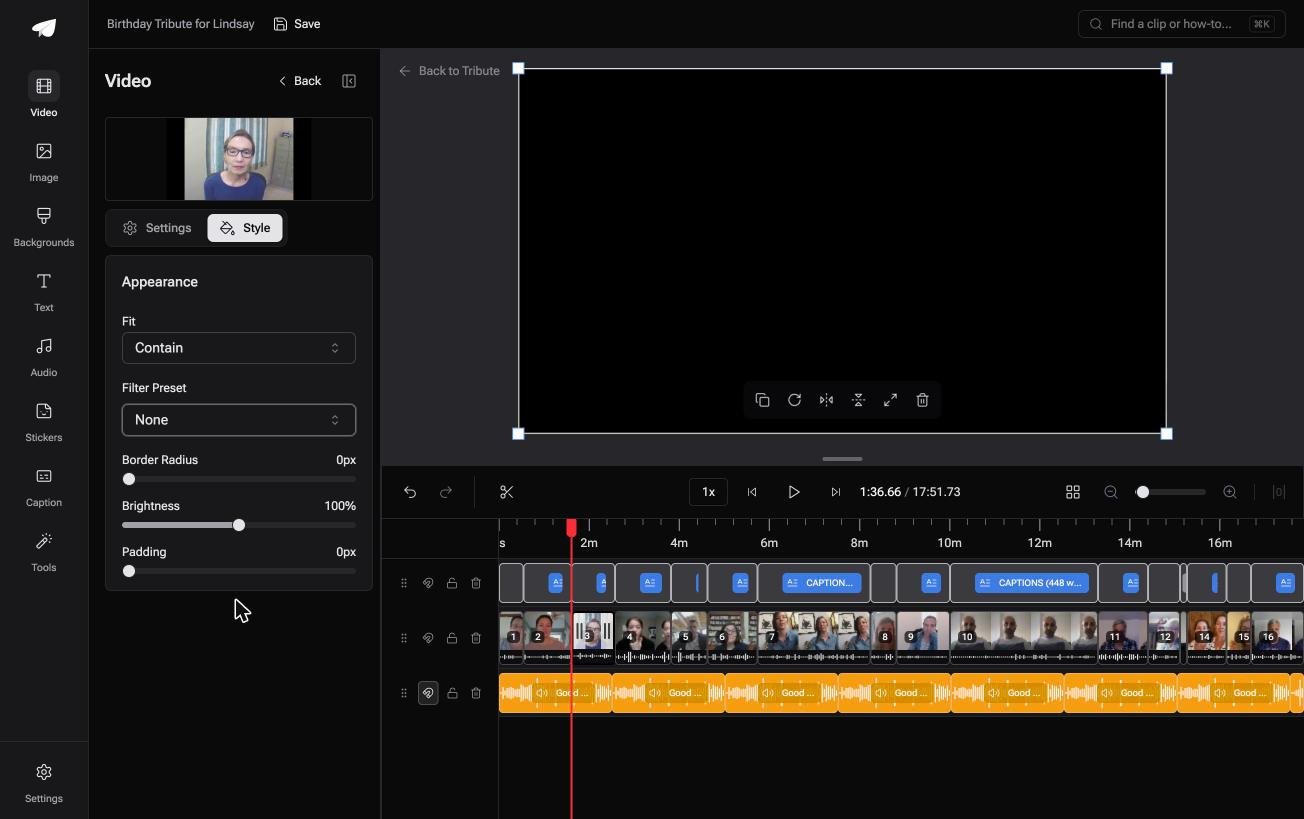
- Blurred edges on by default behind upright footage, filling the frame with no black bars and no crop
- Per-clip appearance controls for fit, brightness, border radius and 10 color grades, previewed on the real clip
- 47 entrance and 47 exit animations, including the slow zoom look
- A reorder window where every clip is numbered and can be moved to front, back or any position
Best for: Sixteen phone clips headed into one wide video, with no chance of a reshoot.
Why it works: Every clip is handled on arrival, so sixteen shapes become one video without sixteen decisions.
What if every clip already filled the frame?
A camera and a destination disagree about shape, and the crop button is where that argument gets settled.
On one clip that is a small disagreement. On fifteen clips from fifteen phones it is the whole evening, and the thing you are cutting away tends to be a person's shoulder.
There is a kind of video where the disagreement never happens.
The case: nobody held the camera for you
You are in it when several people each record a message for the same person.
A grandmother turning eighty. A colleague leaving after fifteen years. Nobody framed a shot, and 91% of US adults own a smartphone according to the Pew Research Center mobile fact sheet, so almost all of it arrives upright.
If you are reframing one video of your own, the Clipchamp crop video steps above are where this page ends for you.

Why the framing question stops arising
Because an upright clip is given a background rather than a box.
A blurred copy of the clip fills the space on either side, so a tall recording and a wide one sit in the same video without bars and without a crop eating a forehead.
That is on by default in the Tribute video editor, and the per-clip fit control is there when one shot wants different treatment.
What the job stops being
Four moves, and none of them is yours.
- Not the chasing. People record from one link, on whatever phone is in their pocket.
- Not the fitting. Each clip lands already filling the frame it was given.
- Not the reframe. On a Concierge Tribute, Eve, the AI assistant inside the editor, turns the whole video to 9:16 when Reels is where it is going.
- Not the edit. Tribute's own editors take the sequence, the trims, the captions and the names.

When this is the wrong answer: there is one clip and one shape you want it in. Then the crop button above does it in four clicks. The editor is not a standalone cropper either: it lives inside a paid Tribute.
For the wider job of turning many clips into one piece, see making a video montage.
Frequently Asked Questions
Why can I not see the crop button in Clipchamp?
Nothing is selected. Click the clip on the timeline so it is highlighted, and the floating toolbar appears above the stage with crop and fill on it.
Does Clipchamp put a watermark on a cropped export?
No. Exports carry no watermark, and the resolution choices at export are where the plans differ rather than the branding.
Can I crop part of a clip and leave the rest alone?
Split the clip at the point where the crop should start, then crop the piece you split off. A crop applies to a whole clip on the timeline.
Will cropping reduce the quality?
Yes. A crop throws pixels away and the player scales what remains back up. Screen recordings show that loss before 4K footage does.
How do I undo a crop after exporting?
Return to the editor, select the clip and use undo or delete and re-add it. The export is a new file, so the project still holds the original.
Is there a size limit on what Clipchamp will take?
There is no upload to a third-party server in the first place, so the practical limit is your own machine. Browser tools such as Clideo cap the free plan at 500 MB.
👉 Let each clip fill the frame as it was shot if sixteen shapes are going into one wide video, and the crop button stays unused.
