
Converting Vertical Video to Horizontal Without Wrecking the Picture
Converting vertical video to horizontal means deciding what fills the sides, because a 9:16 clip cannot become 16:9 on its own. You get three choices: blurred fill, a crop that throws away the edges of the frame, or a background behind the clip.
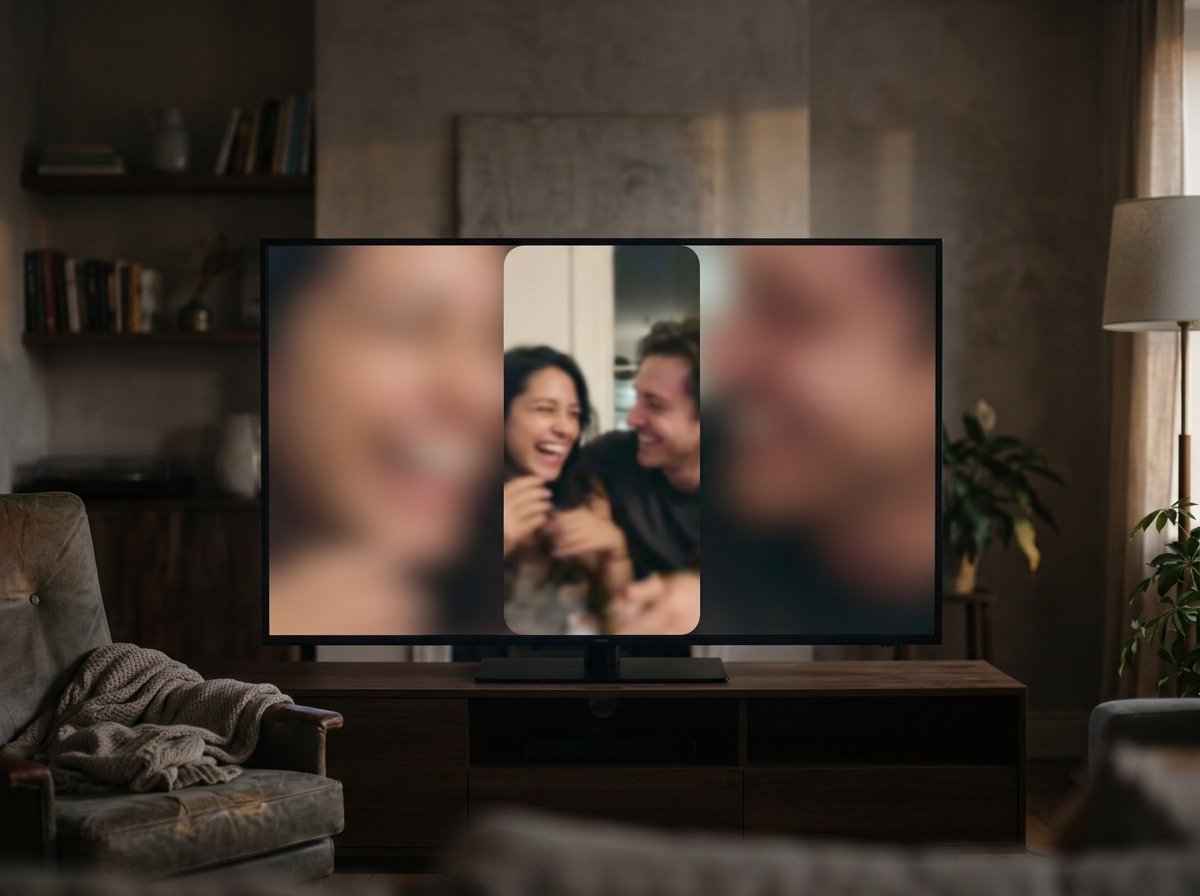
What are your options when converting vertical video to horizontal?
Three, and the right one depends on where the subject sits in the frame.
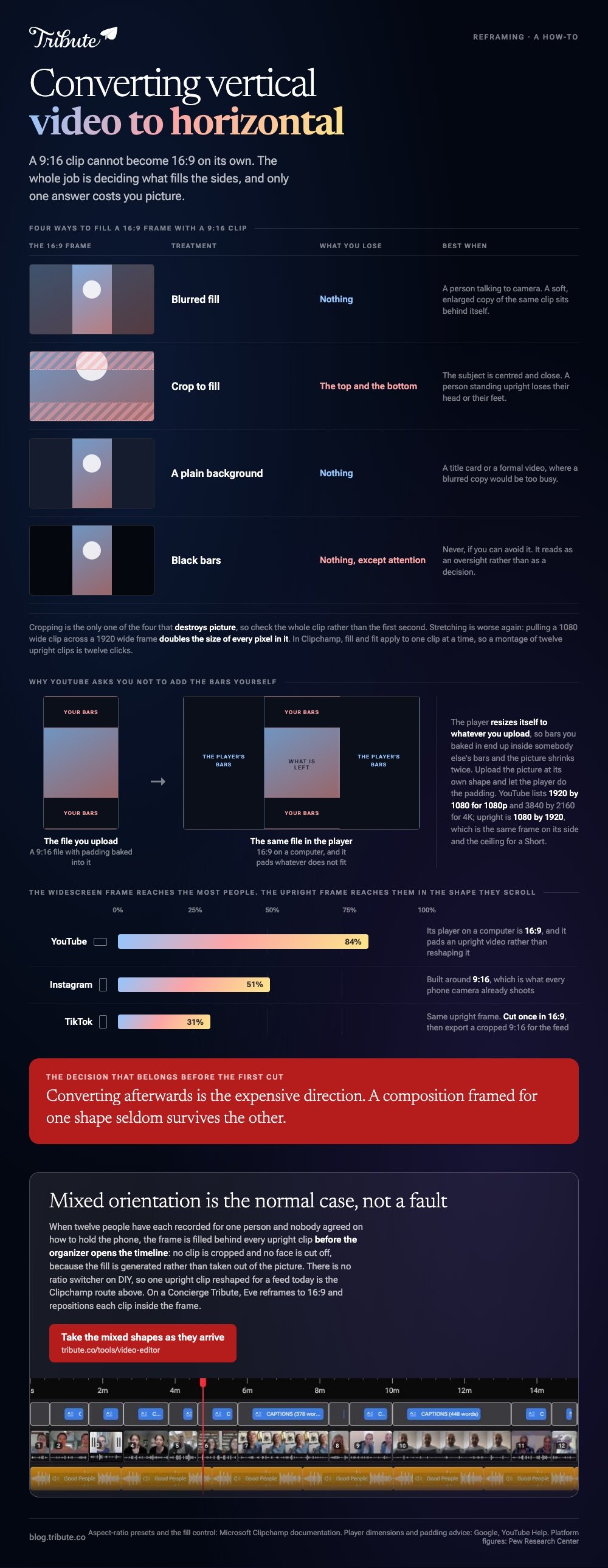
| Option | What you lose | Best when |
|---|---|---|
| Blurred fill | Nothing | A person talking to camera |
| Crop to fill | The top and bottom | The subject is centered and close |
| A plain background | Nothing | A title card or a formal video |
| Black bars | Nothing, except attention | Never, if you can avoid it |
Blurred fill wins most arguments. It puts a soft, enlarged copy of the same clip behind itself, so the frame is full and the subject is untouched. Unlike black bars, it reads as a decision rather than as an oversight.
Cropping is the only option that destroys picture. A person standing upright in a 9:16 frame loses their head or their feet when you squeeze them into 16:9, so check the whole clip rather than the first second.
How do you convert a vertical clip to horizontal in Clipchamp?
Clipchamp is the shortest route in a browser, and its default project is already widescreen.
- Click the size button on the floating toolbar above the stage.
- Choose 16:9 from the presets. Hovering over each one previews it first.
- Click your vertical clip in the timeline to highlight it. Black bars appear beside it, which the article calls letterboxing.
- Click the middle fill button on the floating toolbar to stretch or crop the clip into the frame.
- Drag the clip on the stage to reposition it if the crop cut the wrong part.
- Click the middle fit button to put the borders back.
Microsoft documents the presets, which run 9:16, 16:9, 1:1, 4:3, 4:5, 2:3 and 21:9. Fill and fit apply to one clip at a time, so a montage of twelve upright clips is twelve clicks.
Best for: A handful of clips, on any machine with a browser.
Why it works: The preview updates as you hover, so the crop decision is made by eye rather than by arithmetic.
What are the standard vertical video dimensions?
1080 by 1920 pixels, which is 1920 by 1080 turned on its side.
That is the 9:16 frame every phone camera and every short form feed is built around. A vertical video size of 1080 by 1920 is also the ceiling for a YouTube Short, which caps at 1080p and three minutes.
Widescreen runs the other way. YouTube lists 1920 by 1080 for 1080p and 3840 by 2160 for 4K, says its player on a computer is 16:9, and pads an upright video rather than reshaping it.
One warning from the same page. YouTube advises against baking bars or padding into the file, because the player resizes itself to whatever you upload and your bars end up inside somebody else's bars.
Does converting vertical video to horizontal lose quality?
Only if you crop or enlarge.
Blurred fill keeps every pixel of the original clip and generates the sides, so the subject is untouched.
Cropping throws away picture outside the new frame. Stretching a 1080 wide clip across a 1920 wide frame doubles the size of every pixel in it.
Editing vertical video on a wide timeline is the same work as editing anything else, with one extra decision per clip. Make that decision once, write it down, and apply it to the whole video so the fill does not change halfway through.

More on sizing in resizing a video, and the reverse job in making a vertical video horizontal.
When should you make video vertical instead?
When the audience is holding a phone, which is most of the time now.
Pew Research Center puts Instagram at 51% of US adults and TikTok at 31%, against 84% for YouTube. The widescreen frame reaches the most people; the upright frame reaches them in the shape they scroll.
A good vertical video editor lets you keep both: cut once in 16:9, then export a cropped 9:16 version for the feed.
Decide the destination before the first cut. Converting afterwards is the expensive direction, because a composition framed for one shape seldom survives the other.
What if the clips came from a dozen different people?
The Tribute video editor is a browser-based group video editor: contributors record clips on their phones and Tribute assembles them on a timeline with the music balanced under the voices.
It is ours, and it answers the upright clip problem in one specific way rather than in general.
- Blurred edges fill the frame behind upright phone footage, switched on from the start, so there are no black bars
- Per clip appearance controls for fit, color grade, border radius and brightness
- Clips arrive in order, with a tick against the ones already on the timeline
- There is no aspect ratio switcher on DIY. It does not reshape your video there, and if that is what you came for, Clipchamp is the answer above
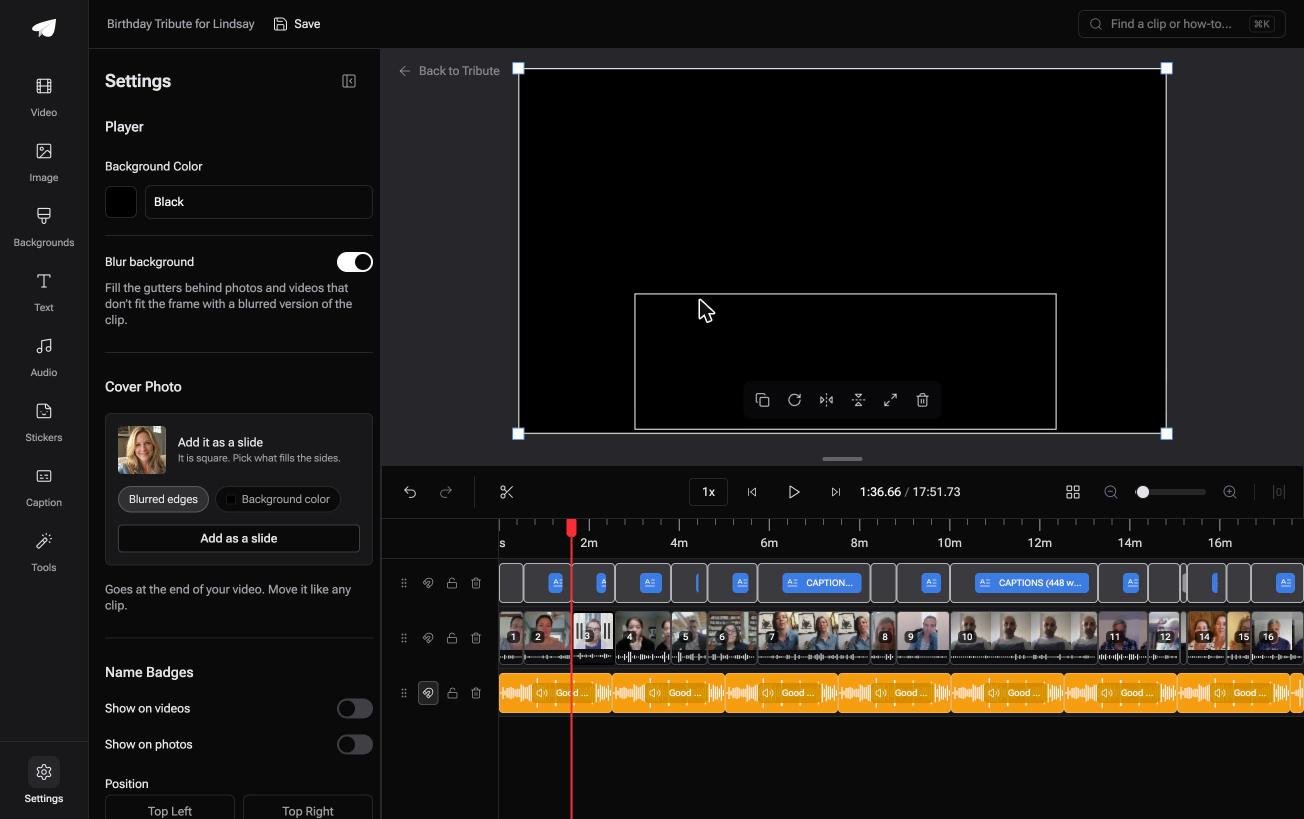
Best for: Twelve contributors, and no way of knowing which way each one held the phone.
Why it works: Compared to fixing twelve clips one at a time, the fill is applied to all of them before you arrive.
Can you avoid converting vertical video to horizontal at all?
In one case the question never comes up, because nobody chose the orientation.
Every method above assumes you are repairing footage after the fact. There is a kind of video where the mixture of shapes is expected rather than a fault.
The case: twelve people, twelve phones, no camera plan
You are in it when several people each record something for one person.
A grandfather turning ninety. A colleague leaving after fifteen years. Nobody agreed on how to hold the phone, and telling eleven relatives to rotate theirs is not a conversation worth having.

Which means the search that brought you here describes a repair job you can skip rather than one you can speed up.
Why the mixed shapes stop mattering
The frame is filled behind every upright clip before the organizer opens the timeline.
No clip is cropped and no face is cut off, because the fill is generated rather than taken out of the picture. The Tribute video editor treats mixed orientation as the normal case, which for a group video it is.

What you do not have to convert
- Not a single clip. Blurred fill sits behind every upright one, on by default.
- Not the order. Clips arrive numbered, with move to front, move to back and move to position.
- Not the captions. One switch captions every clip, in 10 styles.
- Not the edit, on Concierge: Tribute's editors build the video and send it back.
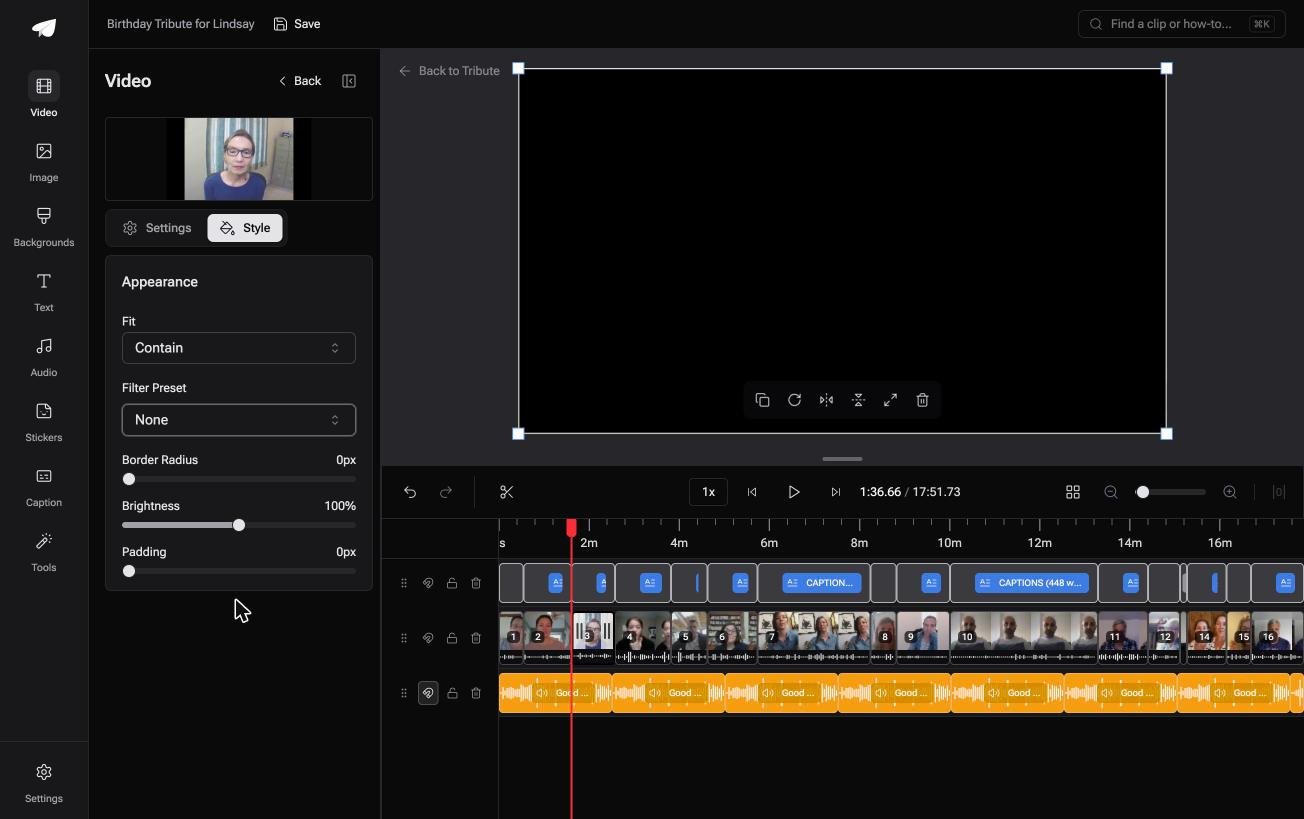
When this is the wrong answer: you need one upright clip reshaped for a client or a feed today. Then use the Clipchamp steps above, because a DIY Tribute has no ratio control and lives inside a paid Tribute.
On a Concierge or Concierge Deluxe Tribute, Eve reframes the video to 16:9 or another aspect ratio and repositions each clip inside the frame.
Frequently Asked Questions
Can I change a video from vertical to horizontal without cropping?
Yes, with blurred fill or a background behind the clip. Both keep the whole picture and fill the sides with something other than black.
What size should a vertical video be?
1080 by 1920 pixels for 9:16 at 1080p, which matches what phones shoot and what short form feeds expect. Going higher does not help, since most platforms cap the upright format at 1080p.
Why does my upright clip have black bars on YouTube?
The player is 16:9 on a computer and pads whatever does not fit. YouTube asks you not to add bars yourself, because the player adds its own and you end up with two sets.
Is there a vertical video editor that handles both shapes?
Clipchamp, CapCut and iMovie all switch between presets inside one project. Cut in the shape you will publish most, then export a second version for the other.
Does turning a horizontal video into vertical work any better?
It is the same trade in reverse, and worse more often than not, because a wide shot crops down to a sliver. Blurred fill above and below is the forgiving version of that job.
How do I handle a montage where clips are both shapes?
Pick one project shape, then apply the same treatment to every clip that does not match it. A guide to the wider job is in making a video montage.
Can I do this on a phone?
Yes. CapCut and the Clipchamp iOS app both offer ratio presets, and the iOS app starts new videos in 9:16 by default. For stills and simple layouts, building a slideshow in Canva covers the design side.
👉 Take the mixed shapes as they arrive if several people are recording for one person, and the reshaping never reaches your to do list.
