
Crop Video iPhone: The Photos App Does It, iMovie Does Not
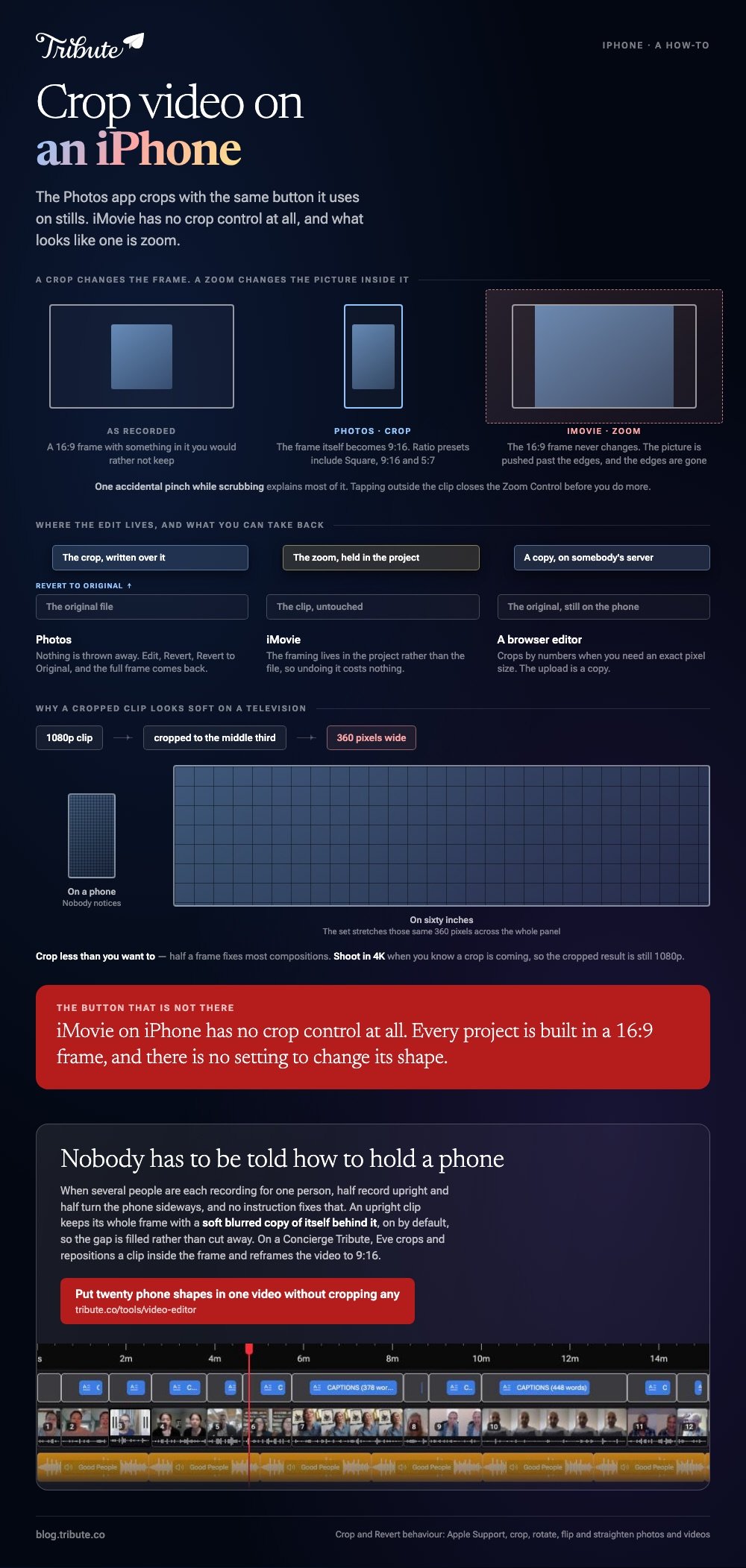
The Photos app crops video on an iPhone, with the same Crop button it uses on stills. iMovie has no crop control: what looks like cropping there is the zoom framing, and it behaves in a way that catches people out.
Which crop video iPhone tool should you open?
Photos, in almost every case.
It is already holding the clip, it keeps the original, and it crops with the same handles you know from photographs. Nothing downloads and nothing uploads.
| Tool | Crops video? | Keeps the original | Best for |
|---|---|---|---|
| Photos | Yes, with ratio presets | Yes, Revert to Original | One clip, one shape |
| iMovie | No crop control | Project stays editable | Several clips with music |
| A browser editor | Yes, by numbers | The upload is a copy | An exact pixel size |
How do you crop a video in the Photos app?
Open the clip, tap Edit, tap the Crop button, and drag.
Apple documents the same path for photographs and video on its page about cropping, rotating and straightening. The controls do not change when the file is a video.
- Open the video in Photos and tap Edit.
- Tap the Crop button at the bottom of the screen.
- Drag the corners of the rectangle around what you are keeping, or pinch to zoom.
- For a set shape, choose a ratio preset such as Square, 9:16 or 5:7.
- Tap Done.
Nothing is thrown away. Reopen the clip, tap Edit, then Revert and Revert to Original, and the full frame comes back.
Cropping a screen recording
A screen recording is an ordinary video file, so the same tool handles it.
Most people crop screen recording iPhone footage for one of two reasons: to cut the status bar and its red recording pill off the top, or to drop the home indicator at the bottom.
Both are a few pixels of drag, and both are worth doing before anybody else sees the clip.
Check the aspect before you crop. A recording of a vertical app is already tall, and cropping it taller leaves you with something no player shows well.
Why does iMovie crop my video on iPhone?
Because what you are seeing is zoom, not a crop.
iMovie builds every project in a 16:9 frame and gives you no control to change that shape. There is no crop tool to find, so iMovie cropping video on iPhone is always one of two behaviors underneath.
Ken Burns on stills
Add a photograph and iMovie animates a slow push across it.
Apple's guide to zoom effects in iMovie describes Start and End controls in the lower right of the image, each set by pinching and dragging. Tap Ken Burns Enabled to switch the movement off and the picture stops being cropped at both ends.
The Zoom Control on a clip
Tap a video clip and a Zoom Control button appears in the viewer.
Pinch there and you are cropping into the picture, then dragging to choose which part survives. One accidental pinch while scrubbing explains most of the iPhone iMovie cropping video complaints, and tapping outside the clip closes the control before you do more.
Unlike the Photos crop, this one lives in the project rather than the file, so undoing it costs nothing. Compared with reshooting, that is the whole argument for doing the framing in iMovie on iPhone rather than before import.
Why does a crop video iPhone edit look soft on a TV?
Because cropping throws pixels away and the screen puts them back.
A 1080p clip cropped to the middle third is a 360 pixel wide video. Play it on a phone and nobody notices. Play it on a television and the set stretches those pixels across sixty inches.
- Crop less than you want to. Half a frame is enough to fix most compositions.
- Shoot in 4K when you know a crop is coming, so the cropped result is still 1080p.
- Crop once. Each pass compounds, and Photos is working from the original every time you reopen it.
More on the neighboring jobs in cropping in a browser instead, joining clips on an iPhone, putting music behind them, and building a montage out of the result.
What happens when twenty phones send twenty shapes?
The Tribute video editor is a browser-based group video editor: contributors record clips on their phones and Tribute assembles them on a timeline with the music balanced under the voices.
It is ours, and it is the last thing on this page.
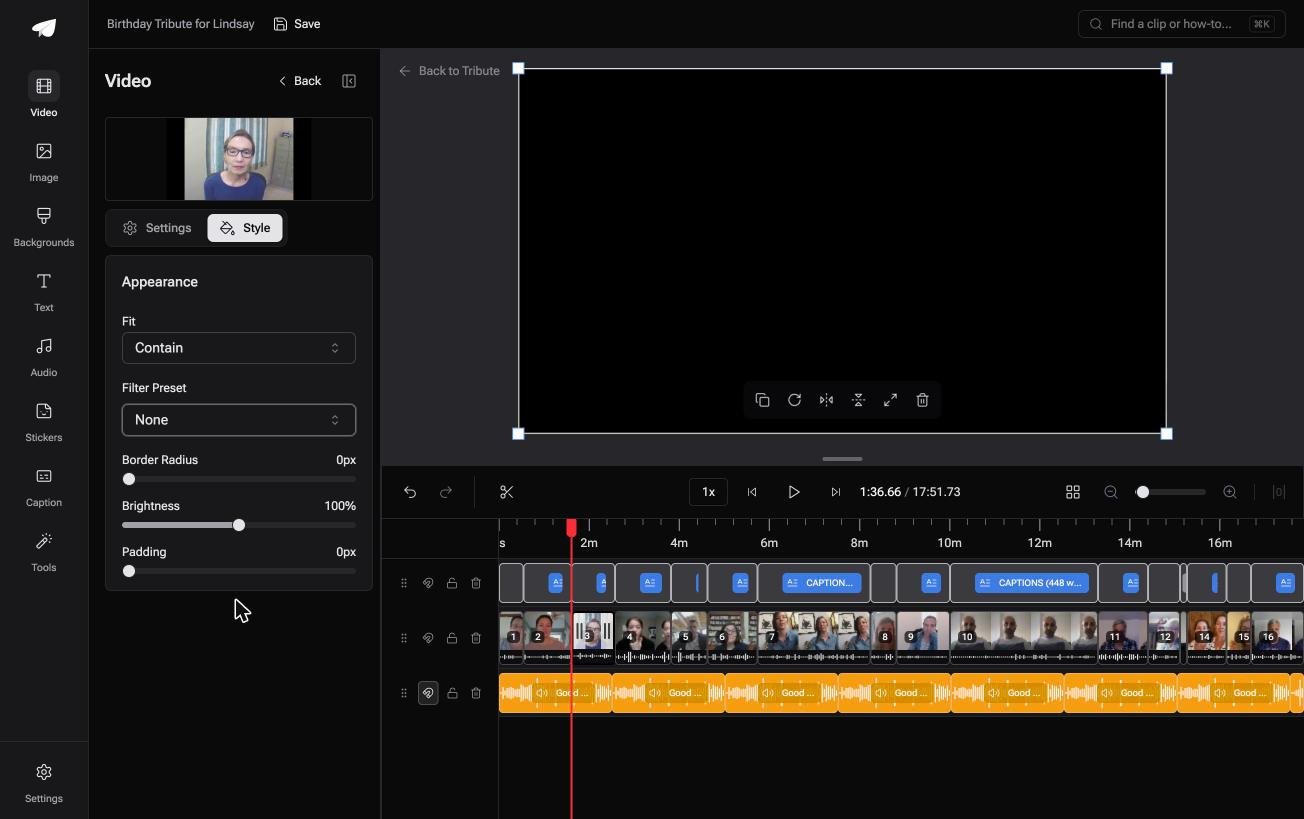
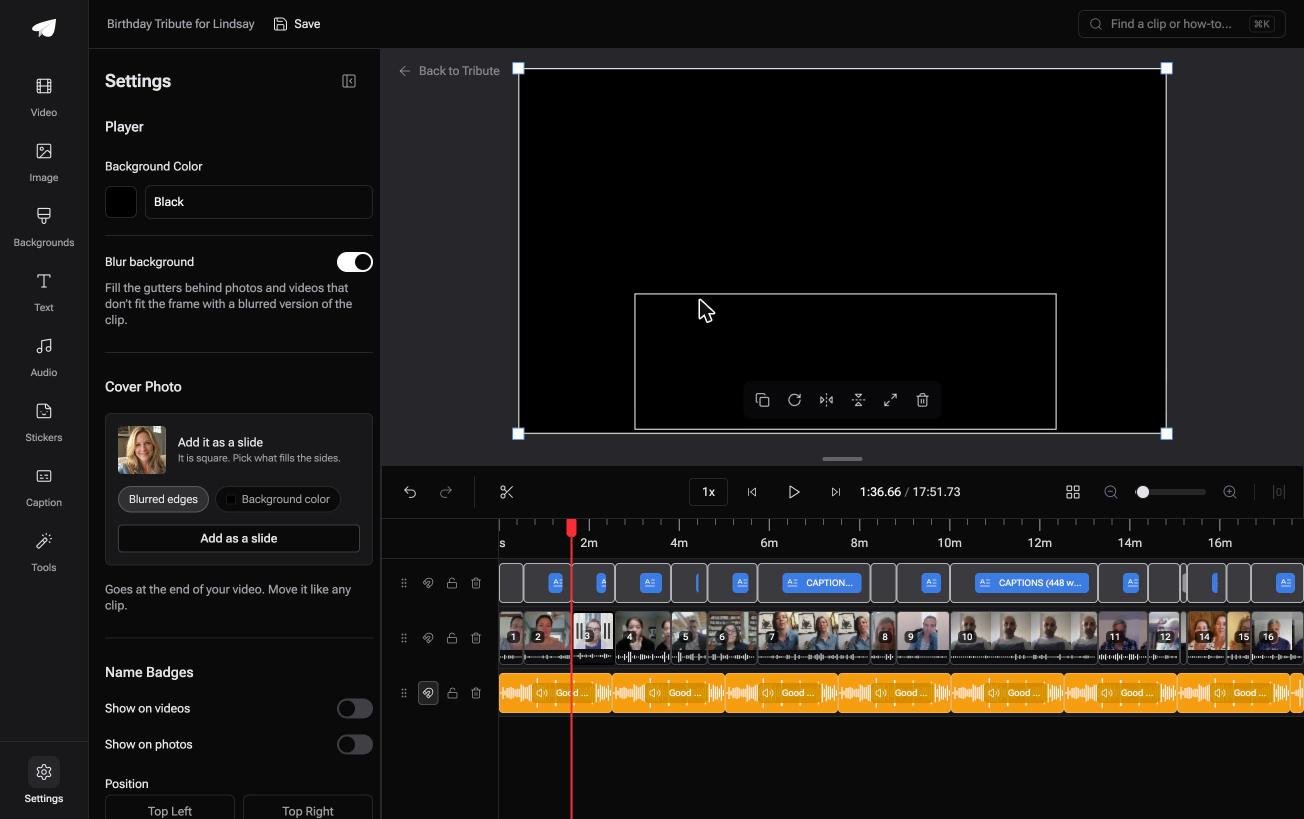
- Blurred edges fill the frame behind upright phone footage, on by default, so nothing arrives with black bars
- Per clip appearance controls for fit, brightness and one of 10 color grades, previewed on the real clip
- Name badges from an uploader name and relation, in any of four corners, dark or light
- Music at 25% under speech and 75% under photos, overridable per clip
Best for: Twenty clips in twenty shapes, and nobody left to ask how they held the phone.
Why it works: Twenty people hold their phones twenty ways, and the frame is filled rather than cut to match.
What if the shape of the frame stops being your problem?
Nobody crops a clip that was framed right the first time.
Somebody held the phone upright, or the shot has a doorway in it, and you are trimming the edges to hide the difference. There is one kind of video where that repair never reaches you.
The case: the phone was never yours to aim
It starts when several people each record something for one person.
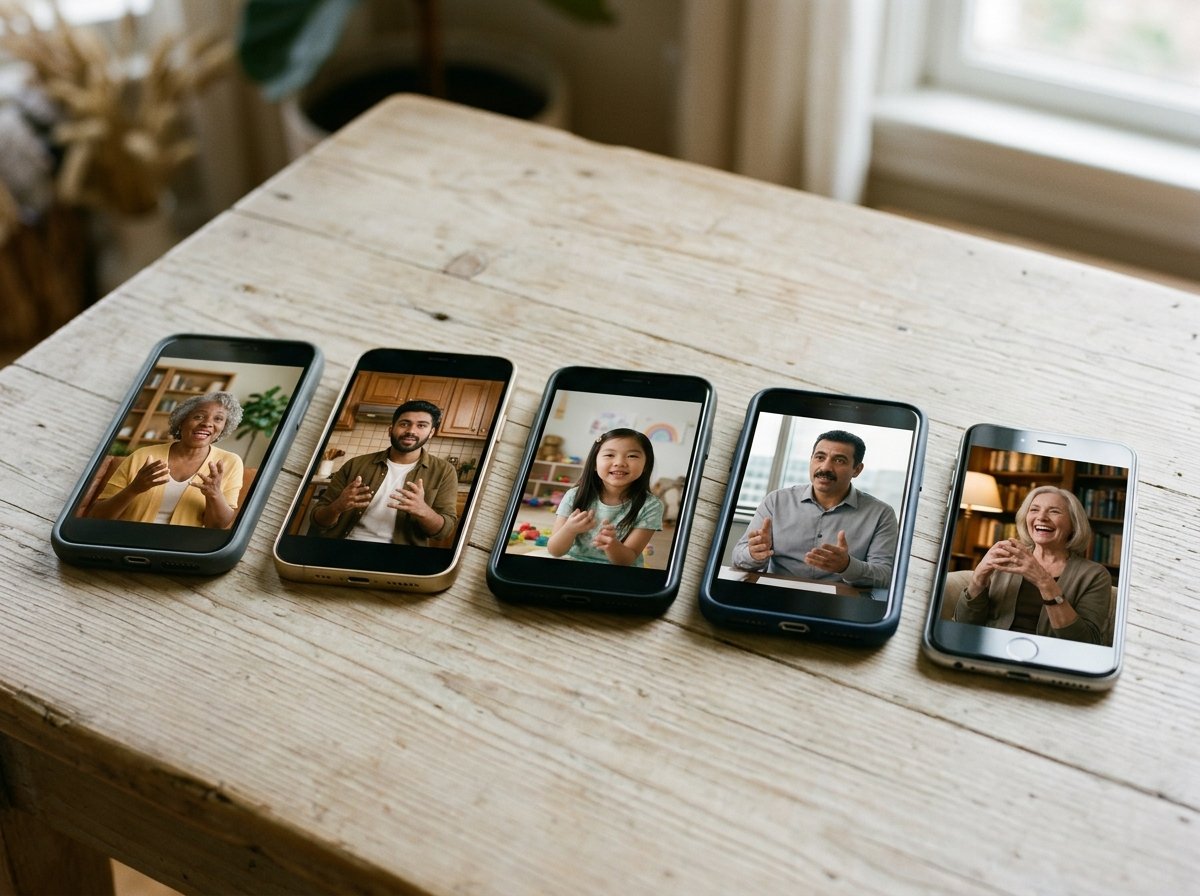
A grandmother turning eighty. A colleague leaving after fifteen years. A memorial where the people who should speak are in four time zones. Half of them record upright and half turn the phone sideways, and no instruction fixes that.
Why nobody opens a crop tool
Because the gap is filled rather than cut away.
An upright clip sits in the middle of the wide frame with a soft blurred version of itself behind it.
That is how the Tribute video editor handles mixed footage, and it is why cropping video on an iPhone before you send a clip is wasted work.
What you do not have to do
- Coach anyone on holding a phone. An upright clip keeps its whole frame, with blurred edges behind it.
- Chase the files into one folder. They arrive in order, ticked off as they land.
- Type the names in. A badge carries the name and relation of whoever sent the clip.
- Build it, on a Concierge Tribute. Tribute's editors do the edit, and Concierge Deluxe returns it as a video book.
When this is the wrong answer: you have one clip with something in the corner of it. Then go back to Photos, tap Crop, and you are done in twenty seconds.
A DIY Tribute has no crop control at all, and it lives inside a paid Tribute.
On a Concierge or Concierge Deluxe Tribute, Eve crops and repositions a clip inside the frame, and reframes the video to 9:16 or another aspect ratio.
Frequently Asked Questions
Can the Photos app crop a video, or only a photo?
Both. Apple's guide covers cropping, rotating, flipping and straightening for photos and videos in the same place, and the Crop button sits in the same row for either one.
How do I undo a crop?
Open the clip, tap Edit, then Revert and Revert to Original. Photos keeps the untouched file underneath every edit you make.
Is there a 9:16 preset?
Yes. The ratio list in the Crop tool includes Square, 9:16 and 5:7 among others, so you can cut a widescreen clip to a tall shape without measuring.
Why is there no crop button in iMovie?
iMovie on iPhone has no crop control at all. Framing happens through the Zoom Control on a clip and the Ken Burns controls on a photo, both of which zoom rather than resize the frame.
How do I stop iMovie zooming into my photos?
Tap the photo in the timeline, then tap Ken Burns Enabled to switch the movement off. The still then holds in one position for its whole duration.
Does cropping make the file smaller?
Smaller in dimensions, and smaller on disk in most cases, because there are fewer pixels to store. It does not raise the quality of what is left.
Can I crop part of a clip and leave the rest alone?
Not in Photos, which applies one crop to the whole video. Split the clip in an editor first, then crop the piece you want on its own.
👉 Put twenty phone shapes in one video without cropping any if several people are each recording for one person, and nobody has to be told how to hold a phone.
