
Export Project in iMovie: The Steps on Mac, iPhone and iPad
To export a project in iMovie on a Mac, choose File, then Share, then File. Set the resolution and quality, click Next and Save. On an iPhone or iPad the path is Done, Share, Save Video.

Where does the export project in iMovie option live on a Mac?
Under File, not under a button marked Export.
Apple renamed the command years ago and the old word stuck, which is why people hunt for it. The share icon at the top right of the window opens the same dialog.
- Select the movie, trailer or clip you want in the browser.
- Choose File > Share > File.
- Click the name at the top of the dialog to retitle it, and add a description if you want one.
- Set Format, Resolution, Quality and Compress.
- Click Next, name the file, choose a folder, and click Save.
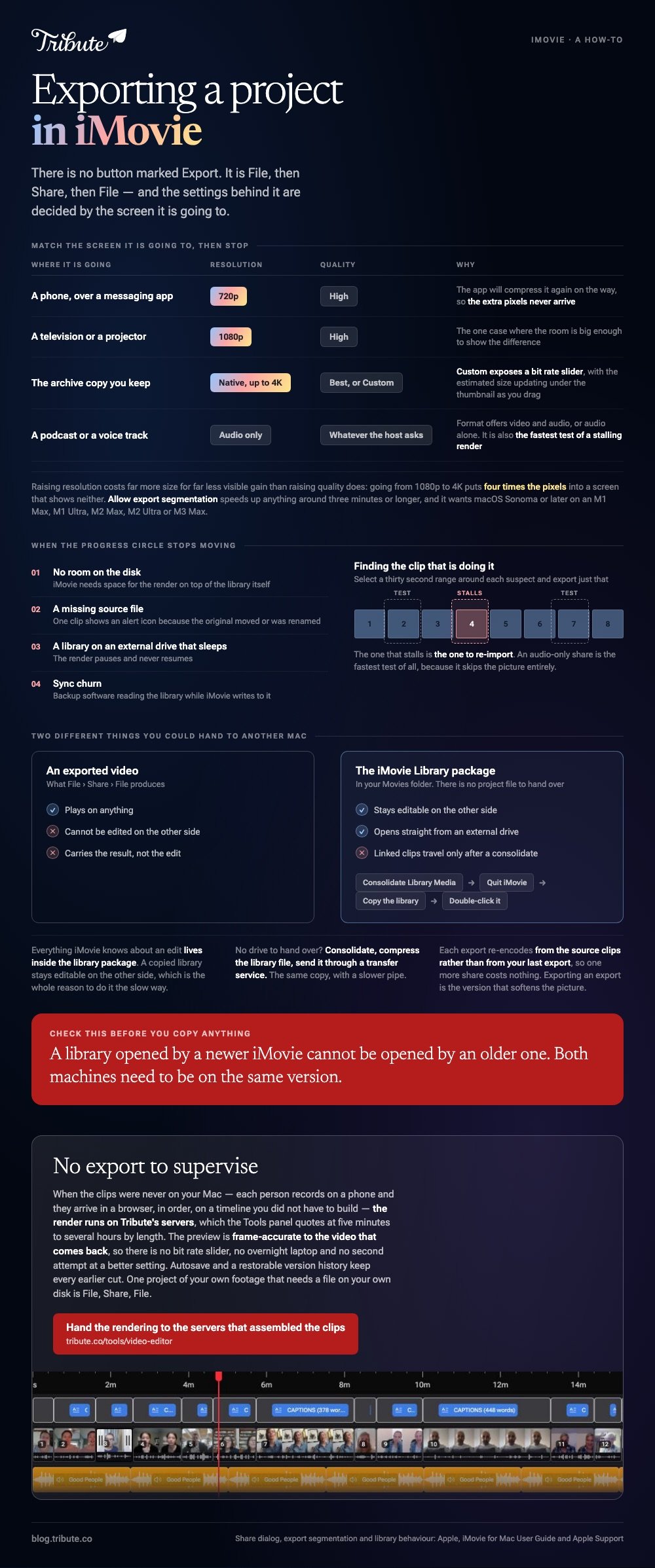
Apple's page on exporting as a file covers one setting worth knowing about. Allow export segmentation speeds up anything around three minutes or longer, and it needs macOS Sonoma or later on an M1 Max, M1 Ultra, M2 Max, M2 Ultra or M3 Max.
What should you set for resolution and quality?
Match the screen it is going to, then stop.
Format gives you video and audio, or audio only. Resolution offers the sizes your project supports, and a 4K project can go out at its native size.
Quality hides the useful control: a Custom setting that exposes a bit rate slider, with the estimated file size updating under the thumbnail as you drag.
| Where it is going | Resolution | Quality |
|---|---|---|
| A phone, over a messaging app | 720p | High |
| A television or a projector | 1080p | High |
| The archive copy you keep | Native, up to 4K | Best (ProRes) or Custom |
| A podcast or a voice track | Audio only | Whatever the host asks for |
Compared to raising quality, raising resolution costs far more size for far less visible gain on a phone. Going from 1080p to 4K puts four times the pixels into a screen that shows neither.
For the container question and what to do when a player refuses the result, see exporting iMovie to MP4.
What do you do when the export project in iMovie progress stops?
Watch the circle at the right of the toolbar before you assume it has died.
That circle is the iMovie export progress indicator. Clicking it opens the detail, and it vanishes when the render finishes, which is also when QuickTime Player opens the result.
Four things stall a render, in rough order of how often they do it.
- No room on the disk. iMovie needs space for the render on top of the library itself.
- A missing source file. One clip shows an alert icon because the original moved or was renamed.
- A library on an external drive that sleeps. The render pauses and never resumes.
- Sync churn. Backup software reading the library while iMovie writes to it.
To find a bad clip, select a thirty second range around each suspect and export just that. The one that stalls is the one to re-import.
An audio-only share is the fastest test of all, because it skips the picture: the route is in exporting audio only from iMovie.

How do you export an iMovie project on an iPhone or iPad?
Three taps, and the file lands in Photos rather than in a folder you choose.
- Tap Done at the top left to leave the editing view.
- Tap the Share button under the preview.
- Choose Share Video, then Save Video.
- Pick a size when iMovie offers one, and wait for the progress bar under the thumbnail.
There is no bit rate slider on iOS. You get a size and nothing else, which is a reasonable trade when the output is going to a phone screen anyway.
Apple's cross-device guide to editing videos on iPhone, iPad and Mac covers the trimming controls that sit around this step.
How do you export an iMovie project to another Mac?
You move the library, because there is no project file to hand over.
Everything iMovie knows about an edit lives inside a package called iMovie Library, in your Movies folder. An exported video carries the result; the library carries the edit.
- Choose File > Consolidate Library Media so linked clips are copied inside the library.
- Quit iMovie.
- Copy the iMovie Library file to an external drive or a shared folder.
- On the second Mac, double-click that library file to open it in iMovie.
Apple documents the moving part on its page about moving the iMovie library, including opening a library straight from an external drive.
One warning. A library opened by a newer iMovie cannot be opened by an older one, so check both machines are on the same version before you copy anything.
Unlike a finished export, a copied library stays editable on the other side. That is the whole reason to do it the slow way.
Planning a longer edit before any of this? See making a video montage and putting together a video tribute.
What if the exporting were somebody else's job?
Then the dialog above never opens, because the render does not happen on your machine.
The Tribute video editor is a browser-based group video editor: contributors record clips on their phones and Tribute assembles them on a timeline with the music balanced under the voices. It is ours, and it is the last thing on this page.
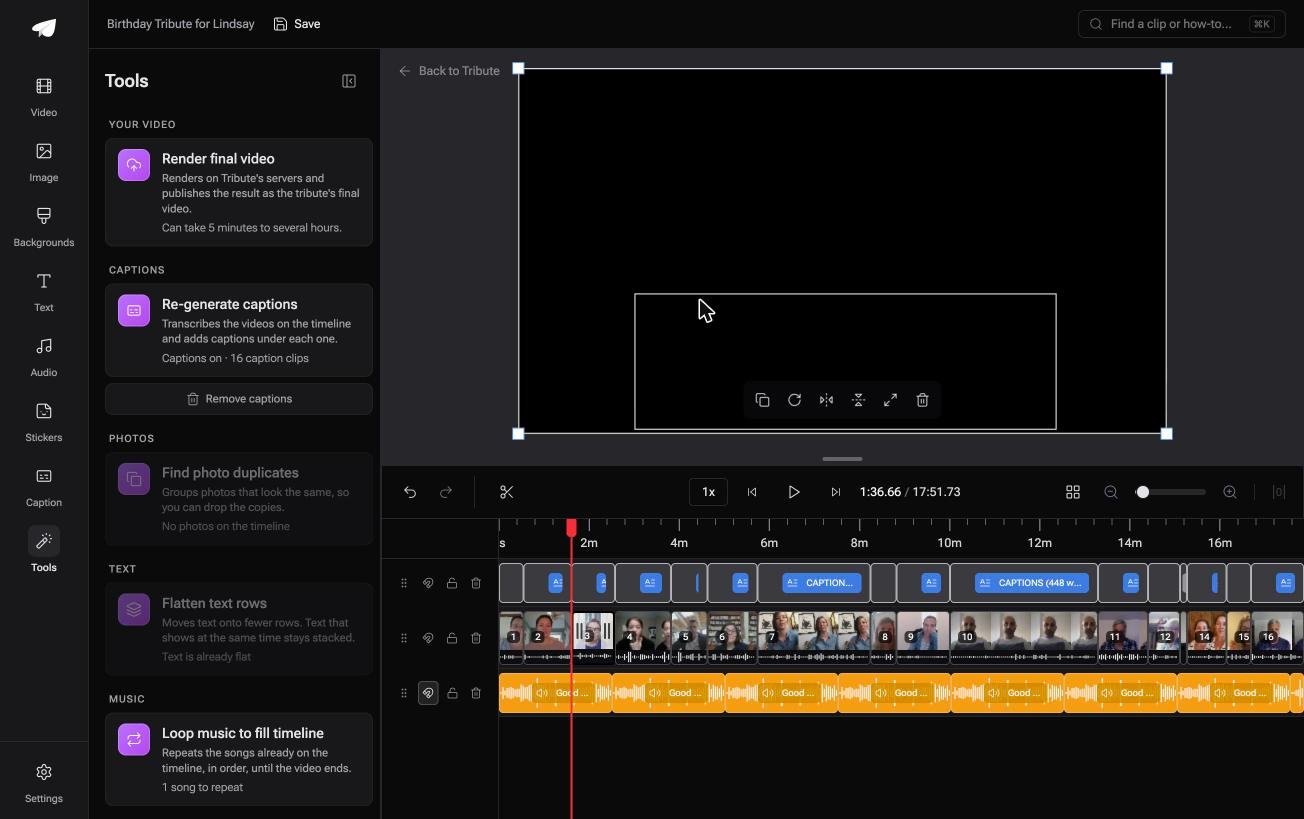
- Tribute renders on its own servers: the Tools panel quotes 5 minutes to several hours by length
- The preview is frame-accurate to the video that comes back, so there is no proof render
- Tools panel bulk actions: render the video, re-generate captions, find photo duplicates, loop music to fill the timeline
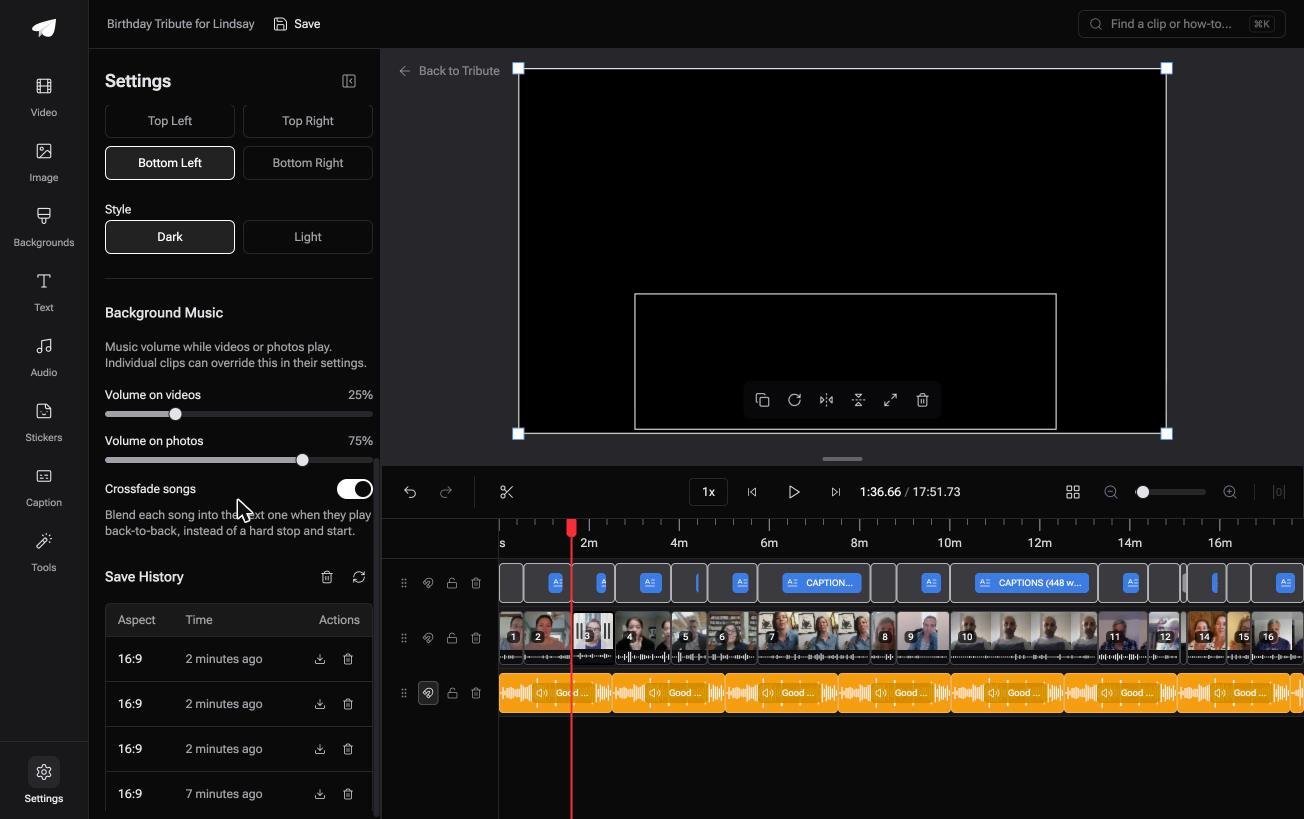
- Autosave with restorable version history, and removed clips are recoverable rather than gone
Best for: A long group video on a laptop that will not stay awake through an hour of rendering.
Why it works: A laptop that cannot stay awake for an hour is no longer the thing standing between you and a finished video.
Where does the file go if you never press export?
Every choice above is a question about a file you are about to make.
Resolution, bit rate, container, folder. Four decisions before anyone watches anything, and each one is yours because the render is yours.
There is one case where none of them come up.
The case: the clips were never on your Mac
You are in it when several people each record something for one person.
A grandmother turning eighty. A colleague leaving after fifteen years. A memorial where the people who should speak are in four time zones.
Nobody imports anything. Each person records on a phone and the clips arrive in a browser, in order, on a timeline you did not have to build.

Why the export dialog never opens
Because the render runs somewhere else.
One action in the Tools panel starts it, and the video comes back finished. No bit rate slider, no overnight laptop, no second attempt at a better setting, because what you approved in the preview is what is delivered.
That is how the Tribute video editor handles the last mile: not a faster export, but no export to supervise.
What you do not have to do
- No export dialog. Tribute renders the video on its servers, not on your laptop overnight.
- No settings to pick. The preview is frame-accurate to the delivered video.
- No wrong turn to undo by hand. Autosave and restorable version history keep every earlier cut.
- No edit at all, on Concierge. Tribute's editors reorder, trim, caption and name people, then hand it back.
When this is the wrong answer: you have one project of your own footage and you need a file on your own disk. Then File, Share, File is the entire job and this page is done above.
The editor is also not a standalone iMovie substitute: it lives inside a paid Tribute.
Frequently Asked Questions
Why is the iMovie export progress so slow?
Length, resolution and the amount of re-encoding each effect forces. A ten minute 4K project with grades on every clip can run for an hour on a laptop, and export segmentation only helps on the newer Apple silicon chips.
Does iMovie export an MP4 or a MOV?
The share-to-file route writes an MPEG-4 video, and which extension you see depends on your iMovie version. The picture inside is H.264 or HEVC either way.
Where does iMovie save the exported file?
Wherever you point the save dialog on a Mac. On an iPhone or iPad, Save Video puts it in your Photos library rather than in a folder.
Can I export part of a project?
Yes. Select a range in the timeline before you open the share dialog, and iMovie exports the selection rather than the whole project.
How do I export an iMovie project to another Mac without a drive?
Consolidate the library media, compress the iMovie Library file, then send it through a file transfer service. It is the same copy, with a slower pipe.
Does exporting twice lose quality?
Each export re-encodes from the source clips rather than from your last export, so one more share costs nothing. Exporting an export is the version that softens the picture.
👉 Hand the rendering to the servers that assembled the clips if the laptop doing it overnight is one you need back, and the share dialog stays shut.
