
iMovie Export MP4: Why You Get a MOV, and How to Change It
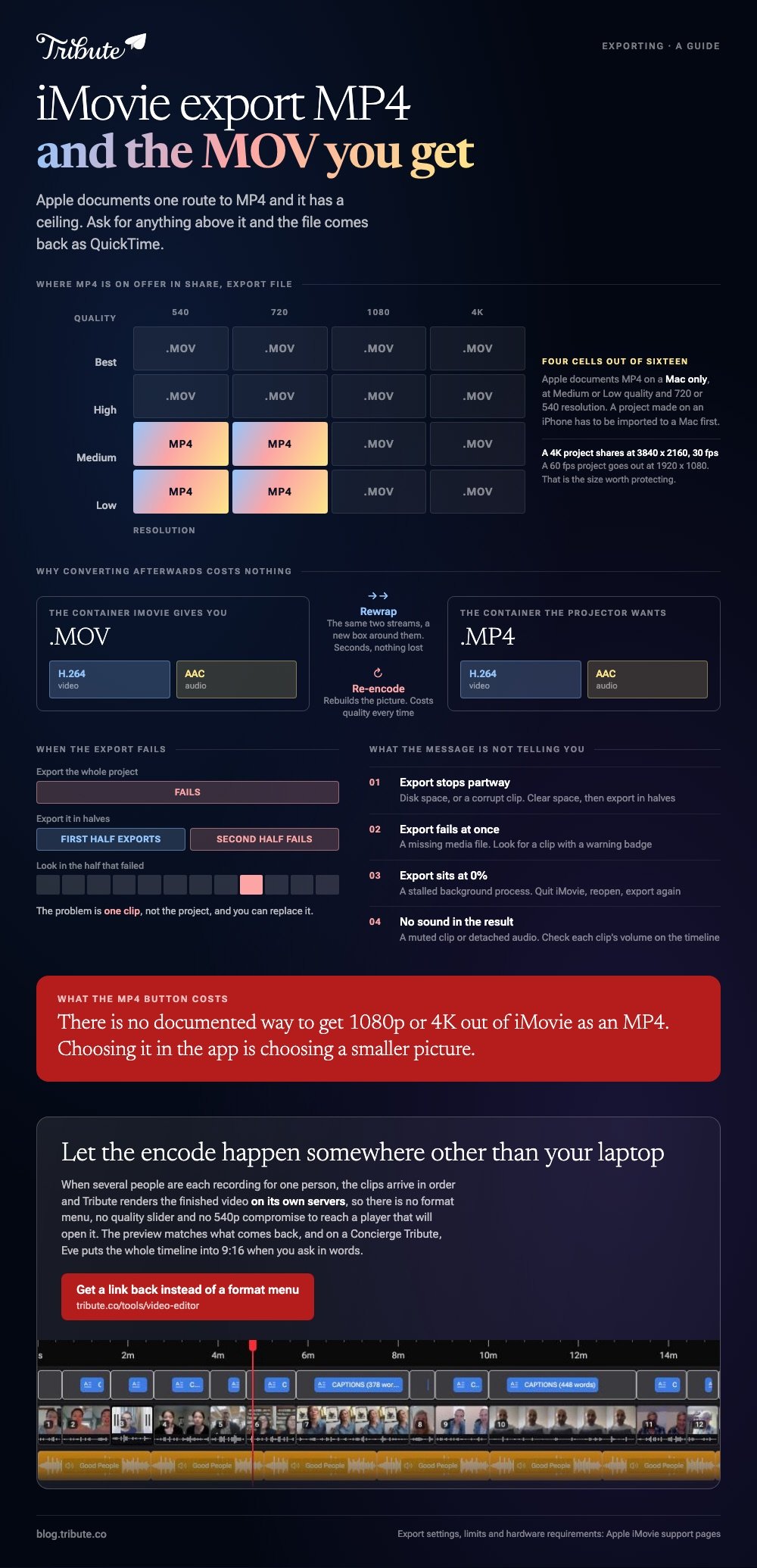
iMovie hands you a .mov unless you ask for something else. Apple documents one route to MP4, on a Mac only: Share, then Export File, with Quality at Medium or Low and Resolution at 720 or 540. Anything higher comes back as QuickTime.

Can iMovie export MP4 at all?
Yes, within a narrow set of settings that Apple spells out.
The reason to want it is compatibility. Apple's own wording is that you export MP4 for devices, apps or websites that do not support MOV files, which covers a lot of older televisions, projectors and school upload forms.
Five steps, and the limits are the point:
- Open the project on a Mac. A project made on an iPhone or iPad has to be imported to iMovie on a Mac first.
- Click the Share button, then choose Export File.
- Set Quality to Medium or Low.
- Set Resolution to 720 or 540.
- Use the Compress menu to trade conversion time against speed, then click Next and Save.
That ceiling is the catch. There is no documented way to get 1080p or 4K out of iMovie as an MP4, so exporting MP4 is a choice to accept a smaller picture.
How do you export a movie from iMovie on a Mac?
Through a second dialog that offers more than the MP4 route does.
Apple's iMovie user guide puts the full export under File > Share > File, and the two paths land in the same place even though the two Apple pages name the menus in different ways.
- Select the movie, trailer or clip in the browser. One item at a time.
- Choose File > Share > File.
- Set Format to video and audio, or to audio only if you want the sound on its own.
- Pick a Resolution. A 4K movie can go out at its native size here.
- Choose a Quality, or pick Custom and drag the bit rate slider. The estimated file size under the thumbnail updates as you drag.
- Click Next, name the file, pick a folder and click Save.
One more option sits on Apple's page about exporting a movie as a file.
Allow export segmentation speeds up projects of about three minutes or longer, and it needs macOS Sonoma or later on an M1 Max, M1 Ultra, M2 Max, M2 Ultra or M3 Max.
When the export finishes the movie opens in QuickTime Player and a Share Successful notice appears. That is the moment to watch ten seconds of it.

What if you need an iMovie export MP4 at full quality?
Export the .mov at the size you want, then convert it.
A conversion from MOV to MP4 is often a rewrap rather than a re-encode, because both containers can hold the same H.264 video. Done that way it takes seconds and costs nothing in quality, which is the opposite of what the 540p route does.
- HandBrake is free software on macOS and converts a folder of files in one pass.
- A browser converter works when the file is small and not private, at the cost of uploading the whole thing.
- QuickTime Player will re-export, though its presets are coarse.
Unlike the in-app MP4 option, this keeps 1080p or 4K intact.
Apple notes that a 4K project is shared at 3840 x 2160 at 30 fps, and that a 60 fps project goes out at 1920 x 1080, so that is the size worth protecting.
The same trick applies in the other direction for other players: see exporting from VLC to MP4.
How do you export from iMovie on an iPhone?
You save a video to the photo library, and you do not choose a container.
- In the Projects browser, tap the project. Tap Done if you are still editing.
- Tap Share.
- Tap Options under the video title to change the resolution. Apple calls 1080p the best quality for most social sites.
- Tap Save Video for the photo library, Save to Files, or AirDrop.
- Upload from Photos once it has saved.
For an iMovie video export that has to be an MP4, the phone cannot do it. Move the project to a Mac and use the Export File route above.
One size note: if you are mailing it, Apple suggests picking a resolution that brings the file under the service's limit, which it puts at around 10 MB by default.
Why won't iMovie export?
When iMovie won't export, the message on the screen is not the real cause.
Four things account for most failures, and all four are checkable in a couple of minutes.
| Symptom | Probable cause | What to try |
|---|---|---|
| Export stops partway | Disk space, or a corrupt clip | Clear disk space, then export in halves |
| Export fails at once | A missing media file | Look for a clip with a warning badge |
| Export sits at 0% | A stalled background process | Quit iMovie, reopen, export again |
| No sound in the result | A muted clip or detached audio | Check each clip's volume on the timeline |
Exporting in halves is the one worth trying first.
If the first half succeeds and the second fails, the problem is a single clip rather than the project, and you can replace it.
Pulling the sound out on its own is covered in exporting audio only from iMovie.
What if a dozen people each sent you a clip?
Then export is the last of your problems. The work is getting twelve files off twelve phones and onto one timeline at full quality.
The Tribute video editor is a browser-based group video editor: contributors record clips on their phones and Tribute assembles them on a timeline with the music balanced under the voices. It is ours, and it is the last thing on this page.
- Clips arrive in order on the timeline, with a tick against the ones already placed
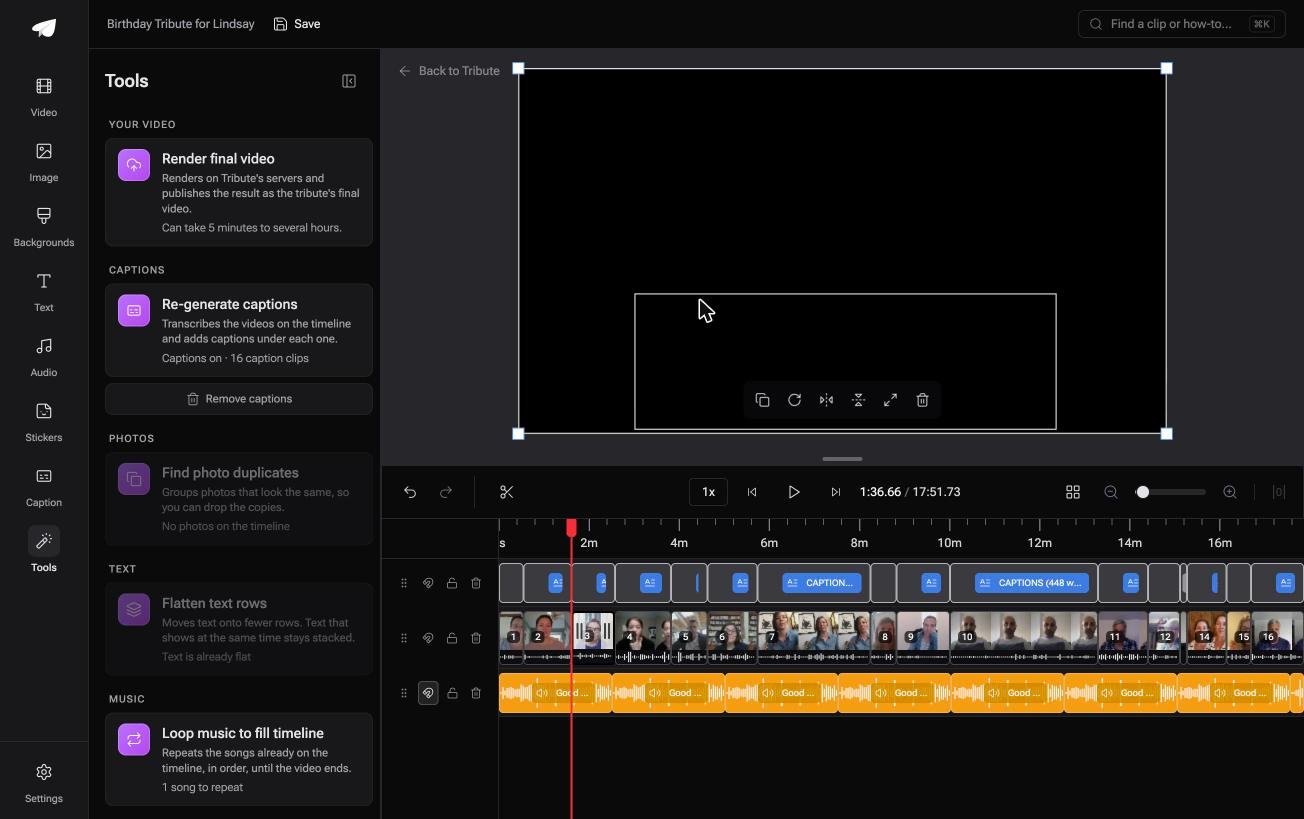
- Tribute renders the final video on its servers, so no export runs on your laptop
- The preview is frame-accurate to the video that comes back
- A Tools panel handles the bulk jobs: render, re-generate captions, find photo duplicates, loop music to fill the timeline
Best for: An iMovie project that has to leave the Mac as one file anyone can open.
Why it works: Nothing is collected by hand, so there is no folder of mismatched files to export from.
Can you skip the export altogether?
Everything above is about getting a file out of a program.
You chose a container, you chose a resolution, you waited, and then you had to find somewhere to put a file too big to email. There is one case where no export happens at all.
The case: you are collecting, not shooting
That case arrives when several people each record something for one person.
A grandmother turning eighty. A colleague leaving after fifteen years. A memorial where the people who should speak are in four time zones.

Why the container question never comes up
Because the render happens on a server and what you get back is a link.
No format menu, no quality slider, no 540p compromise to reach a format an old projector will read. That is how the Tribute video editor handles it: not a better export dialog, but one fewer dialog.
What you do not have to do
- Not the encode. It runs on Tribute's servers and comes back as a link.
- Not the edit, on a Concierge Tribute: Tribute's own editors trim the messages and pick from the 39 licensed tracks.
- Not the reframing. Eve, the assistant on Concierge and Concierge + Video Book, puts the whole timeline into 9:16 when you ask in words.

When this is the wrong answer: you edited your own footage in iMovie and need a file today. Then export the .mov and convert it, as above.
The Tribute editor is not a converter and it lives inside a paid Tribute. For the wider job see making a video montage and what a video tribute involves.
Frequently Asked Questions
Why does iMovie export as MOV and not MP4?
MOV is Apple's own container and the default for a full quality export. MP4 is offered on a Mac through Share, then Export File, and only at Medium or Low quality with a 720 or 540 resolution.
How do I convert an iMovie MOV to MP4 without losing quality?
Use a converter that rewraps rather than re-encodes, since both containers can carry the same H.264 video. HandBrake does this on a Mac and the pass takes seconds for a short video.
Can I export MP4 from iMovie on an iPhone?
No. Apple's documented route requires importing the project into iMovie on a Mac first. On the phone you save a video to the photo library and the container is chosen for you.
What resolution should I export at?
1080p for anything going online, which Apple calls the best quality for most social sites. Go to 4K only when the project contains 4K footage and the screen it will play on deserves it.
Why is my exported file so large?
Bit rate, not length. Pick Custom in the Quality menu and drag the slider: the estimated file size under the preview updates as you move it, so you can aim at a number.
Does exporting twice reduce quality?
Re-encoding does, every time. Compared with converting a finished export, going back to iMovie and exporting again at the setting you need costs you nothing in picture quality.
👉 Let the encode and the edit both happen somewhere else if several people are each recording for one person, and the format menu stops being your problem.
