
iMovie Export Audio Only: Where the Option Hides and What It Misses
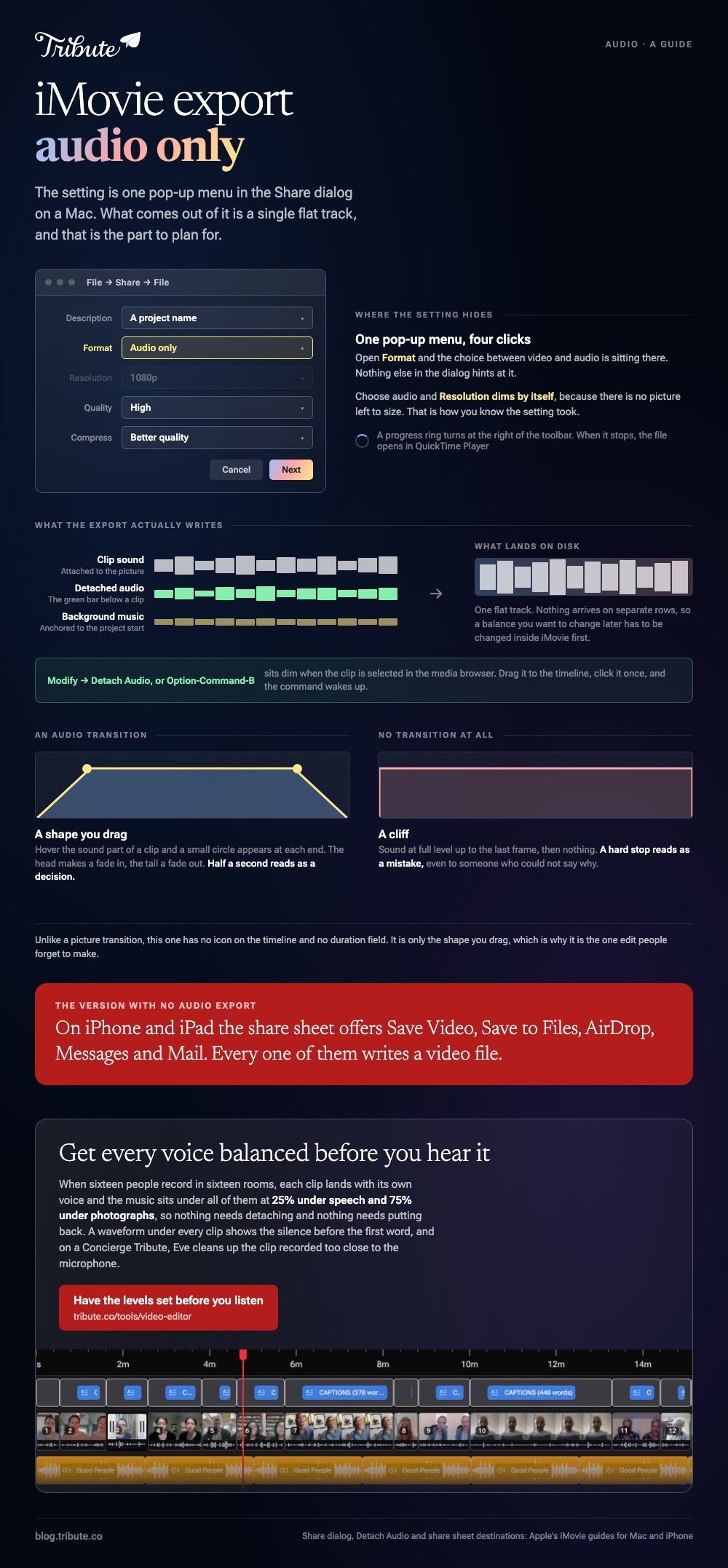
To make iMovie export audio only, open the project on a Mac and choose File > Share > File, then set the Format pop-up menu to the audio choice. iMovie on iPhone has no audio-only export at all.

Where does iMovie export audio only live on a Mac?
In the Share dialog, behind a pop-up menu most people never open.
- Open the project and choose File > Share > File.
- Click the Format pop-up menu. Apple's guide confirms you can export video and audio, or just audio.
- Choose the audio setting. The Resolution menu dims, because there is no picture left to size.
- Click Next, type a name in the Save As field, pick a folder and click Save.
A progress ring turns at the right of the toolbar. When it stops, the file opens in QuickTime Player and a Share Successful notification lands.
What comes out, and what does not
One flat track.
Clip sound, detached audio and the background music are mixed down together. Nothing arrives on separate rows, so a balance you want to change later has to be changed inside iMovie first.
| What you want | Where it lives | What you get |
|---|---|---|
| The whole mix as a sound file | File > Share > File, Format set to audio | One flat track |
| One clip's sound on its own | Modify > Detach Audio | A green audio clip in the timeline |
| A song under the picture | Drag the file onto the timeline | A second audio row |
| A soft start or ending | The fade handles on the clip | A ramp instead of a hard cut |
Can iMovie export audio only on an iPhone?
No. The share sheet carries no audio setting of any kind.
Apple lists what is there: Save Video, Save to Files, AirDrop, Messages and Mail. Every one of them writes a video file.
Two routes get you a sound file anyway.
- Finish the project on a Mac. AirDrop the exported video across, drop it on a new timeline, and share it with the Format menu set to audio.
- Keep the video and strip the picture. Save the video to your library, then pull the sound out with a browser tool or in QuickTime Player on a Mac.
Unlike the Mac version, the iPhone app treats sound as something a video owns rather than a thing you can take away on its own. That is the whole difference, and no setting hides it.
What if you only want the sound from one clip?
Detach it first, then share the project.
- Select the clip in the timeline, not in the media browser.
- Choose Modify > Detach Audio, or press Option-Command-B. Apple's guide says the sound then appears as an audio-only clip with a green bar below the video.
- Select the video part above it and press Delete.
- Share with the Format menu set to audio. The green clip is all that is left to write.
The command sits dim when a clip is selected in the browser rather than the timeline. Drag it down first, click it once, and Detach Audio wakes up.
How do you merge audio and video in iMovie?
You drag the sound in, and iMovie attaches it to the clip underneath the pointer.
To merge audio and video in iMovie, drag an MP3, M4A or WAV from the Finder onto the timeline below the clip it belongs with. A bar appears under the picture and travels with that clip when you move it.
Drop the file on the empty strip beneath the last clip instead and it becomes background music, anchored to the start of the project rather than to any one shot.
Here is how to put audio over video in iMovie without losing the original sound: leave the clip's own volume alone and lower the music instead. Click the music, then drag the horizontal line across its waveform down.
A voice recorded on a phone in a kitchen needs more headroom than you expect. Take the music to about a quarter of its level while anyone is speaking and raise it again where nobody is.
What makes an audio transition in iMovie?
Two small handles, and no entry in the transitions browser.
An audio transition in iMovie is a fade you shape by hand.
Hover the pointer over the sound part of a clip and a small circle appears at each end. Drag one to the point where you want the fade to start or stop.
The handle at the head of the clip makes a fade in. The one at the tail makes a fade out.
Compared to a picture transition, a transition in audio has no icon on the timeline and no duration field. It is only the shape you drag, which is why a half second ramp reads as a decision and a hard stop reads as a mistake.
More on getting the finished video out in exporting an MP4 from iMovie, and on moving the whole thing to another Mac in exporting an iMovie project.

What if sixteen people recorded the audio for you?
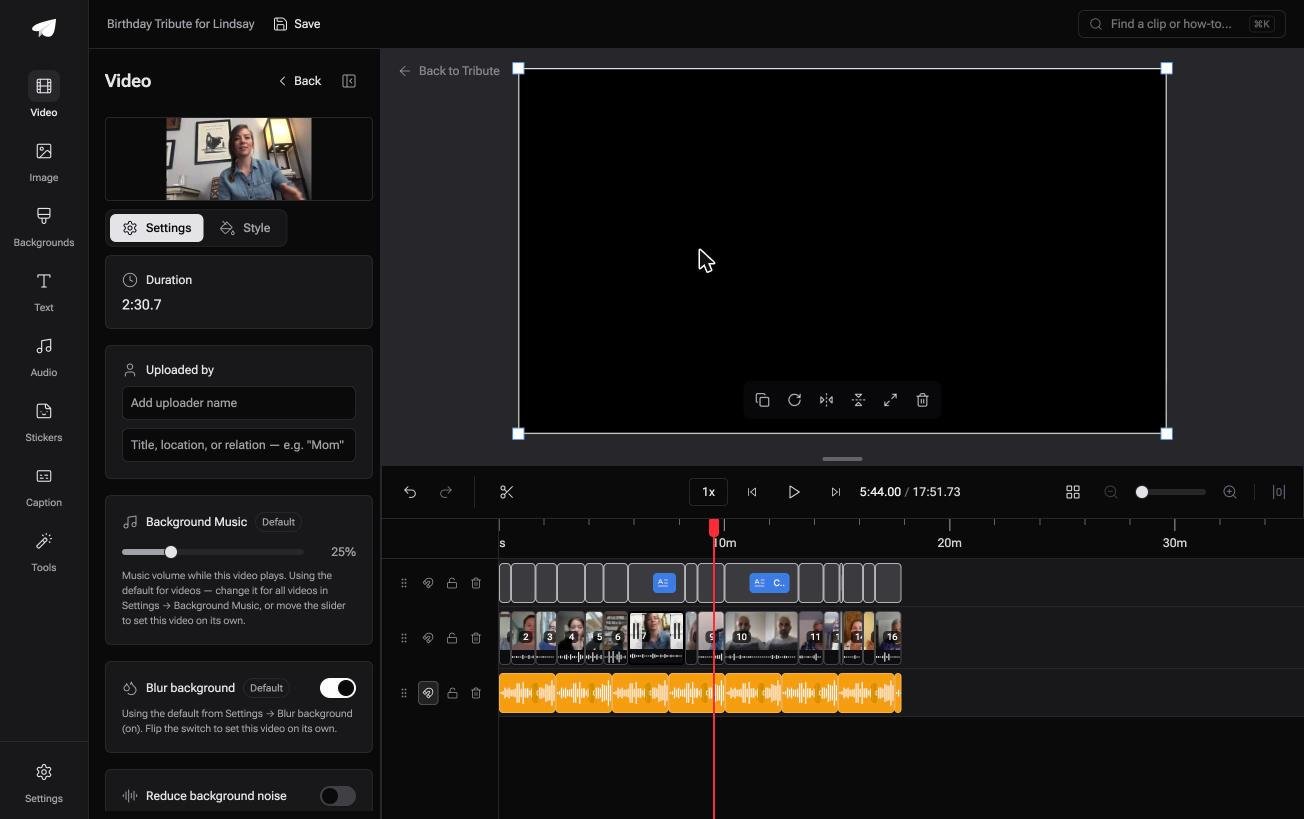
The Tribute video editor is a browser-based group video editor: contributors record clips on their phones and Tribute assembles them on a timeline with the music balanced under the voices.
It is ours, and it arrives last on this page for a reason.
- Music at 25% under speech and 75% under photos by default, with a per-clip override
- 39 licensed tracks across 11 genres, plus a YouTube link or your own MP3, WAV, M4A or FLAC
- A waveform under every clip, so the silence before the first word is visible rather than guessed
- Crossfade songs, a switch that blends one track into the next when the video outlasts a song
Best for: A video whose point is what people said, recorded by ten or more of them in ten or more rooms.
Why it works: The levels are set per clip before you arrive, so the mix is a thing you adjust rather than a thing you build.
Does anyone have to export the audio at all?
Every step above moves sound out of one program so you can put it into another.
That round trip is the real cost of an audio-only export. There is one situation where it never starts.
The case: the sound arrived with the people
You are in it when the words matter more than the pictures and other people recorded them.
A grandmother turning eighty. A colleague leaving after fifteen years. Sixteen voices in sixteen rooms, recorded on sixteen phones, none of them yours.
Why the export never happens
Because the sound and the picture were never apart.
Each clip lands with its own voice, and the music sits under all of them at the level the editor already set. Nothing needs detaching, so nothing needs putting back.
That is how the Tribute video editor handles it, and it is why the Format menu never comes up.
What you do not have to do
- Not the collecting. Each person records from the link, wherever they are.
- Not the detaching. Voice and picture were never apart, so neither has to move.
- Not the levels. Music sits per clip, so a quiet voice gets room without a fader.
- Not the bad audio. On a Concierge Tribute, Eve, the AI assistant inside the editor, cleans up the clip recorded too close to the microphone.
When this is the wrong answer: you want a podcast cut or a sound file to hand to someone else. iMovie's Format menu does that in four clicks. The editor is not a standalone audio tool: it lives inside a paid Tribute.
Frequently Asked Questions
What file does an audio-only export produce?
A single sound file holding the whole mix. Rename it when you save, because the default takes the project name and lands beside every other export you have made.
Why is my exported audio shorter than the project?
The share wrote the selected range rather than the whole movie. Click an empty part of the timeline to drop the selection, then share again.
Can I export audio from iMovie on an iPad?
No. The iPad app shares the iPhone layout, so the share sheet offers video destinations and nothing else. Move the project to a Mac for the audio setting.
Does detaching audio change the original file?
It does not. Detach Audio works on the copy inside the project, so the video in your library keeps its sound whatever you do on the timeline.
How do I keep a song from ending before the video does?
Drag a second copy of the track in after the first and fade the join. A montage tool handles this for you, as in making a video montage.
Can I replace one person's audio without recutting the video?
Yes. Detach the audio on that clip, delete the green bar, then drag the new recording into the same spot. The picture never moves, which matters most in a video tribute built from many contributors.
👉 Get every voice balanced before you hear it if the words are the point and sixteen other people recorded them, and nothing ever has to leave as a sound file.
